Learn how to add, edit and re-order Homepage Slides (Homepage Sliders) at the OEM level. Homepage Slides are the large rotating banners at the top of the homepage, and are sent to all of the relevant dealership websites.
1. How to Navigate to The Homepage Slides Menu
Step 1: Please Login to Dealer Studio.
You will be prompted for your Username and Password
You will be prompted for your 2-Factor Authentication Method, or SSO verification
Step 2: Once Signed in Please Select the Applicable OEM
e.g. Mitsubishi NZ
Step 3: Click 'Marketing' on the left, then 'Homepage Slides'
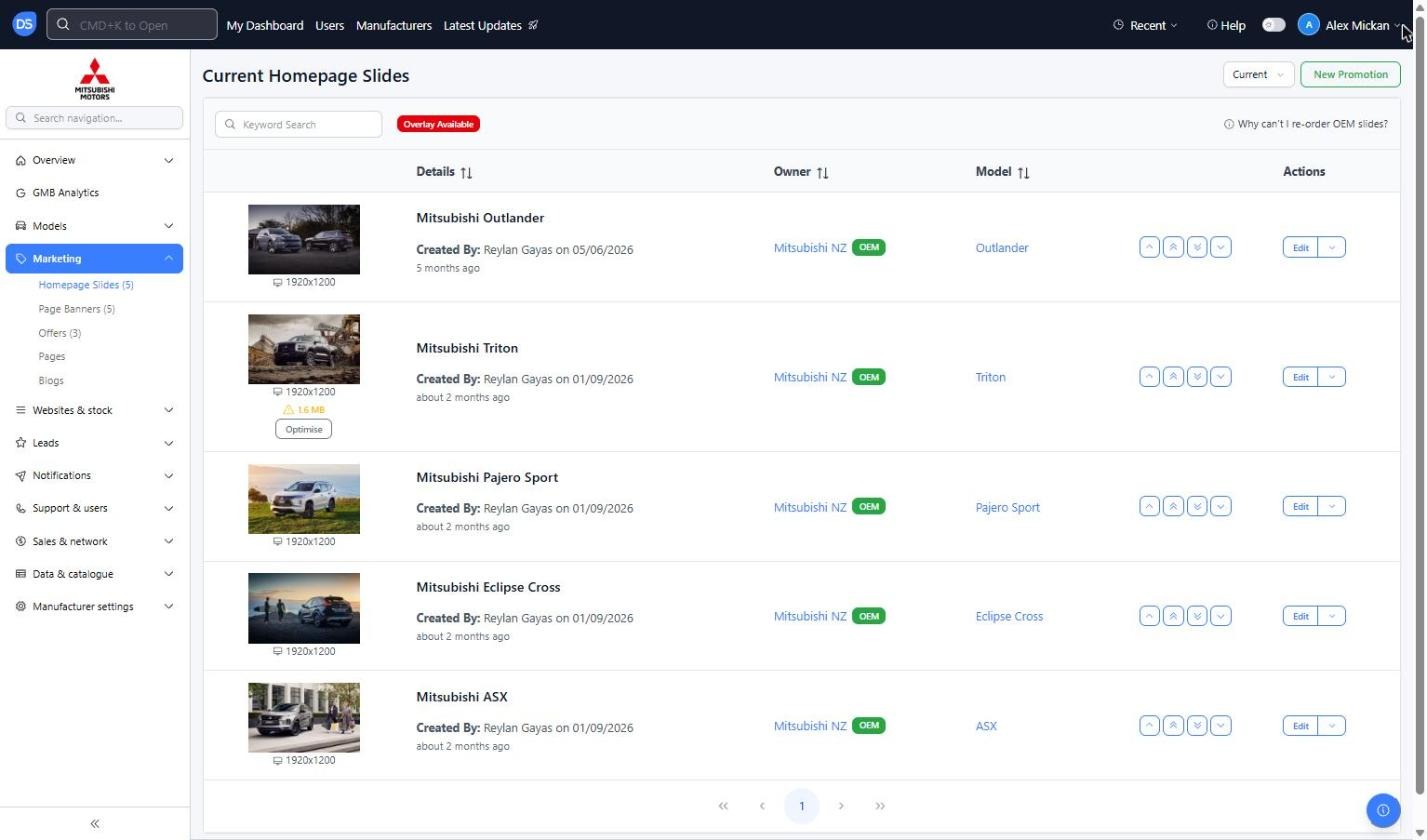
Using Mitsubishi NZ as an example, you can see the current slides, including the image size, who created it, the Owner (OEM) and the linked Model
The 'Current' drop-down at the top right lets you switch between current and expired slides
Use the 'Keyword Search' to find a specific slide
2. How to Add in A New Homepage Slide
Step 1: Once you have Navigated to the Homepage Slides tab, as above
Please click 'New Promotion'
Step 2: Fill in the New Promotion form
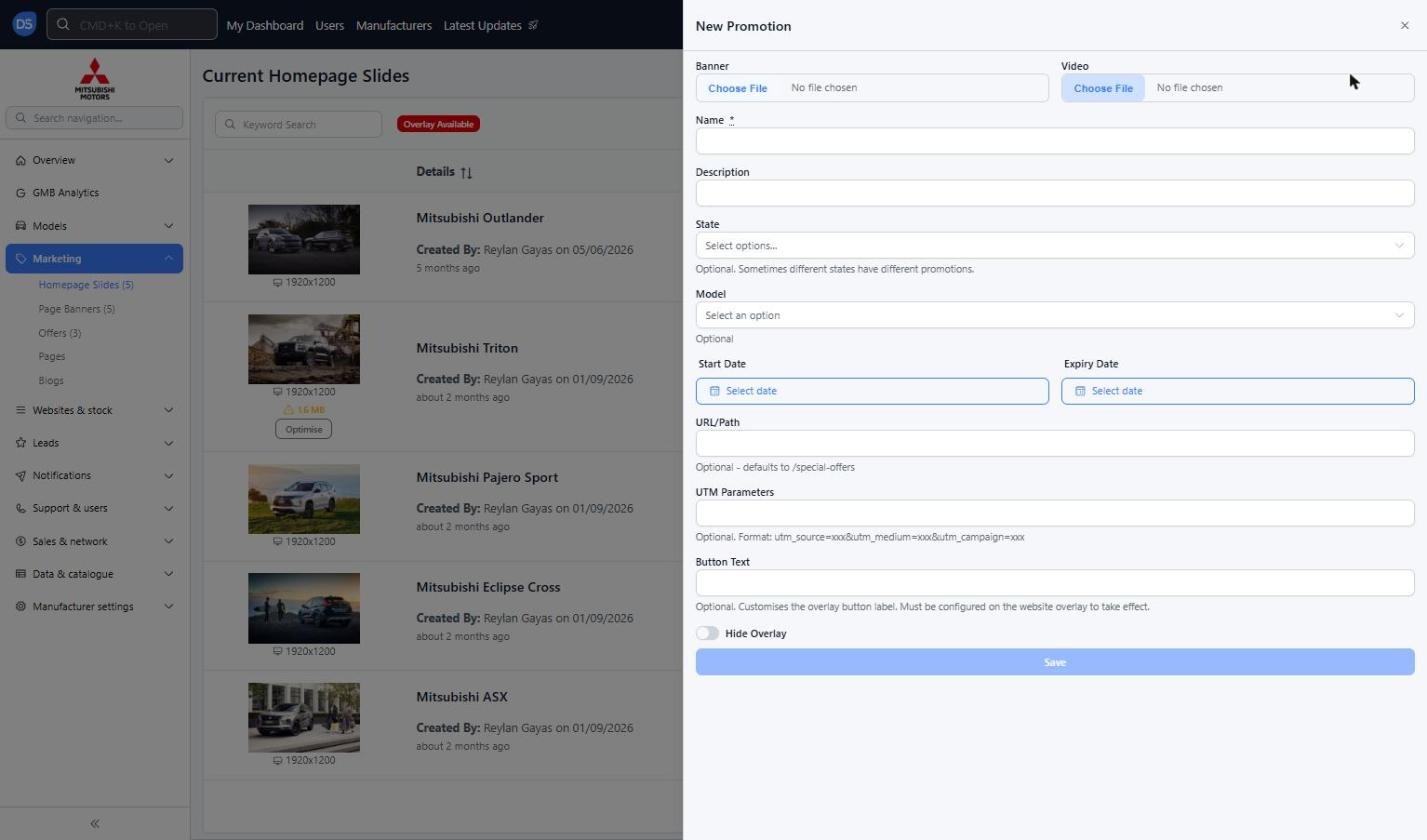
You will see the below options;
Banner: The slide image. Existing slides use 1920x1200, so we recommend uploading images at this size
Video: Optional video to display instead of an image
Name (Required): Name of the slide, e.g. 'Mitsubishi Outlander'
Description: Optional description of the slide
State: Optional. Use this if different regions need different promotions
Model: Optional. Link the slide to a specific model, e.g. Outlander
Start Date: The date the slide will start displaying
Expiry Date: The date the slide will stop displaying
URL/Path: Optional. Where the slide links to when clicked. If left blank it defaults to /special-offers
UTM Parameters: Optional. Used for tracking in analytics. Format: utm_source=xxx&utm_medium=xxx&utm_campaign=xxx
Button Text: Optional. Customises the overlay button label. This must be configured on the website overlay to take effect
Hide Overlay: Toggle on to hide the text/button overlay on this slide
Step 3: Once you have entered all required information for the slide, Please click 'Save'
The slide will now show in the Homepage Slides list
3. How to Edit, Re-order or Manage An Existing Slide
Step 1: Find the slide you want to change on the Homepage Slides list
Click 'Edit' to update the slide
Use the arrow buttons to change the order: 'Move higher', 'Move to top', 'Move to bottom' and 'Move lower'
Click the drop-down arrow next to 'Edit' for more options
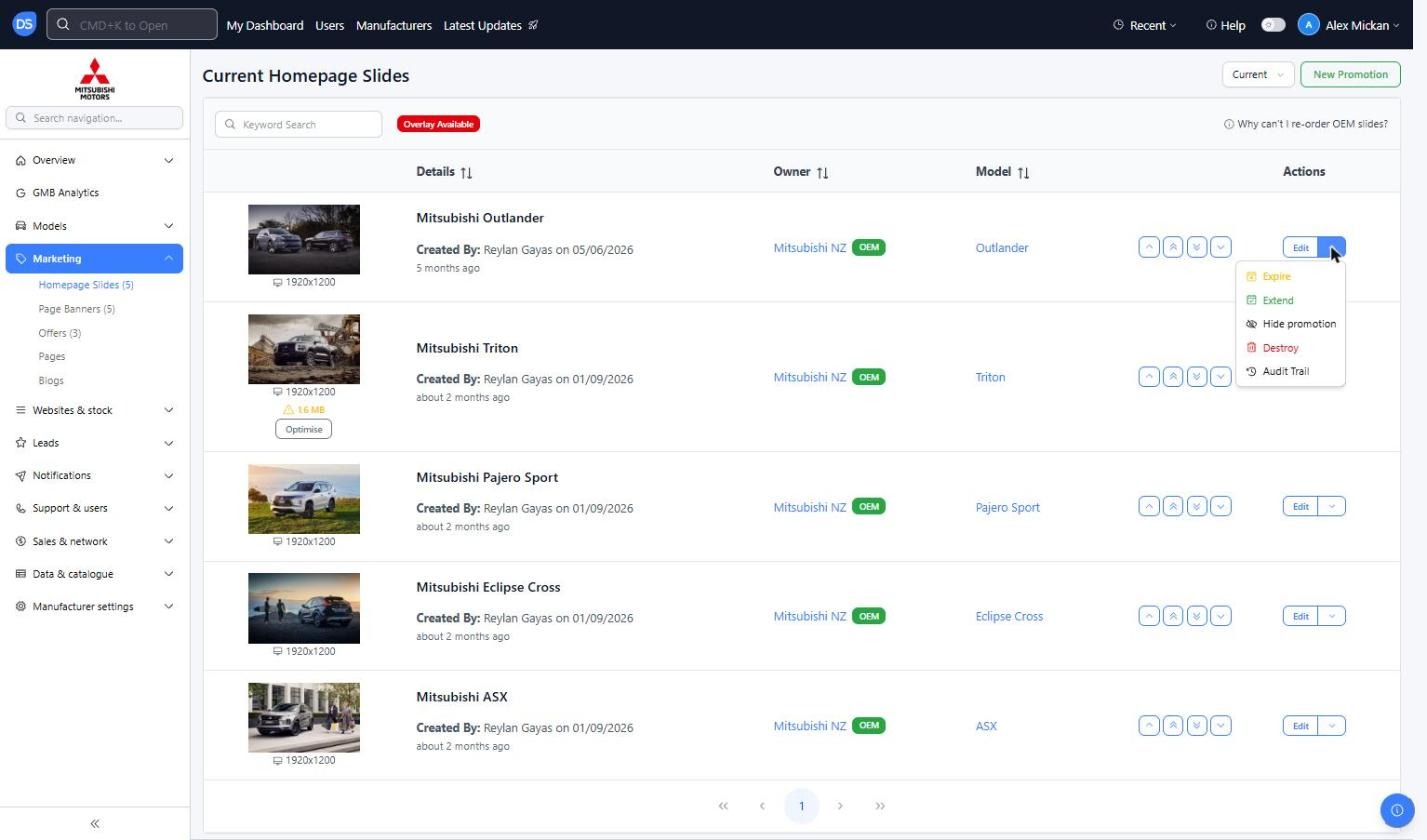
Step 2: Select the action you need
Expire: Stop the slide displaying straight away
Extend: Extend the slide's expiry date
Hide promotion: Hide the slide from the websites without deleting it
Destroy: Permanently delete the slide
Audit Trail: See who has made changes to the slide and when
Reminder: If a slide shows a file size warning (e.g. 1.6 MB) with an 'Optimise' button underneath the image, click 'Optimise' to reduce the file size so the homepage loads faster. If you can't re-order a slide, click 'Why can't I re-order OEM slides?' at the top right of the list.
Was this article helpful?
That’s Great!
Thank you for your feedback
Sorry! We couldn't be helpful
Thank you for your feedback
Feedback sent
We appreciate your effort and will try to fix the article