Learn how to add, edit and manage Page Banners at the OEM level. Page Banners display promotional images or videos at the top of specific pages (e.g. About Us, Finance, Service) across all of the relevant dealership websites.
1. How to Navigate to The Page Banners Menu
Step 1: Please Login to Dealer Studio.
You will be prompted for your Username and Password
You will be prompted for your 2-Factor Authentication Method, or SSO verification
Step 2: Once Signed in Please Select the Applicable OEM
e.g. Mitsubishi NZ
Step 3: Click 'Marketing' on the left, then 'Page Banners'
Using Mitsubishi NZ as an example, you can see the currently active banners, grouped by page and banner type (e.g. 'About Us - Standard Banner')
The 'Current' drop-down at the top right lets you switch between current and expired banners
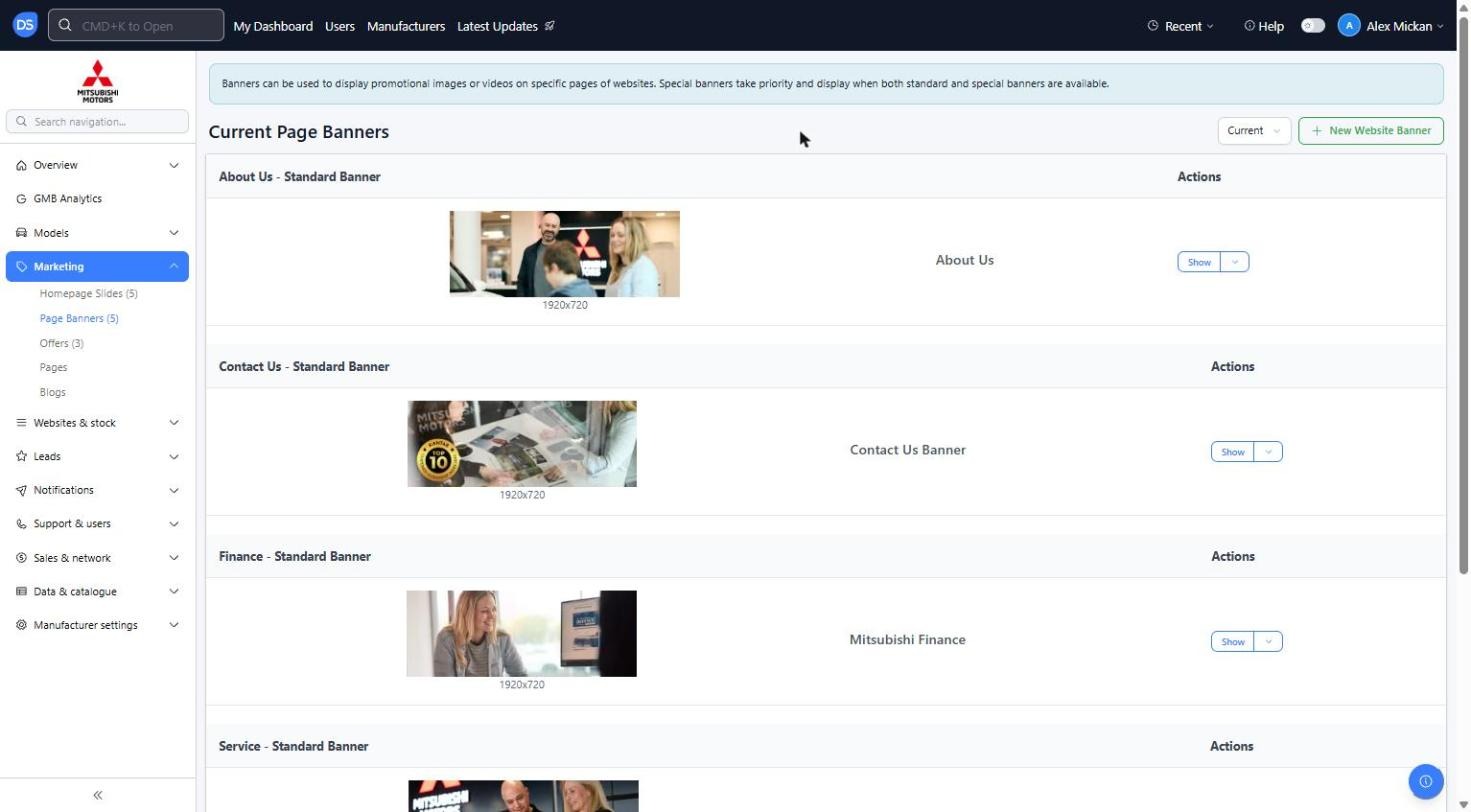
2. How to Add in A New Banner
Step 1: Once you have Navigated to the Page Banners tab, as above
Please click '+ New Website Banner'
Step 2: Fill in the New Website Banner form
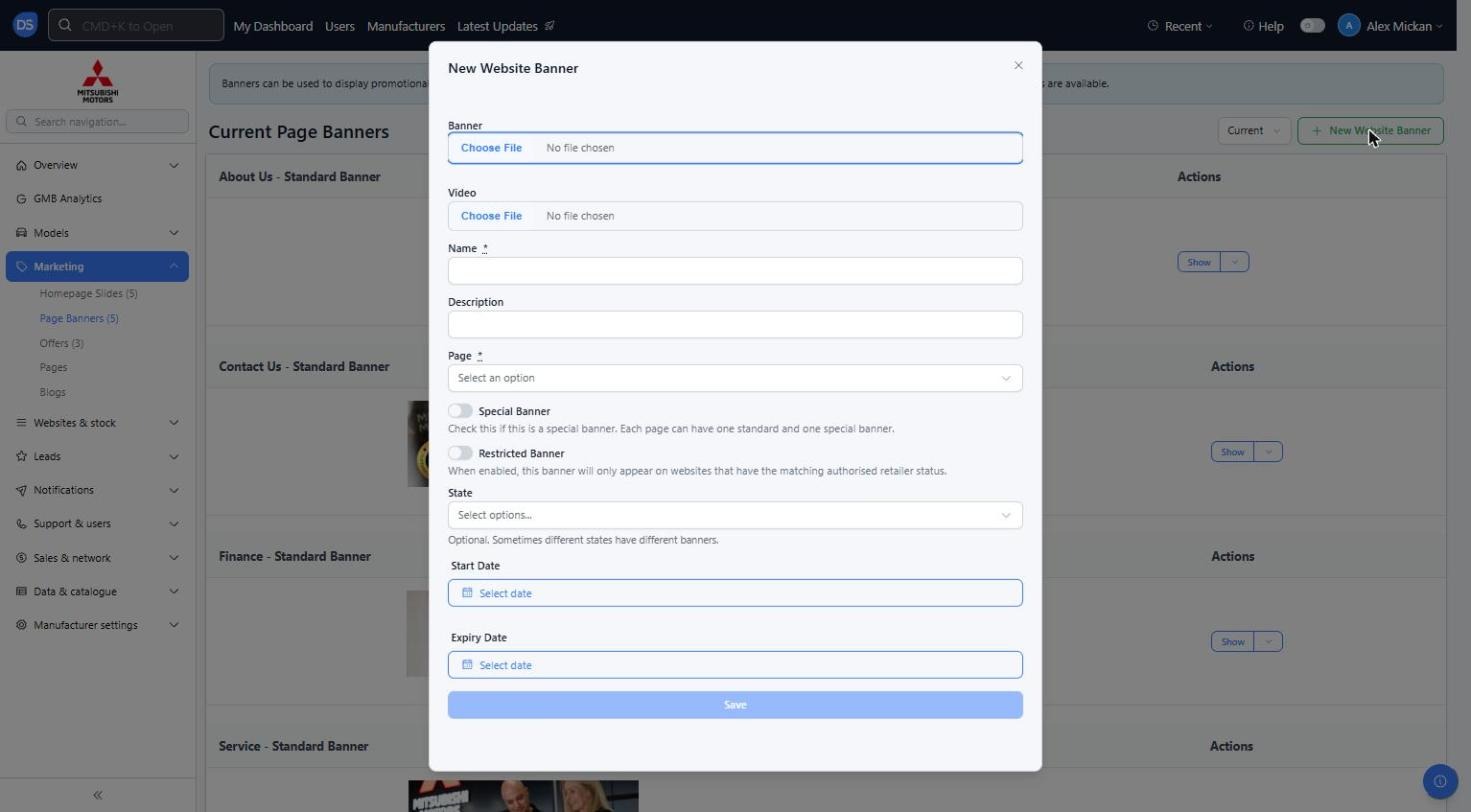
You will see the below options;
Banner: The banner image. Existing banners use 1920x720, so we recommend uploading images at this size
Video: Optional video to display as the banner instead of an image
Name (Required): Internal name for the banner, e.g. 'Mitsubishi Finance'
Description: Optional description of the banner
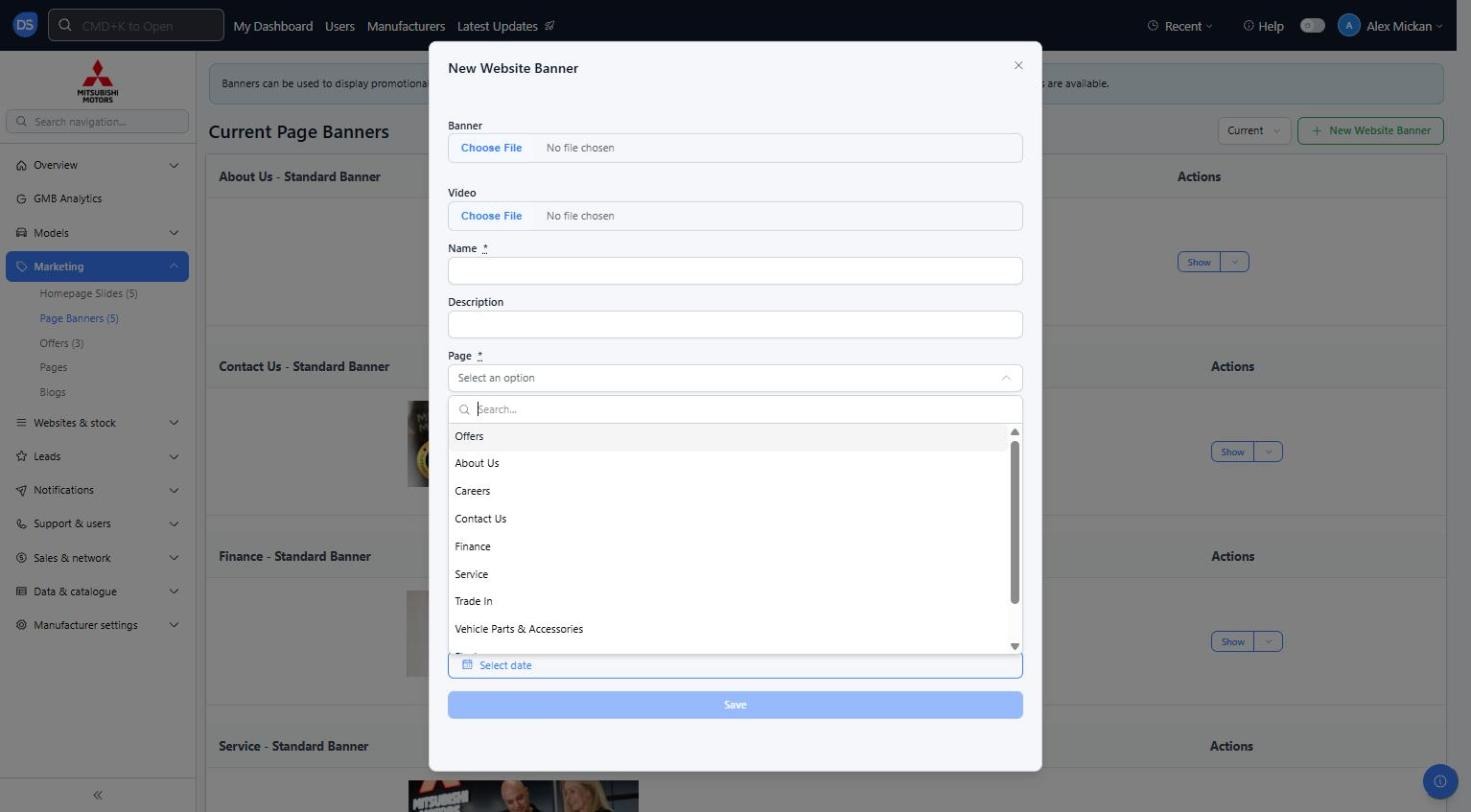
Page (Required): The website page the banner will display on. Options include Offers, About Us, Careers, Contact Us, Finance, Service, Trade In, Vehicle Parts & Accessories, Fleet and Model Page
Special Banner: Toggle on if this is a special banner. Each page can have one standard and one special banner. Special banners take priority and display when both a standard and special banner are available
Restricted Banner: When enabled, this banner will only appear on websites that have the matching authorised retailer status
State: Optional. Use this if different regions need different banners
Start Date: The date the banner will start displaying
Expiry Date: The date the banner will stop displaying
Step 3: Once you have entered all required information for the banner, Please click 'Save'
The banner will now show under the relevant page heading on the Page Banners list
3. How to Edit or Manage An Existing Banner
Step 1: Find the banner you want to change on the Page Banners list
Click 'Show' to view the banner
Click the drop-down arrow next to 'Show' for more options
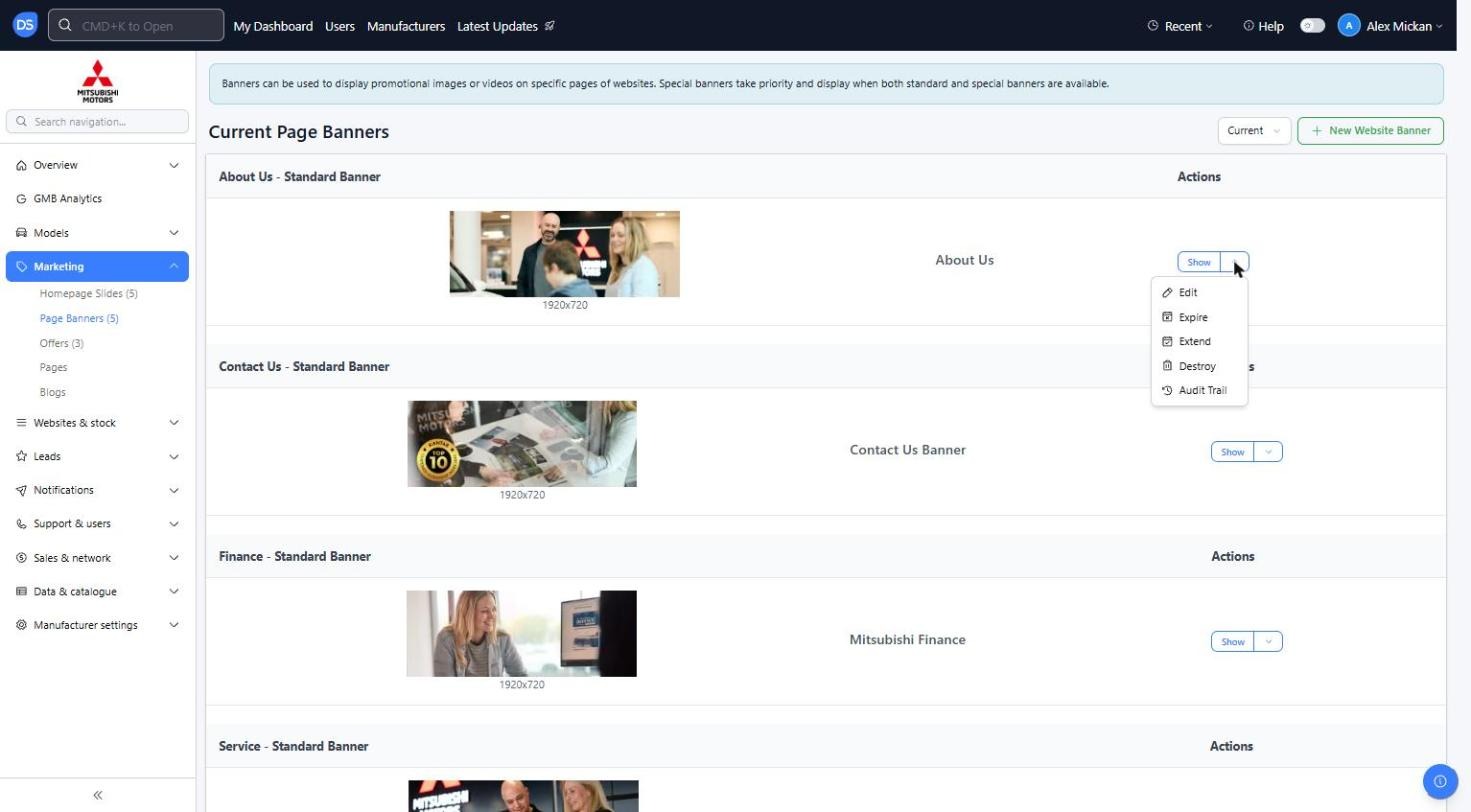
Step 2: Select the action you need
Edit: Update the image, video, name, page, dates or other details
Expire: Stop the banner displaying straight away
Extend: Extend the banner's expiry date
Destroy: Permanently delete the banner
Audit Trail: See who has made changes to the banner and when
Reminder: Special banners take priority over standard banners on the same page. If a standard banner isn't showing on the live site, check whether a special banner is active for that page.
Was this article helpful?
That’s Great!
Thank you for your feedback
Sorry! We couldn't be helpful
Thank you for your feedback
Feedback sent
We appreciate your effort and will try to fix the article