This article explains how to customize the appearance of your page by changing the colour of text, headings, and backgrounds in the Pages Editor. It covers selecting the element, accessing the colour settings, and applying your desired colours to ensure a consistent and visually appealing design. Perfect for users who want to maintain brand style or improve page readability without coding.
Step 1: On the Dealership Dashboard, select Websites
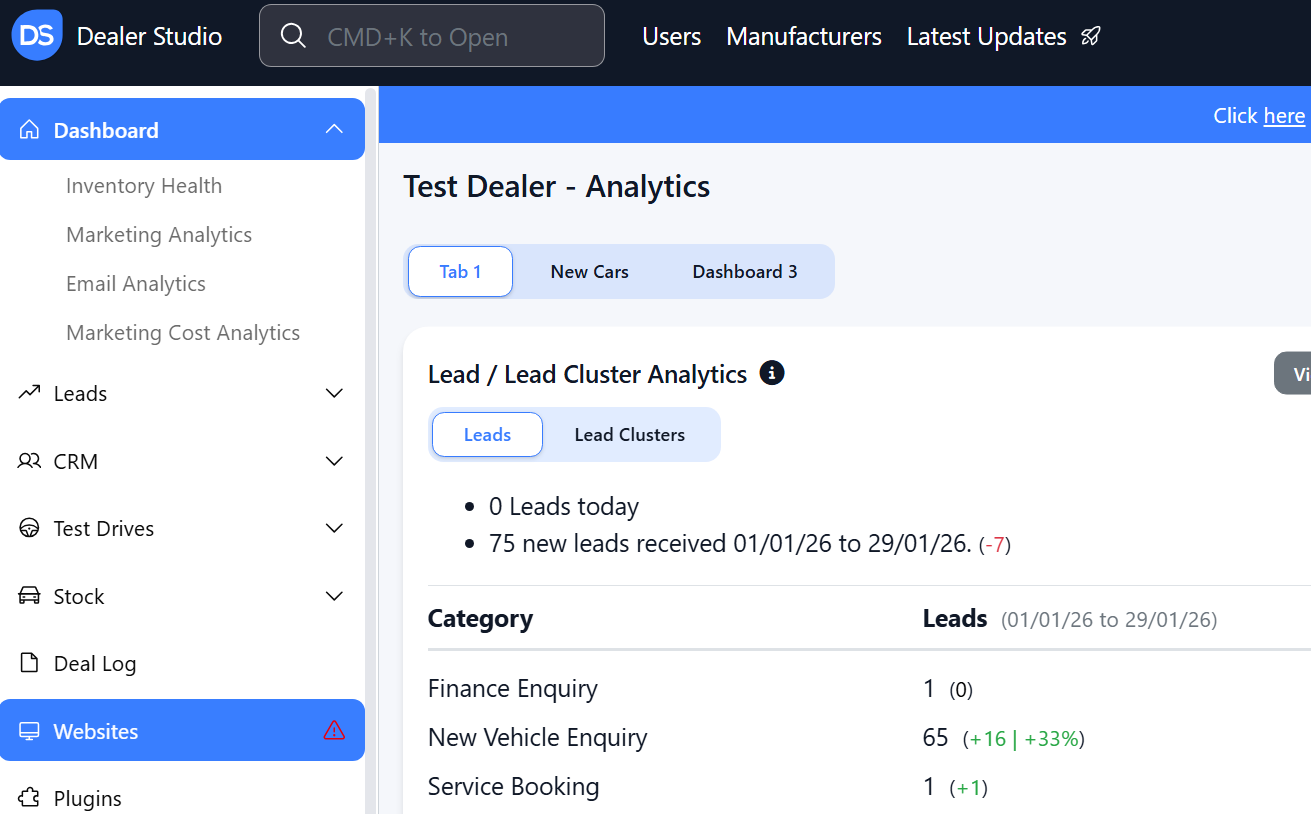
Step 2: Select the Desired Website to edit
Step 3: Once on the Website Dashboard, select Pages
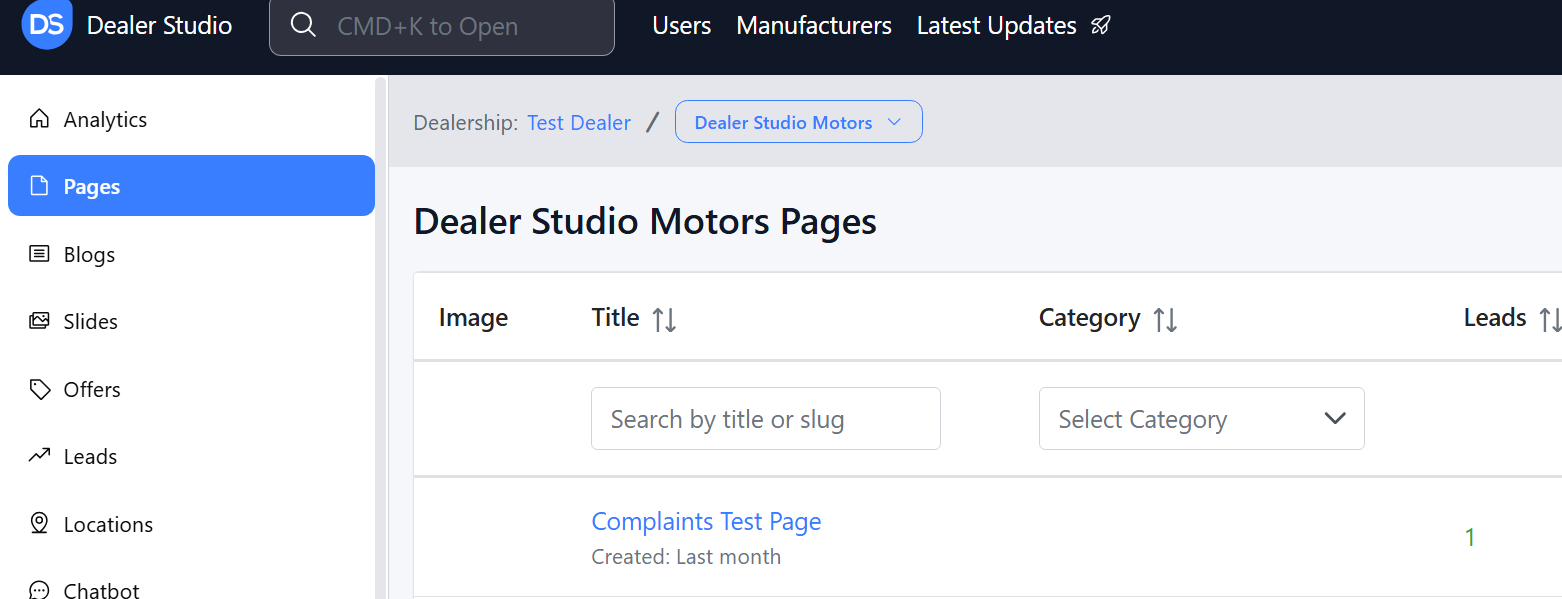
Step 4: Select the page you want to edit
How to Change Colour of Text and Headings
1. Once you have navigated to your page, enter some text

2. Hover over your text until the 6 dots appear, then scroll to 'Text Colour'
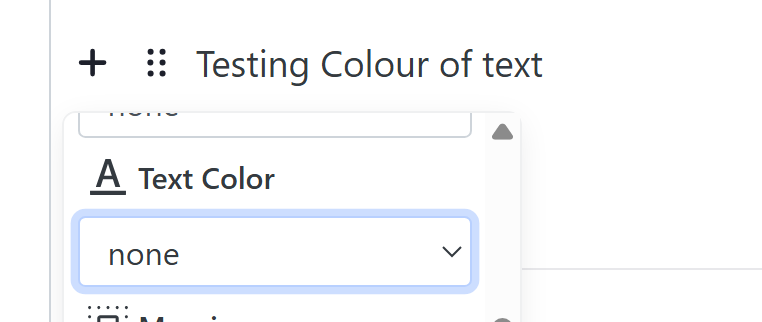
3. Alter the Colour
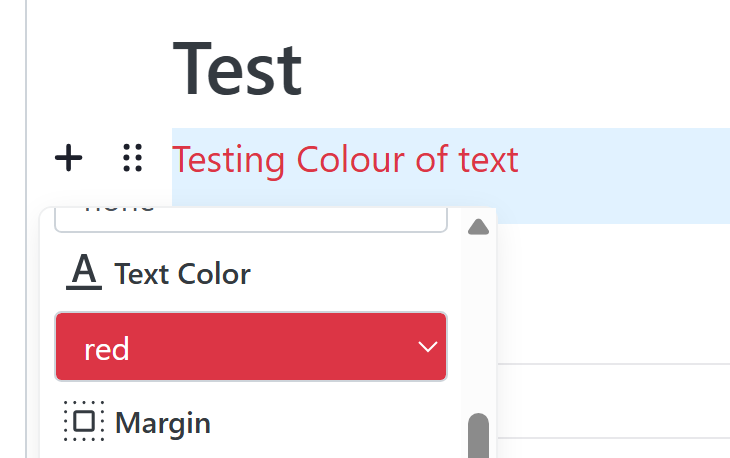
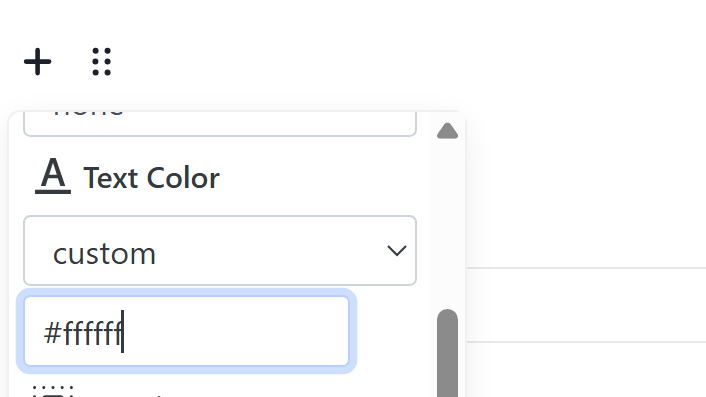
4. You Can also action custom colours;
How to Change Colour of Backgrounds
1. Once you have navigated to your page, enter some text
2. Hover over your text until the 6 dots appear, then scroll to 'Background'
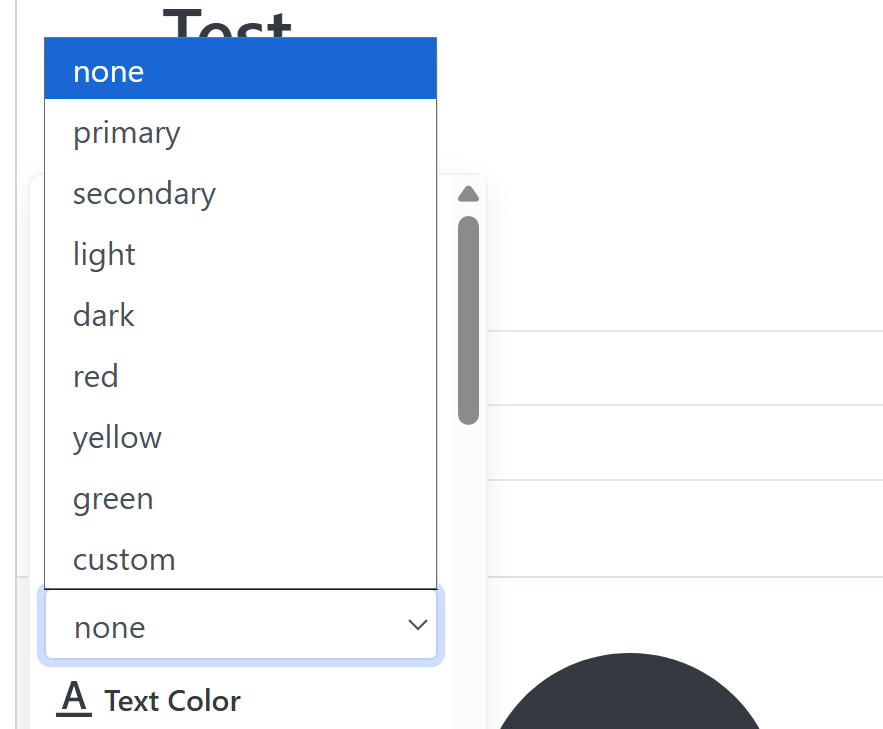
3. Alter the Colour- it will fill in the entire background

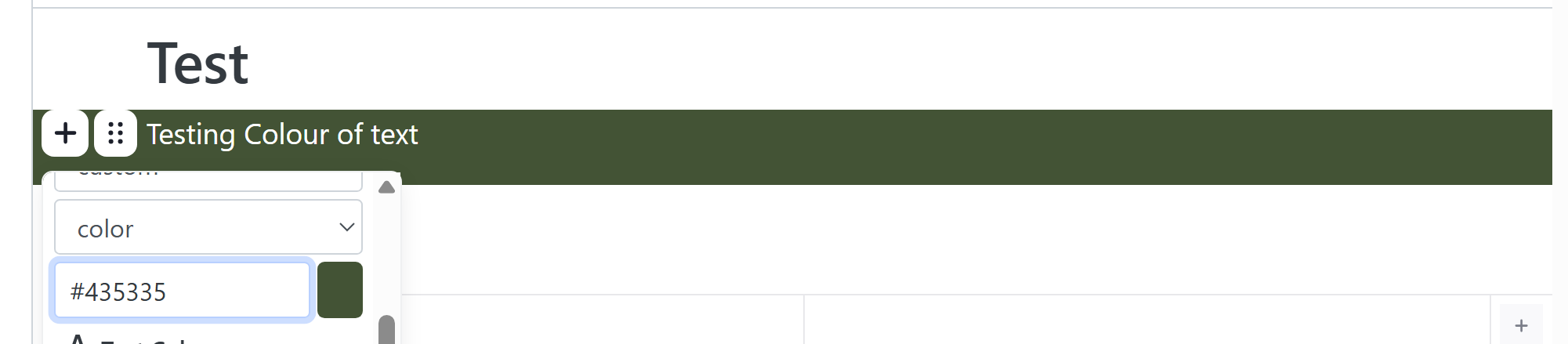
4. You Can also action custom colours;
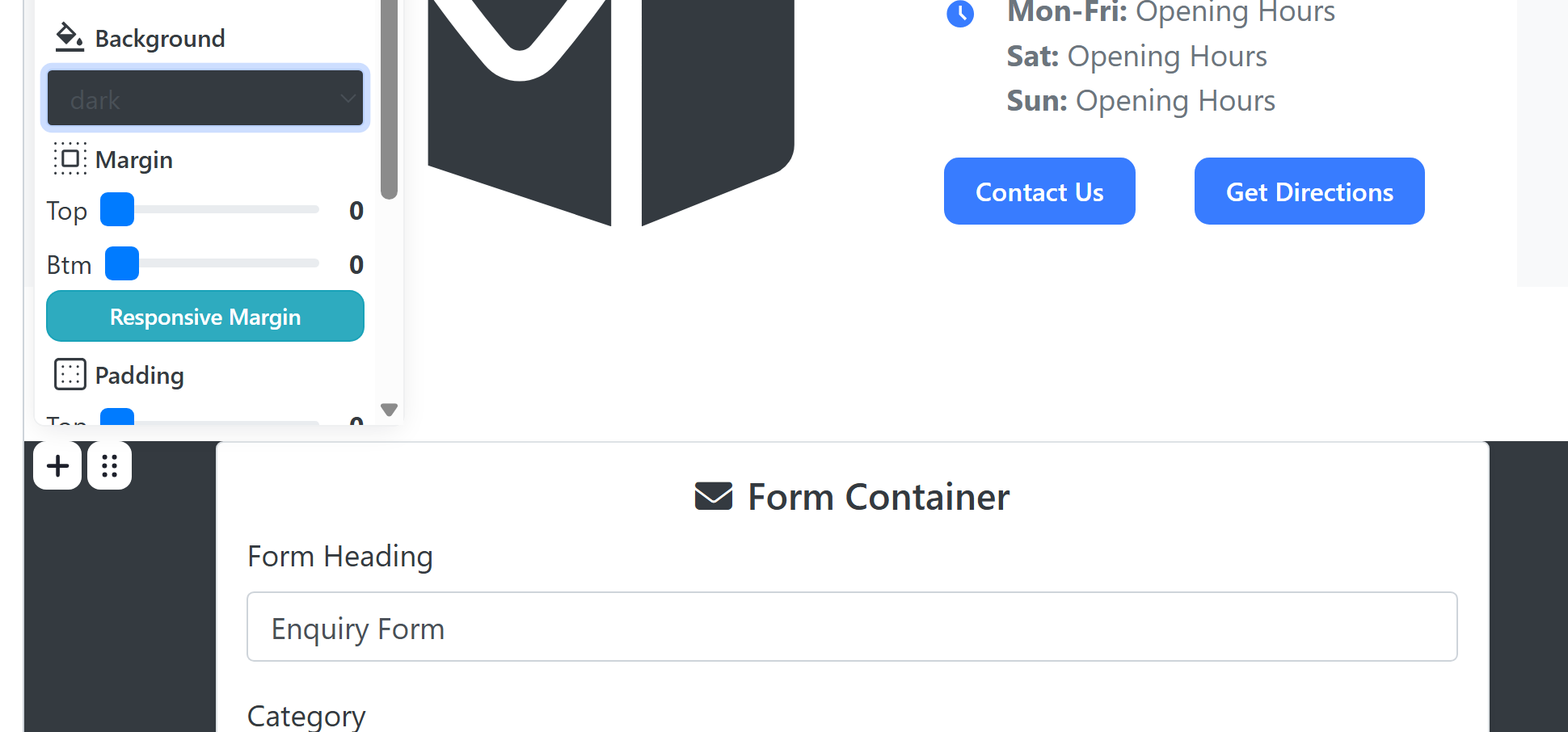
5. You can also change backgrounds for forms and other components;
Was this article helpful?
That’s Great!
Thank you for your feedback
Sorry! We couldn't be helpful
Thank you for your feedback
Feedback sent
We appreciate your effort and will try to fix the article