The Team Page allows you to display selected team members on your website using a dedicated, dynamic template. Before creating a Team Page, you must ensure your team information is fully set up at the Dealer Level.
Before You Begin
The CMS/Dashboard has two levels:
Dealer Level – where team data is created and managed
Website Level – where pages are built and published
Make sure you are on the Dealer Level first.
Verify Your Team Setup
On the left-hand sidebar, go to Team.
IMPORTANT:
Ensure all team members, roles, profiles, category (department) and positions are set up correctly.
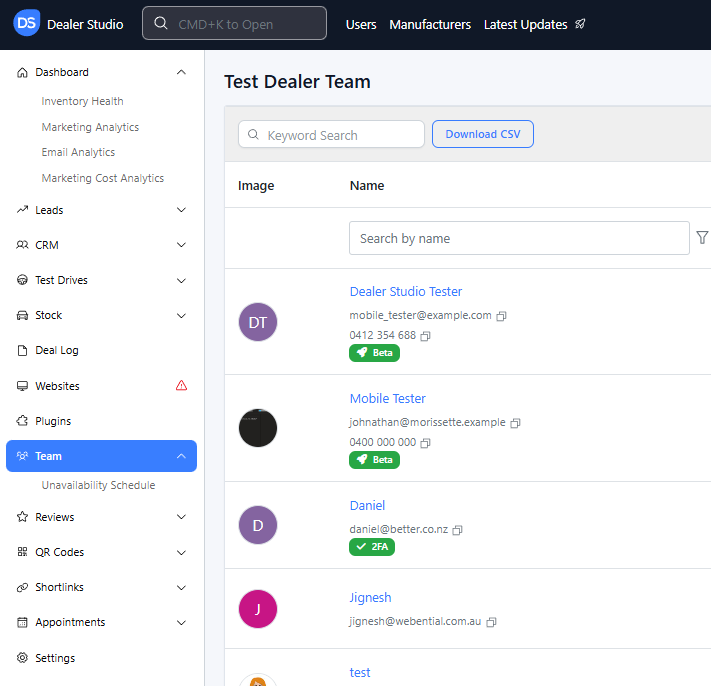
If you need guidance on Team setup, visit: Team Dashboard: A Quick Guide
Once your team is set up, you're ready to build the Team Page.
Step 1: Select the Website
From the Dealer Level, go to Websites on the left sidebar.
Select the website where you want the Team Page to appear.
After selecting, you are on the Website Level.
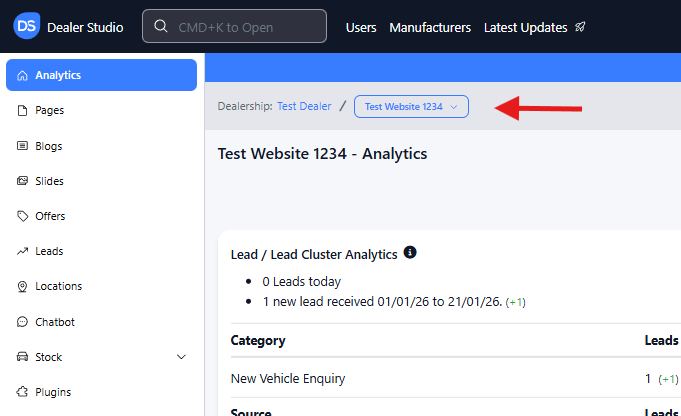
Step 2: Create a New Team Page
On the Website Level, go to Pages in the left-hand sidebar.
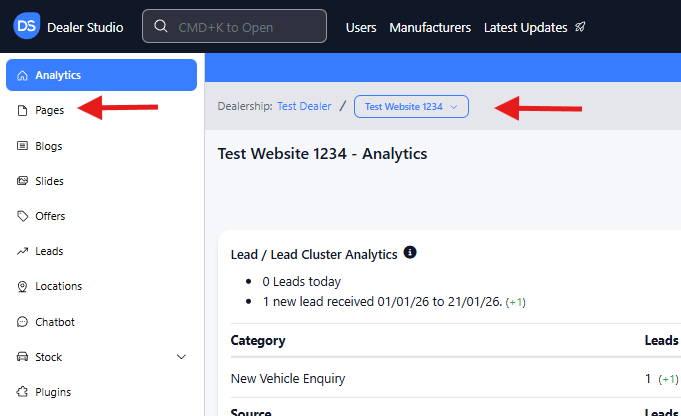
Click + New Page in the top-right corner.
Configure the new page as follows:
Page Type: Dynamic Template
Page Category: Team
Dynamic Template: Team
Title: Enter a page name (e.g., Team)
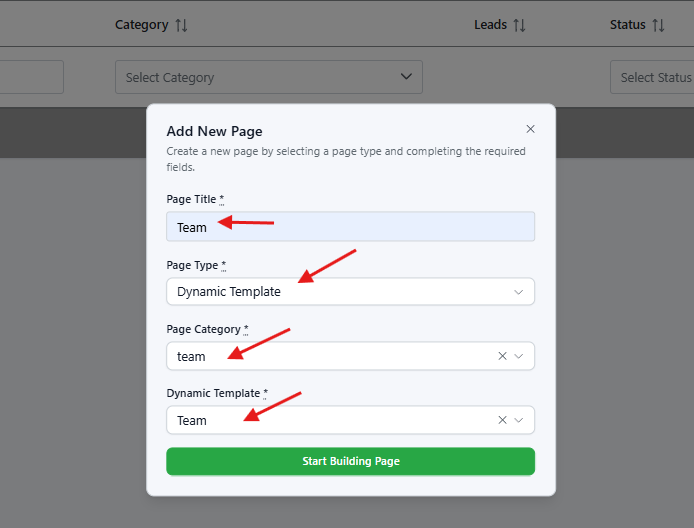
Click Start Building Page.
Step 3: Configure the Team Component
You are now in the Page Editor. The template includes a set of pre-built components to help you get started.
Identifying Components
Hover your mouse over any component.
On the left side of the component, you’ll see a six-dot icon (commonly referred to as the “chocolate bar”).
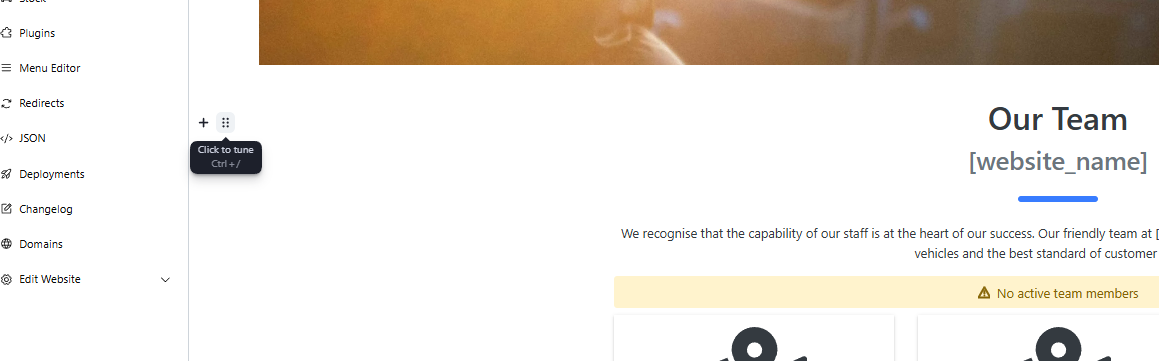
Click the chocolate bar to see the component type.
Editing the Team Component
Find the Team component.
Click the chocolate bar → Edit Settings.
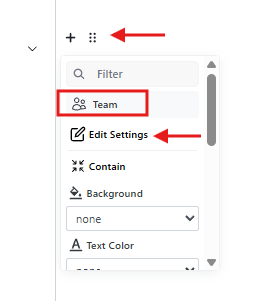
In the settings panel, choose which team profiles you want to display on the website.
For example, toggle Management if you only want management staff to appear.
When done, click the X (close) button in the top-right corner of the settings panel.
Step 4: Preview, Save, and Publish
At the top-right of the Page Editor, you will see three buttons:
Preview
Save
Publish
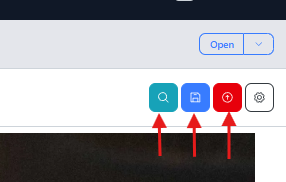
Previewing the Page
If you want to preview the page before publishing:
Click Save
Then click Preview
If you skip the Save step, your changes will not appear in Preview.
Publishing the Page
Click Publish to make the page live.
Publishing automatically saves your changes — no need to click Save first.
After publishing, click the URL displayed in the center to view the live page.
Note: The version displayed inside the Page Editor may differ from the live website until the page has been published.
That’s It!
You have successfully created a Team Page. By default, your Team Page URL will always end with '/team'
Your website will now automatically pull and display team information based on your team settings and filters.
Was this article helpful?
That’s Great!
Thank you for your feedback
Sorry! We couldn't be helpful
Thank you for your feedback
Feedback sent
We appreciate your effort and will try to fix the article