Using the Page Editor, you can easily embed videos from popular platforms, customise their display settings, and adjust placement to fit your page layout. You can control autoplay, looping, and sizing to ensure your videos look professional and enhance your overall page design.
Follow the steps below to learn how to add and customise videos effectively on your pages.
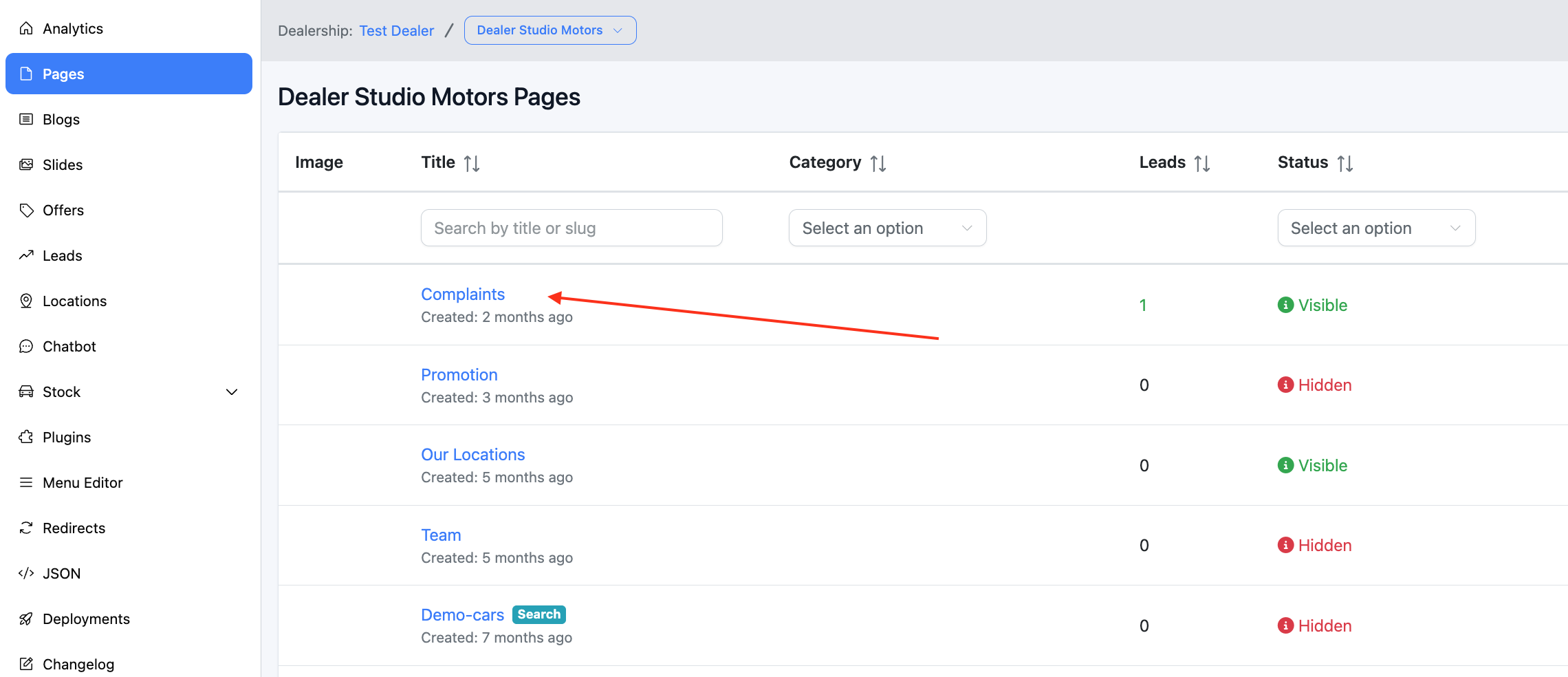
Finding the Page Editor
Select the page you want to edit
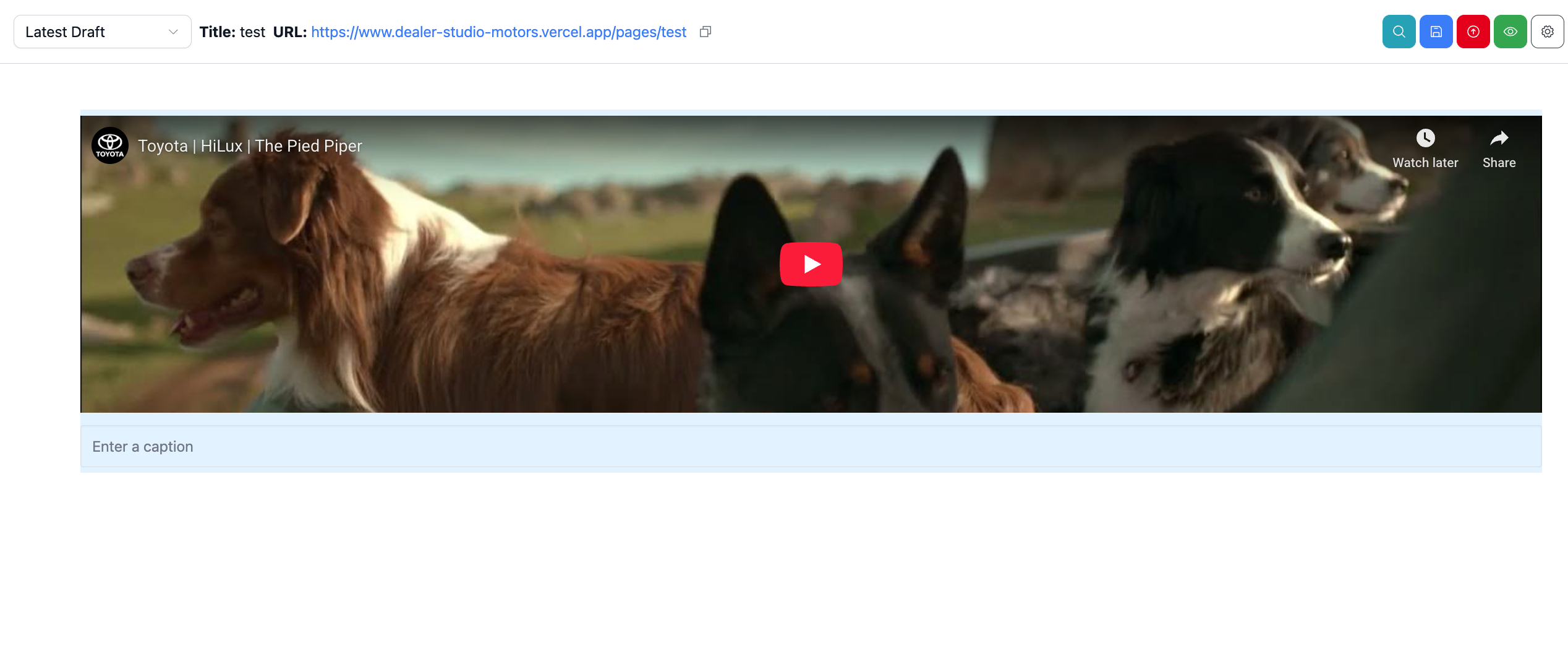
Adding Videos from Youtube, Vimeo, etc
Simply copy and paste the video URL and it will embed on the page.
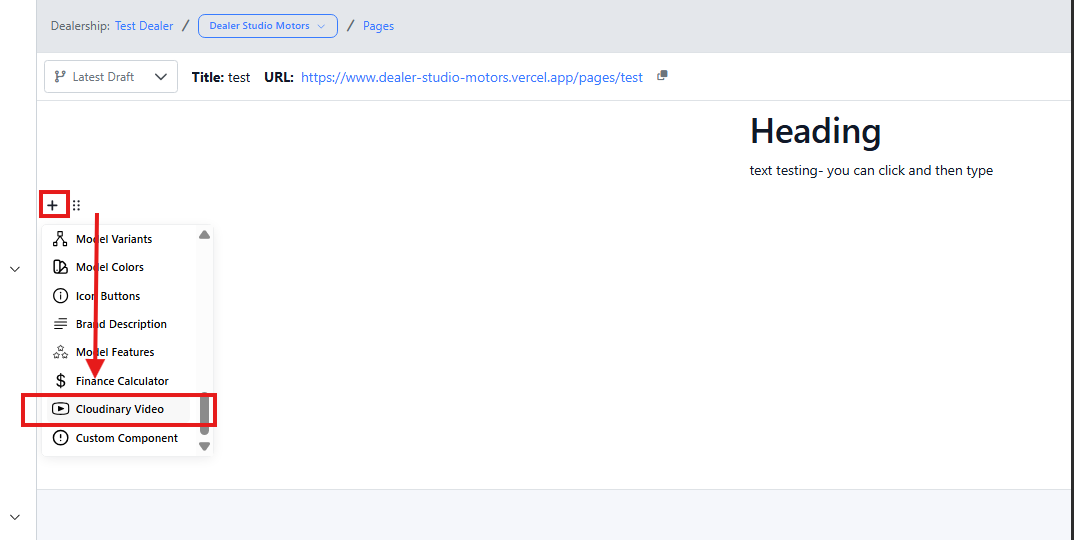
Adding Videos through Cloudinary
Navigate to the desired area of the page. Hover your mouse over the left-hand side until the + icon appears. Click on the icon, then scroll down and select the Cloudinary Video button.
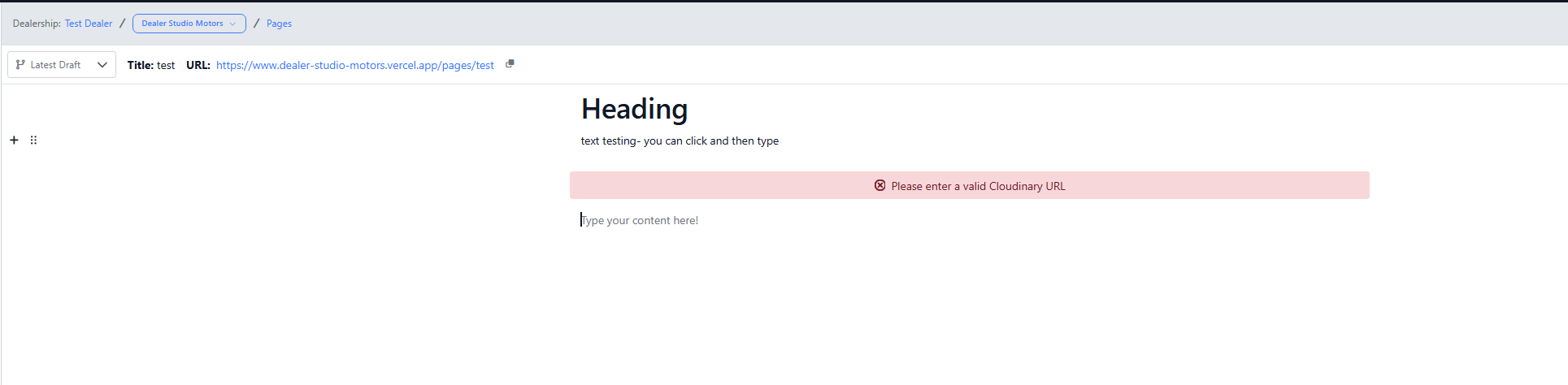
Enter the Cloudinary URL
Was this article helpful?
That’s Great!
Thank you for your feedback
Sorry! We couldn't be helpful
Thank you for your feedback
Feedback sent
We appreciate your effort and will try to fix the article