This article explains how to stop the carsales stock feed and control where your vehicle inventory is distributed, including managing feeds into Dealer Studio for your website. It covers inventory publishing options and how to manage stock distribution settings.
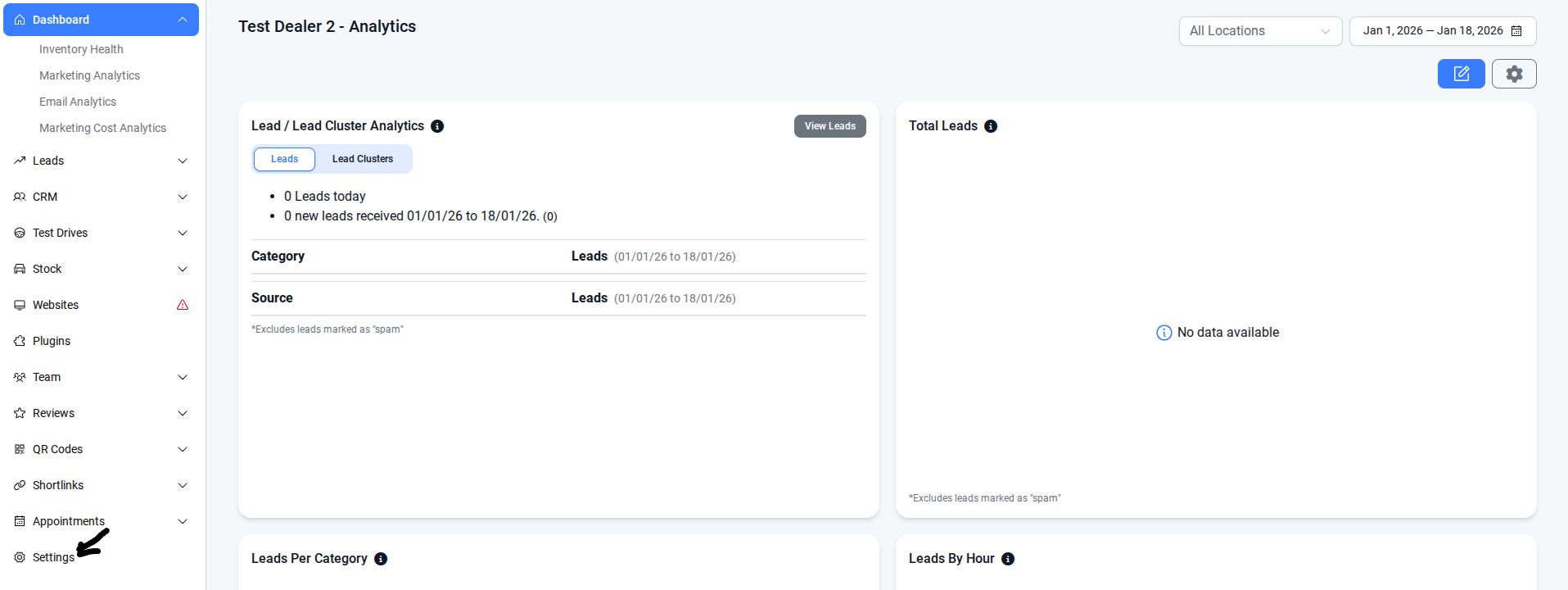
#Step 1: On the Dealership Dashboard, select Setting on the Left-hand menu
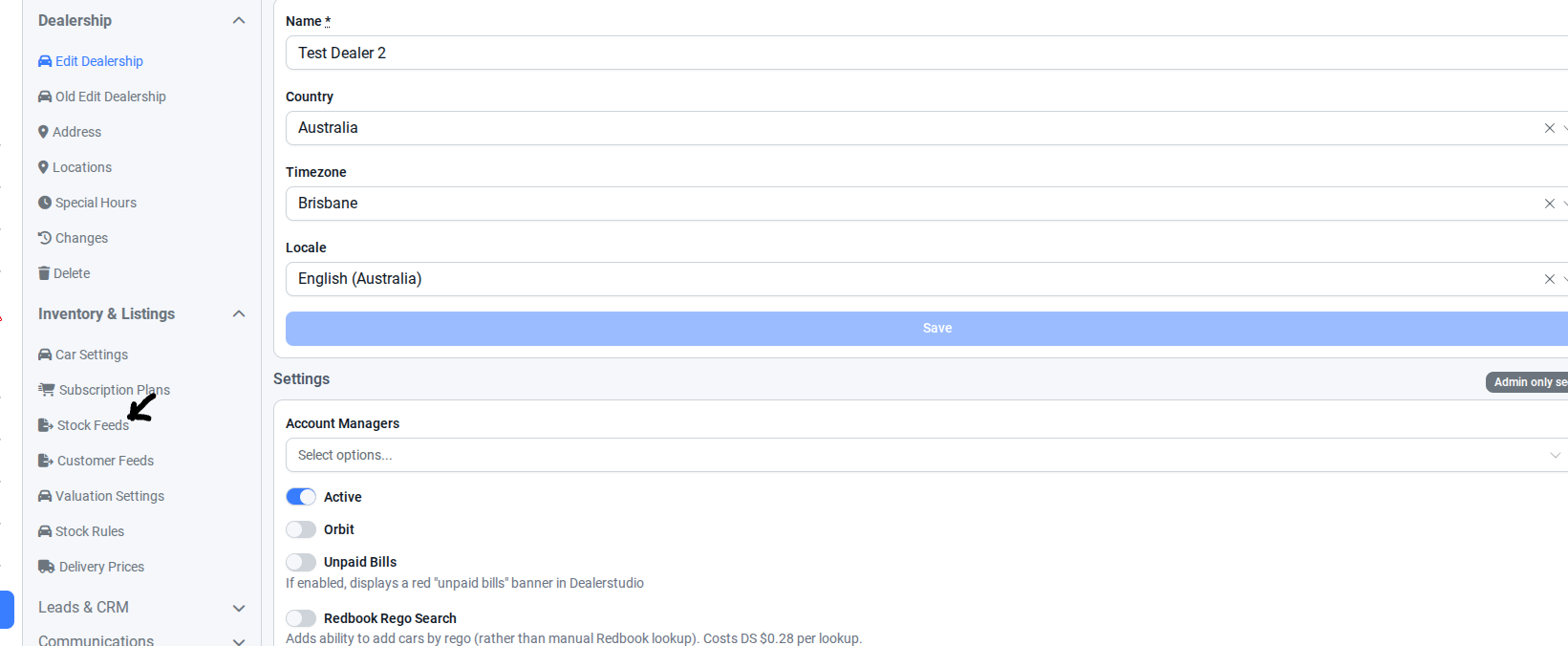
#Step 2: In Settings, go to Inventory & Listings and select Stock Feeds.
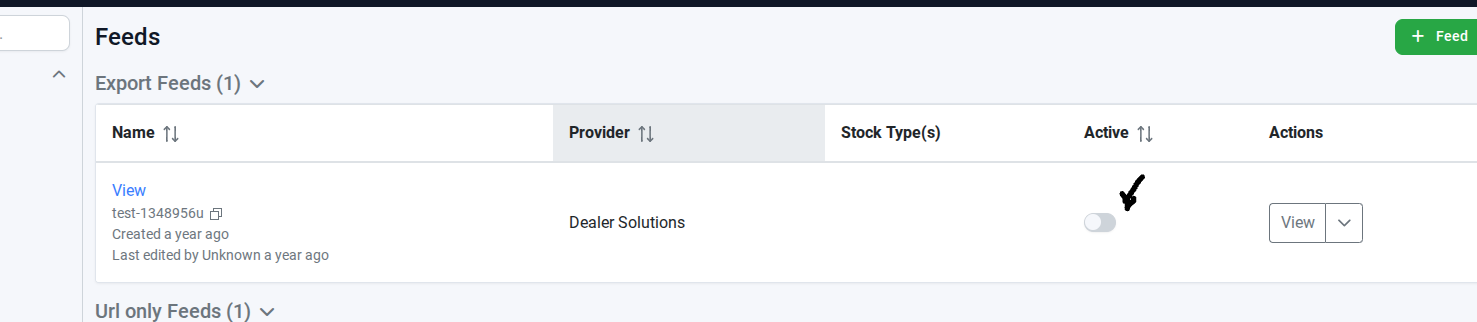
#Step 3: In Export Feeds, turn off the Active feature
#Manage Stock Feeding to Dealer Studio
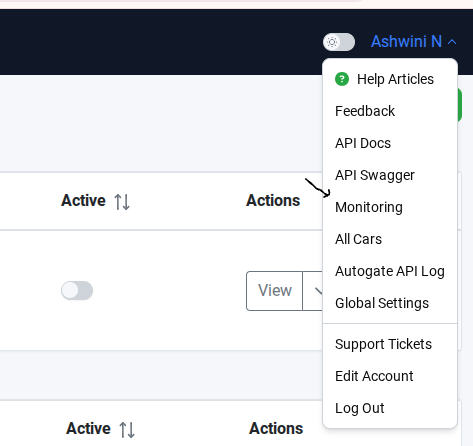
Step 1: On the Right-hand side, under your username, select Monitoring.
Step 2: In Inventory, select Carsales Account.
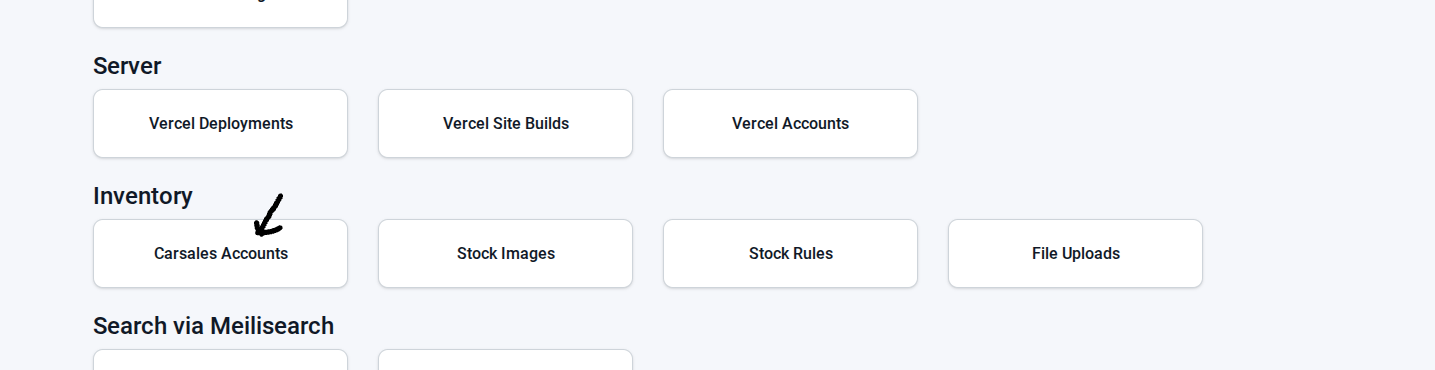
Step 3: In Carsales Accounts, search for the correct name and turn On Accept Cars.
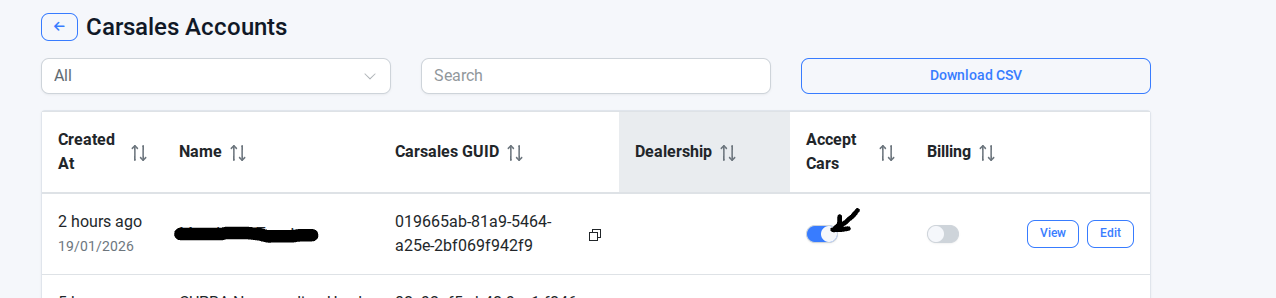
Once these steps are completed, your inventory and Carsales settings will be correctly configured. This ensures that stock feeds are accurate, export feeds are properly managed, and your Carsales account is ready to accept vehicles. Following these steps will help keep your listings up to date and your inventory workflow running smoothly.
Was this article helpful?
That’s Great!
Thank you for your feedback
Sorry! We couldn't be helpful
Thank you for your feedback
Feedback sent
We appreciate your effort and will try to fix the article