Summary
This Article outlines the process for onboarding requests received from the AutoTrader team. It includes contact details for feed providers, the procedures followed by the support team, and configuration details for the AutoTrader feed. The key contacts for the onboarding process and the AutoTrader team are Kaz and Sabrina.
| Provider | Type (FTP/API) | Contact Details / FTP Details |
|---|---|---|
| Carsales | (GUID) Handled by Autotrader | support@carsales.net.au |
| Indiqator | FTP | help@indiqator.com.au | Cox Autotrader |
| Dealer Studio | Internal | Skip provider contact |
| Units / Auto-IT | FTP | support@auto-it.com | units |
| Tune | API | — |
| UBS/CDS | FTP | helpdesk@ultimate.net.au | ubsautotrader |
| Virtual Yard | API | support@virtualyard.com.au |
| EasyCars | FTP | support@jeal.com.au | easycarsautotrader |
| Digital Dealer | FTP | support@digitaldealer.com.au | Digital Dealer Autotrader |
| UBS | FTP | helpdesk@ultimate.net.au | ubsautotrader |
| Titan | API | support@titandms.com.au |
Step-by-Step Process
1 Autotrader Request
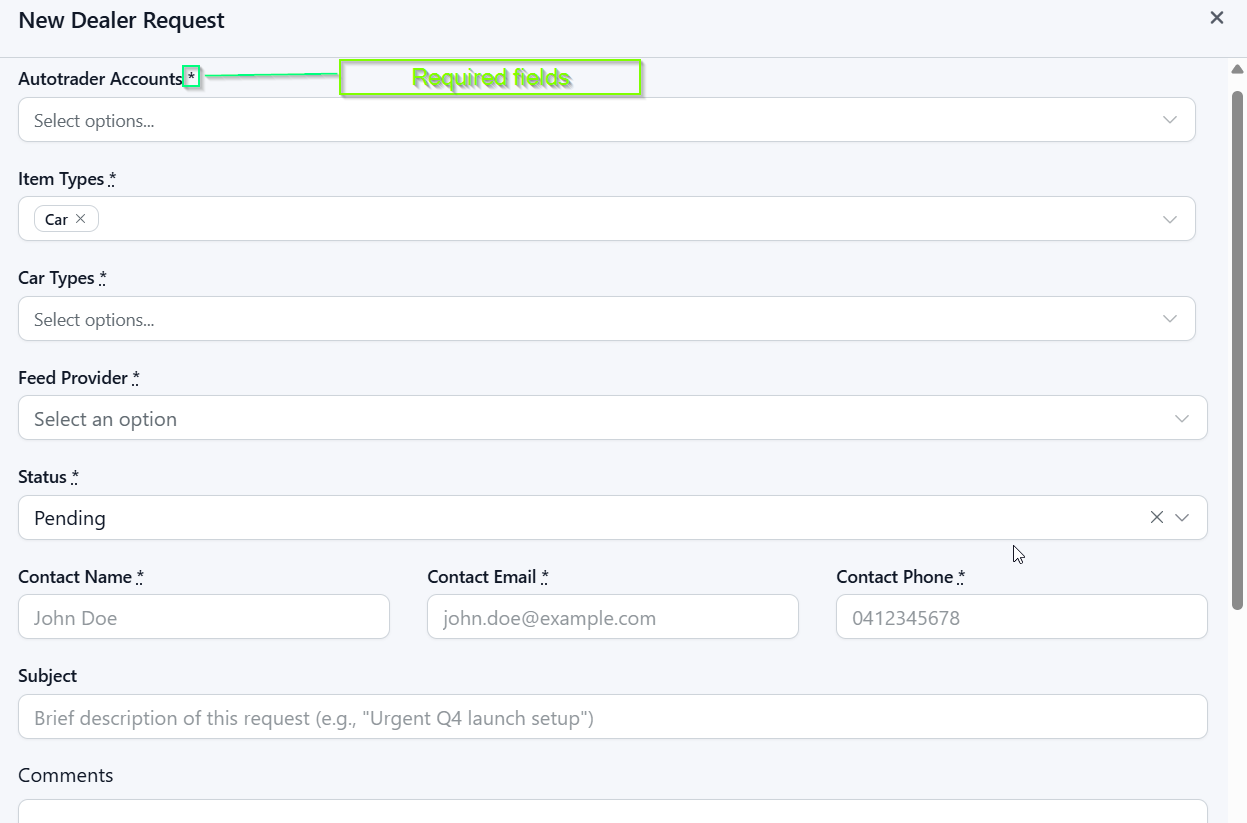
Autotrader submits a new feed request via:
Dealer Onboarding Dashboard
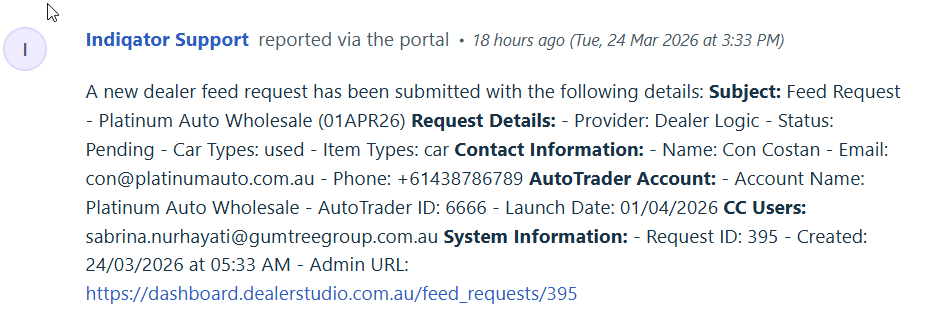
 The request appears in Freshdesk.
The ticket is assigned to a support specialist.
If the dealer already exists:
Confirm that we are receiving stock from the provider. If the stock has not been received, contact the provider using the email addresses listed in the table above. Once the stock has been successfully received, proceed to create the AutoTrader feed.
Creating a New Dealership (if one does not already exist)
1. Set up the dealership in Dealer Studio
Create the dealership via:
Dealer Management
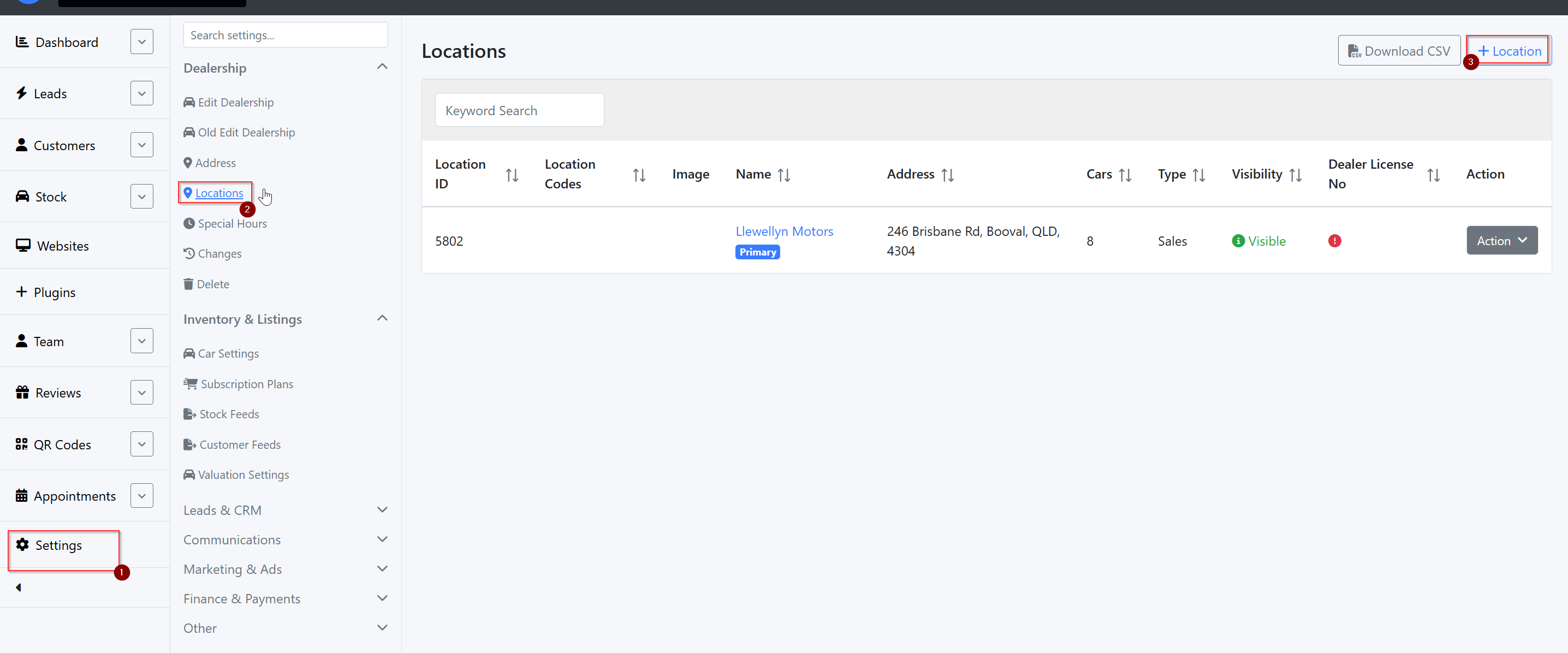
2. Add Address and Location details
Ensure all information is verified against the dealer’s public website.:
Address:
Settings > Dealerships > Address
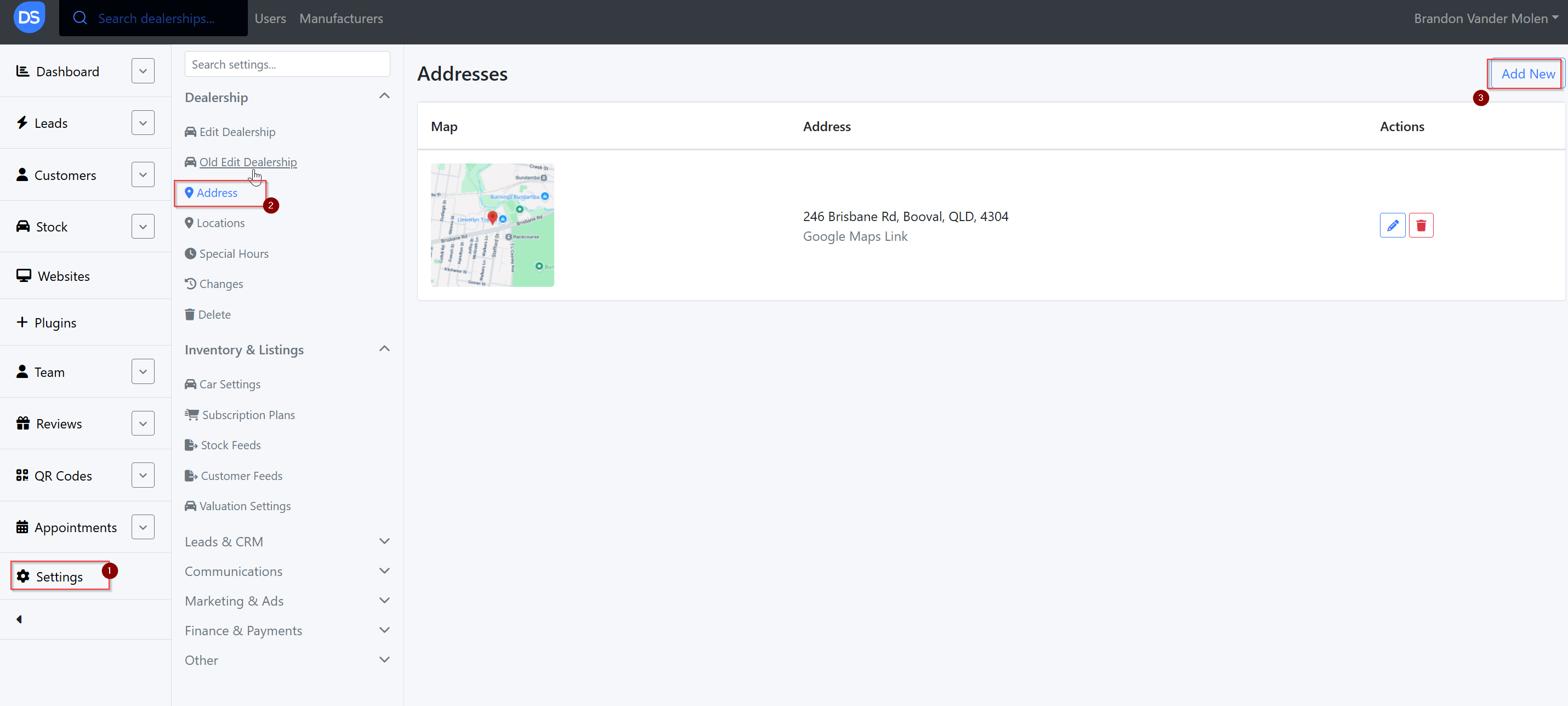
Locations:
Settings > Dealerships > Locations
3 Send Request to Stock Feed Provider using the request e-mail above
(Skip this step if the Stock already exists, or the provider is Carsales)
Virtual Yard only: Include the dealer ID against the dealer name found in JSON file. Virtual Yard dealerships must be added to the API key in Dealer Studio monitoring > API keys.
Email Template
Hi [Provider] Support,
We’ve been asked to set up an inventory feed from [Provider] to Autotrader for [Dealership Name], to ensure their listings appear on the Autotrader network.
I’ve CC’d the Autotrader team for visibility, and [Name] from the dealership for approval and to confirm the relevant details.
Please let us know if you need anything further to proceed.
Thanks again for your support.
Best regards,
[Your Name]
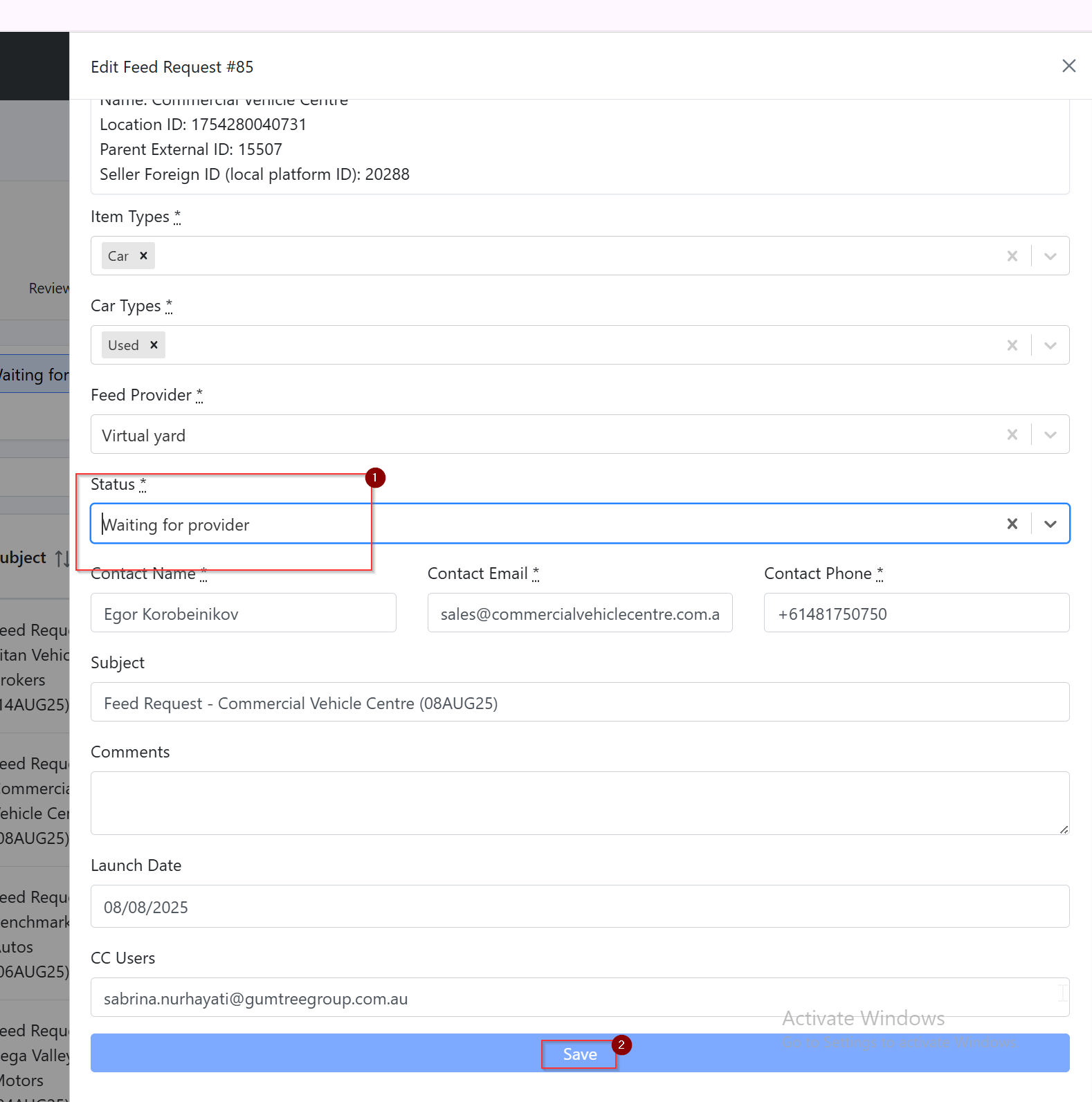
4 Update Dealer Onboarding Dashboard
Go back to the New Dealer Requests Dashboard
Use the Request ID from the initial submission to identify the correct entry.
If correct entry - edit the form to add status: waiting for provider
5 Setup CSV the Stock Feed Import (Not required for Virtual Yard)
Wait for the feed provider will supply a CSV file name. (only do this step once a csv has been received)
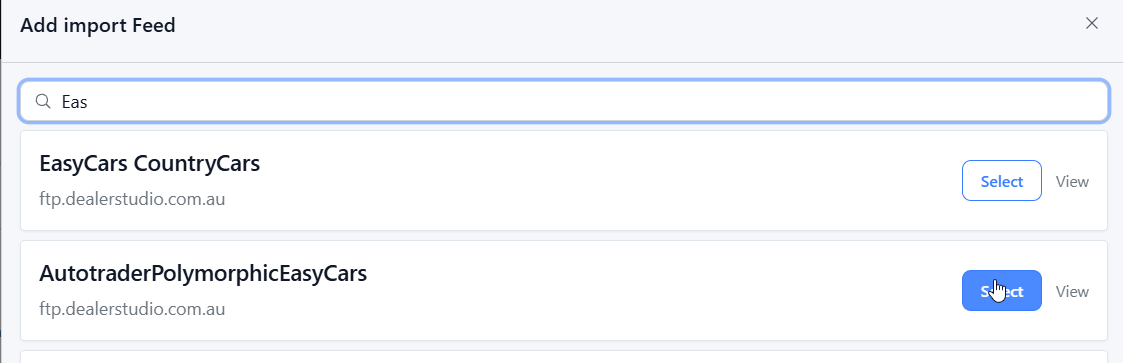
Go to:
Settings > Inventory > Stock Feeds > + Feed > FTP ImportsSelect the FTP account from the right. Example: From EasyCars, pick AutotraderPolymorphicEasyCars.
Note: If the account includes "Autotrader" in the feed provider name, use it for the import
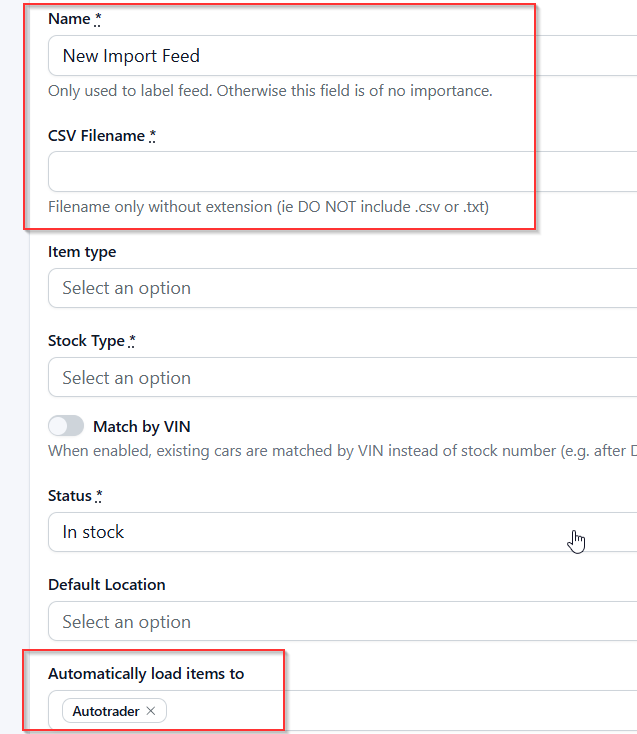
Fill in the configuration details:
CSV File Name provided by the provider, Set destination: Automatically load items to → Autotrader
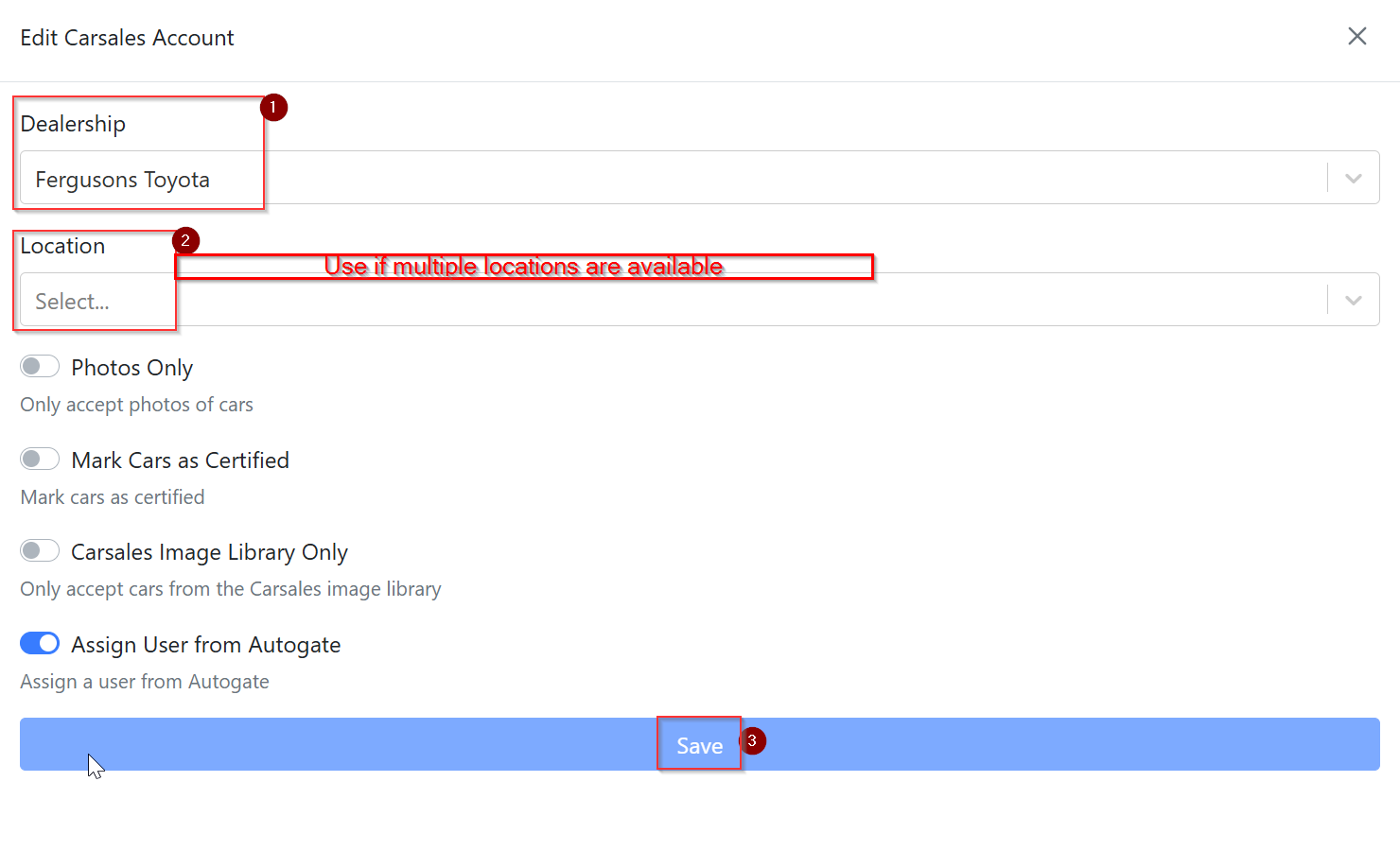
Carsales
Autotrader will request feed activation with Carsales.
Once stock is avadable Carsales will send a GUID to Dealer Studio. It can be linked and managed here Carsales Account Management (may take a few days).
Note: It takes up to 3 days for stock to start importing after GUID is linked.
6 Setup Autotrader Feed
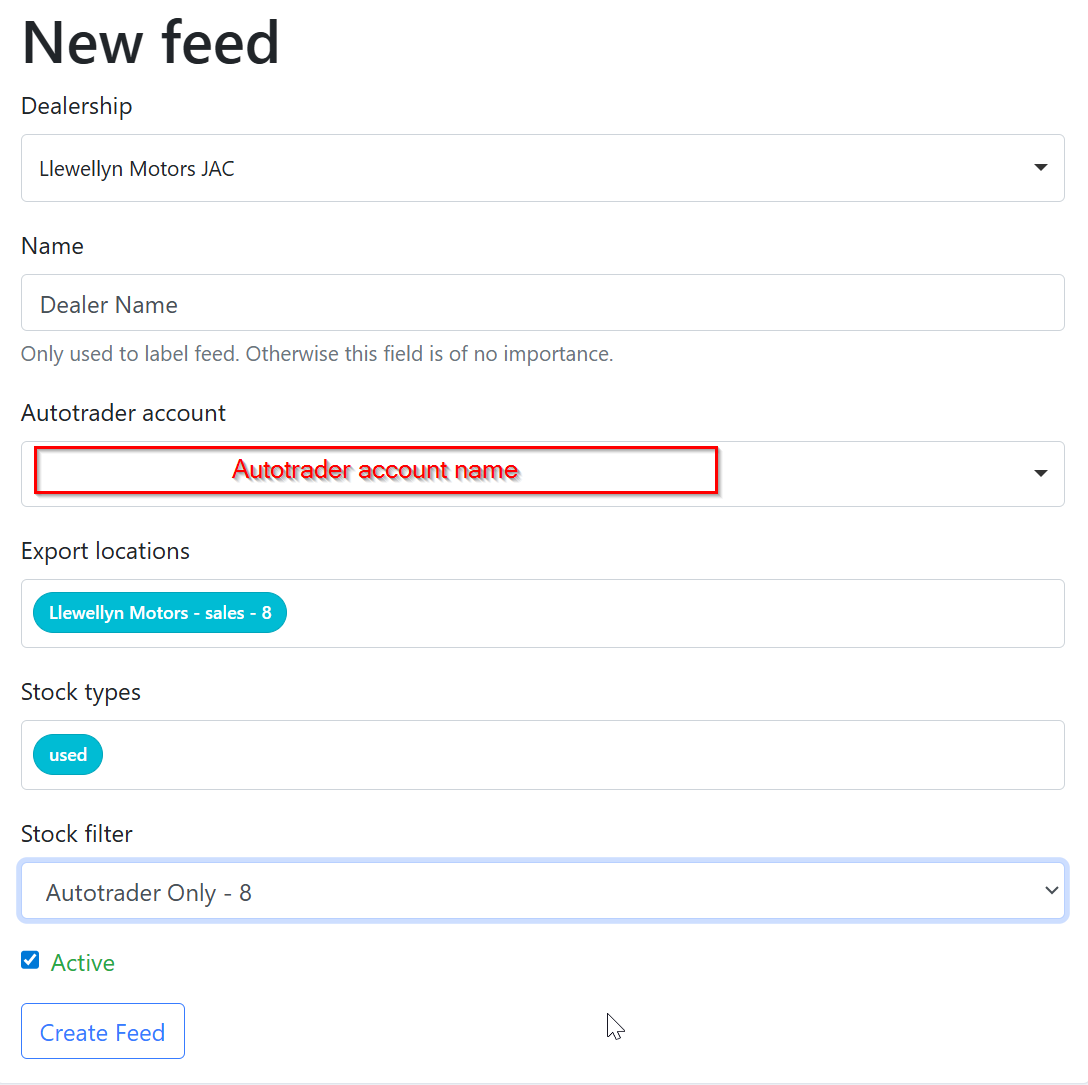
Go to:
Settings > Inventory > Stock Feeds > + Feed > AutotraderComplete all required fields and link to the Autotrader account (may show as inactive)
Once completed:
Notify Autotrader via the Freshdesk request
Update Onboarding Dashboard status to “Waiting on Autotrader”
Was this article helpful?
That’s Great!
Thank you for your feedback
Sorry! We couldn't be helpful
Thank you for your feedback
Feedback sent
We appreciate your effort and will try to fix the article