Overview
The Buyer field on a stock listing identifies the person who purchased or appraised the vehicle. This field is used internally to track buying activity and can also be used as a filter on the Stock page to view listings by buyer.
For dealerships using the Titan integration, the Buyer/Appraiser field is populated automatically via the Titan feed, based on the Titan Employee ID assigned to each user in Dealer Studio.
How It Works with Titan
When Titan sends vehicle data to Dealer Studio, it includes an Employee ID for the buyer or appraiser of each vehicle. Dealer Studio matches that Employee ID to a user in your system and displays their name as the Buyer on the stock listing. Once matched, the buyer also becomes available as a filter on the Stock page.
Setting Up the Titan Employee ID for a User
- Go to Settings and navigate to Users.
- Find the relevant user and click Edit.
- Open the Team Profile section.
- Scroll down to Third Parties.
- Enter the user's Titan Employee ID in the Titan Employee IDs field.
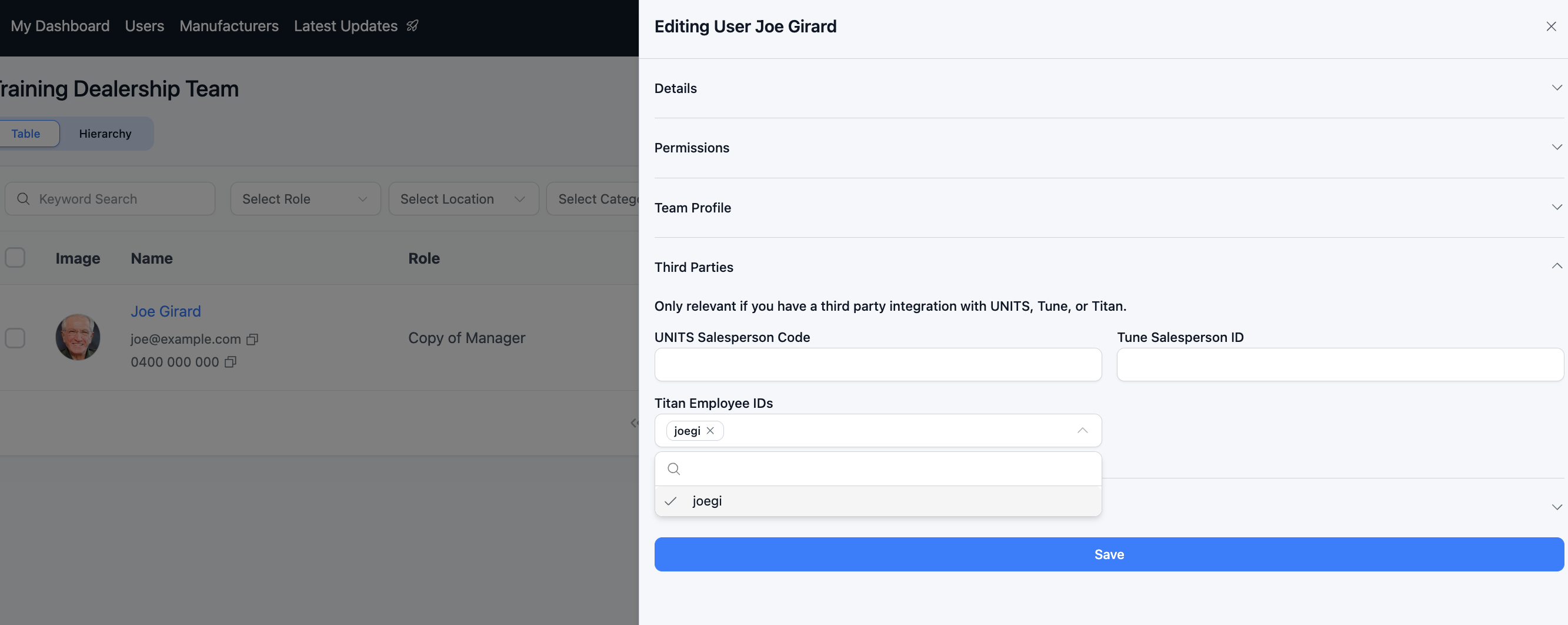
- Click Save.
Once the Employee ID is saved and the Titan feed re-runs, the buyer will appear on the relevant stock listings and be available as a filter on the Stock page.
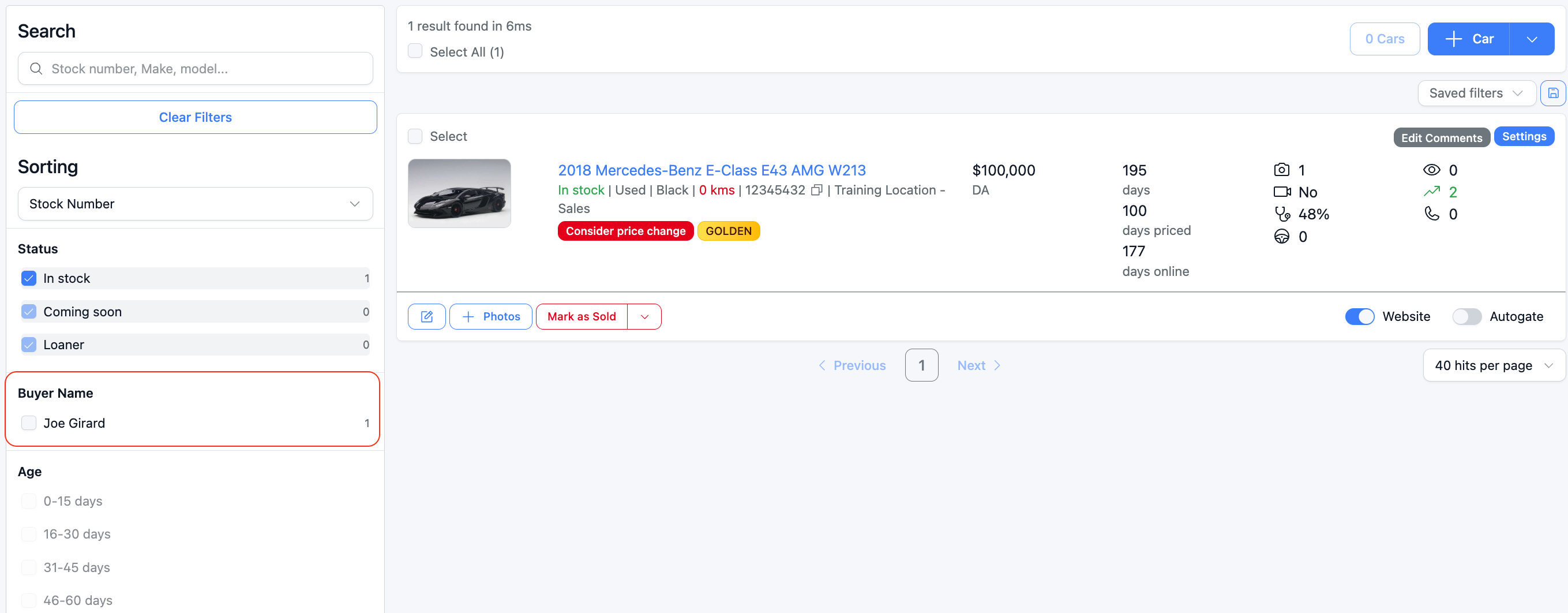
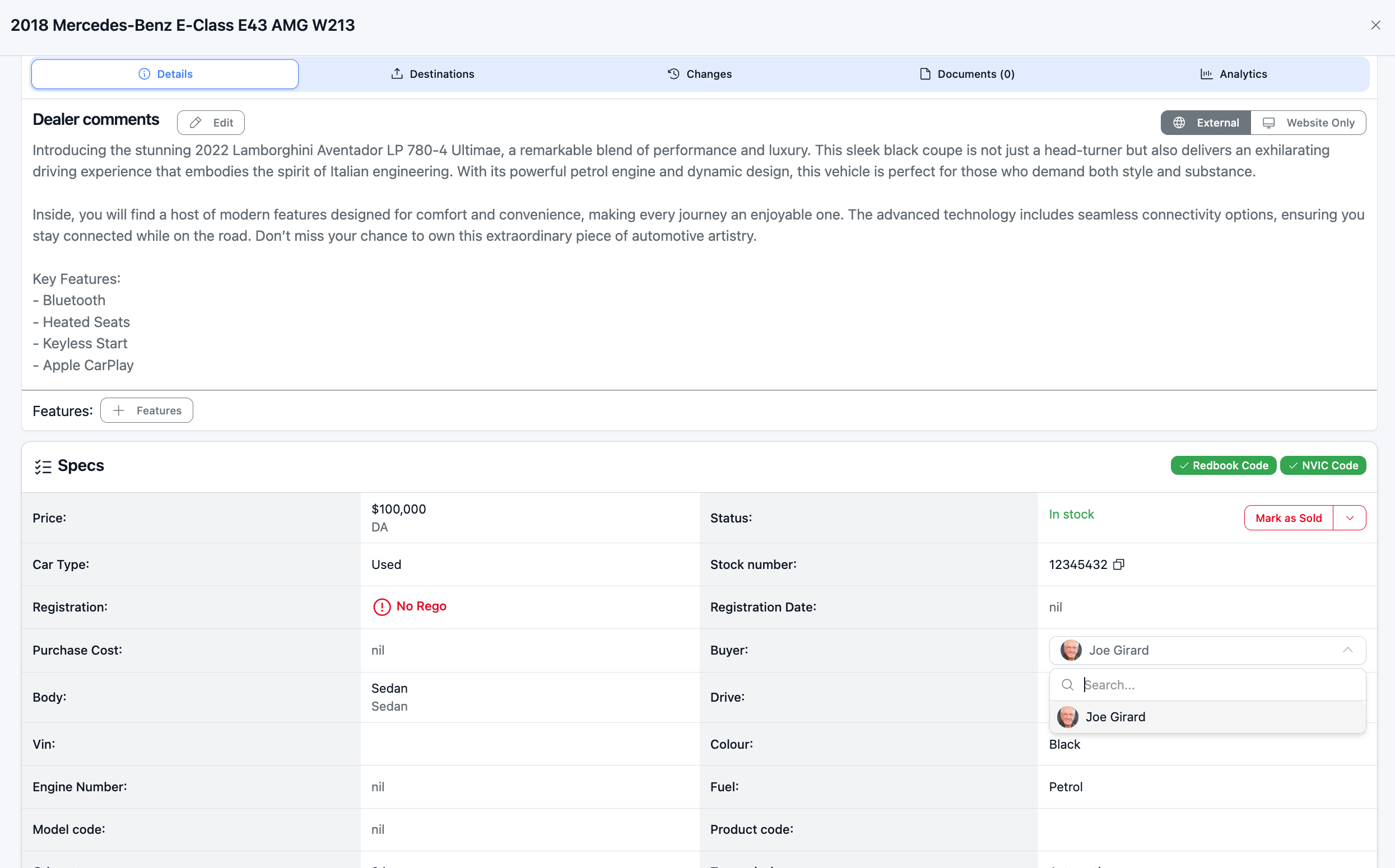
The buyer can also be manually applied to a stock listing.
Notes
- A user can have multiple Titan Employee IDs if needed (e.g. if they have been assigned different IDs over time).
- The feed must re-run after saving the Employee ID before the buyer name will appear on listings. This happens automatically on the next scheduled feed cycle.
- If the buyer is not appearing, verify the Employee ID exactly matches what Titan has on record for that person.
Was this article helpful?
That’s Great!
Thank you for your feedback
Sorry! We couldn't be helpful
Thank you for your feedback
Feedback sent
We appreciate your effort and will try to fix the article