This guide explains how to remove the background from a vehicle or stock image using the AI Background Remover in Dealer Studio.
The AI Background Remover helps improve the appearance of your vehicle listings by automatically removing the background from images, making the vehicle stand out more clearly on your website.
Follow the steps below to remove the background from a stock image.
Video
Please refer to the attached video below for a visual guide:
https://cap.link/km81z9hxmj4j6mv
Instructions to Remove Background Using AI
- Step 1: Navigate to Stock
- Step 2: Select the Stock Item
- Step 3: Use the AI Background Remover
- Step 4: Preview and Apply Changes
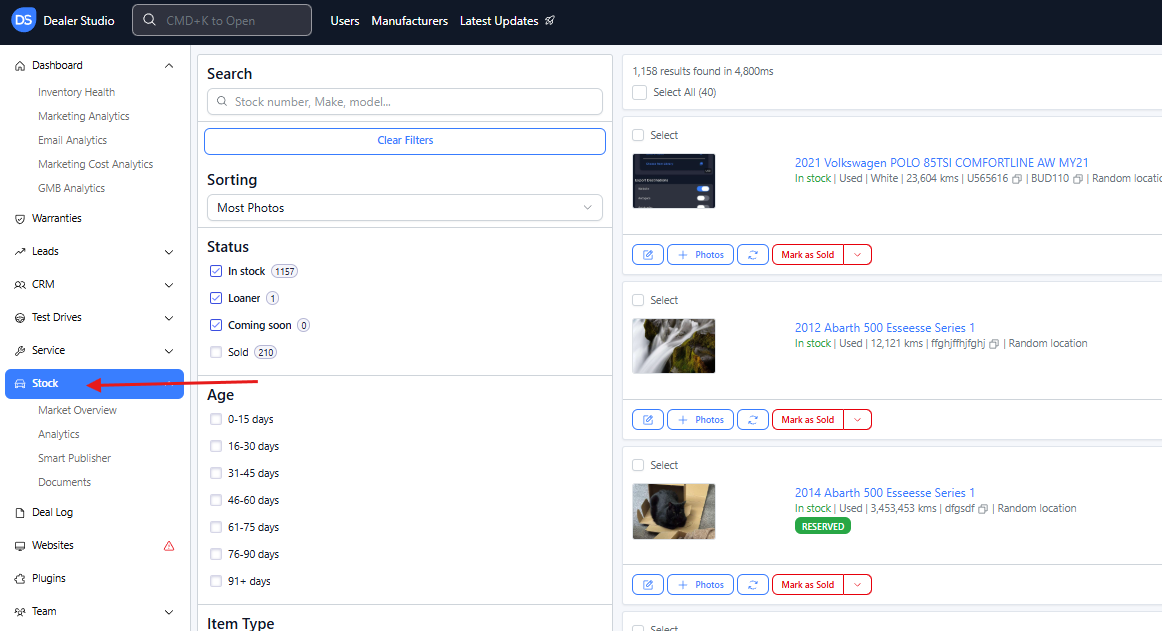
Step 1: Navigate to Stock
- Log in to Dealer Studio.
- From the Dashboard, click Stock.
Step 2: Select the Stock Item
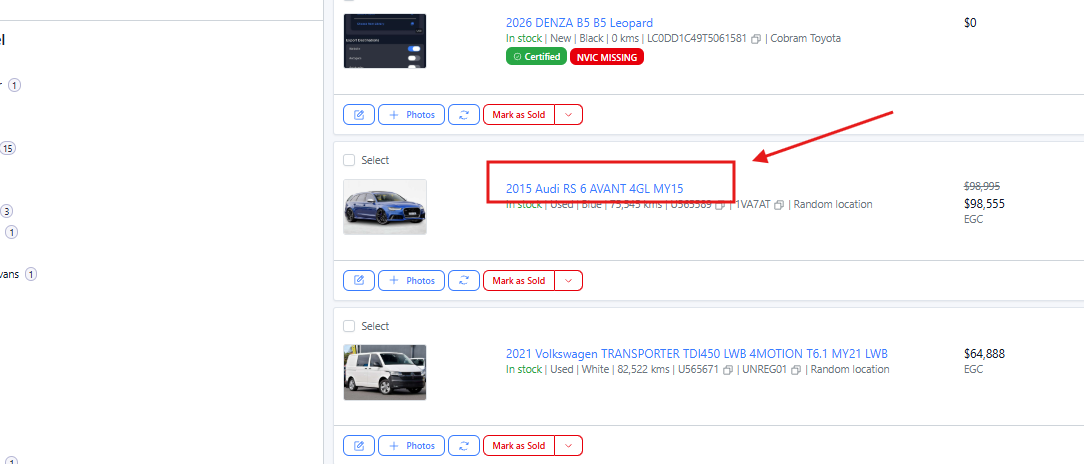
- Search for the stock item you want to edit.
- Click on the vehicle listing to open it.
Step 3: Use the AI Background Remover
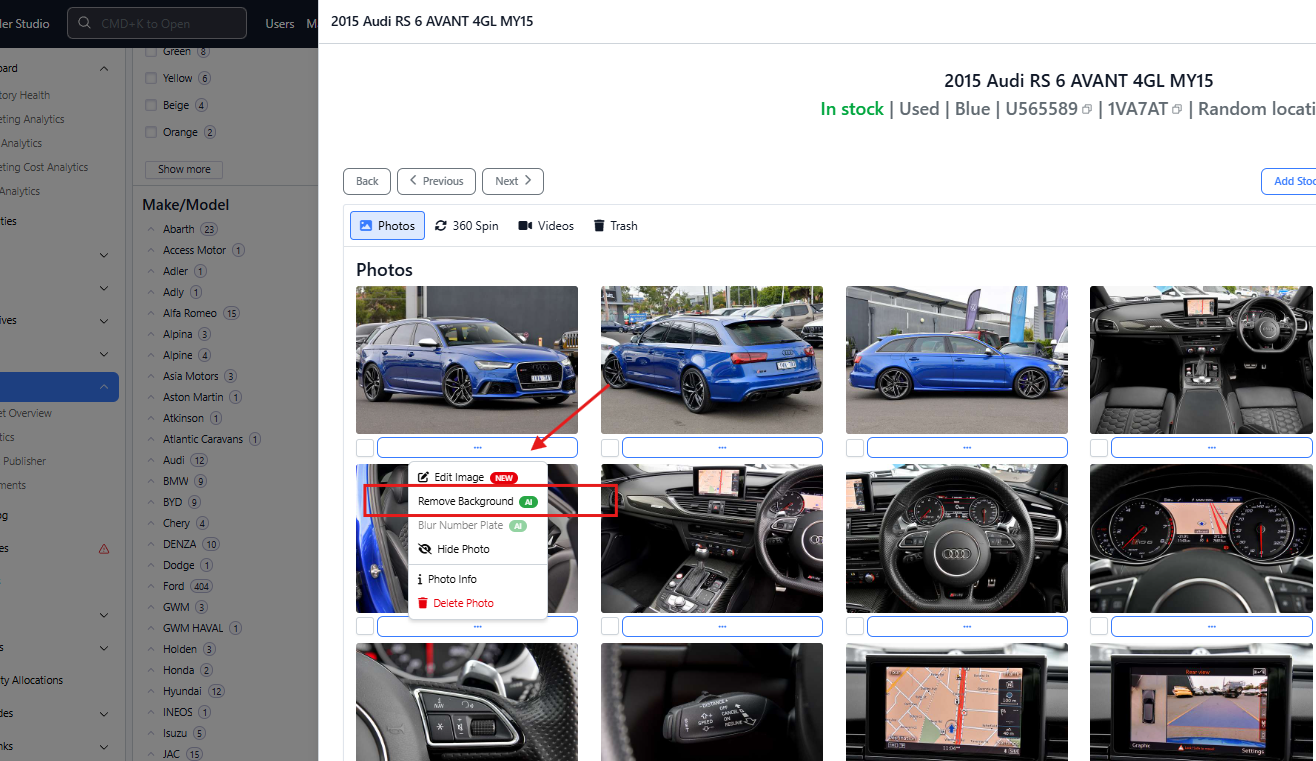
- Scroll to the Photos section.
- Find the image you want to edit.
- Click the three horizontal dots icon on the image.
- Select Remove Background (AI).
Step 4: Preview and Apply Changes
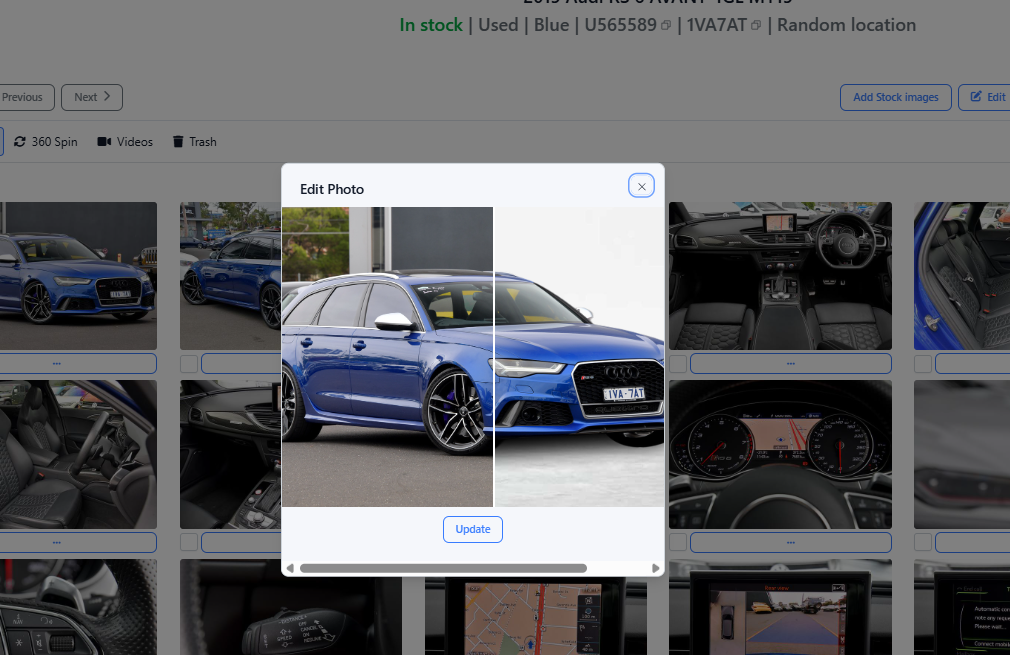
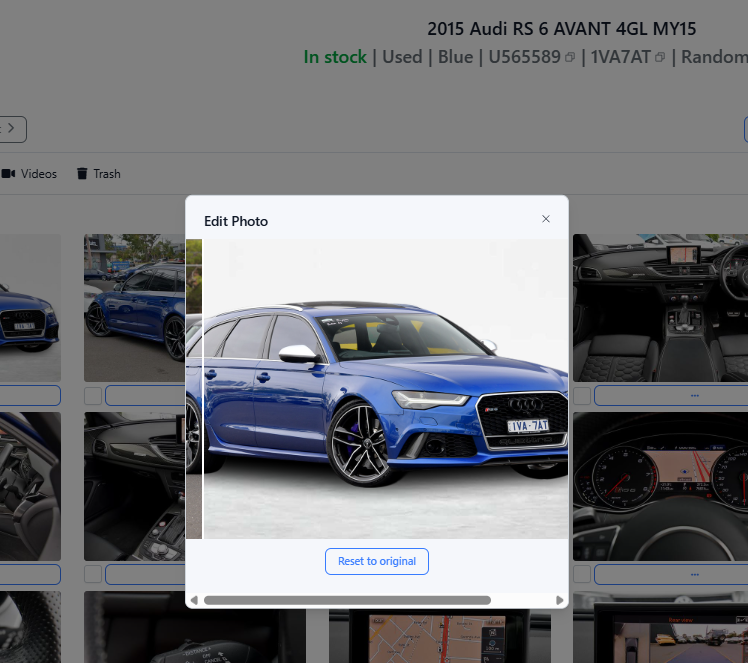
- A preview window will display the before and after versions of the image.
- Hover your mouse left and right to compare the difference.
If you are happy with the result:
- Click Update.
The background will be removed and the updated image will be instantly live on your website.
Reset to Original Image
If you want to revert back to the original image:
- Repeat the steps above.
- Select Reset to Original instead.
Important
Removing the background will immediately update the image used in your vehicle listing on the website.
If you are unsure about the changes, review the preview carefully before clicking Update.
Was this article helpful?
That’s Great!
Thank you for your feedback
Sorry! We couldn't be helpful
Thank you for your feedback
Feedback sent
We appreciate your effort and will try to fix the article