This guide explains how to set up and manage AI SMS Bots in Dealer Studio.
AI SMS Bots allow your dealership to automatically communicate with customers via SMS using AI. The bot can respond to enquiries, answer common questions, and guide customers towards actions such as booking a test drive, appointment, or vehicle enquiry.
⚠️ Important: Before setting up an AI SMS Bot, you must first purchase and configure a mobile phone number that supports SMS. Once the number is ready, you can create and customise your AI bot within the Dealer Studio settings.
Follow the steps below to configure your AI SMS Bot.
Instructions to Set Up AI SMS Bots
- Step 1: Purchase an SMS-enabled phone number
- Step 2: Navigate to AI Bots
- Step 3: Configure the AI SMS Bot
- Step 4: Save and Manage the Bot
Step 1: Purchase a Phone Number
Before enabling AI SMS Bots, you need a mobile phone number that supports SMS.
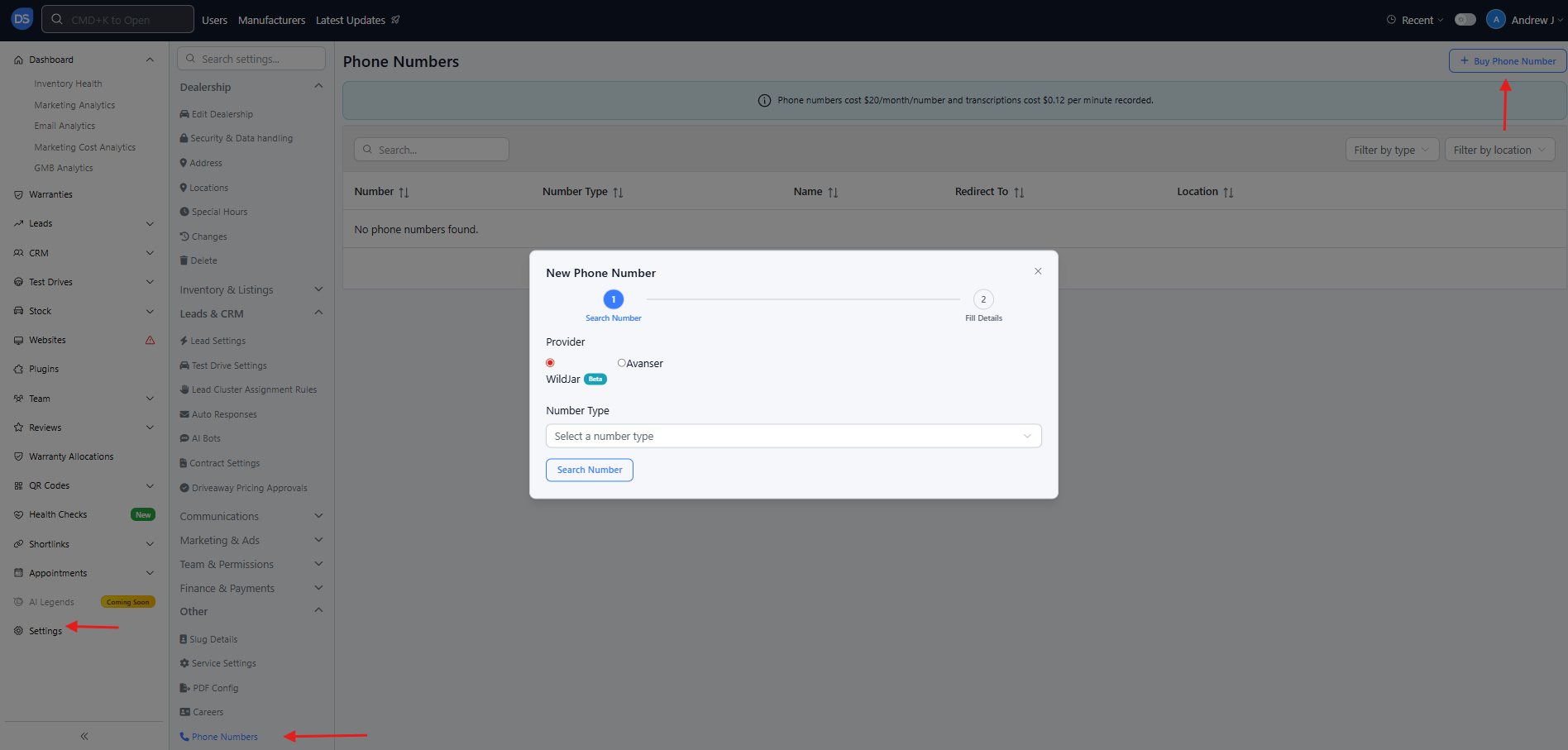
- Log in to your Dealer Studio Dashboard.
- Go to Settings.
- Under Other, select Phone Numbers.
- Click Buy Phone Number.
You may choose a provider such as:
- Wildjar
- Avanser
When selecting the Number Type, make sure to choose:
Mobile – Required for SMS functionality.
(Landline numbers do not support SMS.)
Once results appear, select your preferred number from the Available Numbers dropdown.
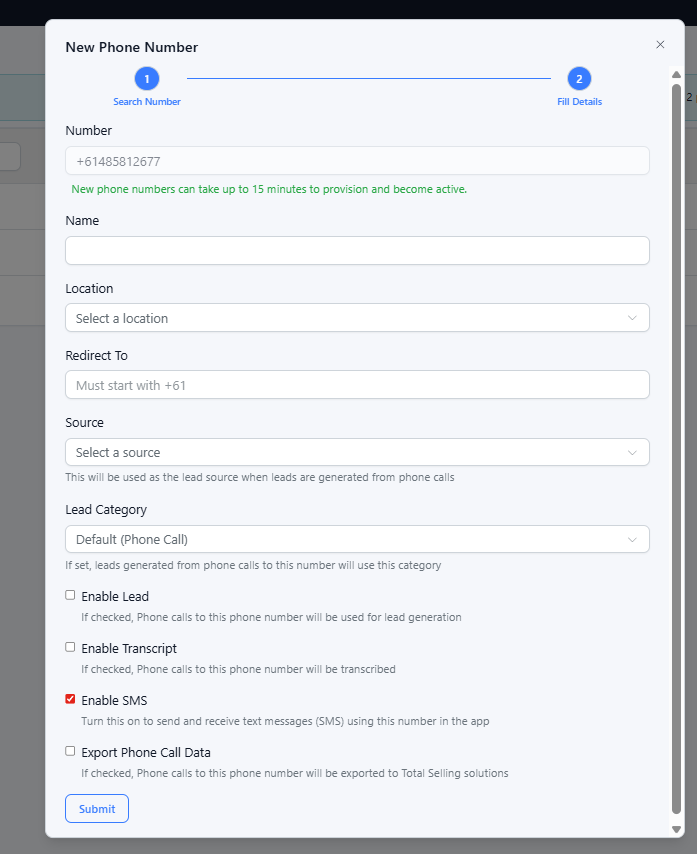
Fill in Phone Number Details
Complete the following fields:
- Number – Pre-filled from your selection. New numbers may take up to 15 minutes to activate.
- Name – A label for the number (e.g. Google Ads – Sales, Facebook – New Cars).
- Location – The dealership location this number belongs to.
- Redirect To – The existing phone number where calls should ring (must start with +61).
- Source – The lead source used when a lead is created from a call (e.g. Google, Facebook).
- Lead Category – Optional. If set, leads from this number will use this category instead of the default Phone Call.
- Enable Lead – Turn on if you want calls to create leads in the LMS.
- Enable Transcript – Enables AI transcription and call summaries.
- Enable SMS – Mandatory for AI SMS Bots. Must be enabled.
- Export Phone Call Data – Optional. Enable if using Total Selling (3rd part integration).
After completing the form, click Submit to create the number.
Step 2: Navigate to AI Bots
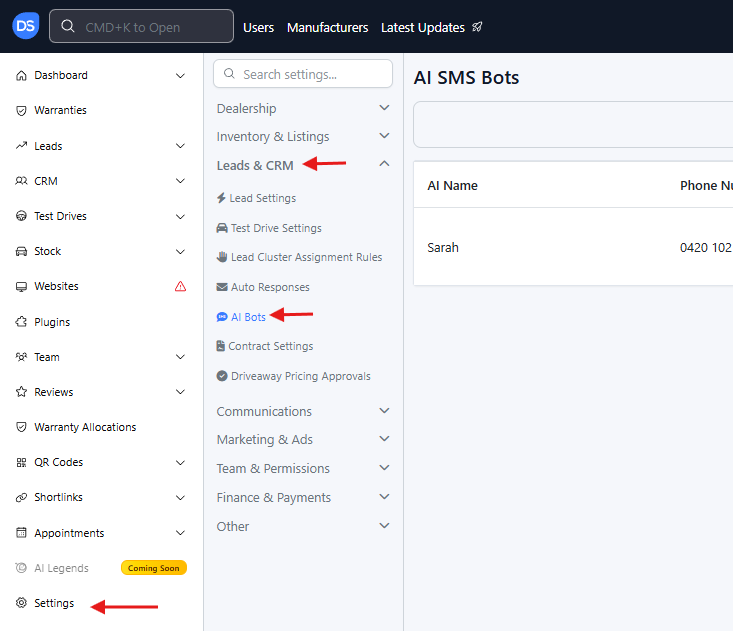
Once your phone number is ready:
- Go to Settings.
- Under Leads & CRM, select AI Bots.
- Click New AI SMS Bot in the top-right corner.
Step 3: Configure the AI SMS Bot
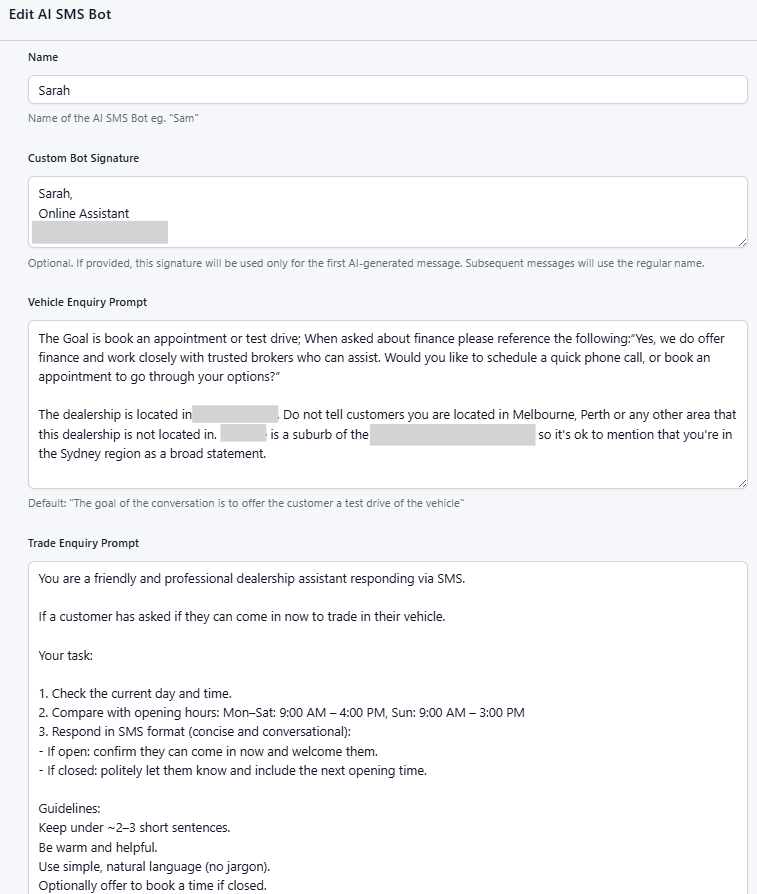
Fill in the required fields to customise how your AI bot communicates with customers.
Example configuration fields include:
- Name – The name of the AI assistant (e.g. Sarah).
- Custom Bot Signature – Optional signature used in the first AI-generated message.
- Vehicle Enquiry Prompt – Instructions that guide how the AI responds to vehicle-related enquiries.
- Trade Enquiry Prompt – Instructions for responding to trade-in enquiries.
The prompt text is very important, as it determines how the AI responds to customer questions.
For example, prompts can instruct the AI to:
- Encourage customers to book a test drive
- Provide finance information
- Offer to schedule an appointment
- Respond politely when the dealership is closed
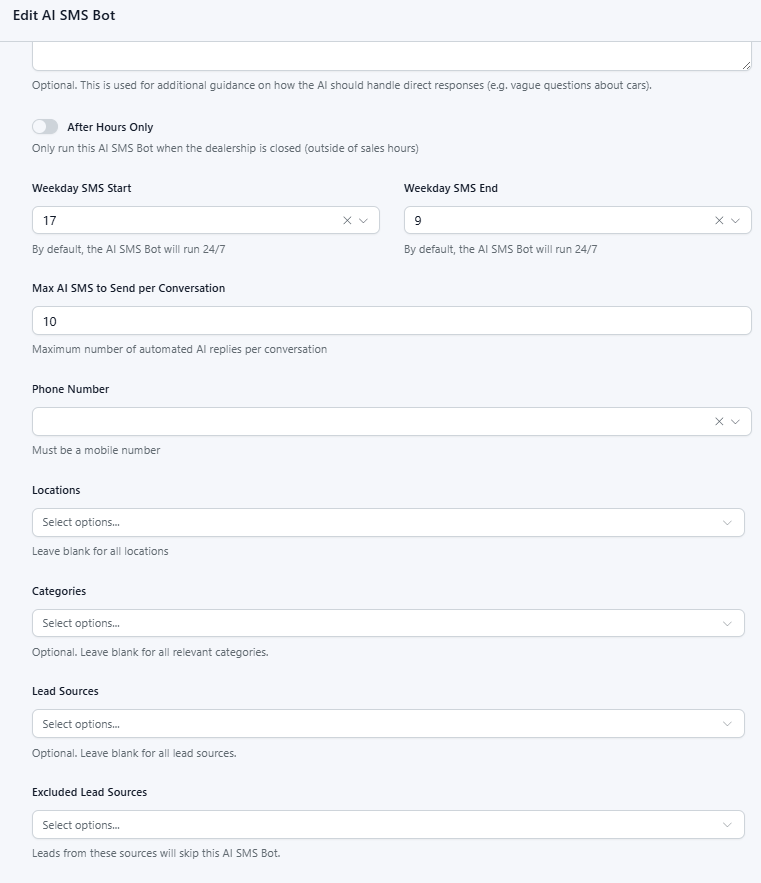
Step 4: Configure Bot Behaviour
Additional settings allow you to control how the bot operates.
These may include:
- SMS operating hours (weekday start/end times)
- Maximum AI messages per conversation
- Phone number used by the bot
- Locations where the bot applies
- Lead categories
- Lead sources
- Excluded lead sources
Optional features include:
- Send Address – Automatically send dealership location details.
- Enable Service Bookings – Allow the bot to assist with service appointment requests.
Step 5: Save and Manage the AI Bot
Once you have completed the configuration:
- Click Save.
Your AI SMS Bot will now begin responding to SMS enquiries based on the rules and prompts you configured.
You can edit the bot at any time by returning to Settings → AI Bots and selecting Edit.
⚠️ Important:
For AI SMS Bots to work correctly:
- The phone number must be a mobile number
- Enable SMS must be turned on
- Prompts should clearly instruct the AI how to respond to customer enquiries
- AI responses may occasionally contain errors. If needed (for example during special events or promotions), you can temporarily disable the AI SMS Bot by editing the bot and toggling on Disabled. There is no need to delete the bot, you can easily re-enable it at any time.
Well-written prompts will significantly improve the accuracy and usefulness of AI responses.
Video
(currently not available)
Was this article helpful?
That’s Great!
Thank you for your feedback
Sorry! We couldn't be helpful
Thank you for your feedback
Feedback sent
We appreciate your effort and will try to fix the article