Follow-up rules let you send automated SMS messages to leads based on specific events, such as a reminder before a confirmed appointment or a check-in after a lead is marked as lost. Rules can use a plain template or be enhanced by AI for a more personalised message.
How to Create a Follow-Up Rule
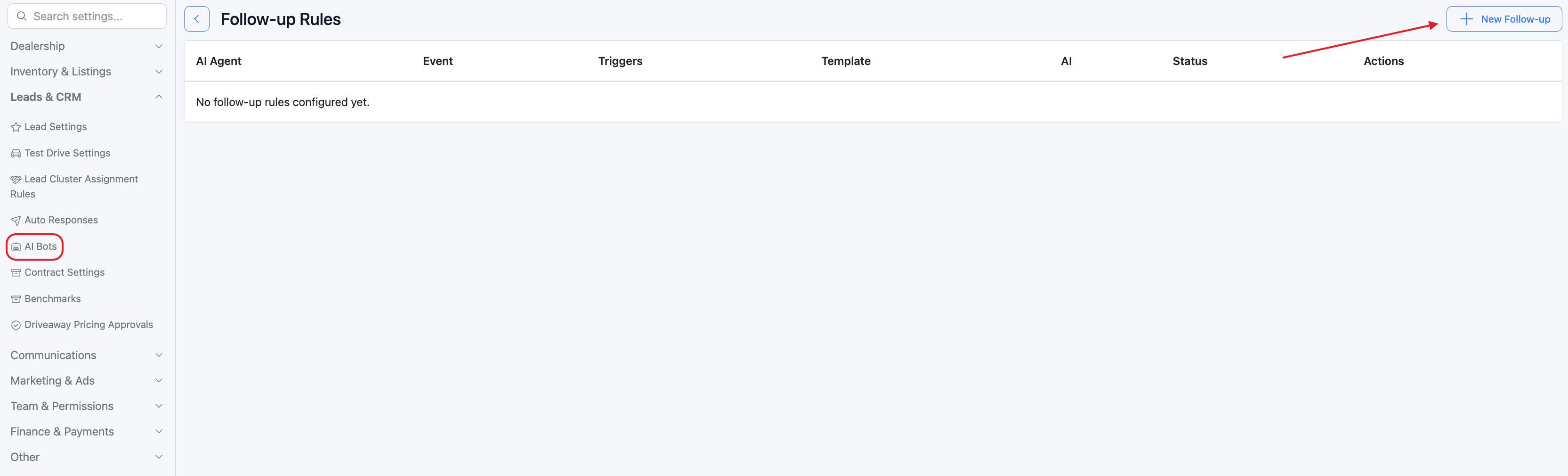
- Go to Settings > Leads and CRM > AI Bots > Follow Ups.
- Click New Follow-up.
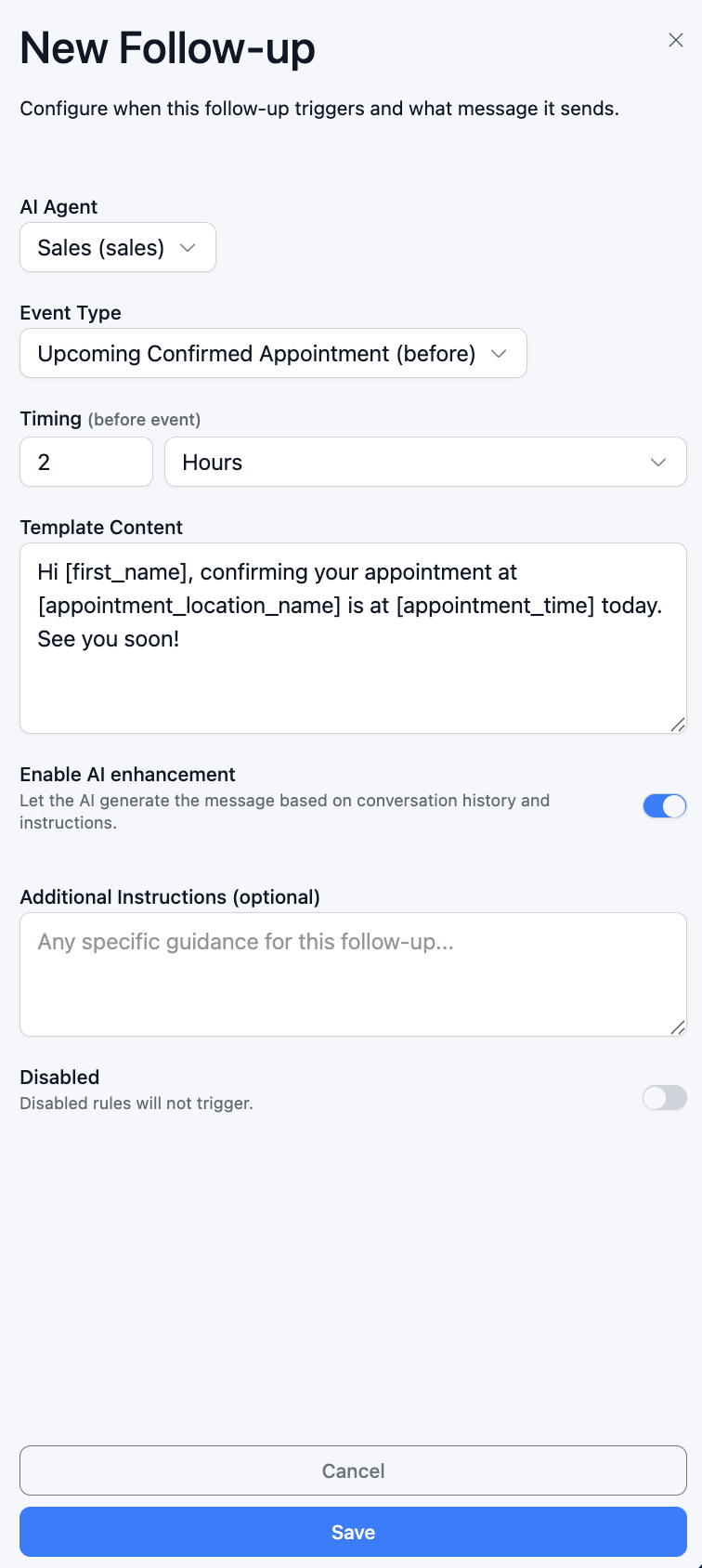
- Select the agent you want to assign the rule to.
- Choose an event typefrom the dropdown. Available options are:
- Upcoming Interest Registered Appointment (before)
- Upcoming Confirmed Appointment (before)
- Appointment Cancelled (after)
- Appointment Did Not Attend (after)
- Lead Marked as Lost (after)
- SMS to Customer Ignored (after)
- Set the timing — how many minutes, hours, or days before or after the event the message should send.
- Write your SMS template. Use placeholders to personalise each message automatically. For example:
[first_name],[appointment_time],[appointment_location_name]. - Optionally, toggle on Enable AI Enhancement. When active, the AI agent will craft a more tailored message using the lead's conversation history and any additional instructions you provide.
- Click Save. The rule will start firing automatically on matching events.
Managing Existing Rules
From the Follow Ups page you can disable, edit, or delete any rule at any time.
Was this article helpful?
That’s Great!
Thank you for your feedback
Sorry! We couldn't be helpful
Thank you for your feedback
Feedback sent
We appreciate your effort and will try to fix the article