This guide explains Dealer Studio's new Background Blur plugin. It covers AI powered background blur, rear only mode, combined blur processing, opt out controls for automatic plate blurring, a manual "Blur Background" action, and per location scoping so you can switch these plugins on for specific dealership locations.
The Background Blur can be set to auto-apply to all new images, or it can be applied manually on the images once uploaded.
How to enable Background Blur
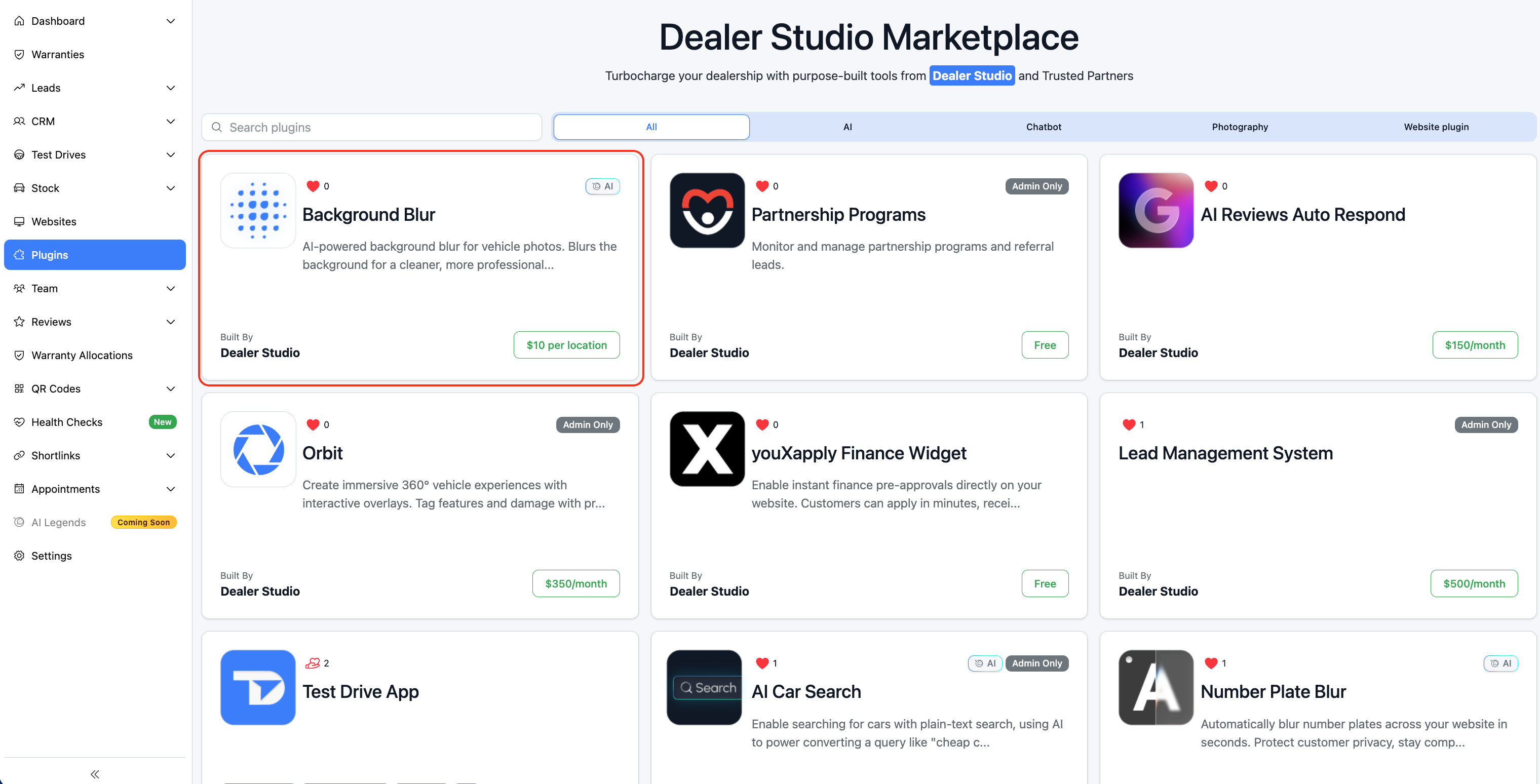
1. Open your Plugins settings
Go to Dashboard > Plugins.
2. Install the Background Blur plugin
Find Background Blur in the plugin list and click Install.
3. Choose your blur mode and Auto-Process
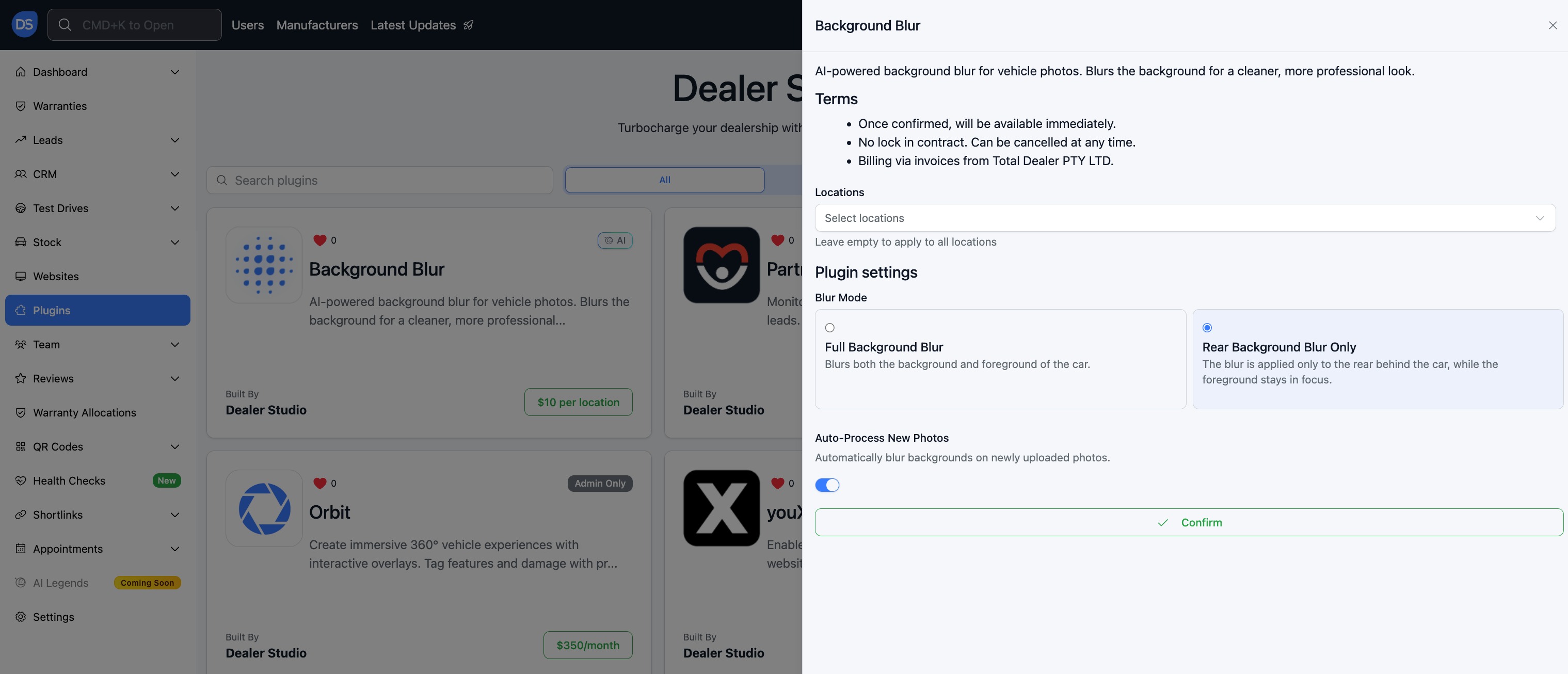
In the plugin settings, select one of:
- Full blur. Blurs the entire background behind the vehicle.
- Rear only. Blurs only the area behind the vehicle, which is useful for preserving showroom or foreground detail.
Select if you would like to automatically apply to new images with the Auto-Process New Photos toggle.
How to manually blur the background on a single photo
Use this when you want to review the result before committing, or to blur an individual image without enabling automatic processing.
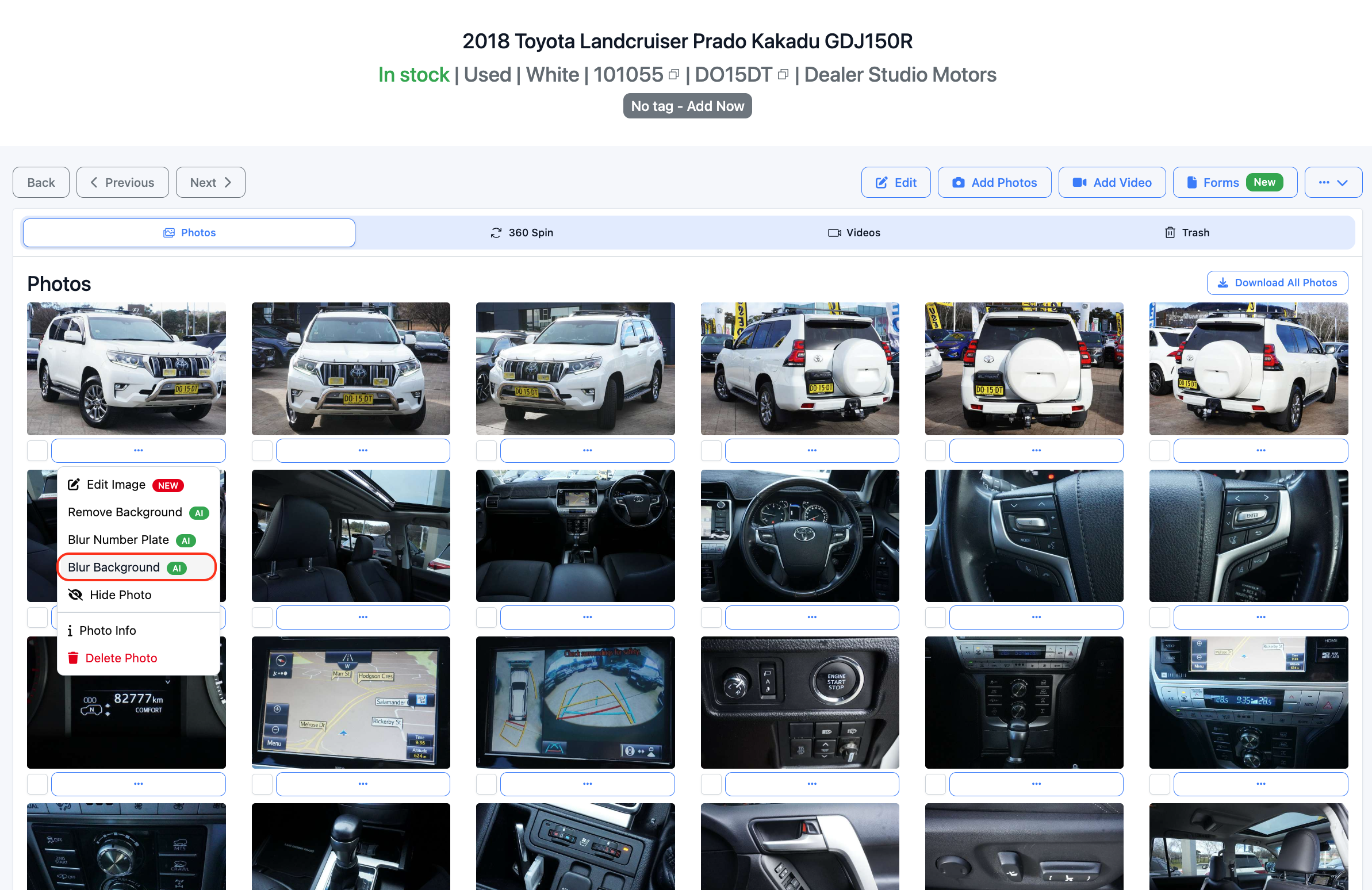
- Open the stock item in the dashboard.
- Click the dropdown menu on the photo you want to blur.
- Select Blur Background.
- Review the before and after preview.
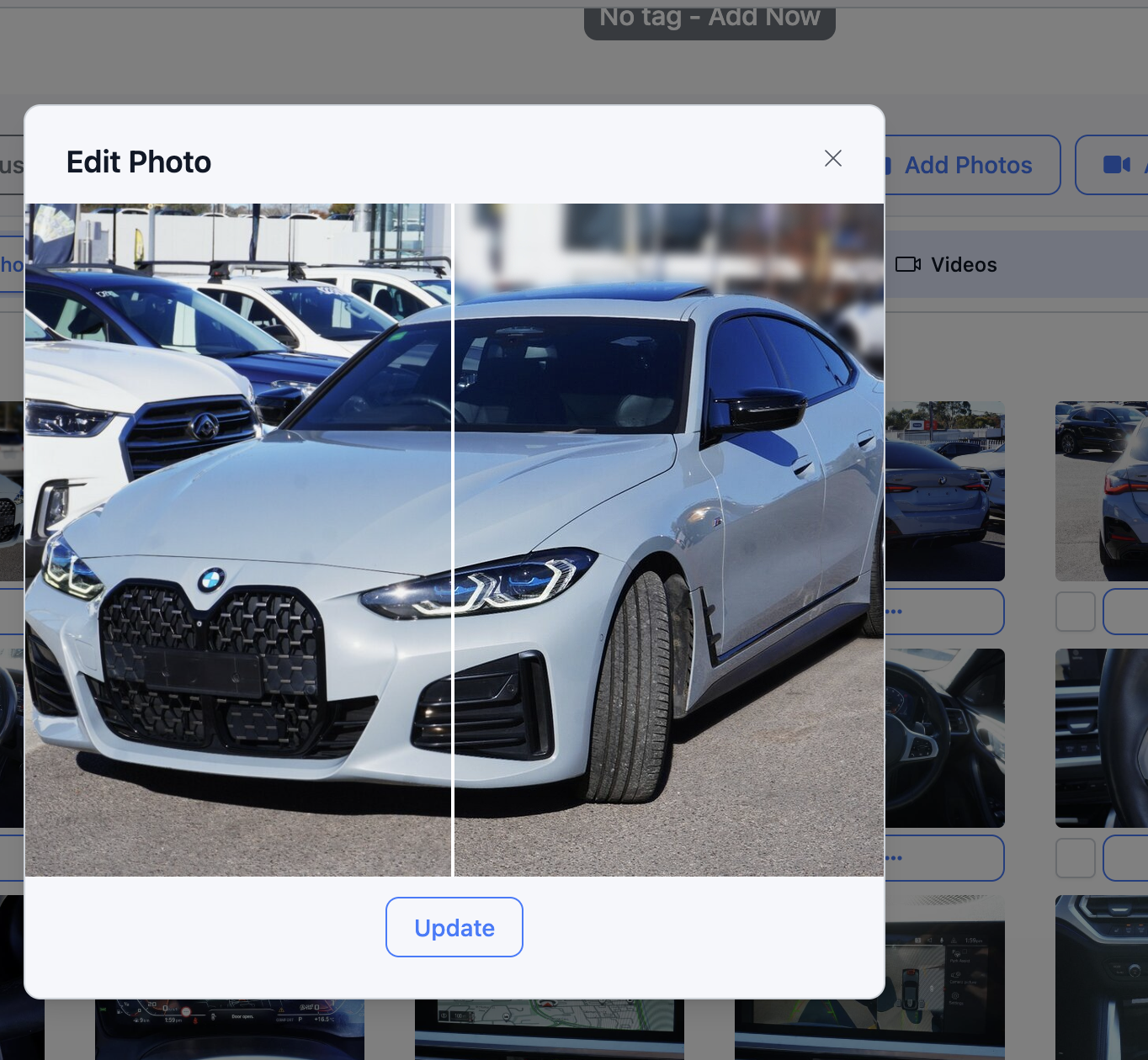
- Click Update to save the blurred version.
Was this article helpful?
That’s Great!
Thank you for your feedback
Sorry! We couldn't be helpful
Thank you for your feedback
Feedback sent
We appreciate your effort and will try to fix the article