Dealer Studio now supports uploading a secondary ID photo when processing test drives and loan cars. This allows your team to capture additional identity documents. This includes a passport, birth certificate, or any other accepted ID, alongside a primary driver's licence, giving you a more complete record for compliance and due diligence purposes.
The Test Drive App and Loan Cars have to be enabled on your plugins screen to lodge test drives and loan cars in Dealer Studio.
Availability
| Feature | Mobile | Desktop |
|---|---|---|
| Secondary ID for Test Drives | ✅ Supported | ✅ Supported |
| Secondary ID for Loan Cars | ✅ Supported | ❌ Not available |
How to Upload a Secondary ID
For Test Drives (Desktop)
- Begin or open a test drive record in Dealer Studio.
- Click the customers name under Driver Details.
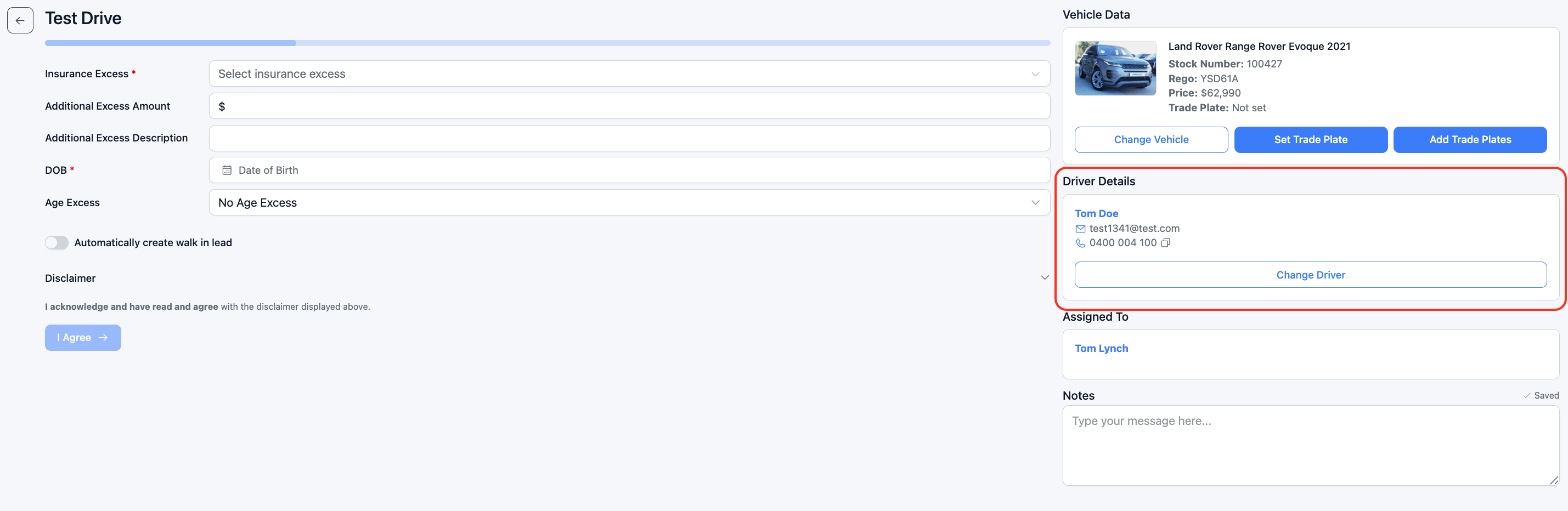
- You will see an option to upload a Secondary ID in addition to the primary licence under Driver's License & ID Photos
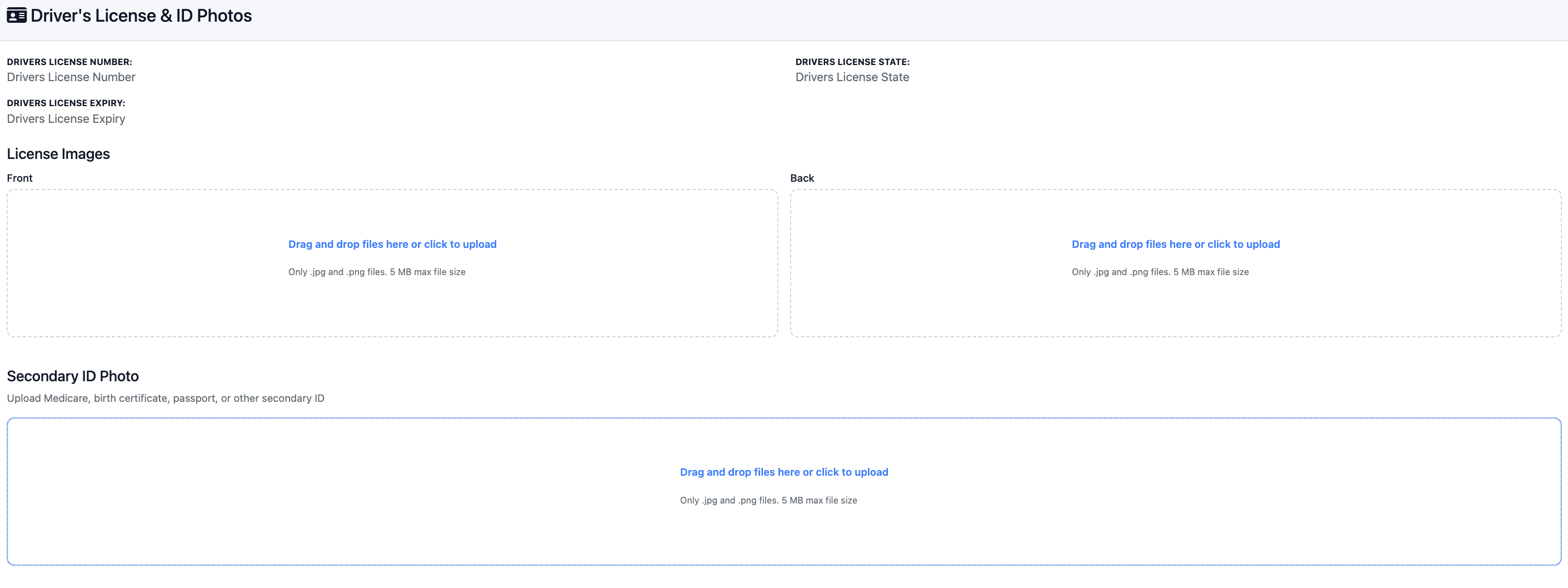
- Tap or click the secondary ID upload field and either:
- Take a photo of the document (mobile), or
- Upload an image file from your device (desktop/mobile)
- Confirm the upload. The secondary ID will be saved against the test drive record.
For Test Drives (Mobile)
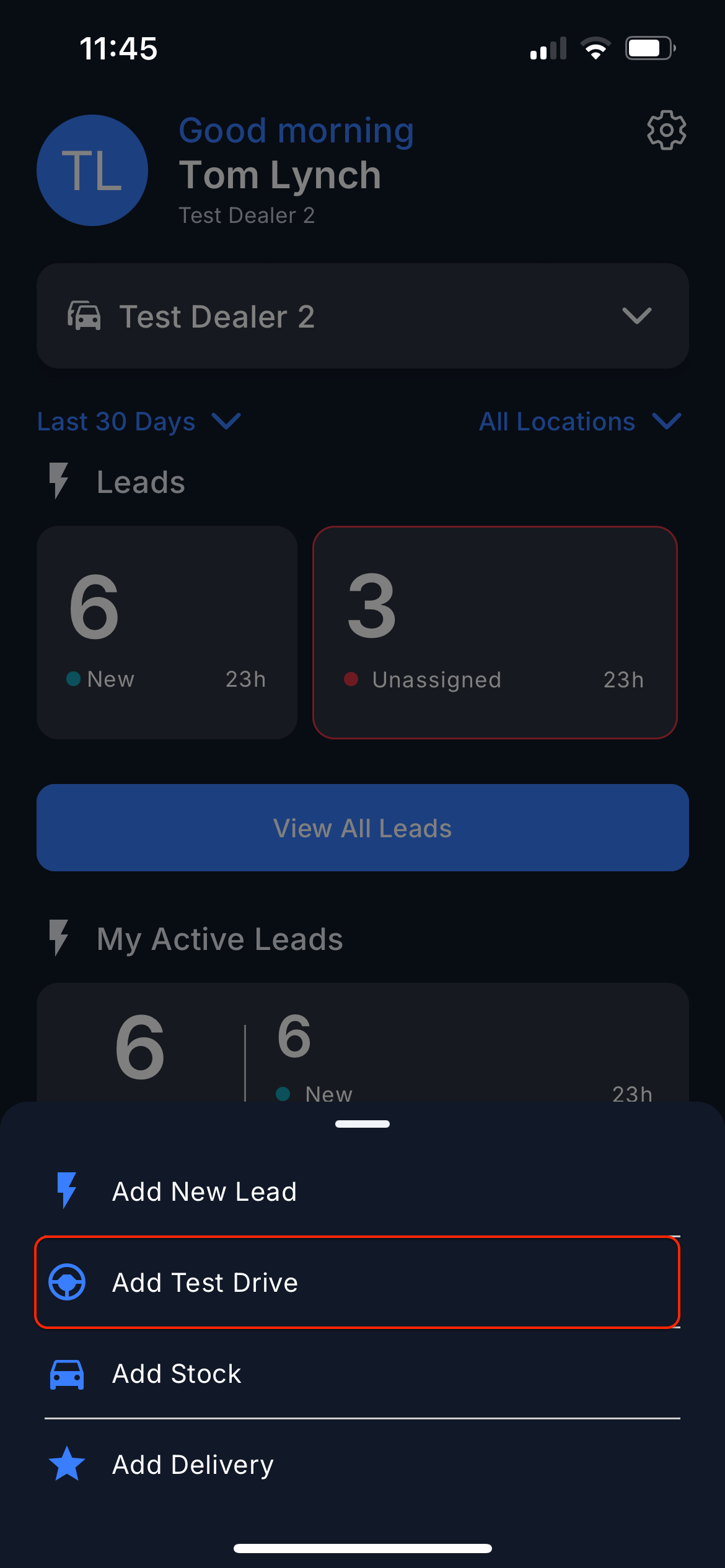
- Add the test drive, select the customer and vehicle.
- Click Start Setup
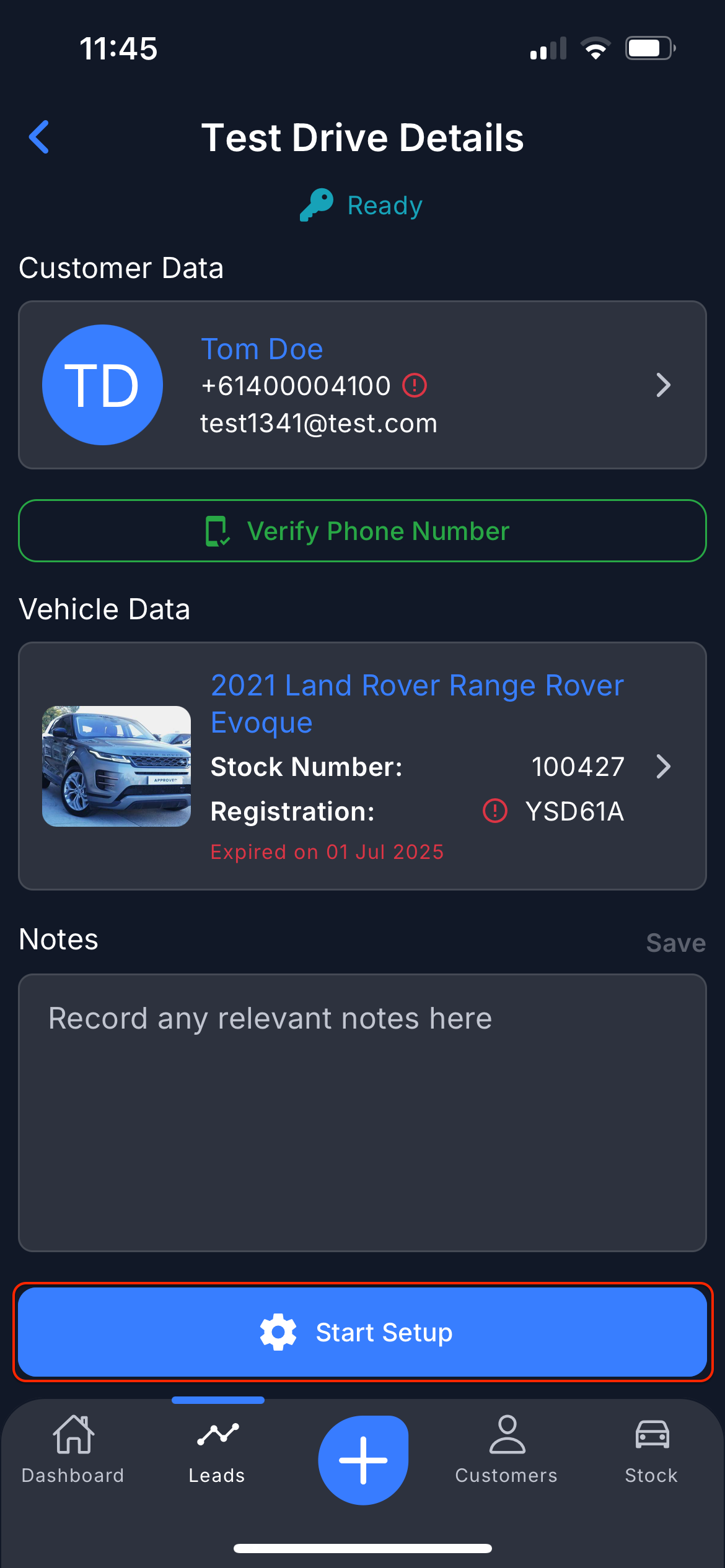
- Upload Secondary ID when setting the Test Drive Details
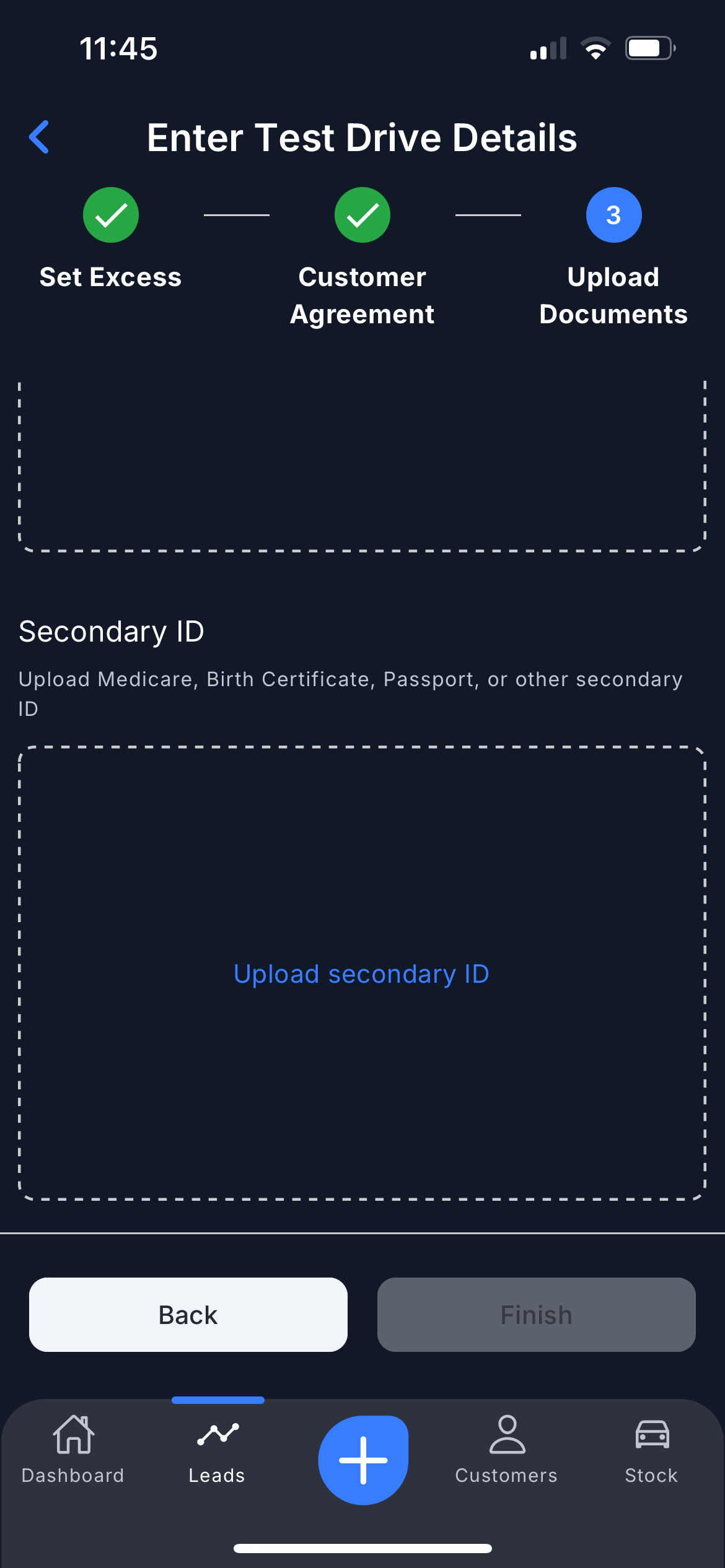
- Hit Finish
For Loan Cars (Mobile)
- Add the Loan Car
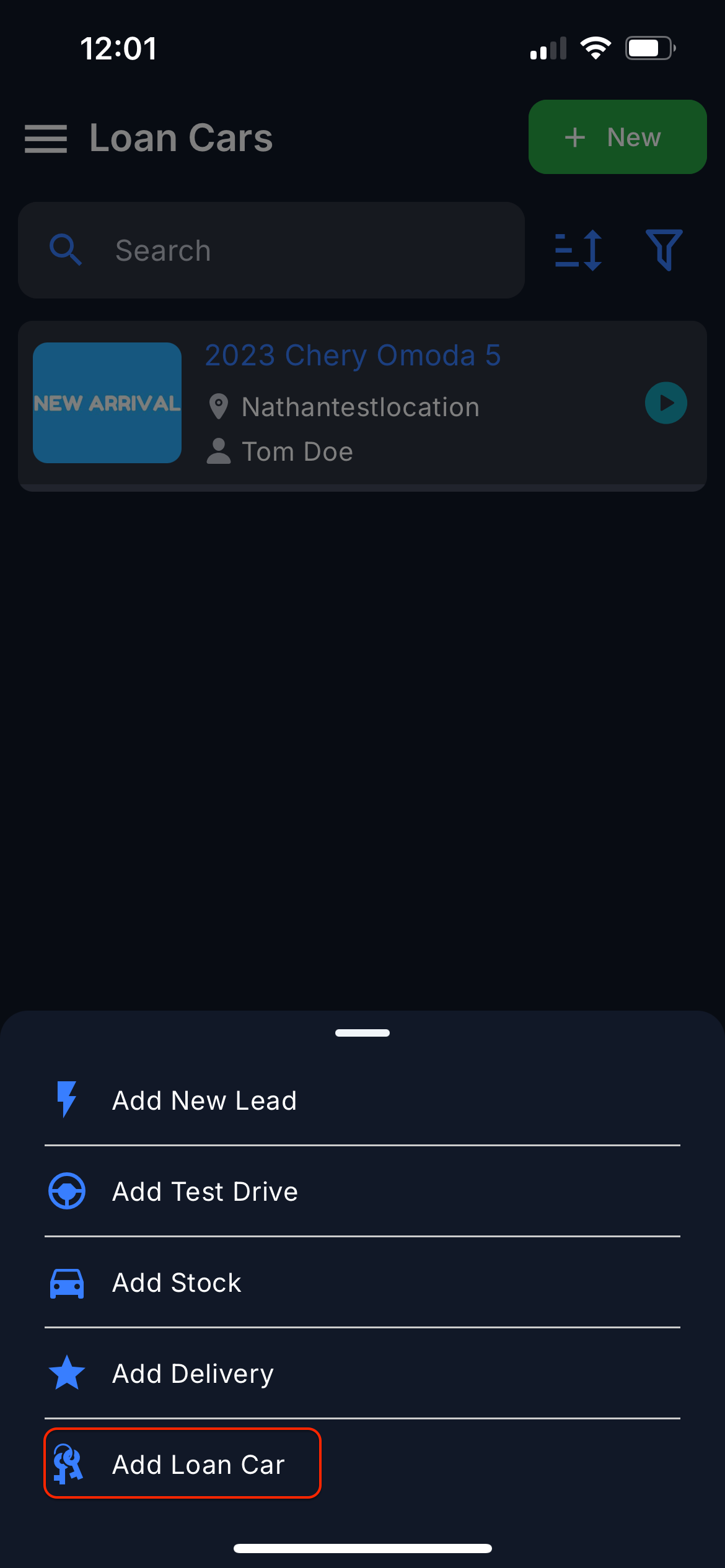
- Set the Excess and Driver Agreement
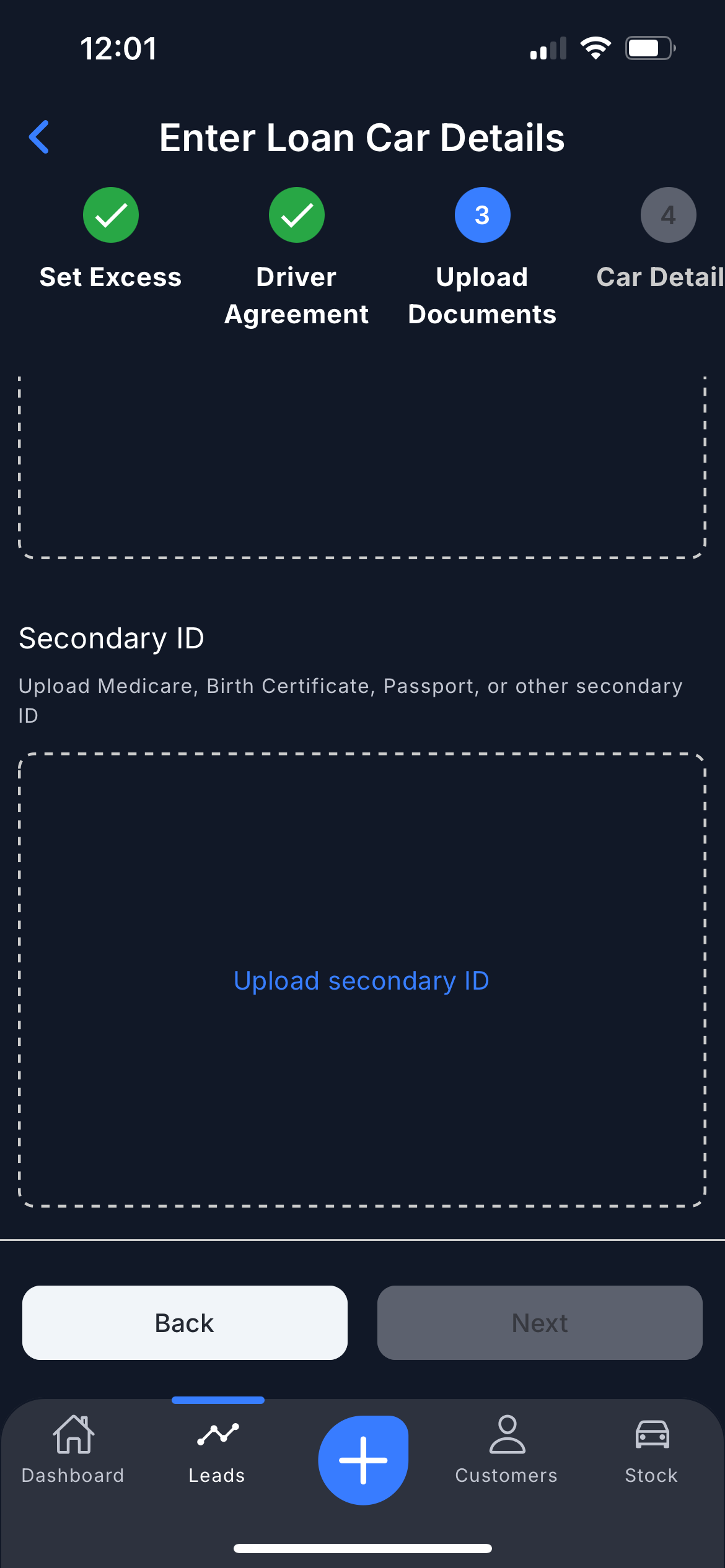
- Add the Secondary ID under Upload Documents
Was this article helpful?
That’s Great!
Thank you for your feedback
Sorry! We couldn't be helpful
Thank you for your feedback
Feedback sent
We appreciate your effort and will try to fix the article