Adding a Finance Provider in Dealer Studio
Dealer Studio allows you to add and manage finance providers directly from the dashboard, making it easy to display finance options across your dealership website.
This guide walks you through how to add, configure, and manage finance providers in Settings → Finance Providers.
Step 1: Access Finance Providers in Settings
Log in to the Dealer Studio dashboard.
Select the dealership you want to apply the finance provider to.
Navigate to Settings.
Click on the Finance Providers tab.
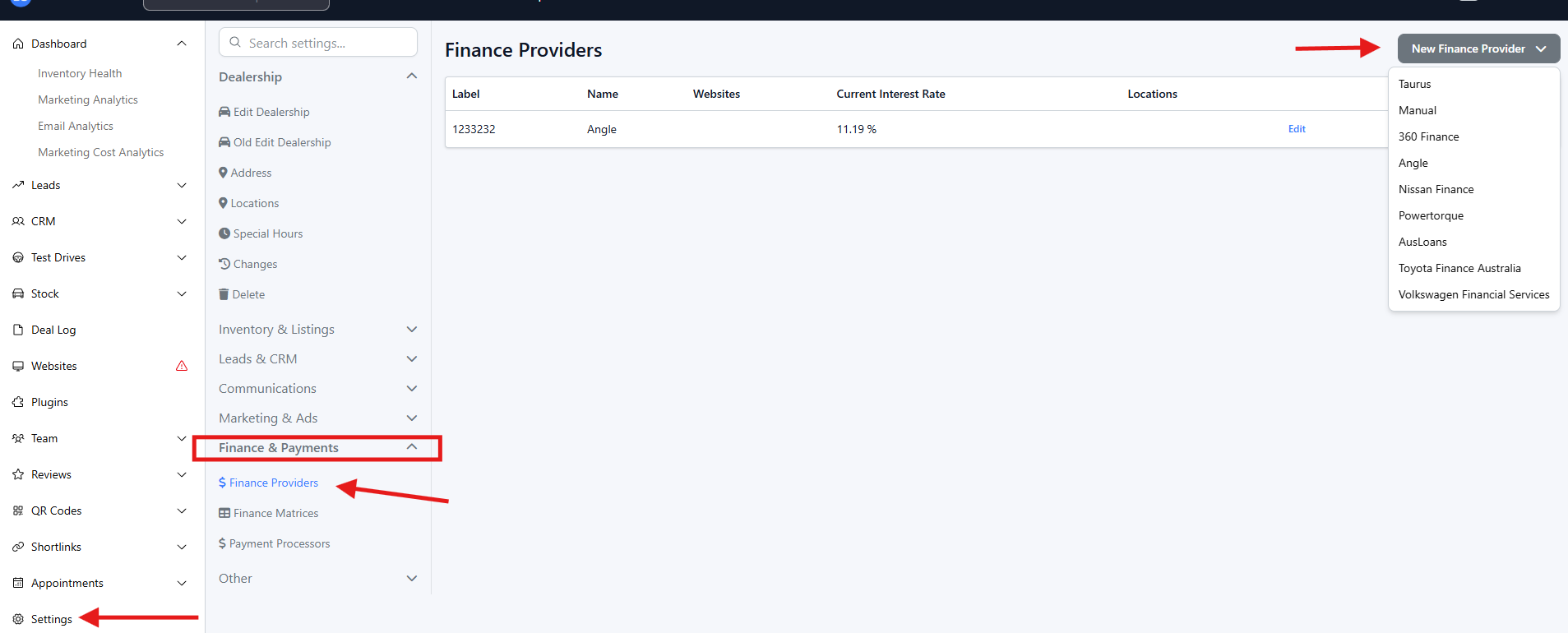
Step 2: Start Adding a Finance Provider
Click the New Finance Provider button.
Choose one of the available options:
Taurus
Manual Entry
360 Finance
Angle
Nissan Finance
Powertorque
Ausloans
? If your provider is not listed, select Manual Entry to add it yourself.
Step 3: Enter Finance Provider Details
The fields displayed will vary depending on the provider you select.
Common Fields
You may be asked to enter or review the following:
Provider Name
Automatically filled for predefined providers.Interest Rates
Enter the minimum and maximum interest rates offered.Comparison Rates
Add the applicable comparison rate(s), if required.Loan Term
Specify the standard loan term (usually in months).Finance Disclaimer
Review and update the finance disclaimer text to ensure it accurately reflects the provider’s terms and conditions.
Manual Entry Only
If you select Manual Entry, additional fields may appear, such as:
Establishment fees
Deposit options
Balloon payments
Other custom finance details
⚠️ Important:
For Manual Entry providers, Finance Deposit can only be configured as one option:
Fixed Amount or
Percentage
You cannot use both.
Step 4: Save the Finance Provider
Once all details are entered and reviewed:
Click Update Finance Provider.
The provider will be saved and added to your dealership.
Step 5: Verification (Optional)
For some third-party providers (such as 360 Finance or Nissan Finance), additional verification may be required.
This may include:
Running a test transaction
Confirming the provider is active and available within the system
Managing Finance Providers
You can manage all finance providers from the Finance Providers section at any time.
Available actions include:
Editing provider details (e.g. interest rates or loan terms)
Destroy a provider that is no longer in use
Changes are saved immediately and reflected across your dealership where finance is displayed.
That’s it! ?
You’ve successfully added and configured a finance provider in Dealer Studio.
Was this article helpful?
That’s Great!
Thank you for your feedback
Sorry! We couldn't be helpful
Thank you for your feedback
Feedback sent
We appreciate your effort and will try to fix the article