How to Set Up Car Comment Templates

Created by Tom Lynch, Modified on Wed, 25 Feb at 2:52 PM by Tom Lynch

Listing comment templates allow you to automatically add standardised content to your vehicle listings. This is useful when you want to prepend or append consistent messaging across multiple vehicles — such as dealership information, warranty details, finance options, or location messaging.


These templates ensure your listings stay consistent while saving time for your team.

Step 1: Navigate to Comment Templates

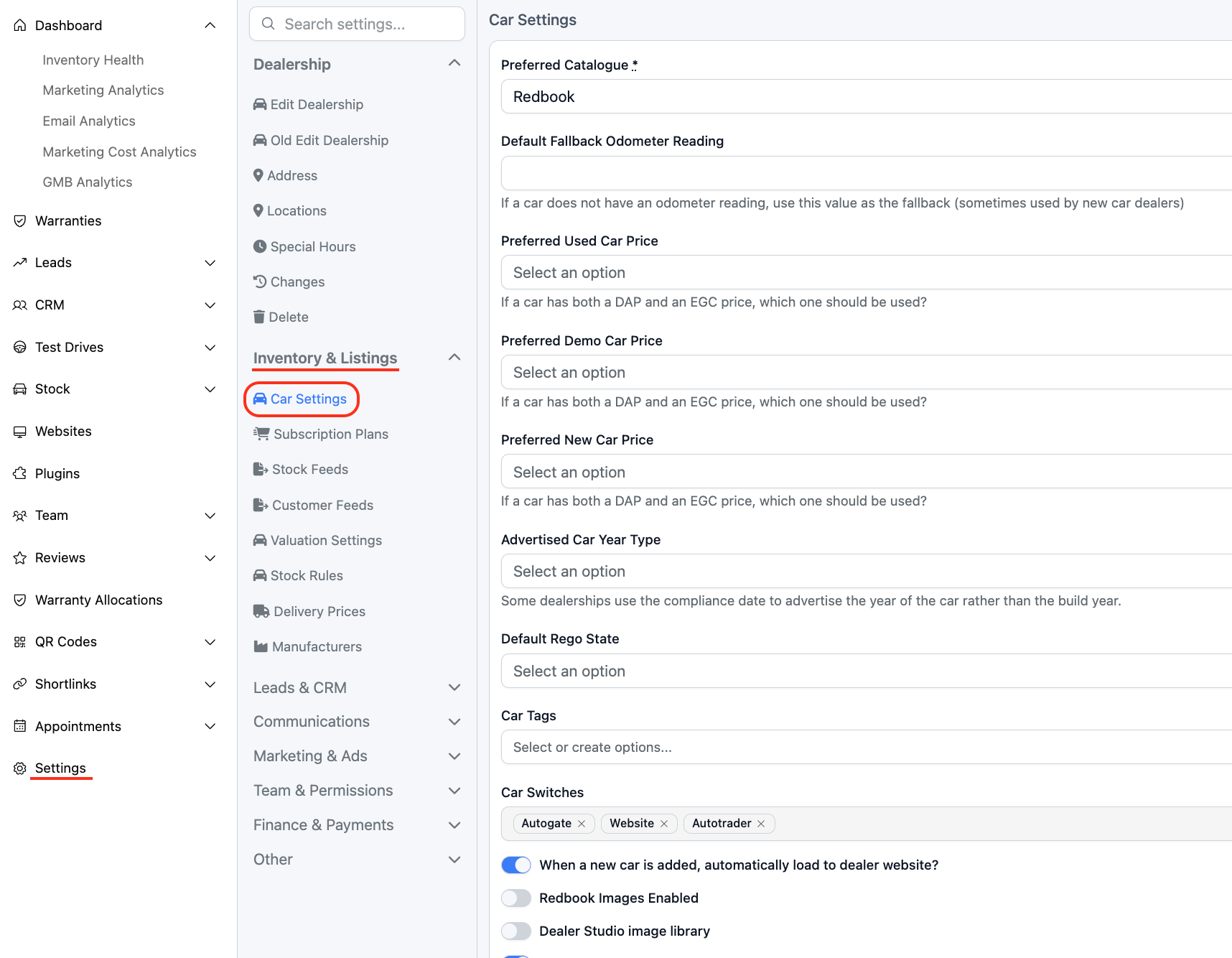
Log in to your dashboard and go to:

Settings > Inventory & Listings > Car Settings


Scroll to the Comment Templates section and click New Template.

Step 2: Configure the Template Settings

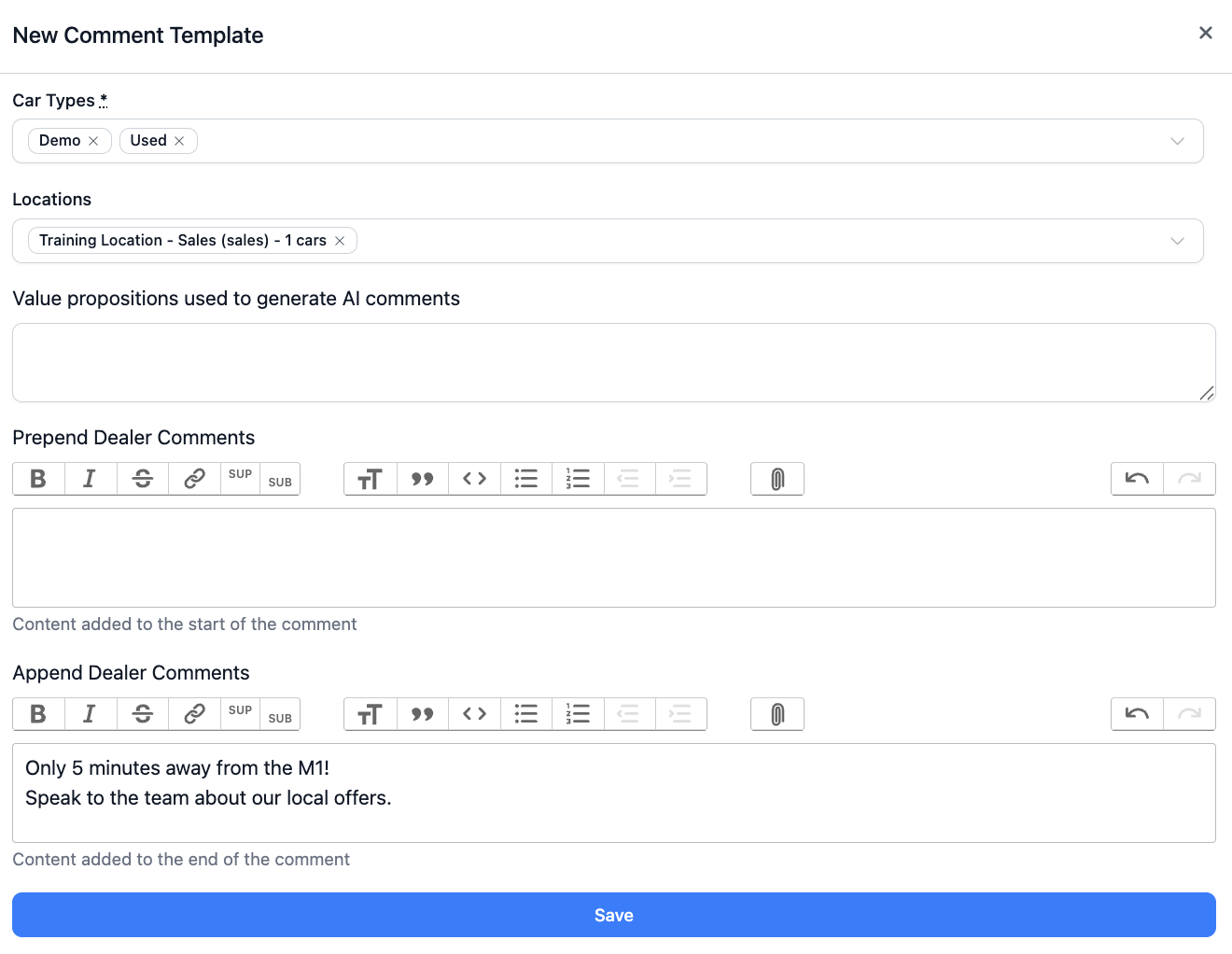
Within the template setup screen, you will need to define where and how the comment will apply.

First, select the relevant car type:

  • New

  • Used

  • Demo

Next, select the applicable location.

Then, choose whether you want to add:

  • Prepended Comment – Content added to the beginning of the vehicle description.

  • Appended Comment – Content added to the end of the vehicle description.

Enter your desired content into the appropriate field.

Once complete, click Save.


Where the Comment Appears

After saving, the template will automatically apply to matching vehicle listings on your website based on the car type and location selected.

Please note:

The comment will display on your website only. It will not appear within the Dealer Studio dashboard — it is applied at the website level only.

Your listing comment template is now active and will apply automatically to relevant vehicles.


Was this article helpful?

That’s Great!

Thank you for your feedback

Sorry! We couldn't be helpful

Thank you for your feedback

Let us know how can we improve this article!

Select at least one of the reasons
CAPTCHA verification is required.

Feedback sent

We appreciate your effort and will try to fix the article