Connecting Your Domain to Dealer Studio (DNS Setup Guide)
Dealer Studio hosts your dealership website on Vercel, while you retain ownership of your domain name. To make your website live, your domain’s DNS records must point to Dealer Studio’s Vercel hosting.
This guide explains:
What happens inside the Dealer Studio dashboard
How to update DNS records at your domain registrar or DNS provider
Part 1: Add Your Domain in Dealer Studio
Log in to the Dealer Studio dashboard.
Navigate to the Domains section.
Add your website’s domain name (e.g.
exampledealer.com).
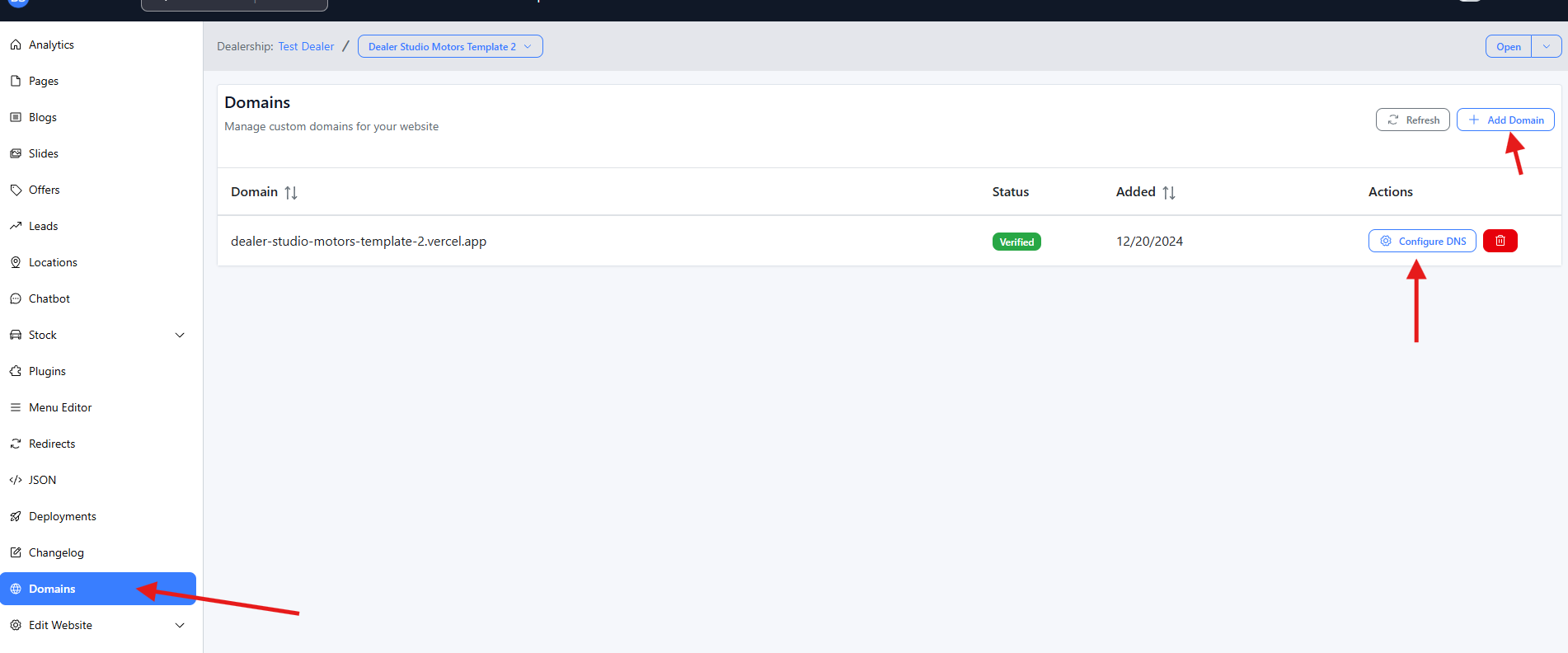
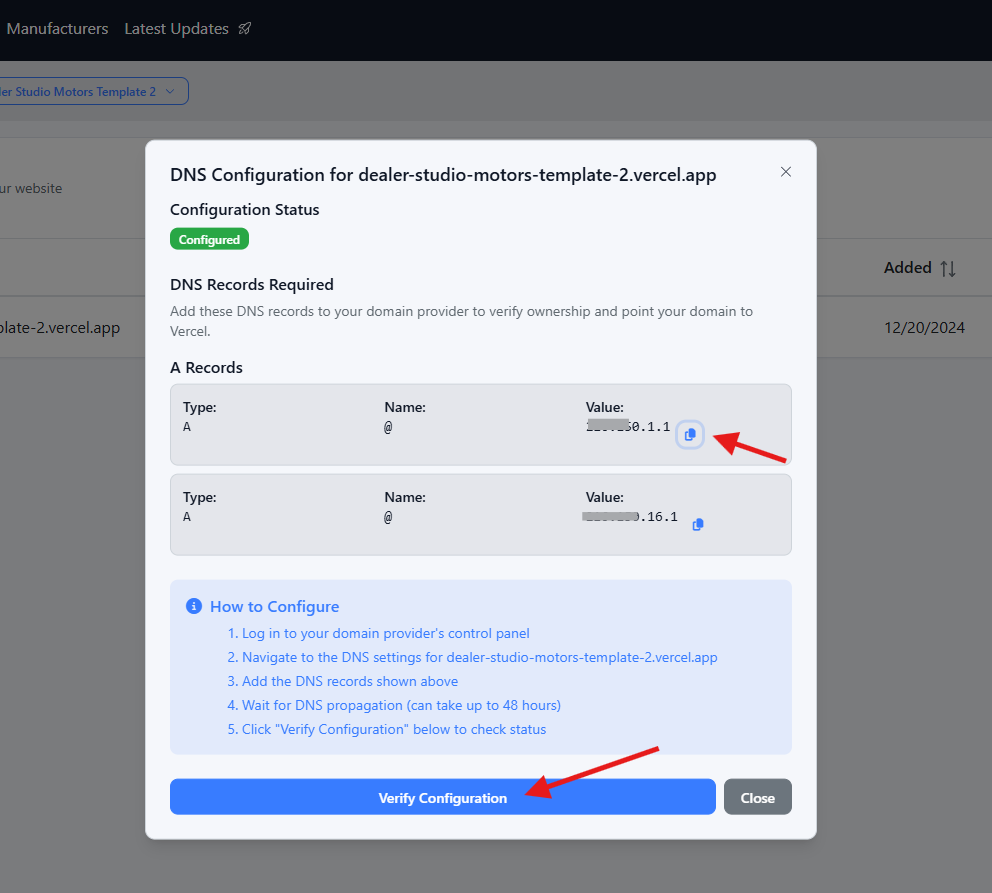
Once added, Dealer Studio will automatically display the required DNS records (such as A records) for your domain.
Important:
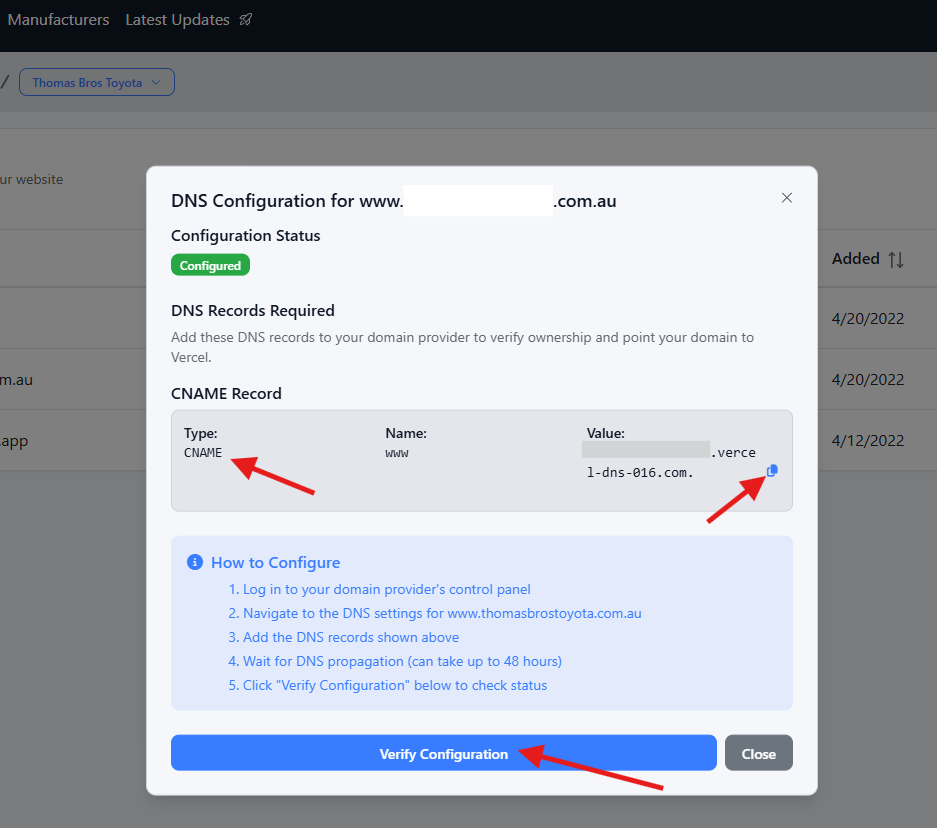
Dealer Studio will show the exact values you must copy and paste into your DNS provider.
No guessing is required.
At this point, setup inside Dealer Studio is complete.
Part 2: Update DNS Records with Your Domain Provider
DNS records are not managed inside Dealer Studio.
They are managed at your domain registrar or DNS provider, such as:
GoDaddy
Namecheap
Google Domains
Bluehost
Cloudflare
If you’re unsure where your domain is hosted:
Check your billing emails, or
Contact your IT provider or domain administrator.
Step 1: Log In to Your Domain Provider
Visit your domain registrar’s website.
Log in using your account credentials.
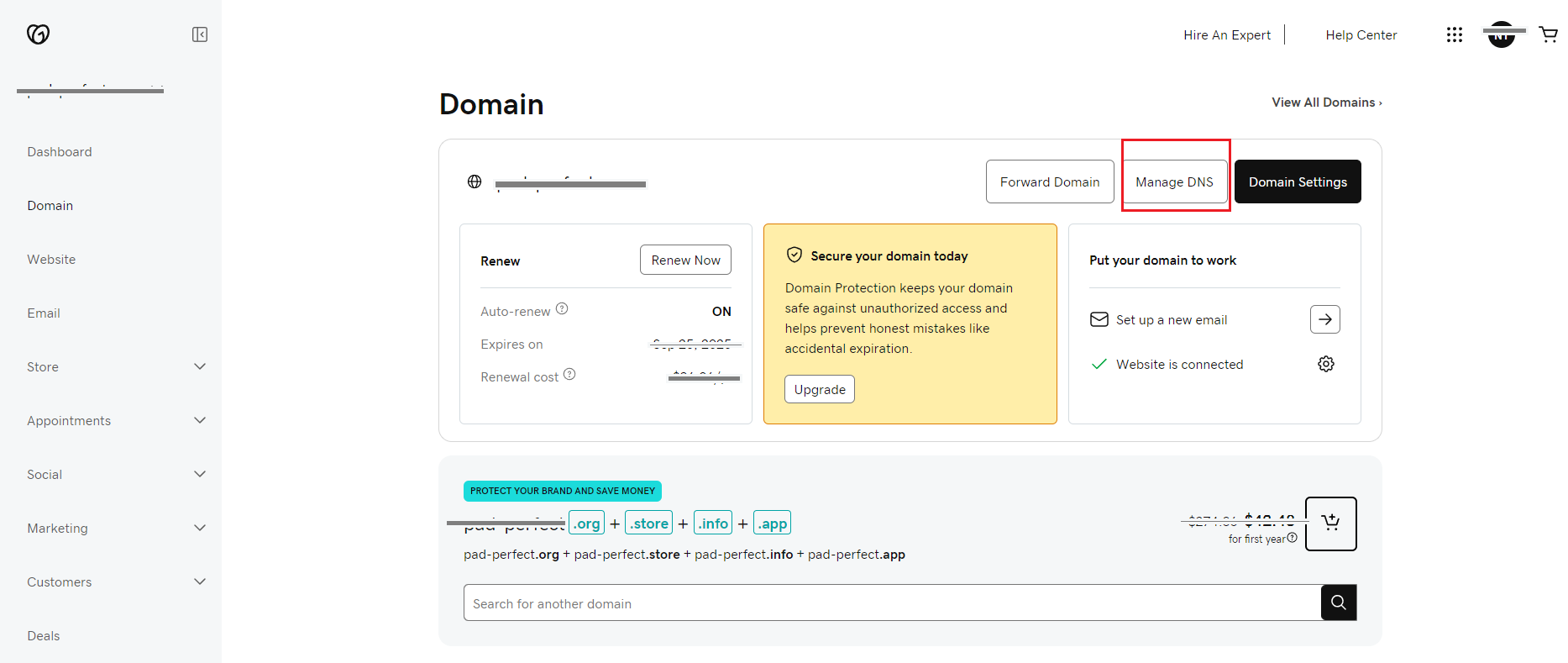
Step 2: Navigate to DNS Management
Locate your domain management area (often called Domains or My Domains).
Select the domain you want to connect.
Look for an option such as:
DNS Settings
DNS Management
Manage DNS
Advanced DNS
This will open the DNS records page.
Step 3: Understand DNS Records
On the DNS page, you’ll see a list of records. Common types include:
A Record – Points a domain to an IP address
CNAME Record – Points one domain to another domain
MX Record – Controls email delivery
TXT Record – Used for verification and security
NS Record – Defines where DNS is managed
Each record usually includes:
Name / Host (e.g.
@,www)Type (A, CNAME, MX, TXT)
Value / Target
TTL (Time To Live)
Dealer Studio provides the correct values for these fields.
Step 4: Locate the Record to Update
Based on the instructions shown in Dealer Studio, find the matching record:
A record update → Replace the IP address
CNAME update → Replace the target domain
TXT record → Add or replace the verification text
If the required record does not already exist, you’ll need to add a new record instead of editing an existing one.
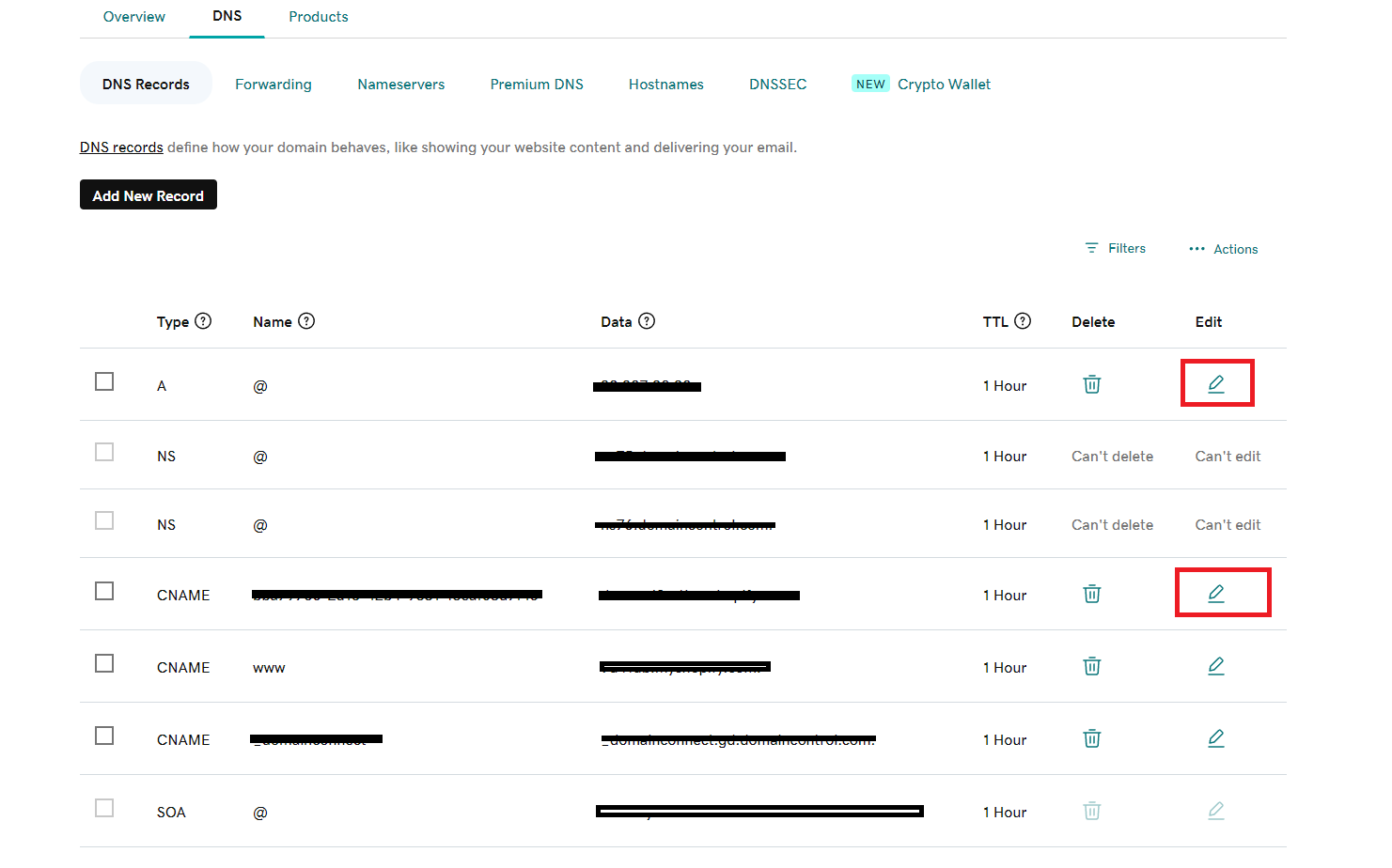
Step 5: Update or Add the DNS Record
Click Edit, Modify, or Add Record (label varies by provider).
Enter the values exactly as shown in the Dealer Studio dashboard.
Set the TTL if required (commonly
300seconds / 5 minutes).Double-check spelling and formatting — DNS is very sensitive to errors.
Step 6: Save Your Changes
Click Save, Update, or Apply Changes to confirm.
Step 7: Wait for DNS Propagation
DNS changes are not instant.
Updates may take a few minutes up to 48 hours to fully propagate.
Lower TTL values generally update faster.
During propagation, your website may load inconsistently.
Provider Examples
GoDaddy
Log in to GoDaddy
Go to My Products
Click DNS next to your domain
Scroll to Records
Click Edit, make changes, and Save
Cloudflare
Log in to Cloudflare
Select your domain
Click DNS in the top menu
Locate the record and click Edit
Save your changes
Important Notes
TTL affects how quickly changes take effect
Be extremely careful when editing NS (Name Server) records — these control where DNS is managed
If you’re unsure what to change, do not guess
Need Help?
If you experience issues or are unsure what values to enter, contact Dealer Studio Support with:
Your domain name
Screenshots of your DNS records
The DNS values provided in Dealer Studio
You’re now equipped to safely connect your domain to Dealer Studio and launch your website ?
Was this article helpful?
That’s Great!
Thank you for your feedback
Sorry! We couldn't be helpful
Thank you for your feedback
Feedback sent
We appreciate your effort and will try to fix the article