Overview
The Dealer Studio Stock Dashboard gives you powerful filtering tools to quickly find, review, and report on your vehicle inventory. Using the filters on the left-hand side of the dashboard, you can narrow down stock based on a range of criteria, helping you stay on top of your inventory at a glance
Getting Started
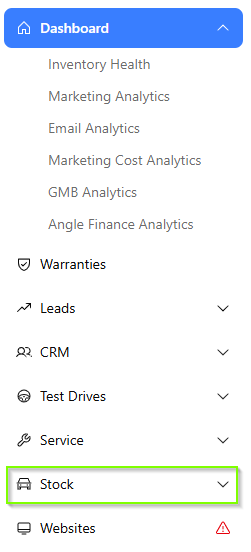
Navigate to Stock in the main dashboard menu
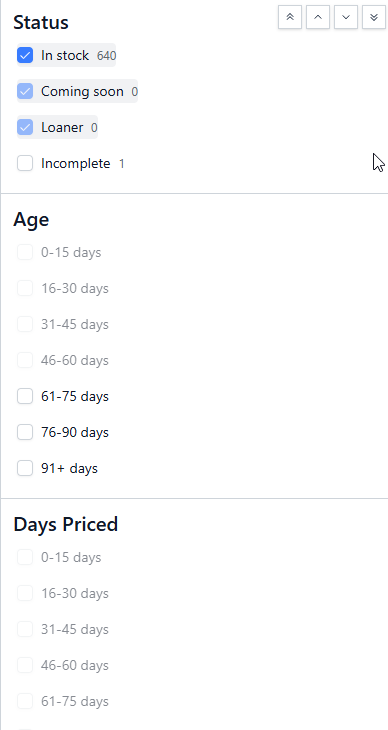
The filter panel will appear on the left-hand side of the screen example, Status, Item Type.
Using the Filters Option
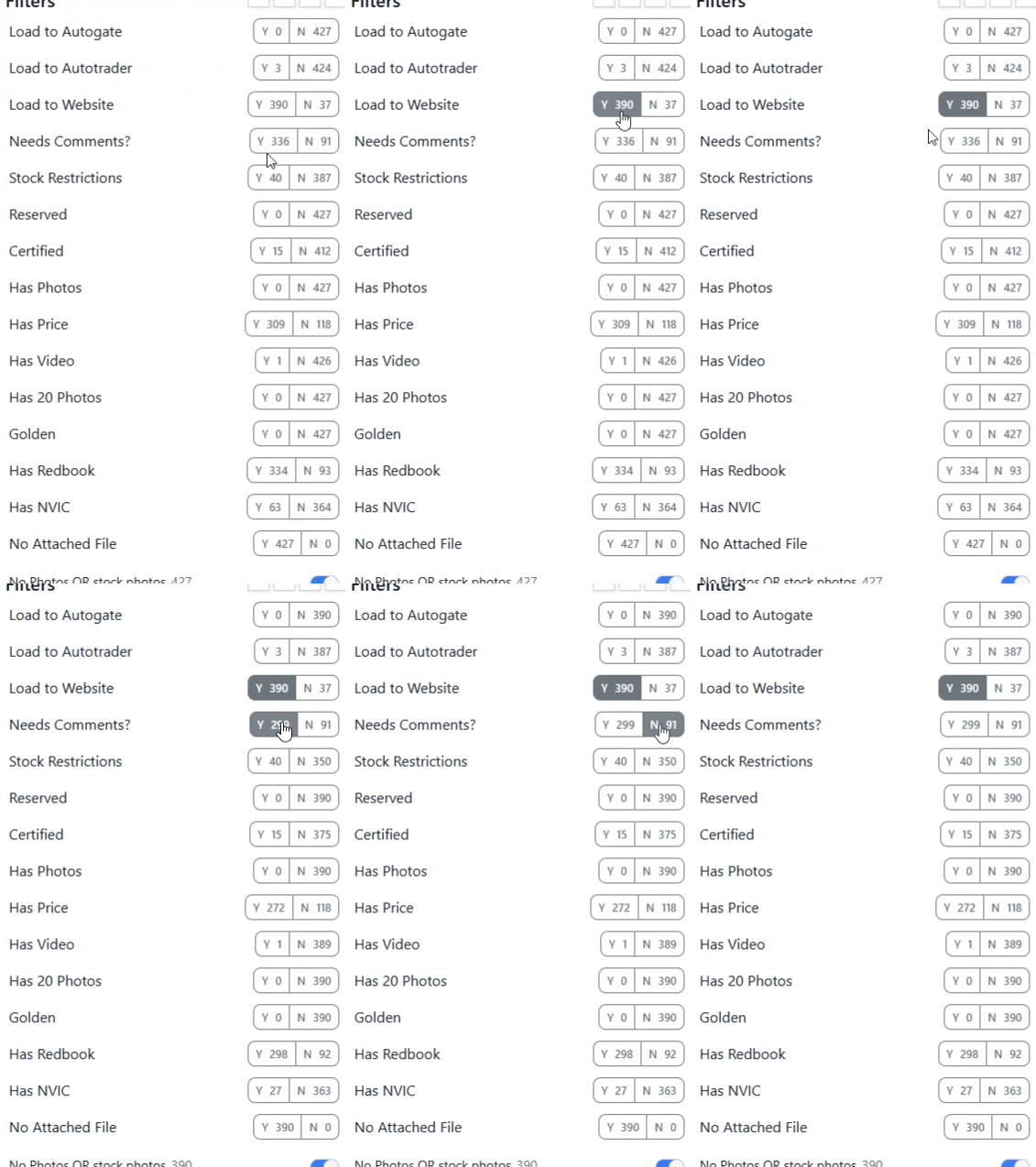
In addition to the standard filter categories above, there is a dedicated Filters section that allows you to check how much of your stock meets a specific criteria. This is useful for quality-checking your listings.
Examples of what you can filter for include:
- Has a Redbook code assigned
- Has a video attached
- Has photos uploaded
Tip: Use the Y (Yes) and N (No) toggle buttons to switch between showing stock that meets or does not meet the selected criteria. |
How to Use the Y / N Toggle
- In the Filters section, locate the criteria you want to check (e.g. Redbook Code, Video).
- Click Y to show stock that meets the criteria.
- Click N to show stock that does not meet the criteria.
The stock dashboard will automatically reload to display matching stock items.
Automatic Results Loading
Once you select any filter criteria, the Stock Dashboard will automatically update and display only the stock items that match your selection. There is no need to click a separate search or apply button, the results load instantly as you make your selections.
Note: You can combine multiple filters at the same time to further narrow down your results. For example, filter by Status: In Stock and Make: Toyota to see all in-stock Toyota vehicles. |
Running a Report on Filtered Stock
Once you have applied your desired filters, you can generate a report based on the filtered results. This is useful for exporting or reviewing stock data that meets specific criteria.
For step-by-step instructions on creating a stock report, please refer to the guide below:
How to Create a Stock Report: https://docs.dealerstudio.com.au/support/solutions/articles/51000511726-how-to-create-a-stock-report
Was this article helpful?
That’s Great!
Thank you for your feedback
Sorry! We couldn't be helpful
Thank you for your feedback
Feedback sent
We appreciate your effort and will try to fix the article