This article explains how to use and configure stock page filters on your website. It covers setting up filter categories, enabling users to sort or search vehicles by make, model, price, or other attributes, and ensuring accurate display of filtered results. Ideal for users managing vehicle inventories who want to make it easier for visitors to find the right car quickly and efficiently.
Step 1: On the Dealership Dashboard, select Websites
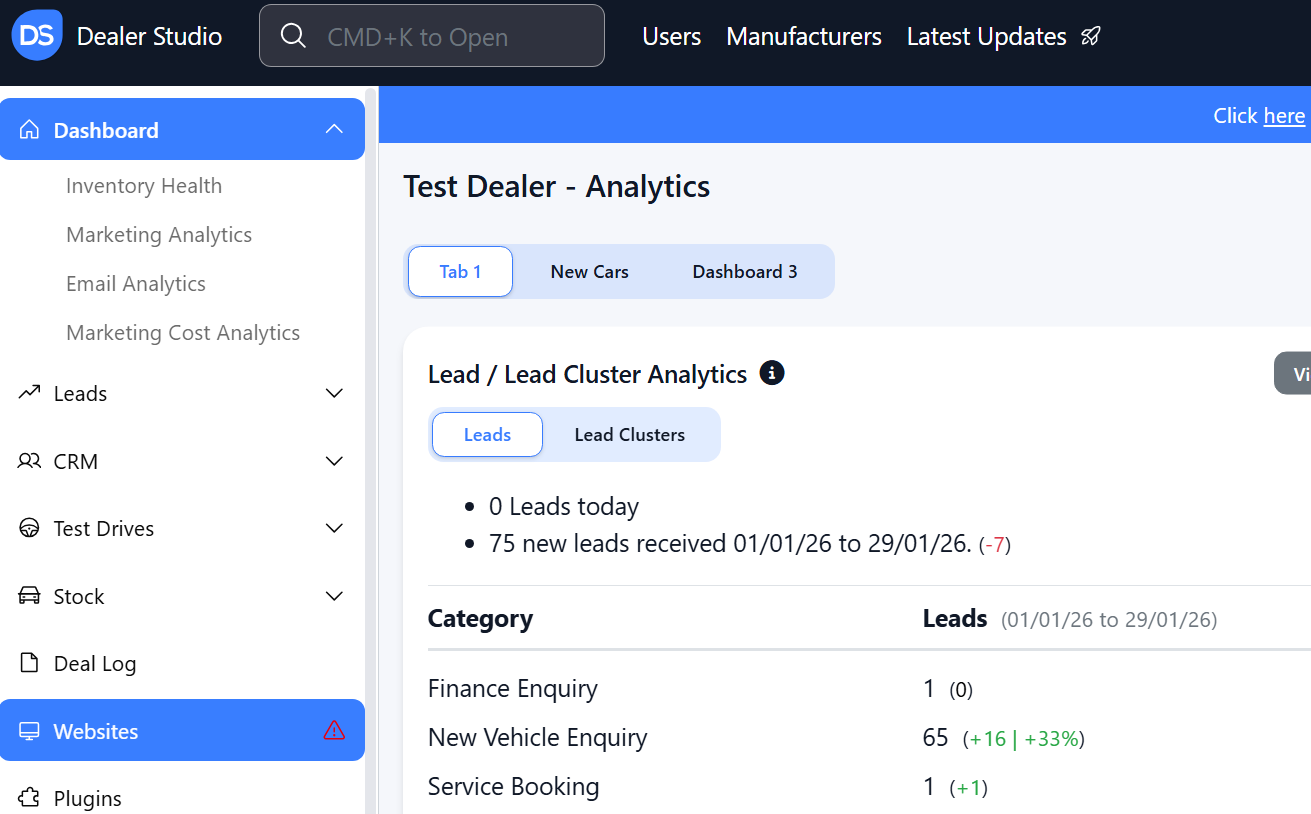
Step 2: Select the Desired Website to edit
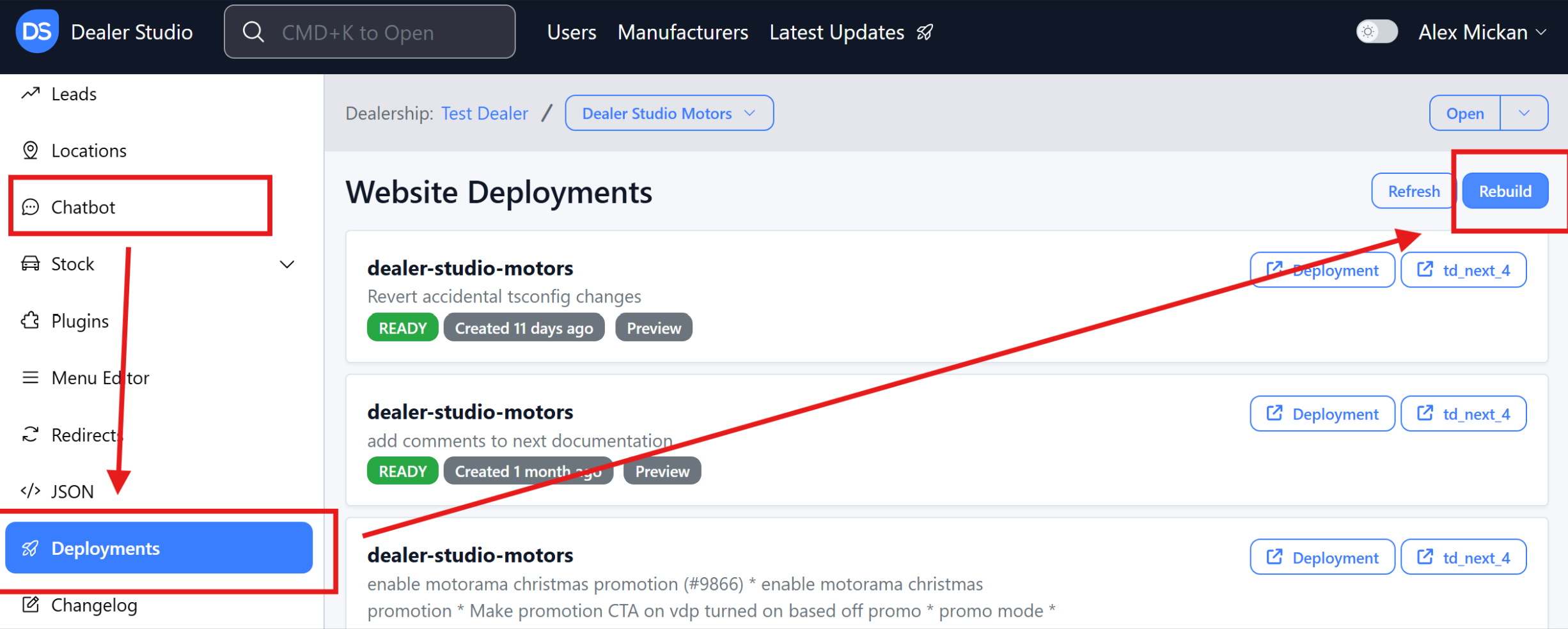
Step 3: Once on the Website Dashboard, select 'Chatbot'
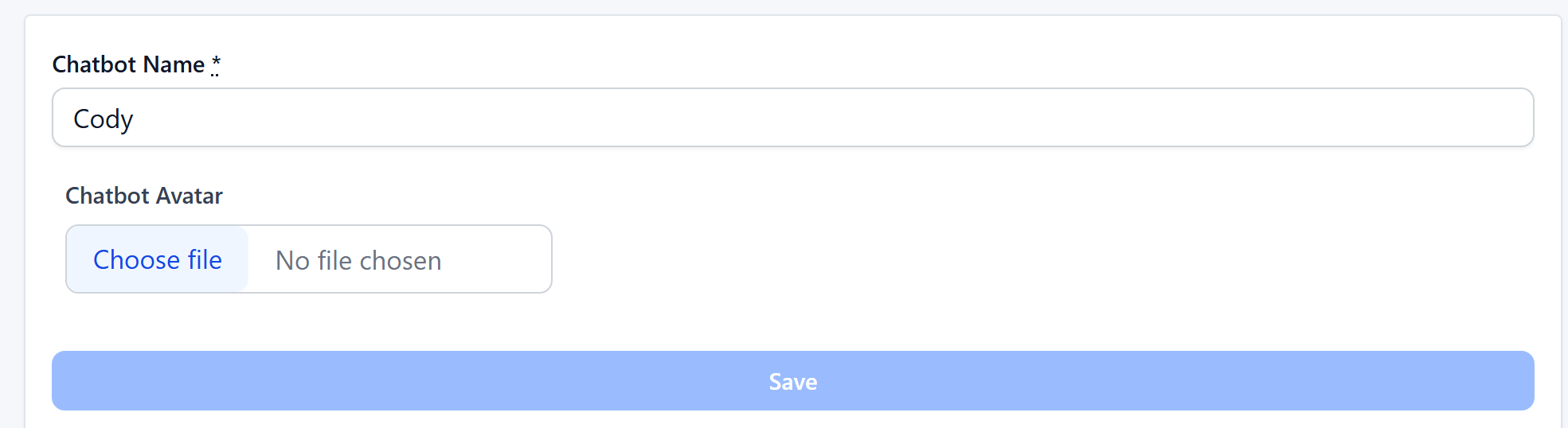
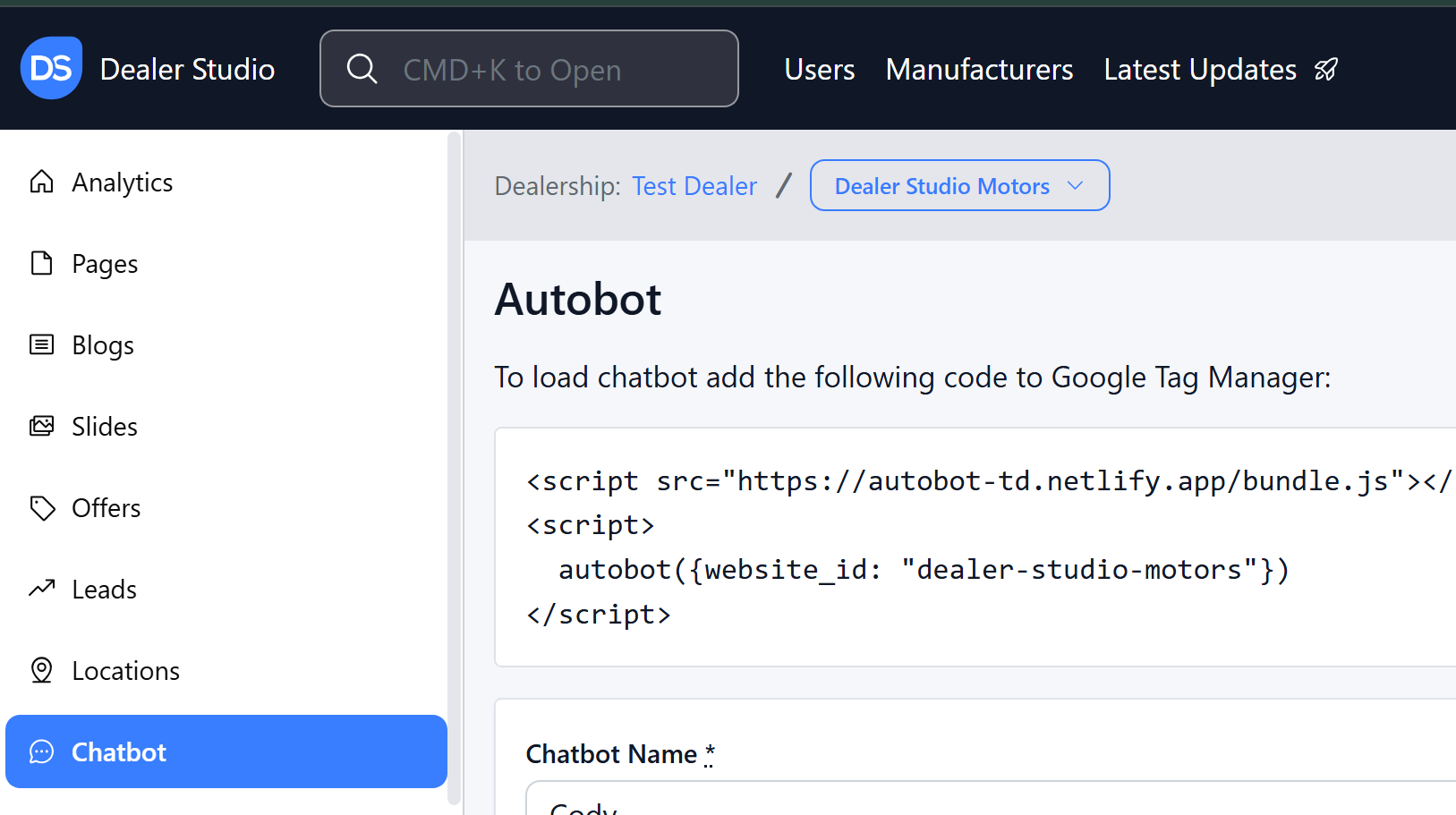 Step 4: Choose the Avatar and the Chatbot name, Then Click save:
 Step 5: Please go to Deployments;
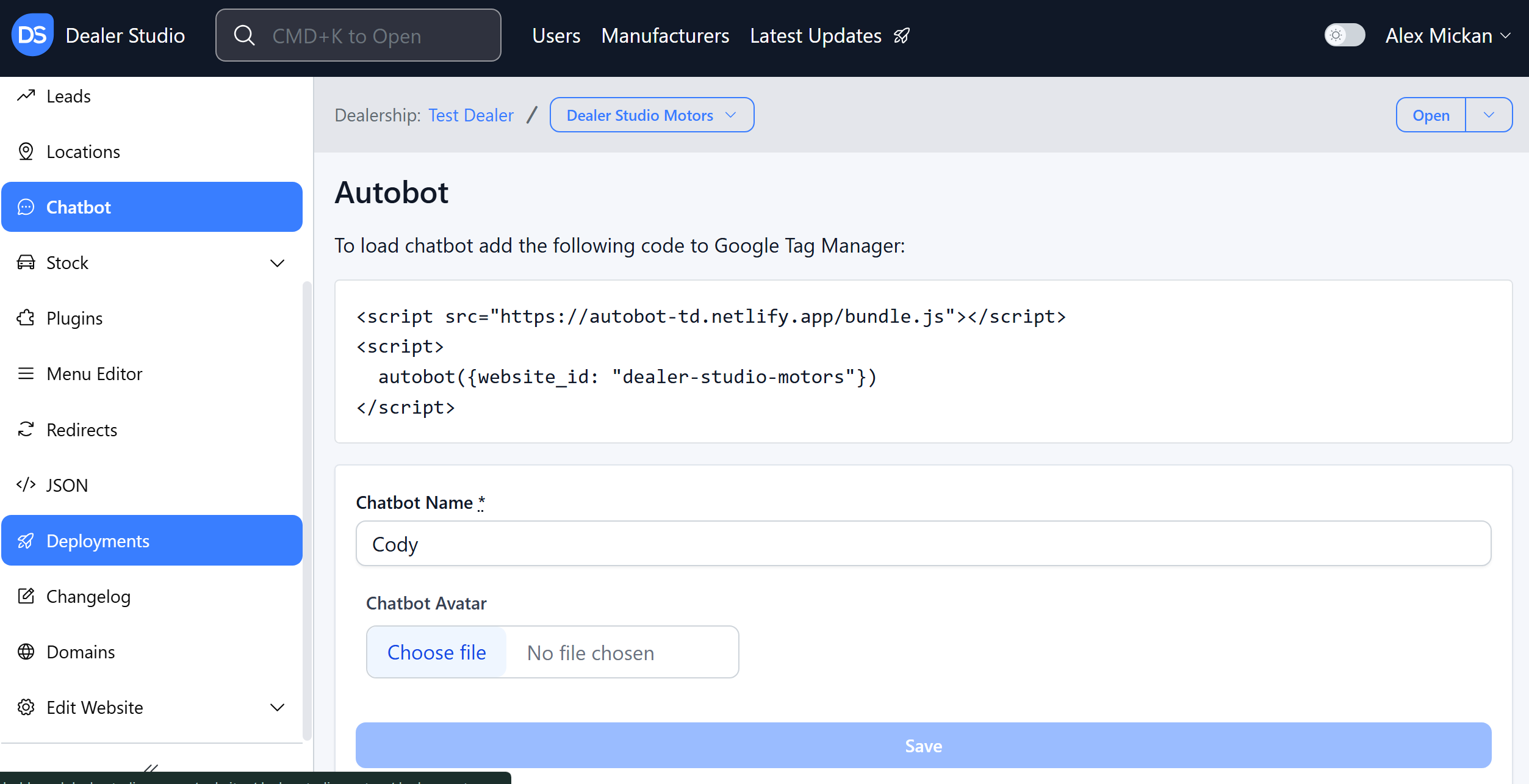
Step 6: Then rebuild- the Chatbot changes will be visible after this
Was this article helpful?
That’s Great!
Thank you for your feedback
Sorry! We couldn't be helpful
Thank you for your feedback
Feedback sent
We appreciate your effort and will try to fix the article