This article explains how to add a new lead using the Dealer Studio mobile app. Creating leads in the app allows you to quickly capture customer enquiries and keep your sales activities organised.
Instructions to Add a New Lead
Follow the steps below to add a new lead in the Dealer Studio mobile app:
Step 1: Navigate to Add New Lead
Step 2: Enter Lead Information
Step 3: Submit the Lead
Step 1: Navigate to Add New Lead
Log in to the Dealer Studio mobile app.
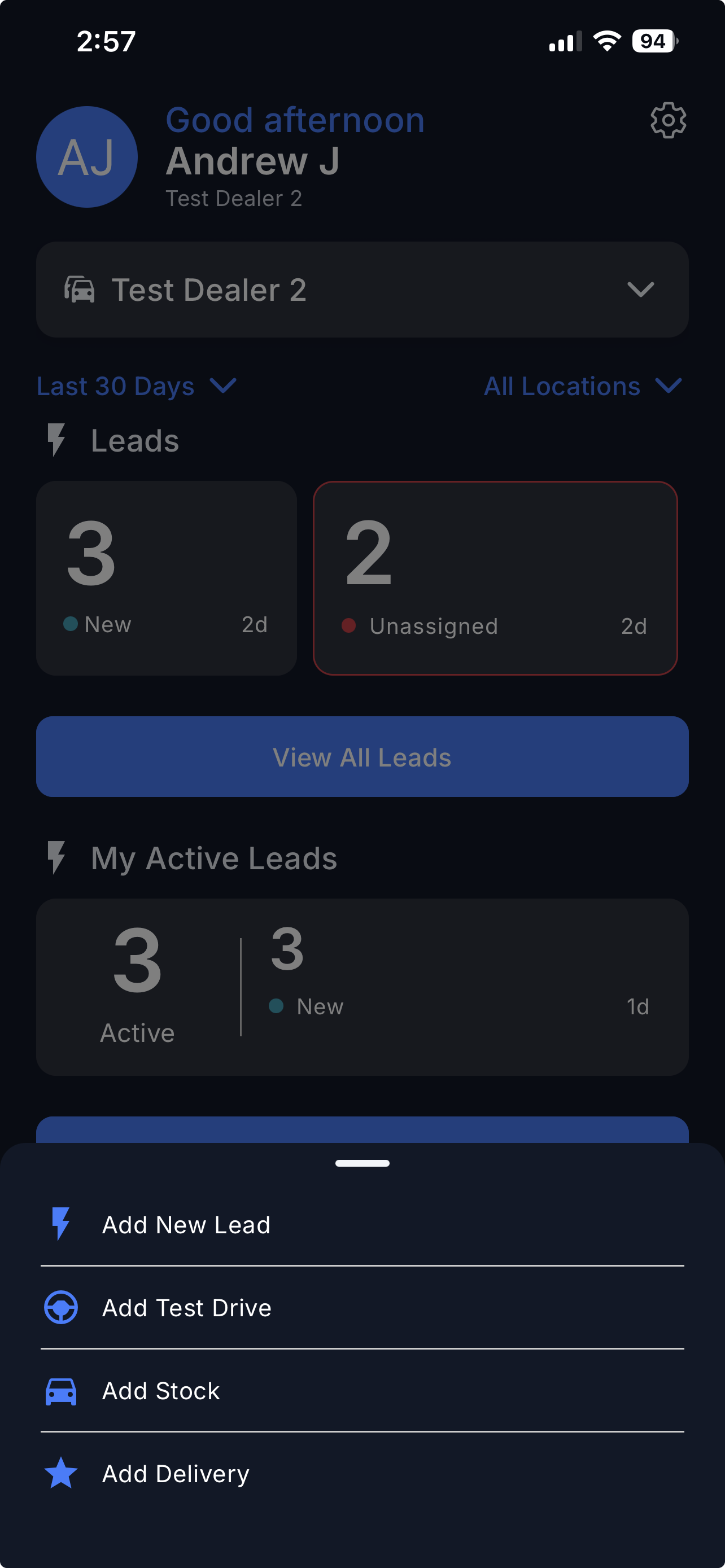
From the Dashboard, select your Dealership.
Tap the '+' button at the bottom of the screen.
Tap Add New Lead.
Step 2: Enter Lead Information
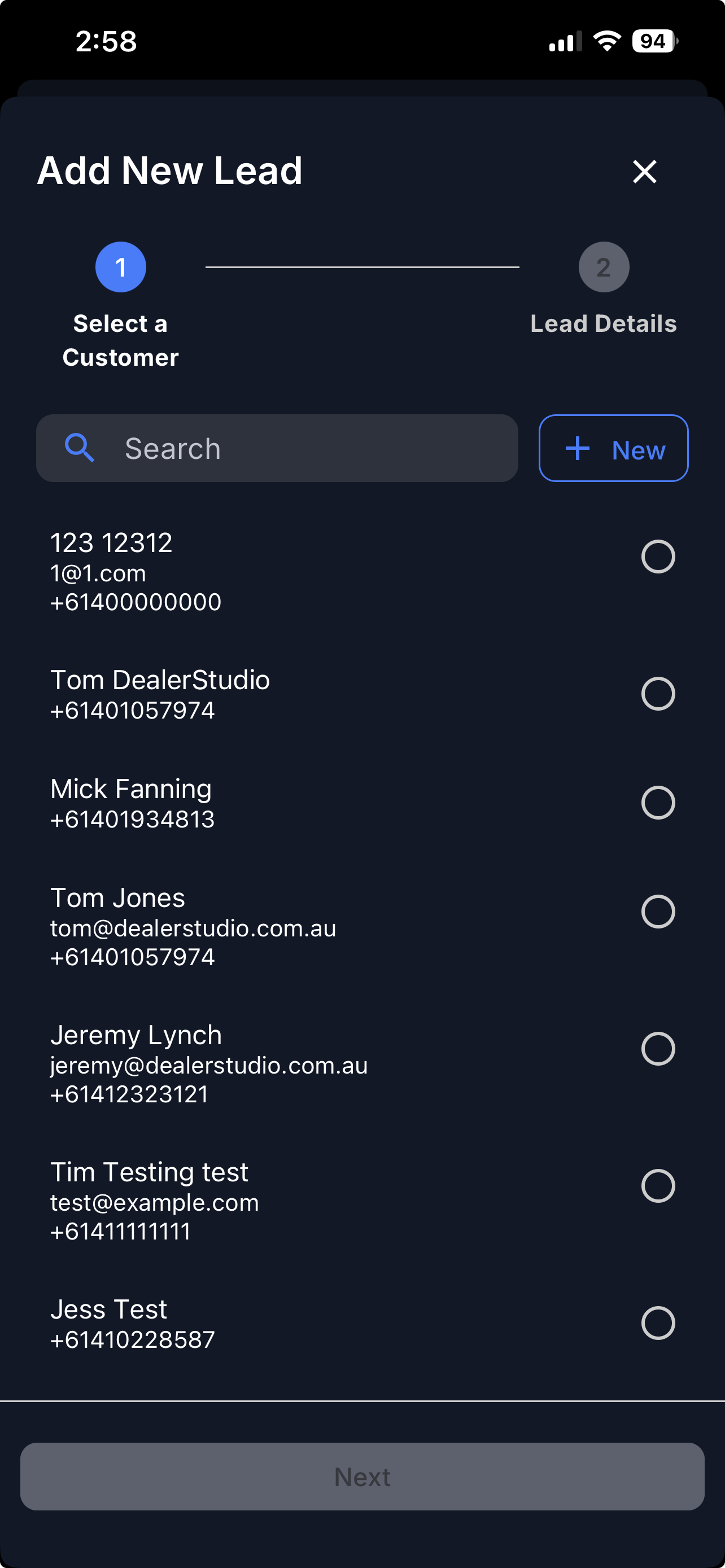
Follow the steps shown at the top of the screen.
i. Select a Customer
Choose the customer involved in this lead.
Select an existing customer from the list.
To create a new customer, tap + New in the top-right corner.
ii. Lead Details
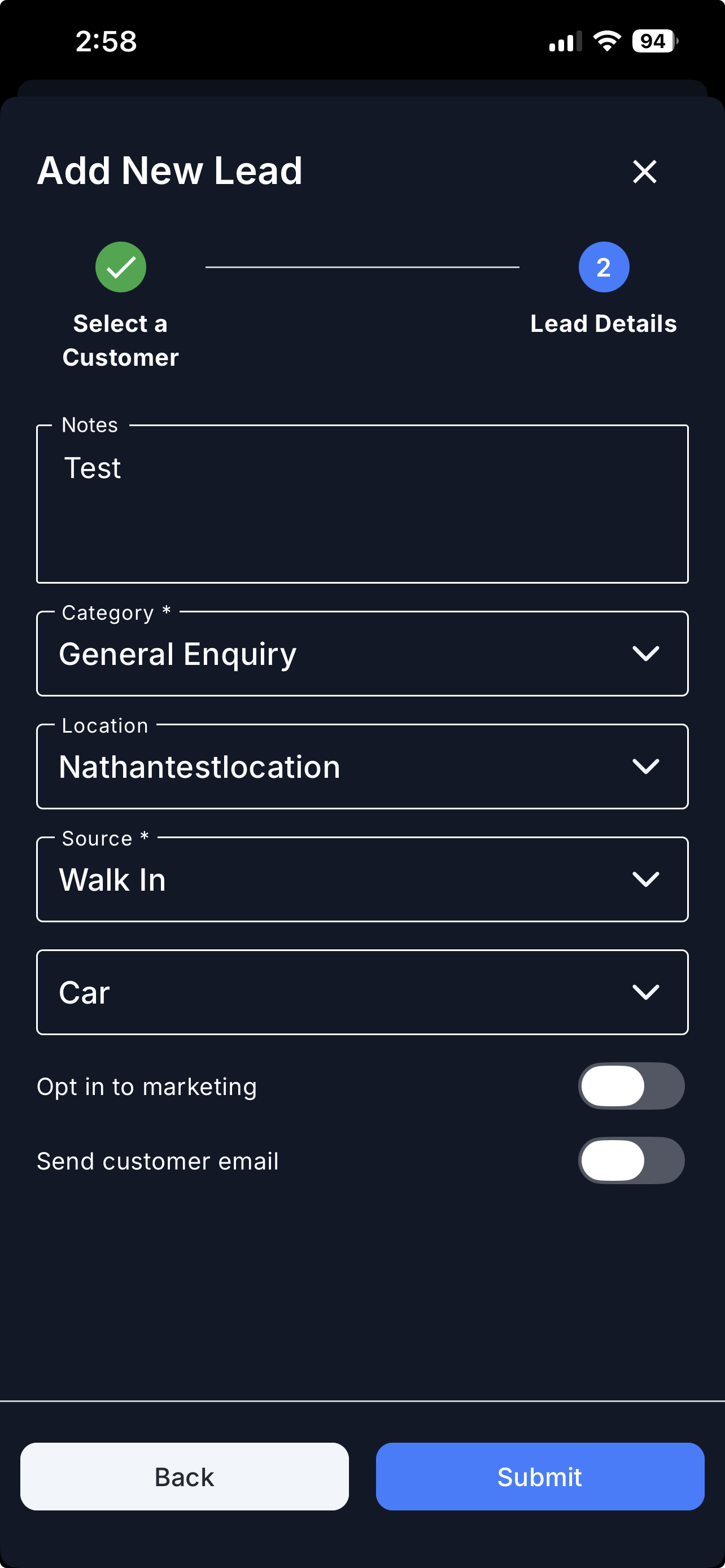
Enter the lead details as prompted in the form.
Select the correct Lead Category for the lead.
Complete the required fields.
Optionally toggle Send customer email to notify the customer once the lead is created.
Step 3: Submit the Lead
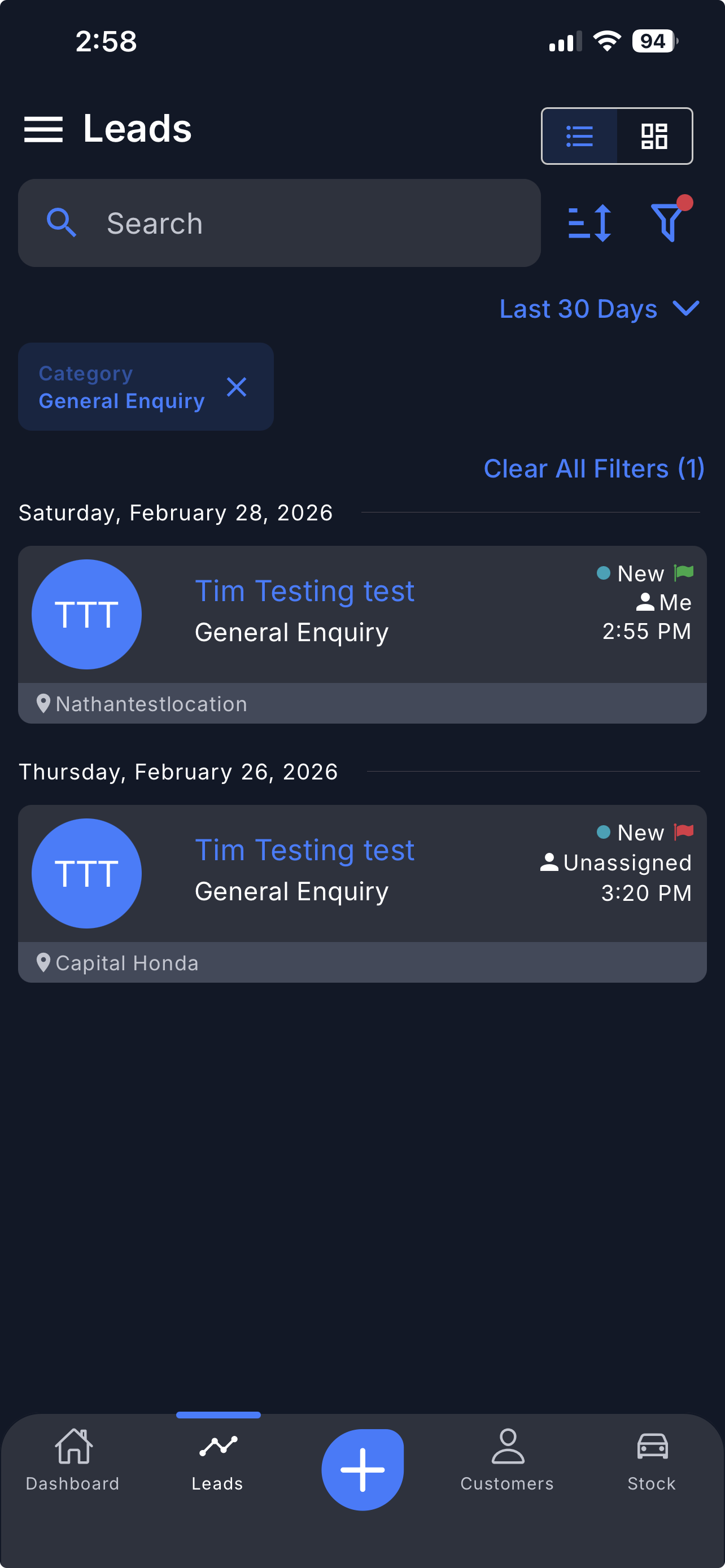
Tap Submit to create the lead.
Once submitted, the lead will be created and added to your Leads list.
To find the lead more easily:
Use the Filter option to narrow down your search.
Important:
Selecting the correct Lead Category helps ensure the lead is assigned and tracked correctly.
Video
Please refer to the attached video below for a visual guide.
Was this article helpful?
That’s Great!
Thank you for your feedback
Sorry! We couldn't be helpful
Thank you for your feedback
Feedback sent
We appreciate your effort and will try to fix the article