Follow the steps below to add an appointment to an existing lead in the Dealer Studio mobile app.
Step 1 – Go to Leads
Log in to the Dealer Studio Mobile App.
From the Dashboard, select your Dealership.
Tap Leads at the bottom of the screen.
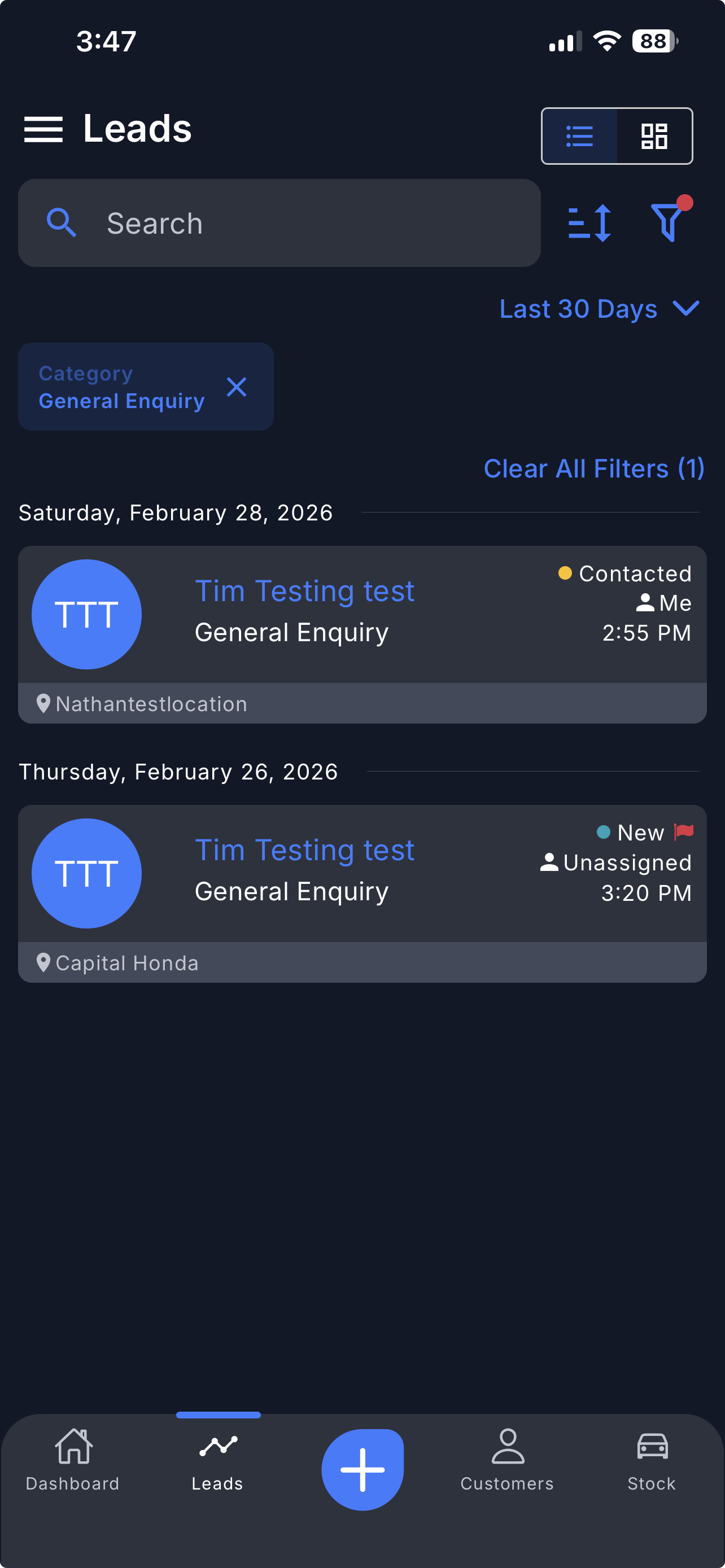
Step 2 – Select a Lead
Select the lead you want to add an appointment to.
Tip: Use the Filter function at the top right corner to narrow down your search if needed.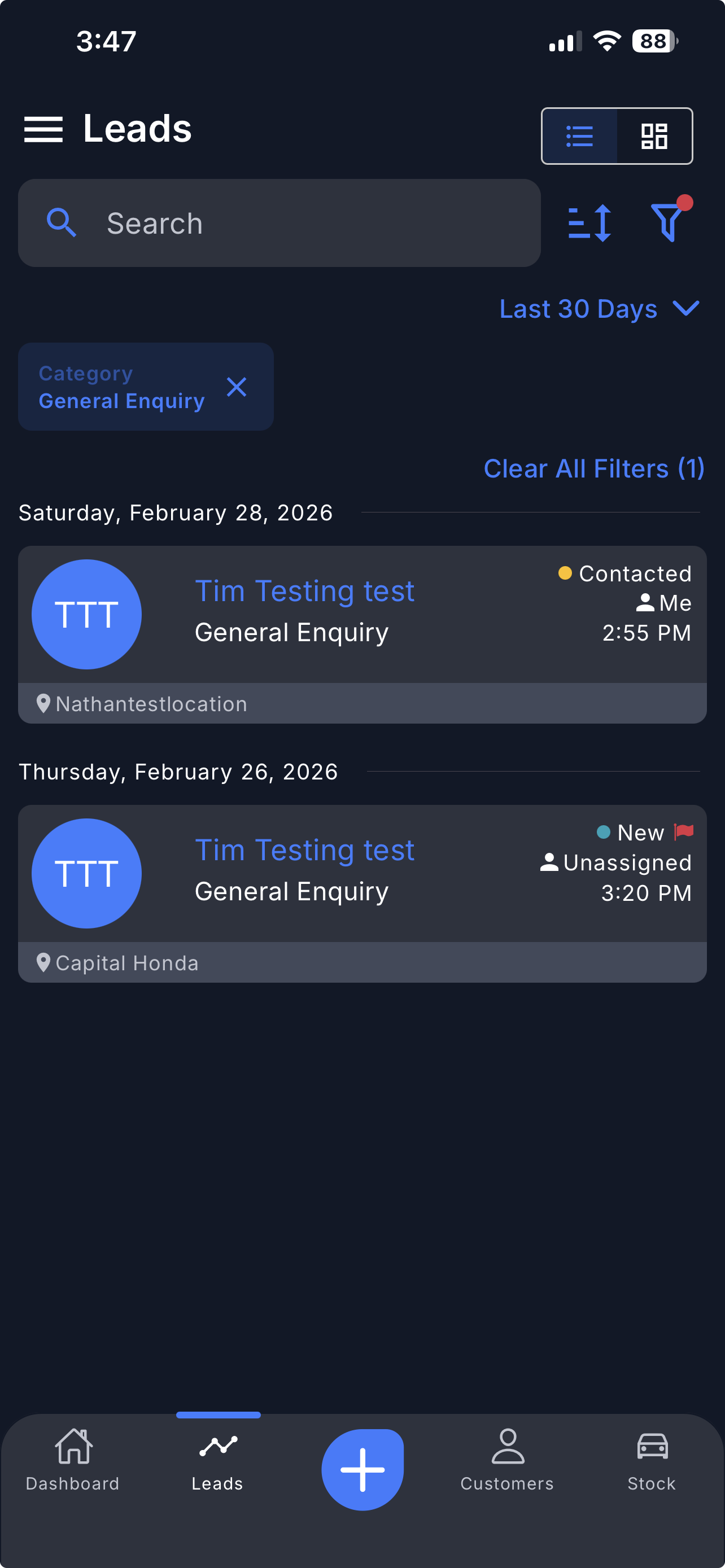
Step 3 – Add an Appointment
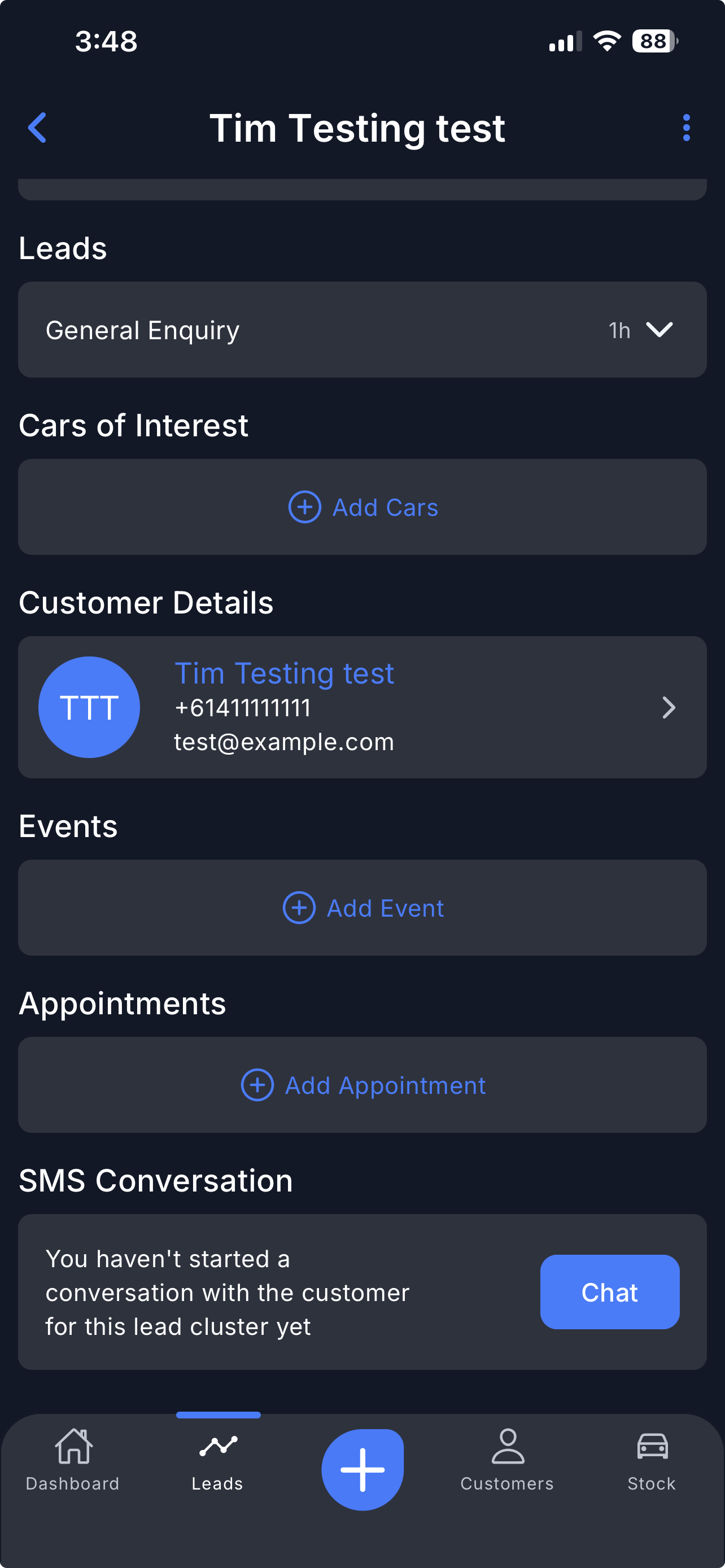
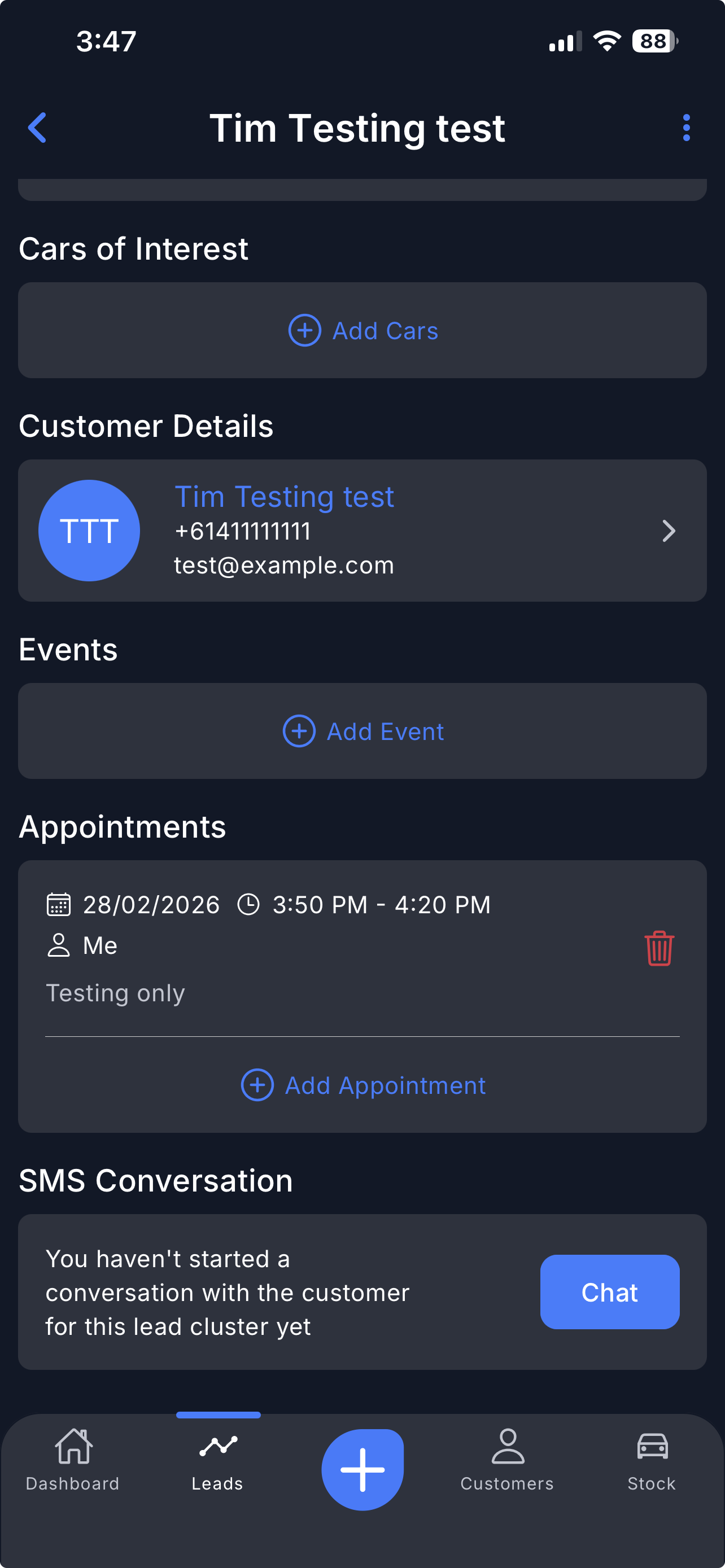
Scroll down to the Appointments section.
Tap Add Appointment.
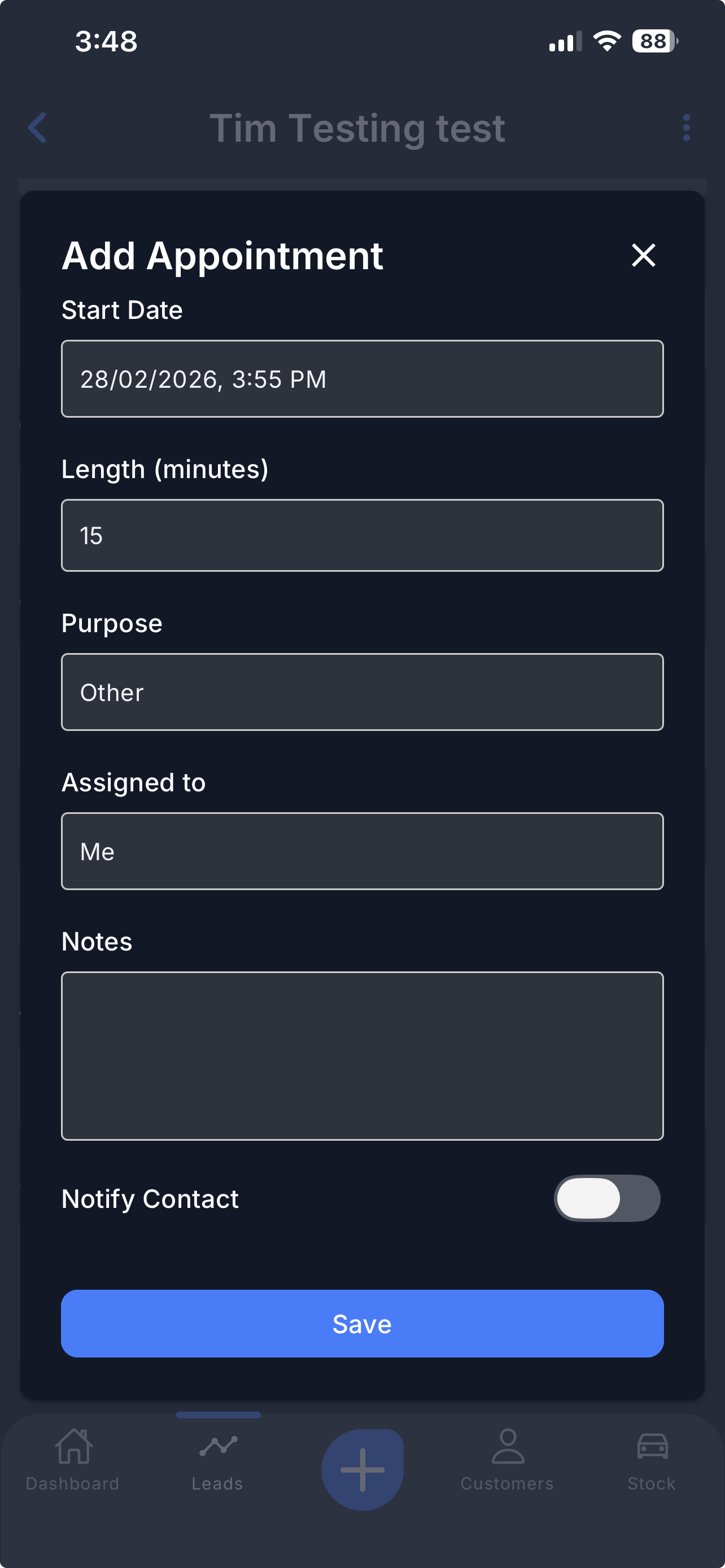
Enter the appointment details as prompted in the form.
Toggle Notify Contact to notify the team member assigned to this appointment.
Step 4 – View or Manage the Appointment
After submitting, the appointment will appear in the lead.
You can edit or delete the appointment by tapping on the appointment slot.
That's it!
Video
Please refer to the attachment below.
Was this article helpful?
That’s Great!
Thank you for your feedback
Sorry! We couldn't be helpful
Thank you for your feedback
Feedback sent
We appreciate your effort and will try to fix the article