This guide explains how to create or edit a lead status in the Dealership Dashboard. It outlines the steps to access Lead Settings, navigate to Pipeline Sales, and configure a new lead status by entering the required details such as status name, type, and colour before saving.
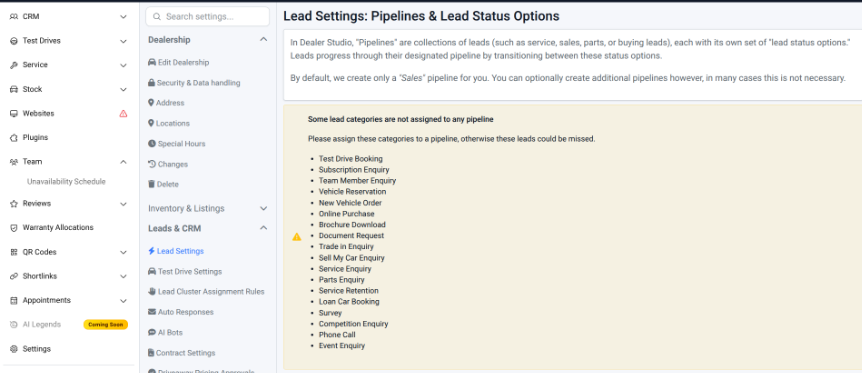
Step 1: On the Dealership Dashboard, select settings.
- Click -> Lead settings
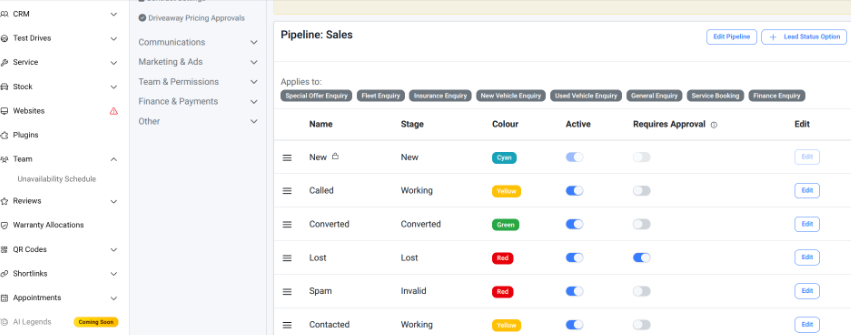
Step 2: In Lead settings, scroll down to Pipeline sales
- Click -> Lead Status Option
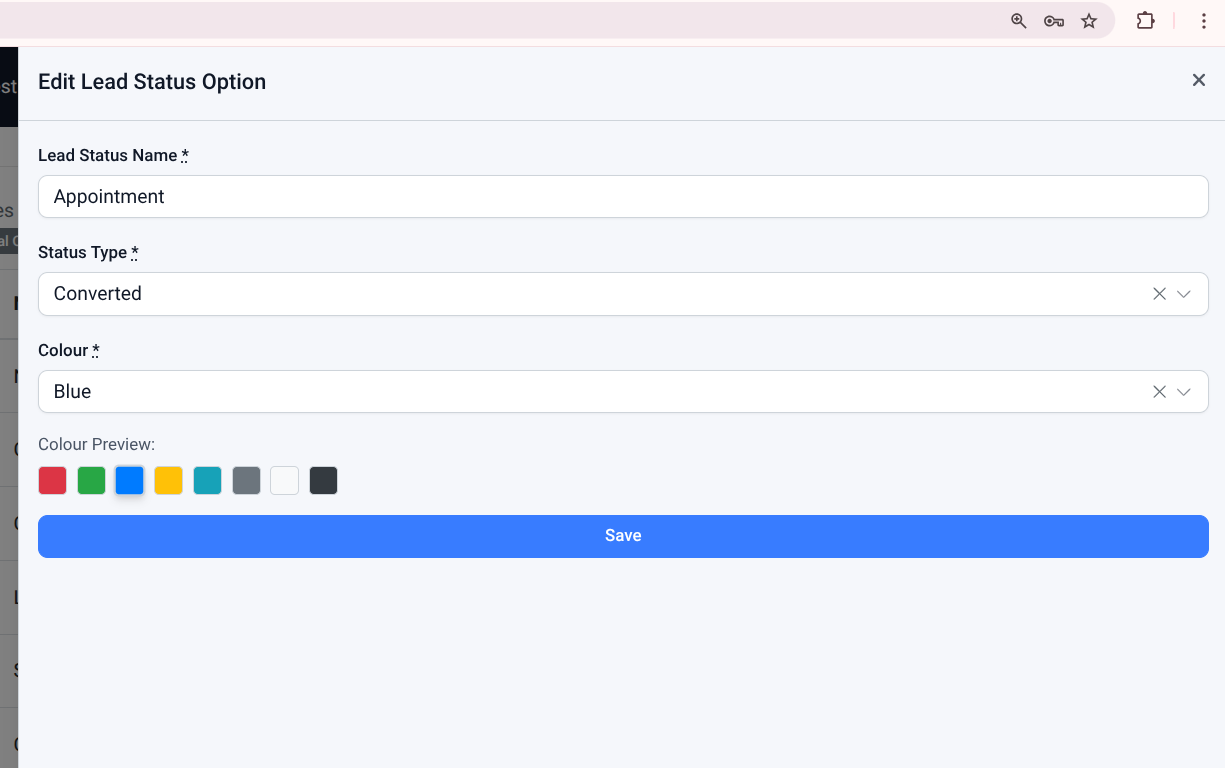
Step 3: In Edit Lead Status Option, enter the required fields
- Lead Status Name: Enter a status name
- Status Type: Select a type(New, Working, Converted, Lost and Invalid)
- Colour: Select the colour you want
- Click Save to save the status
By following these steps, you can successfully set up or update lead statuses in the system. Ensure all required fields are completed correctly and the appropriate status type and colour are selected before saving to maintain consistency in lead tracking.
Was this article helpful?
That’s Great!
Thank you for your feedback
Sorry! We couldn't be helpful
Thank you for your feedback
Feedback sent
We appreciate your effort and will try to fix the article