Summary
Dealer Studio allows users to generate reports on stock entered into the platform, including both in-stock and sold vehicles. Reports can be customised to include specific data fields such as stock number, VIN number, manufacturer, location, and other relevant vehicle details. Note: you need to have access to manage stock.
Steps to Generate an Inventory Report
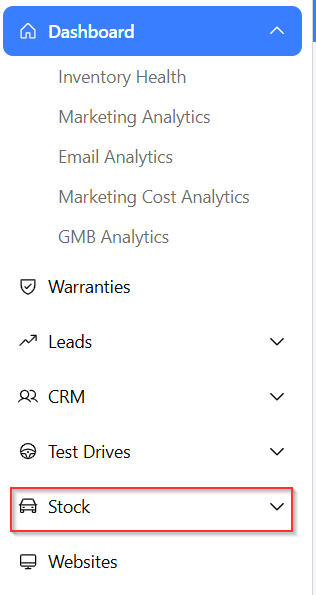
1. From the Dealer Studio Dashboard, go to stock on the left-hand side.
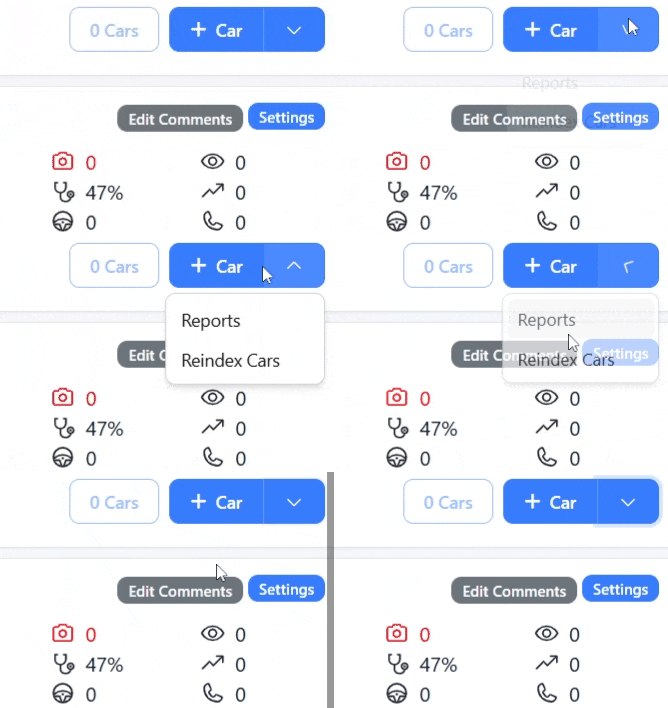
2. At the top right of the Stock Dashboard, click the drop-down arrow next to the Cars button and select Reports. You will then be redirected to a new page.
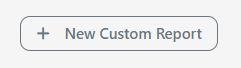
3. click New Custom Report on the right-hand side.
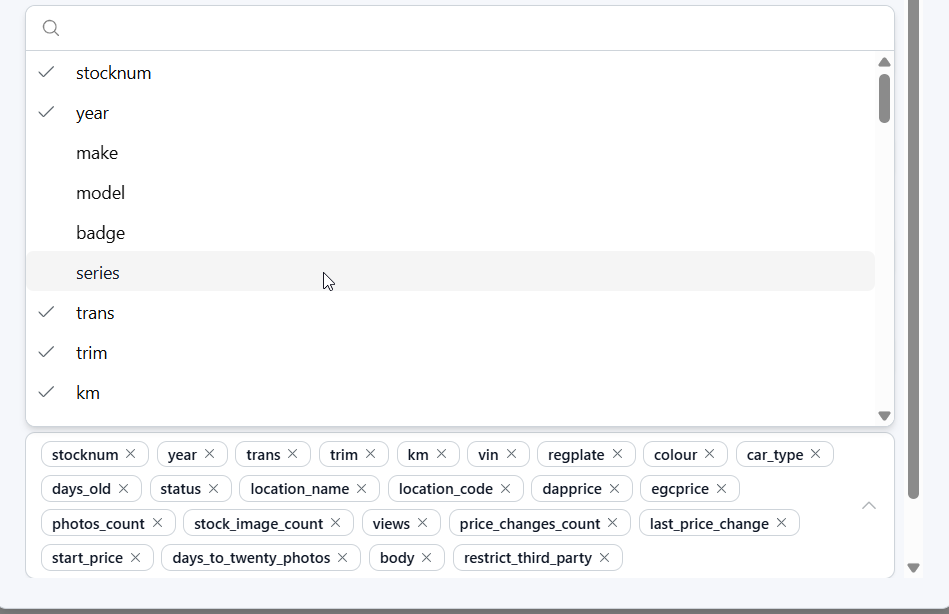
4. A dialog box will appear. Mandatory fields are marked with *.You can configure the report based on:
Car Type
Manufacturer
Location
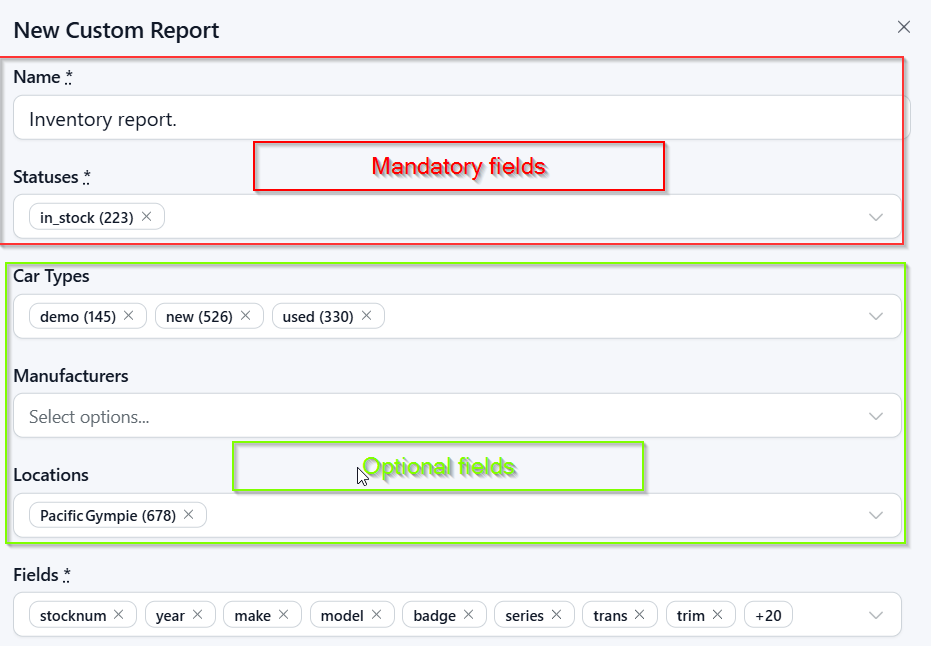
You can also select which data to include, such as:
Stock numbers
VIN numbers
Price
This is indicated by a tick next to the field
Manage Custom Reports
On the next page, you’ll see any previous custom reports you created. You can:
- Regenerate an existing report
- Edit an existing report
- Delete a report that is no longer required
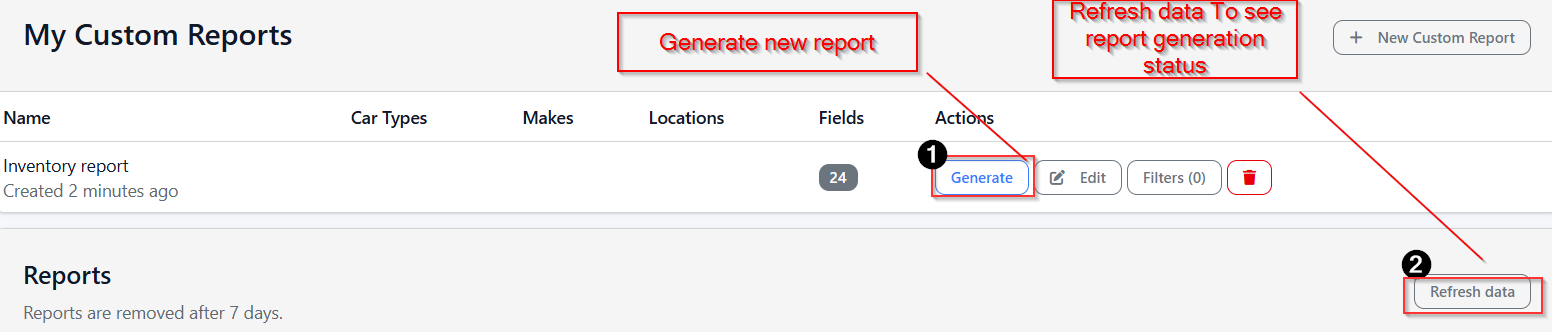
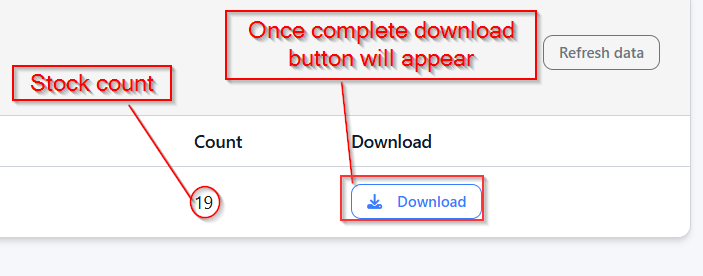
Generated reports
Was this article helpful?
That’s Great!
Thank you for your feedback
Sorry! We couldn't be helpful
Thank you for your feedback
Feedback sent
We appreciate your effort and will try to fix the article