Summary
This guide explains how to navigate the Inventory Dashboard in Dealer Studio for Autotrader. The dashboard allows you to search by Autotrader account, dealership, filters, and vehicle information
Navigation Overview
This article covers:
Selecting a Dealership or Autotrader Account
Using Search and Filters to locate stock
Filtering vehicles by price, source, body type, and other attributes
Viewing vehicle details and change logs
Checking API logs and payloads
Generating Custom CSV reports
Select a Dealership
In the Select Dealership section, search for an account by dealership name.
Some dealerships have multiple locations—this search will show all stock under that dealership.
You can also narrow down inventory by searching by Autotrader account name:
Select the dialog box and type the account name using your keyboard.

Filters and Search Options
On the left-hand side, you have multiple options to refine your search:
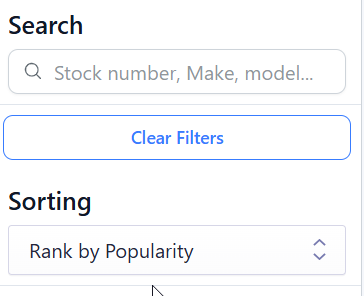
Search by: Make, Model, Stock Number
Multiple sorting methods available to organize results
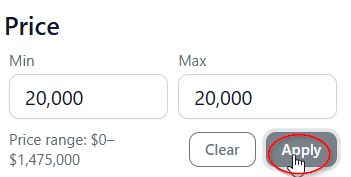
Pricing
Sort by Minimum and Maximum price.
Press Apply once values are entered.
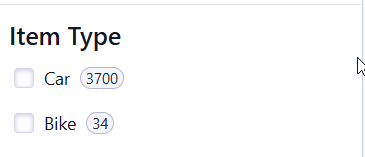
Additional Filters
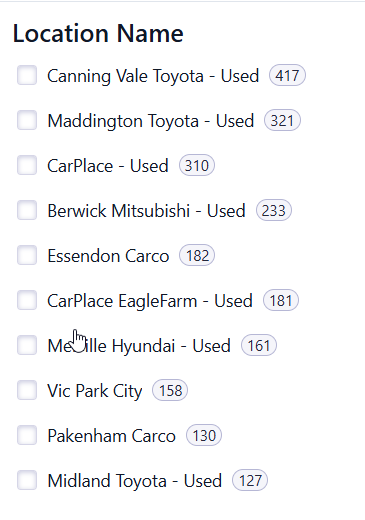
Use filters to narrow down stock based on:
Status
Item Type
Location Name
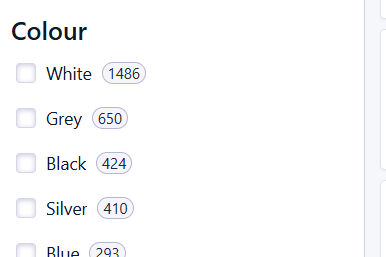
Colour
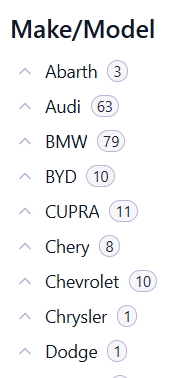
Make/Model
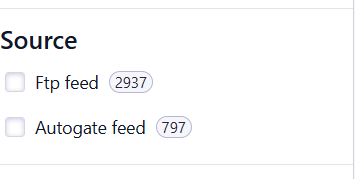
Source – Indicates the provider importing stock into the dealership:
Examples: Virtual Yard, EasyCars
Custom: Custom setup between Dealer Studio and the dealership
Manual: Stock added directly by the dealership
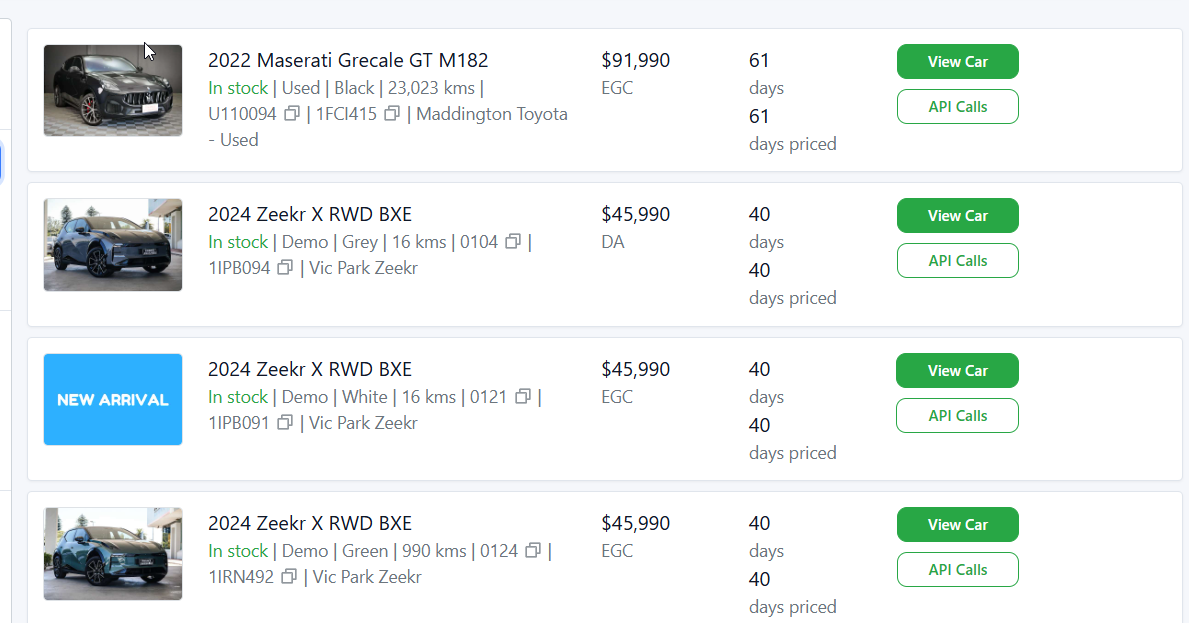
Vehicle Data Display
In the center of the screen, you will see vehicle details such as:
Registration
Stock Number
Location
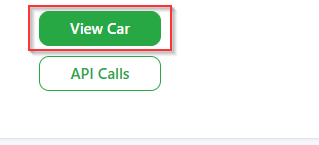
On the right-hand side, you have several action buttons
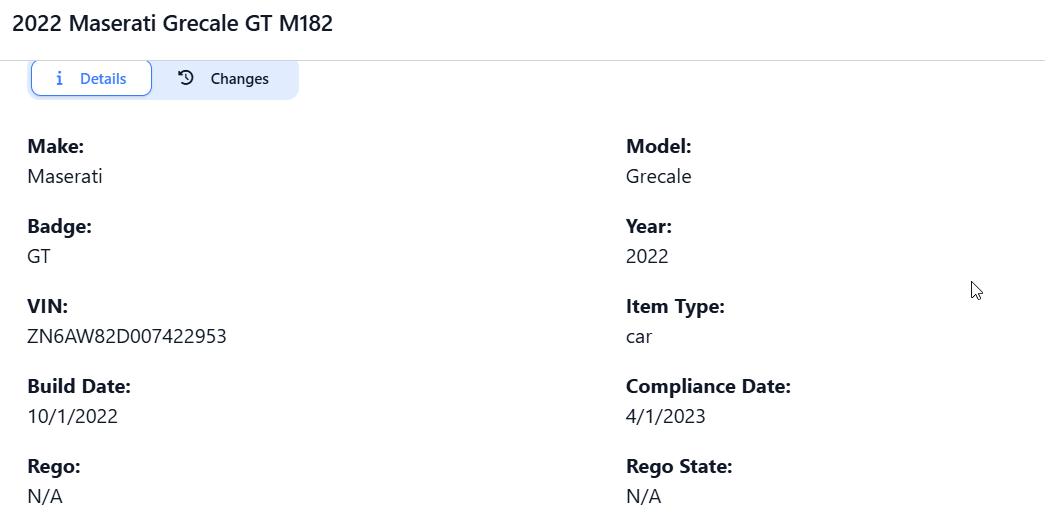
View Car Information
By default, this displays Detail, including basic vehicle info: Make, Model, VIN, etc.
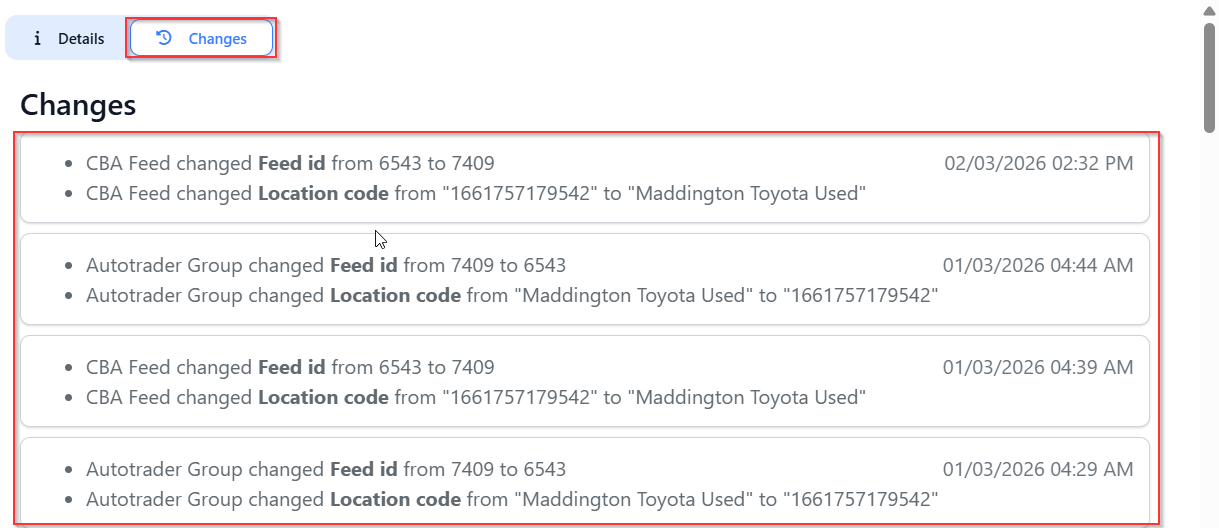
Vehicle Changes tab: Logs all changes made to the vehicle, including the source of the change
API Call
If the dealership is using APIs, the View API Call button displays incoming and outgoing API logs.
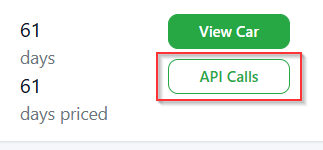
You can view the API payloads.
Note: Dealer Studio API may show multiple advertising sources for the dealership

Custom CSV Report
Allows you to generate reports on dealership information
Refer to the article on running a report for detailed instructions
Was this article helpful?
That’s Great!
Thank you for your feedback
Sorry! We couldn't be helpful
Thank you for your feedback
Feedback sent
We appreciate your effort and will try to fix the article