Summary
- If you would like to add or correct an NVIC or Redbook code, you can do this directly in Dealer Studio by following the steps in this guide.
Change the Redbook Code
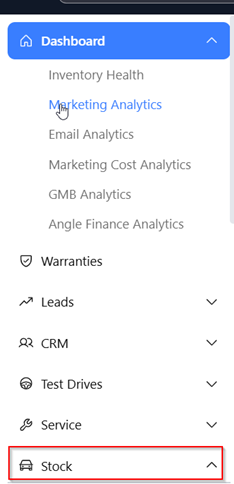
- Go to the Stock Dashboard
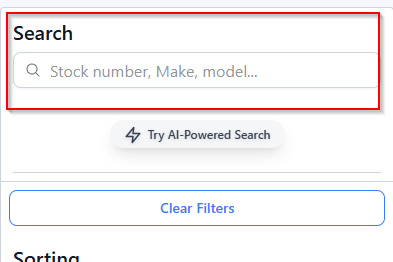
- Search for the stock number using the search field on the left-hand side
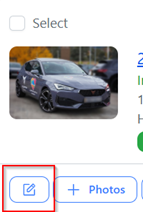
 Click the Edit icon next to the stock number
 In the dialog box that appears, click Details
 Click Edit Redbook Variant
 On the loaded page, search by Make, Model and Year. Click Next to load the results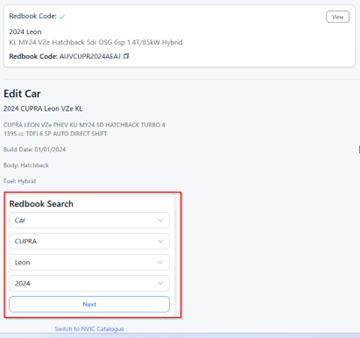
- Click Next to load the results
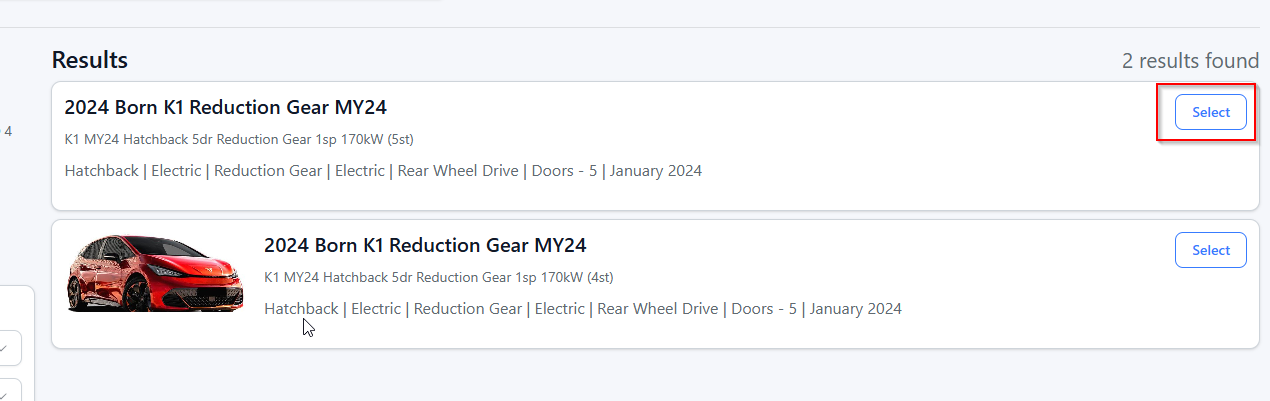
! | Ensure the Redbook code matches the vehicle's exact make, model, year and variant to avoid incorrect pricing or categorisation. |
Set or Change the NVIC Code
- After accessing the Redbook variant page, you can also switch to the NVIC catalogue: From the Redbook variant page, click Switch to NVIC Catalogue (bottom-left of the page).
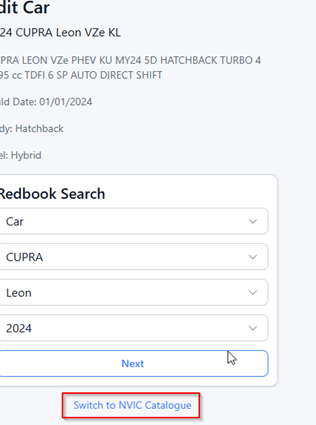
- Search by Year, Make, Model, and Variant.
- Select the matching NVIC code from the results
- The selected code will automatically apply to the vehicle record
Was this article helpful?
That’s Great!
Thank you for your feedback
Sorry! We couldn't be helpful
Thank you for your feedback
Feedback sent
We appreciate your effort and will try to fix the article