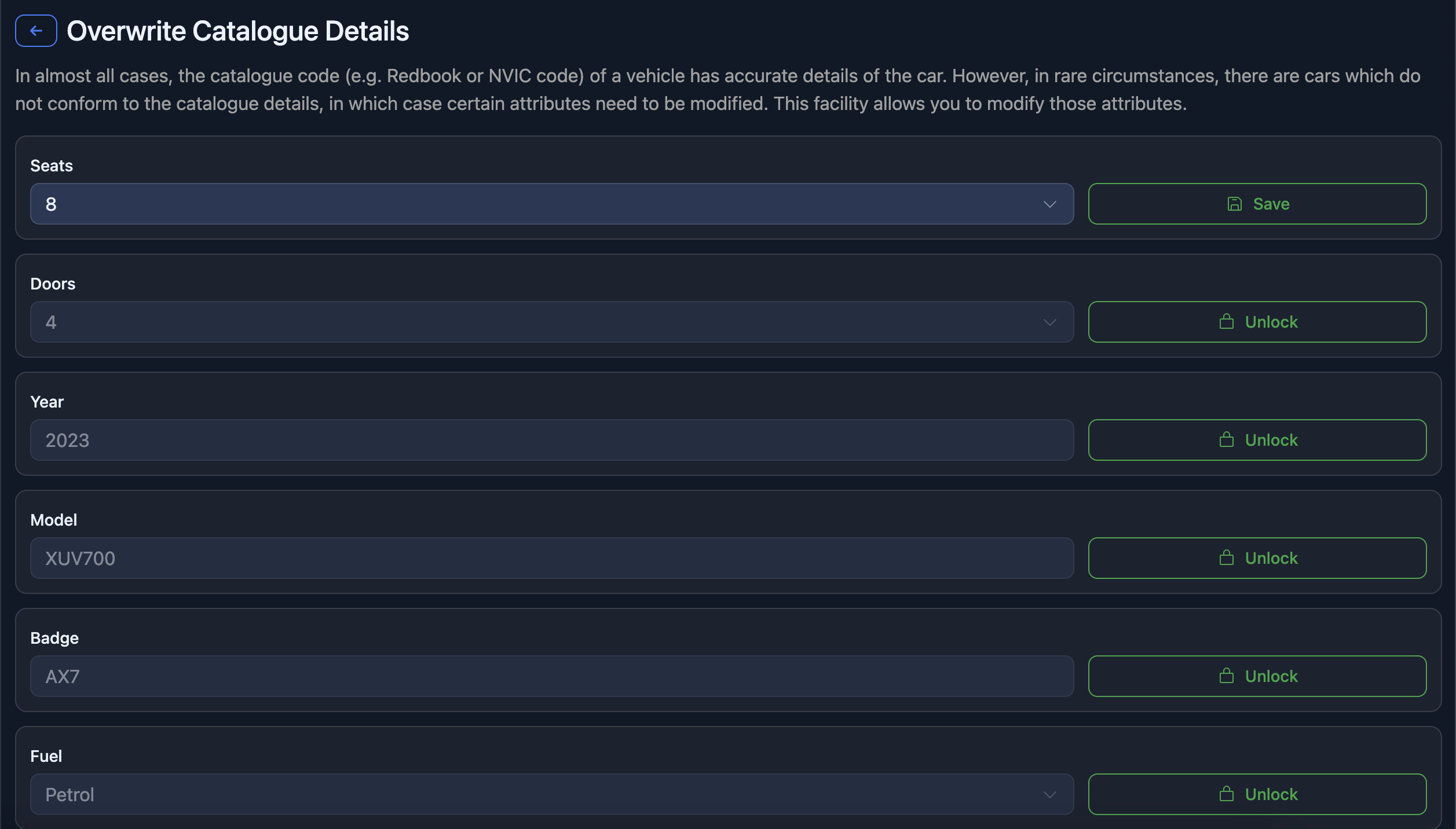
What this is for
Most vehicles in stock are matched to a catalogue code (for example a Redbook or NVIC code). That code carries standard details: model name, year, badge, seats, doors, fuel type, and similar attributes. Those values are usually correct.
Overwrite catalogue details is for the uncommon case where the real car does not match what the catalogue says—for example after a factory option, an unusual import, or data that was never quite right in the catalogue. It lets you set specific attributes manually and lock them so they are not overwritten the next time the system refreshes from the catalogue.
Use this screen only when you are sure the catalogue is wrong for this car. If the code itself is wrong, fixing the code (where your workflow allows) is usually better than overriding many fields.
When you might use it
Typical situations include:
- Seats or doors don’t match the actual vehicle (e.g. a different cabin or body style in real life than the variant record).
- Year needs to reflect compliance or build when the catalogue variant groups years differently.
- Model or badge wording needs to match how you retail the car, and the catalogue variant name is misleading for this unit.
- Fuel (e.g. petrol vs hybrid vs PHEV) does not match the car you have, even though the code is the closest available match.
If you are not sure, confirm against the build plate, compliance plate, or your usual appraisal process before changing anything.
How to open “Overwrite catalogue details”
From the car record in Dealer Studio, use the path your team uses to open catalogue / Redbook actions (for example from the area where you manage catalogue or Redbook information for that vehicle). Choose the option to overwrite or edit catalogue details—the page title is Overwrite catalogue details.
How to change a value (step by step)
Attributes are handled one at a time so you don’t accidentally change everything at once.
Locked by default
Each field (e.g. seats, doors, year, model, badge, fuel) starts locked. While locked, you cannot edit it.Unlock
Click Unlock next to the attribute you need to change. That field becomes editable.Edit
- For seats, doors, or fuel, choose the correct value from the list.
- For year, model, or badge, type the value you want shown for this car.
Save
Click Save for that attribute. Your change is stored and that attribute is treated as manually set for this vehicle.Repeat for any other attributes that need correcting.
You can leave other attributes locked if the catalogue already has them right—only the ones you unlock and save are overwritten.
What happens after you save
- The values you saved are what buyers and staff should see for that car, for those attributes.
- The system remembers that you overrode those attributes, so automatic updates from the catalogue (for example when the code is refreshed or stock is re-imported) do not replace those specific fields. Your manual values are protected until someone changes them again on this screen.
That is why you should only override what is genuinely wrong—otherwise you may block future corrections from the catalogue for fields that should stay in sync.
Tips and good practice
- Prefer fixing the catalogue code if the match is simply wrong; overrides are a safety net, not a substitute for the right code where your process allows a correction.
- Document internally if needed (e.g. “compliance year differs from build”) so the next person knows why values were overridden.
- Review overrides when you change the vehicle’s catalogue code or major specs, in case the new code makes some overrides unnecessary.
Quick summary
Was this article helpful?
That’s Great!
Thank you for your feedback
Sorry! We couldn't be helpful
Thank you for your feedback
Feedback sent
We appreciate your effort and will try to fix the article