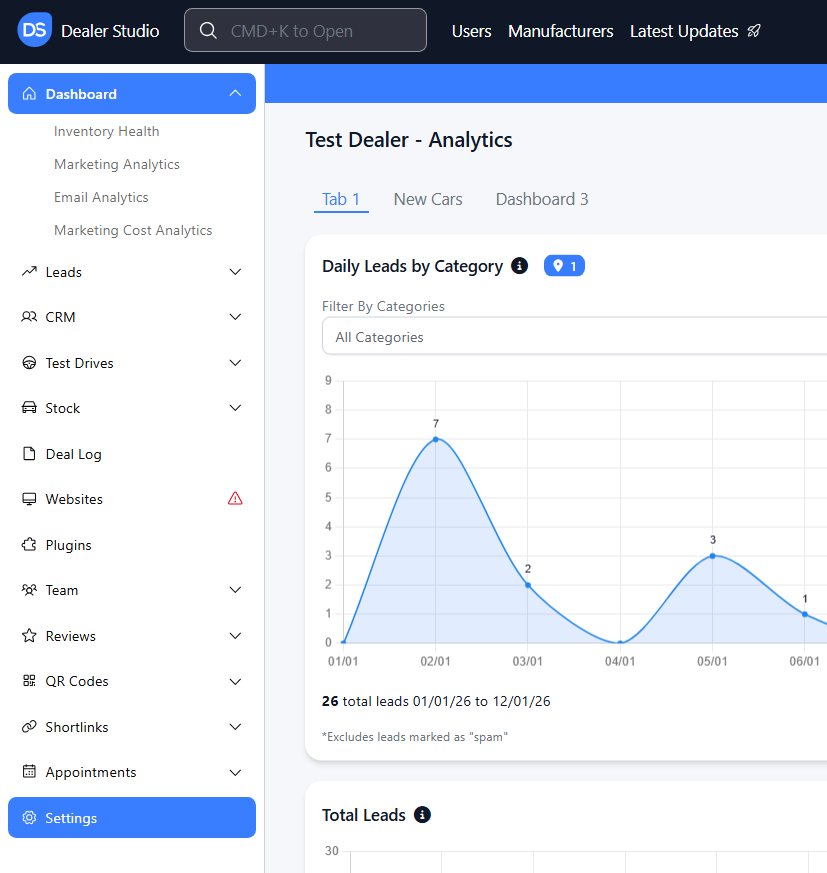
#Step 1: Access the Dealer Studio website and select "Settings"
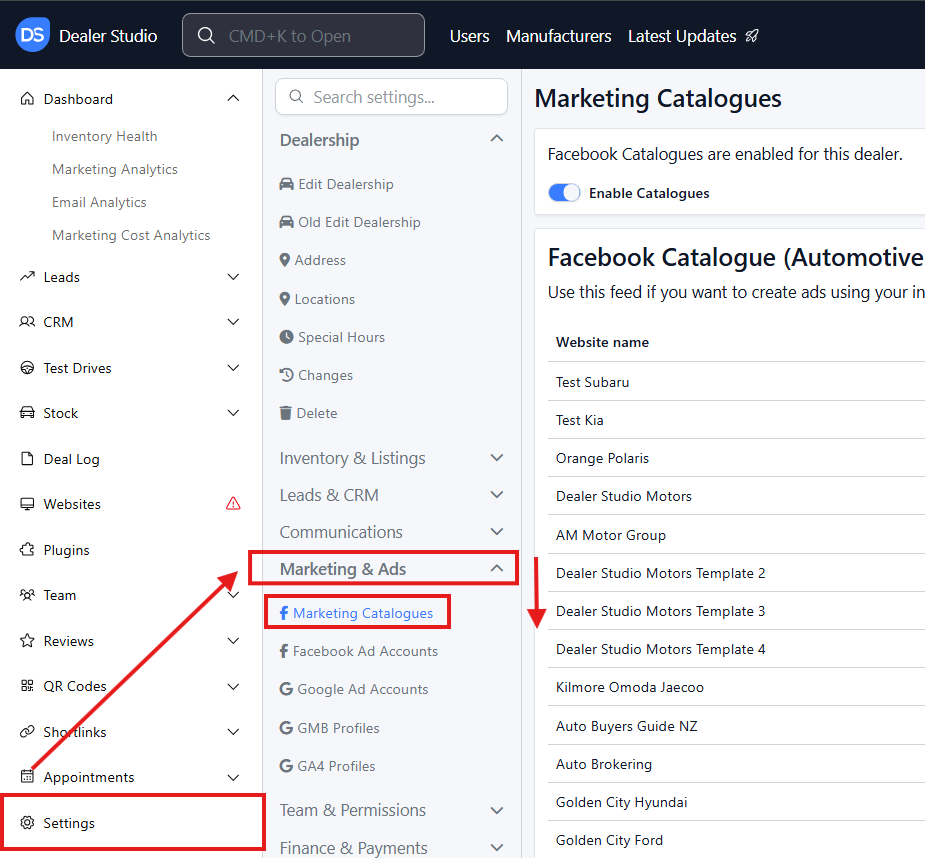
Once on the Settings tab in the sidebar, scroll down to "Facebook Catalogue" and keep this window open. In a new tab or window, proceed to step two.
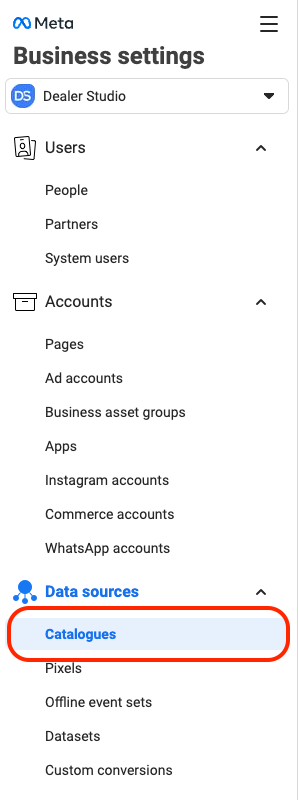
#Step 2: Go to your Facebook Business Settings and locate the "Catalogues" tab under Data Sources.
You may have other catalogues already active or in use. This new catalogue will be dedicated solely to the Facebook Shop.
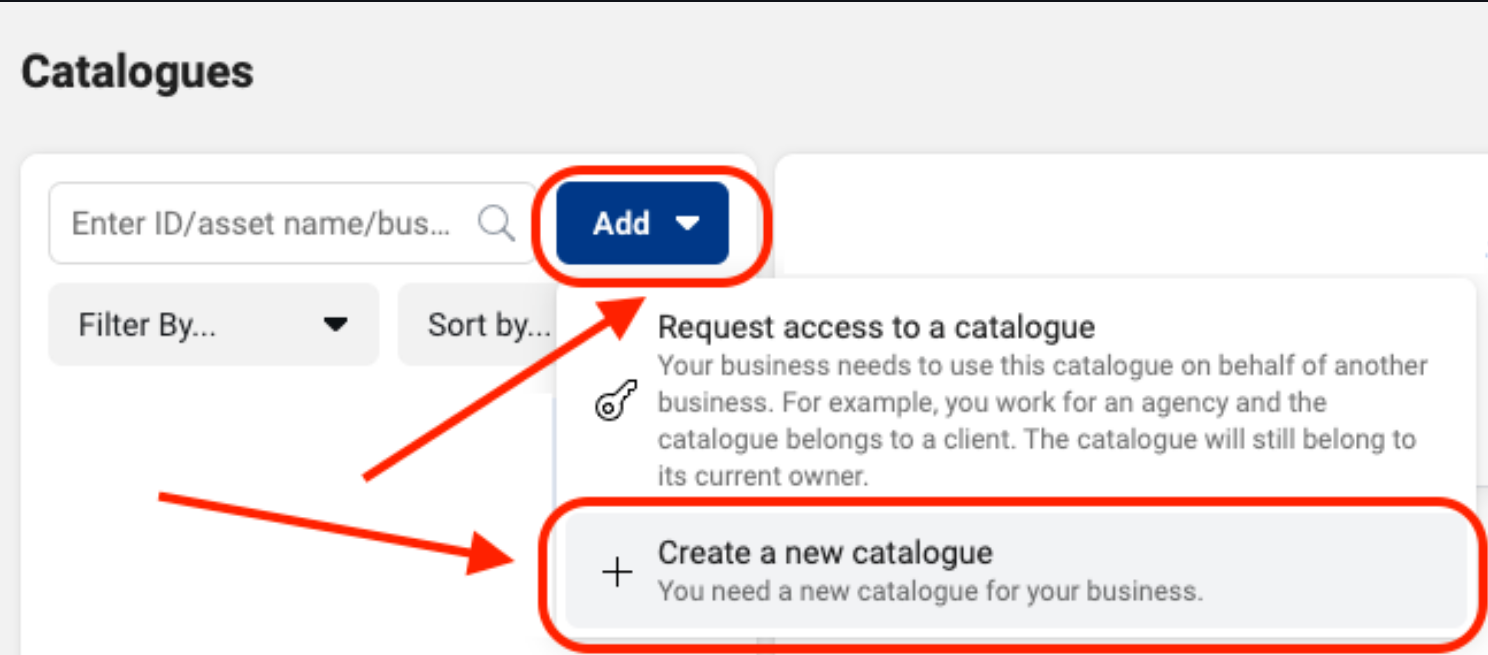
#Step 3: Create a new Catalogue
Click the "Add" button and select "Create a new catalogue."
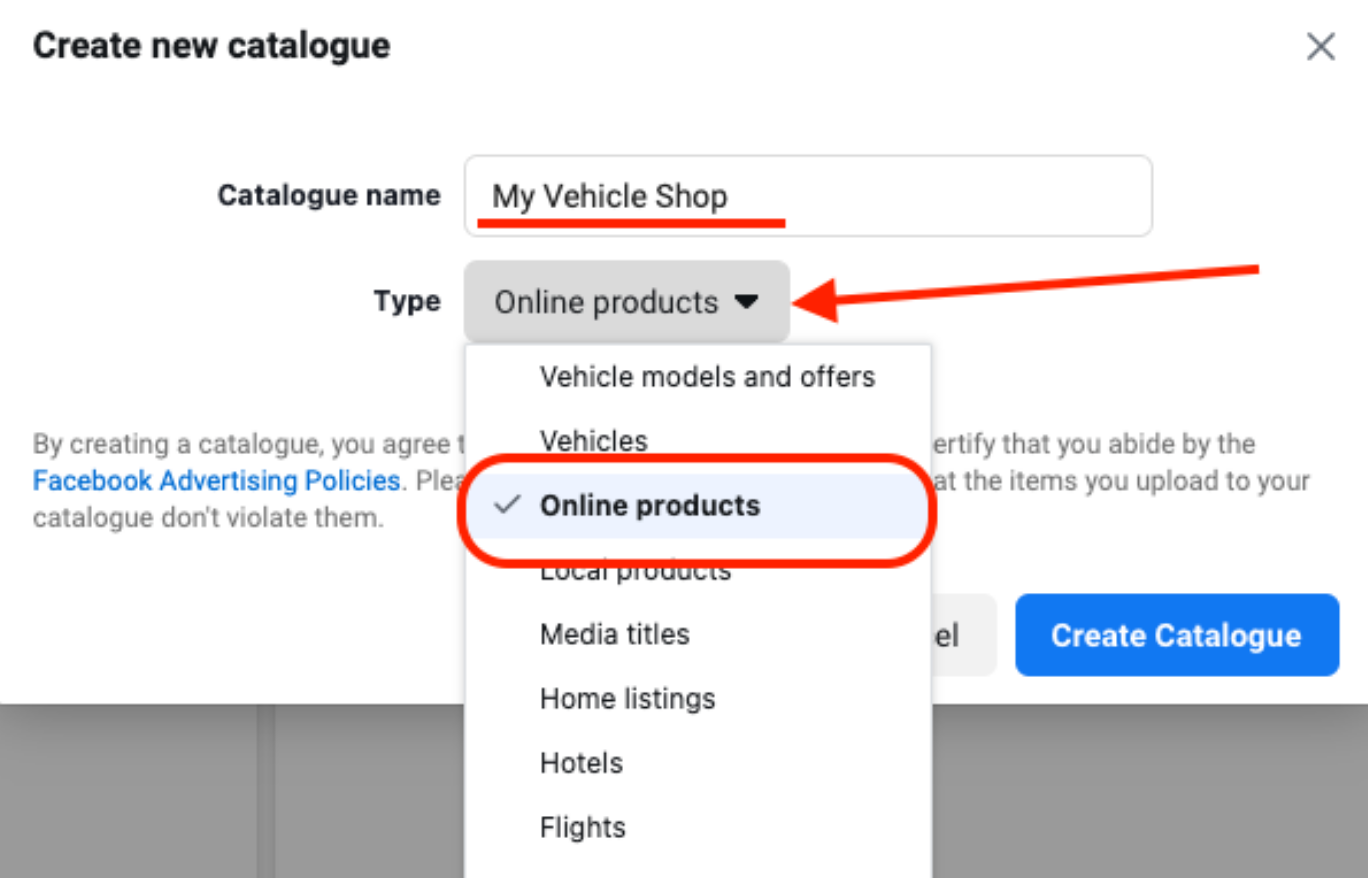
#Step 4: Give your new catalogue a name and select "Online Products" from the dropdown list
Do not select "Vehicle models and offers" or “Vehicles”. Online products are items that display in your shop. These are different from the catalogues used for Facebook Automotive Inventory Ads (AIA). Click "Create Catalogue."
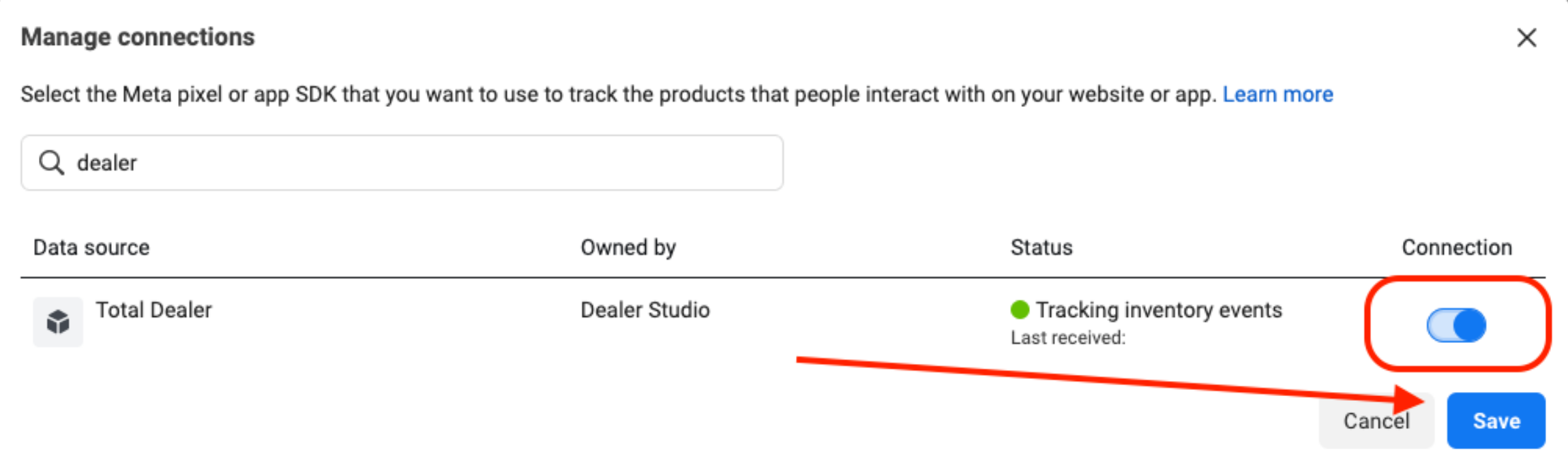
#Step 5: Add users to your new Catalogue to manage and connect to your Data source
Once connected, click the "Save" button.
#Step 6: Click the "Open in Commerce Manager" button
This opens the catalogue into a new tab to add in the data feed.

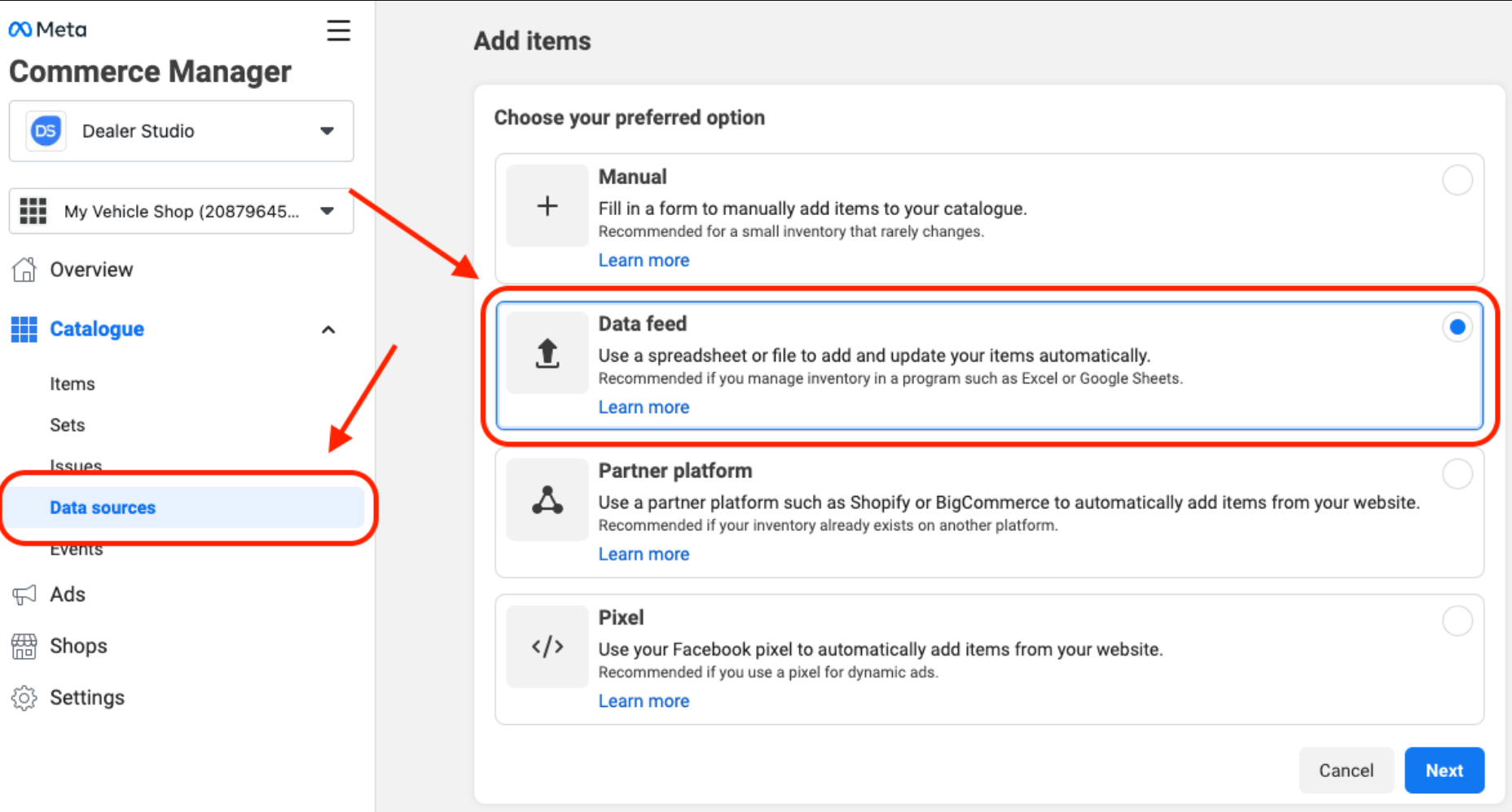
#Step 7: Select the "Data Sources" tab on the left side and choose "Data Feed"
Click the "Next" button to proceed.
#Step 8: Go back to your open tab in Dealer Studio and scroll down to "Facebook Catalogue (Products Feed)"
Navigate to Marketing Catalogues “Facebook Catalogue” options on the page however make sure you are using the Products Feed URLs.
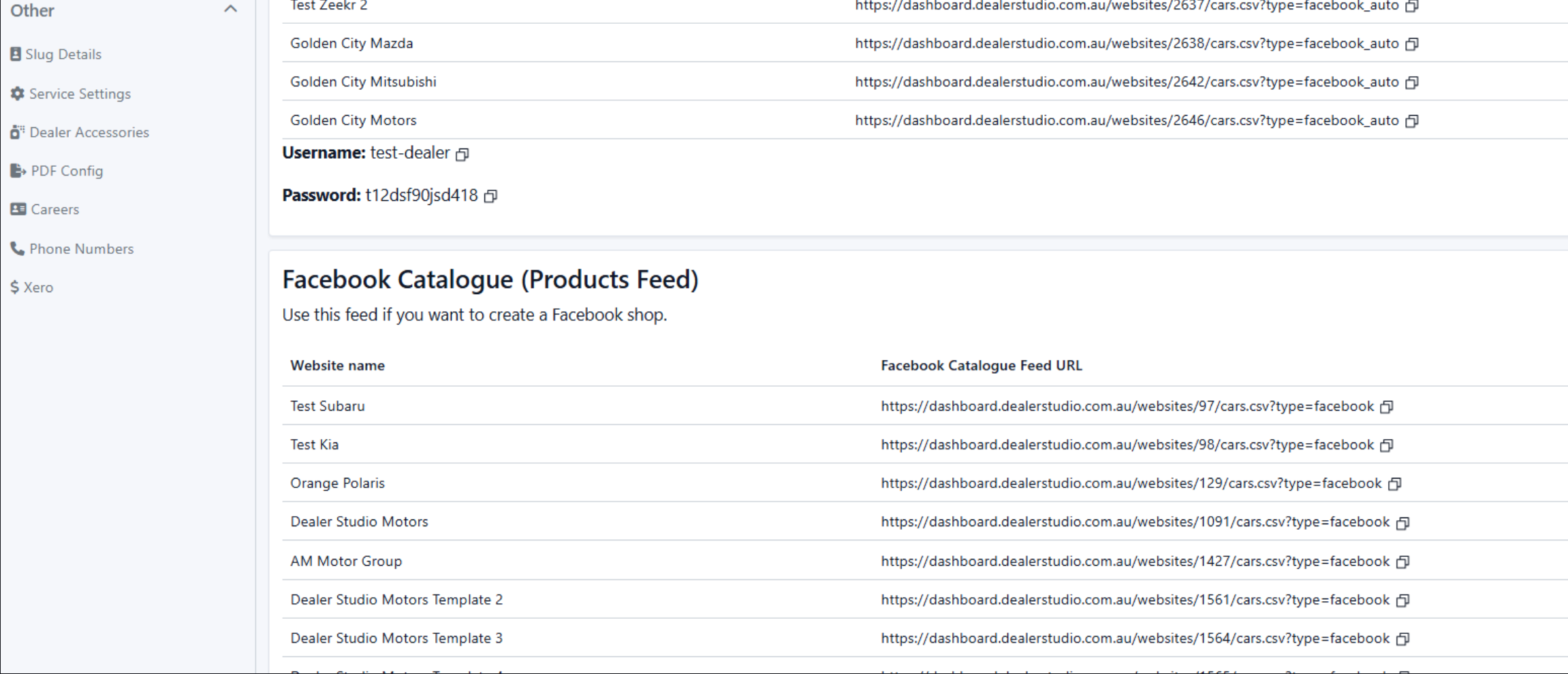
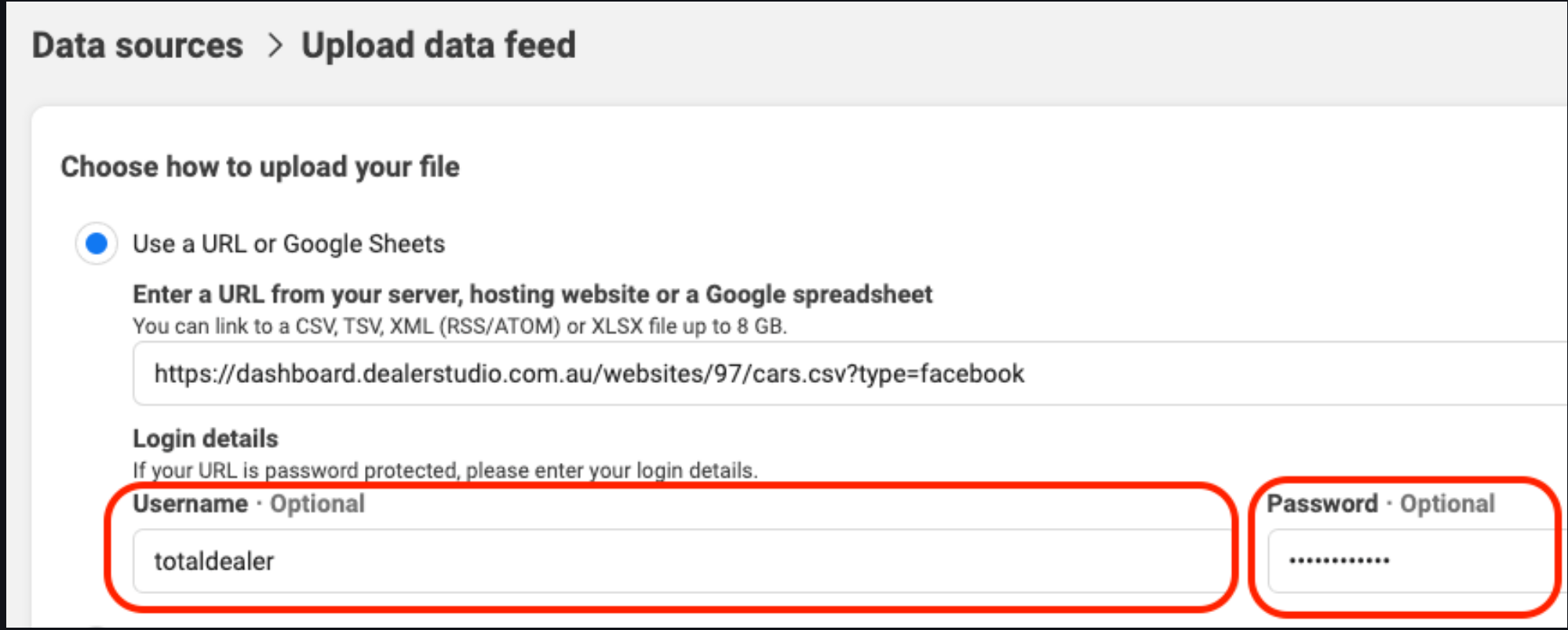
#Step 9: Copy and paste the Facebook Catalogue Feed URL
Then copy and paste the Username and Password. Click "Next."
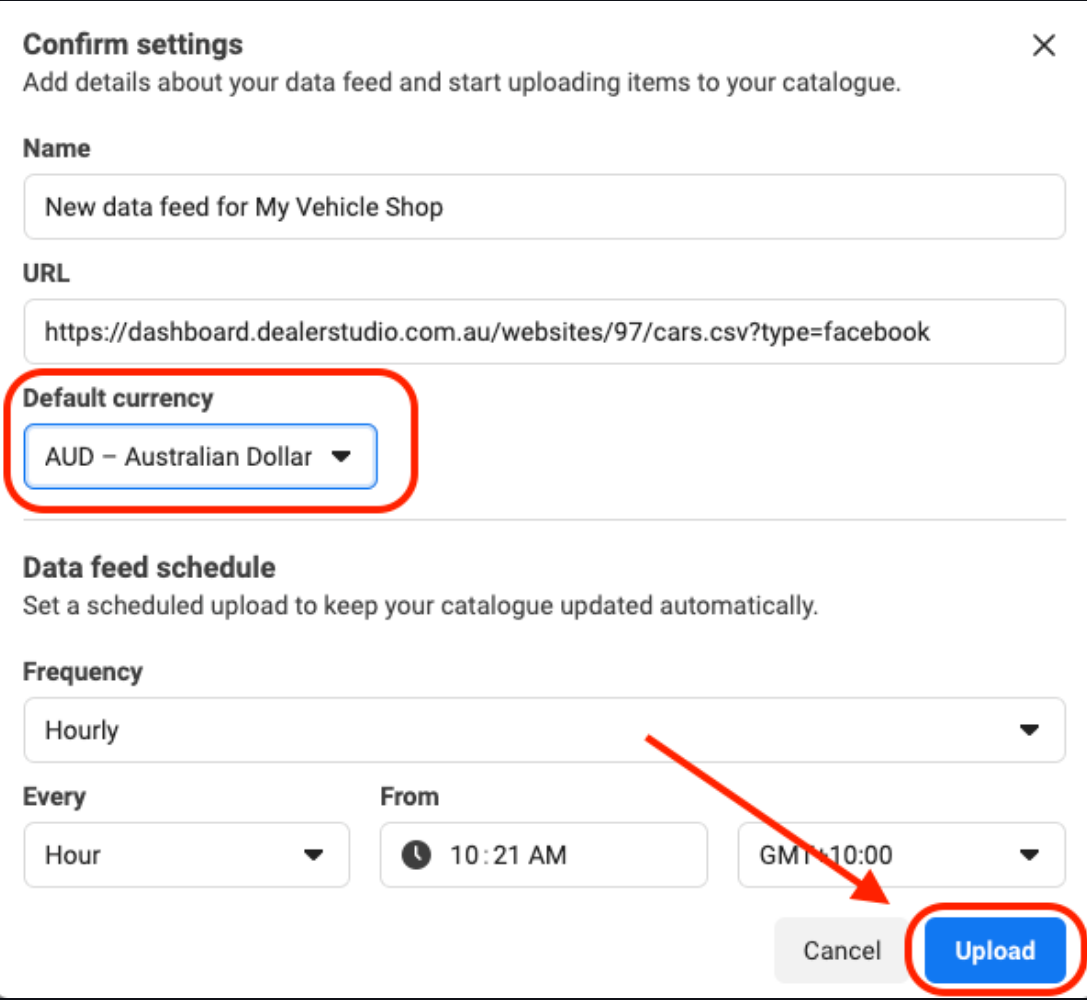
#Step 10: Change Default Currency
Change the default currency to AUD and click "Upload". Upload may take a few minutes.
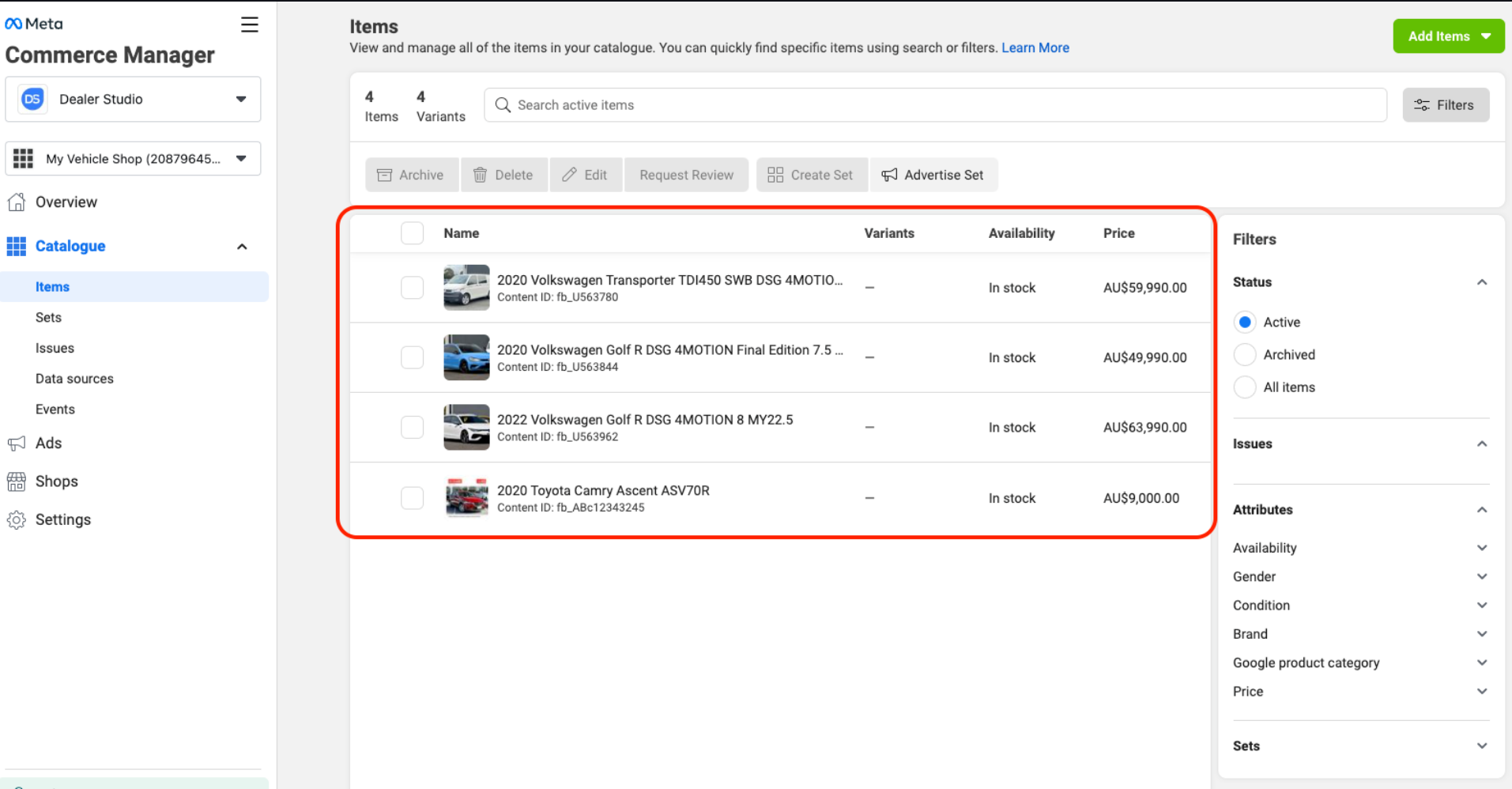
#Step 11: Ensure your products are uploaded and ready under the "Items" tab
#Step 12: Begin setup of your Shop
Under the "Shops" tab, you can now begin the setup of your Facebook and Instagram Shop. This will ask you to confirm your business details, sales channels (Facebook and Instagram), Products (new feed you just created), and Checkout method (sending users to your website).
Congratulations! You are now able to showcase your vehicles on the Shop page within your Facebook or Instagram channels. You can also tag vehicles in posts, videos, and more.
Was this article helpful?
That’s Great!
Thank you for your feedback
Sorry! We couldn't be helpful
Thank you for your feedback
Feedback sent
We appreciate your effort and will try to fix the article
