Google Ads account connection and Facebook Ads account connection are very similar. Below, we’ve outlined how to connect your Google Ads account; the same steps apply for Meta Ads.
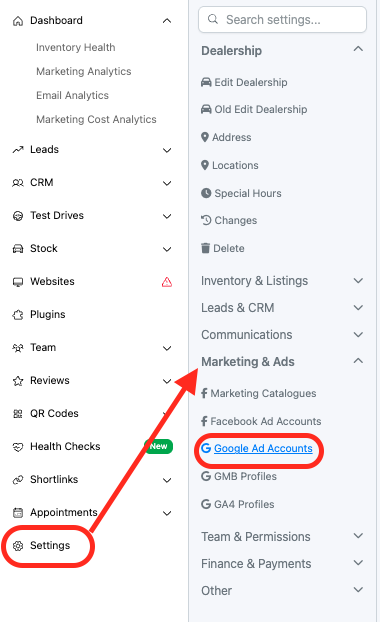
#Step 1: From your dealer level, select Settings and then select Google Ad Accounts
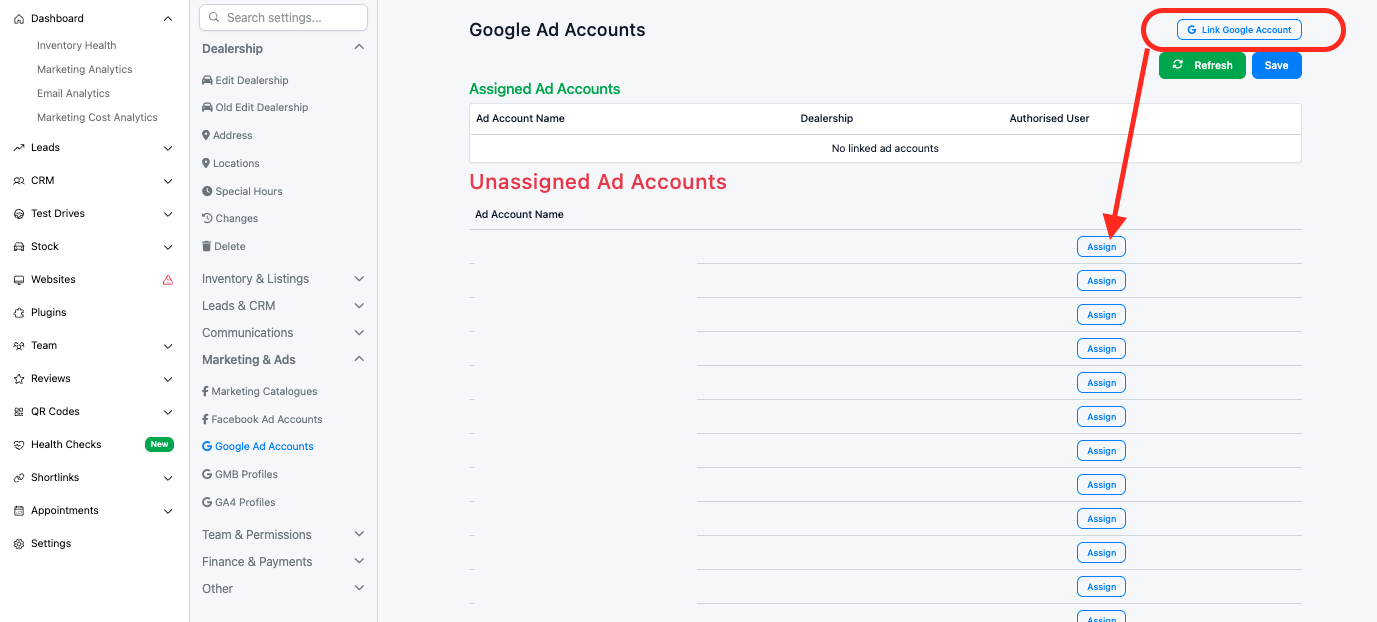
#Step 2: You will then click Link Google Account and log into your google ad account via the pop up, once you are logged in you will be taken back to the below screen where you can select an ad account to assign to the dealer.
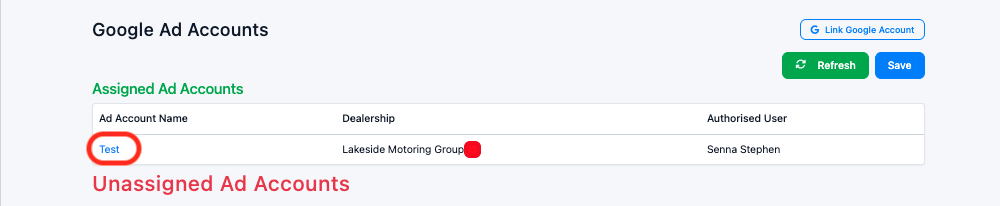
#Step 3: Once you have assigned an ad account click the ad accounts name to assign the campaigns to a website.
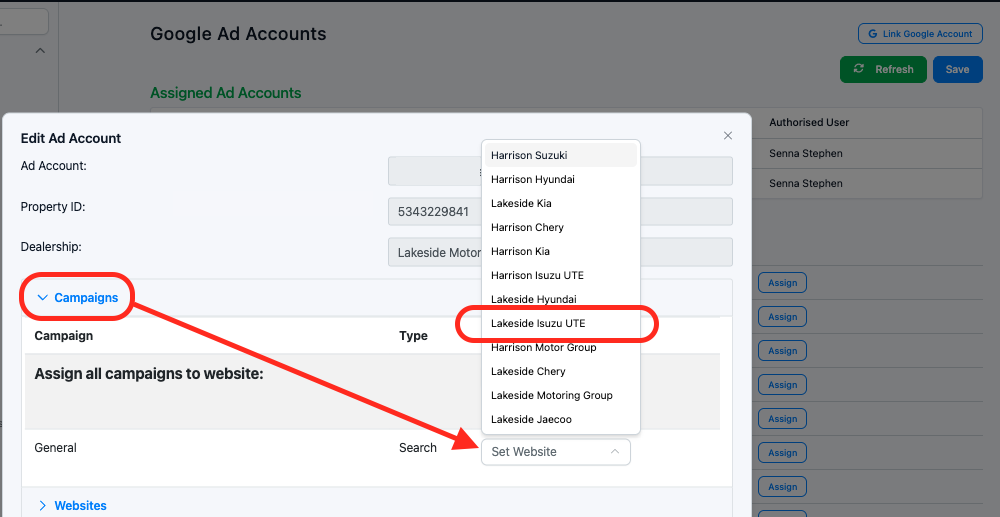
#Step 4: Click Campaigns and this should show the ad campaigns that are currently live that can be connected. Select Set Website and from the drop down select the relevant site for the ad. Click the X in the top right corner of the box and hit the blue Save button.
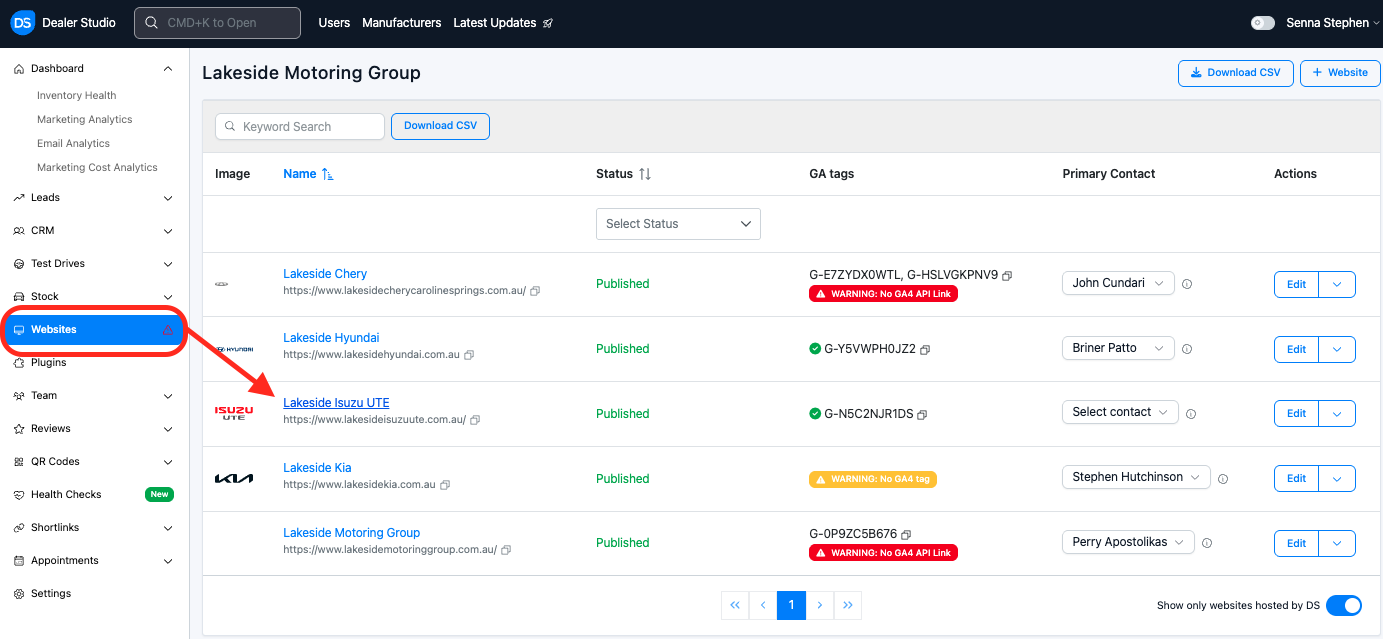
#Step 5: We can now set up the Analytics Dash in the website level. To get there go to Websites and select the site that the ads are now connected to
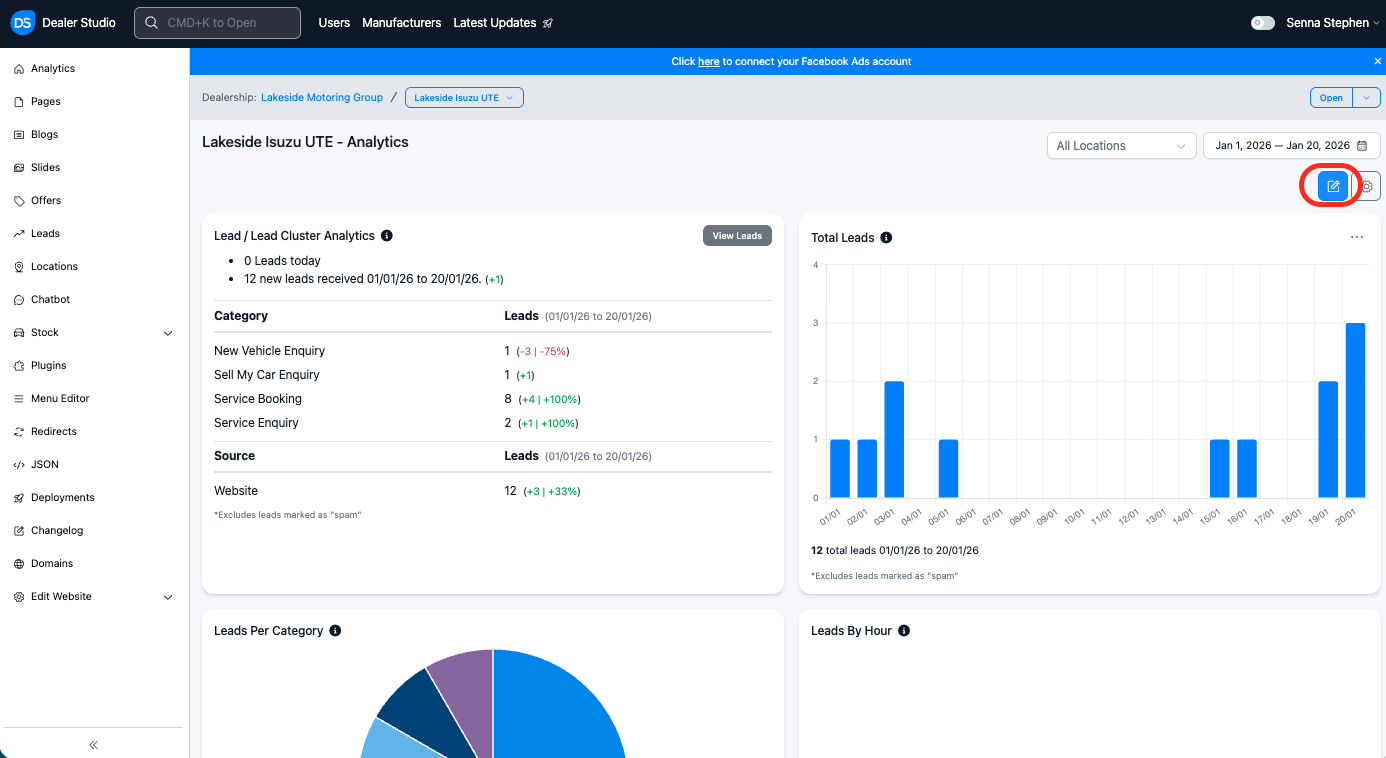
#Step 6: Once you are website level, click the blue edit button on the right hand side
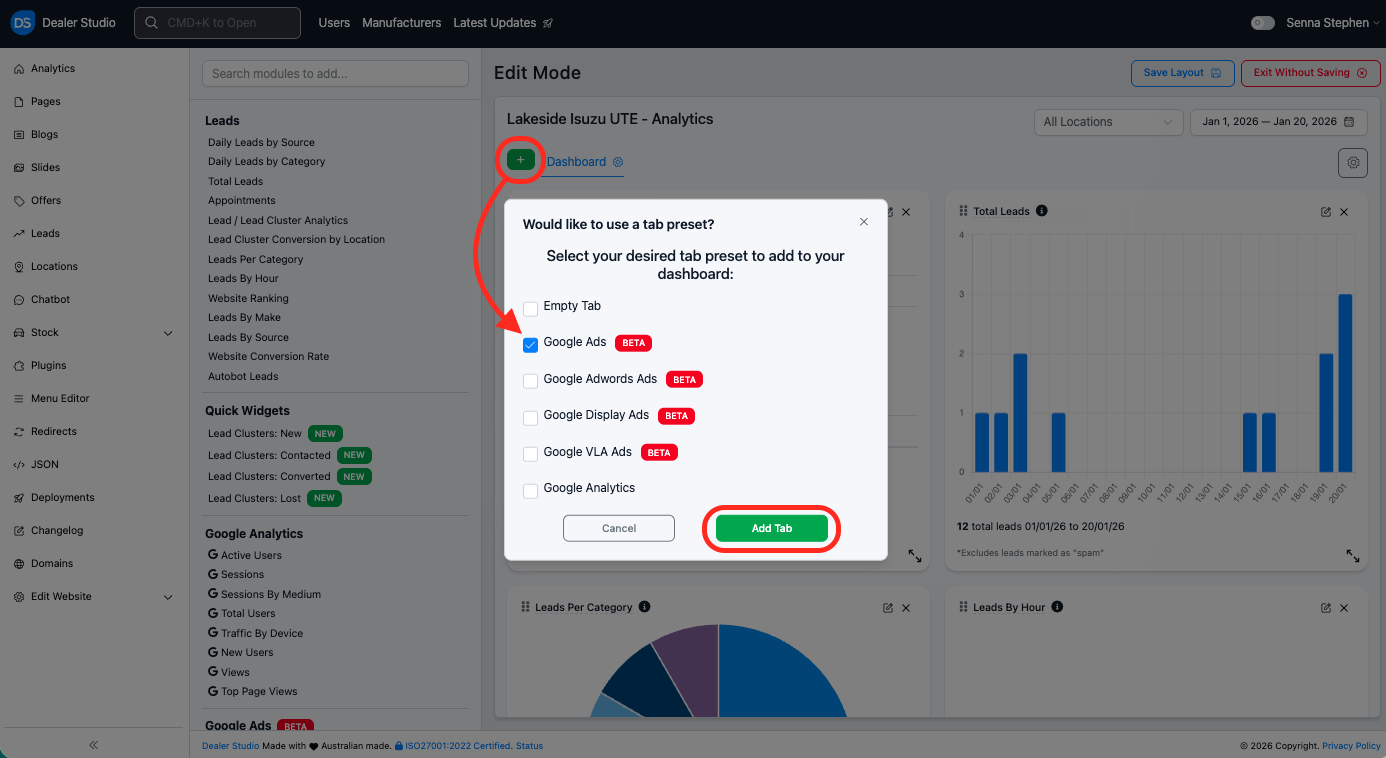
#Step 7: Click the green Plus button on the left and then select Google Ads OR Google Display Ads depending on what ads you have live and then click Add Tab
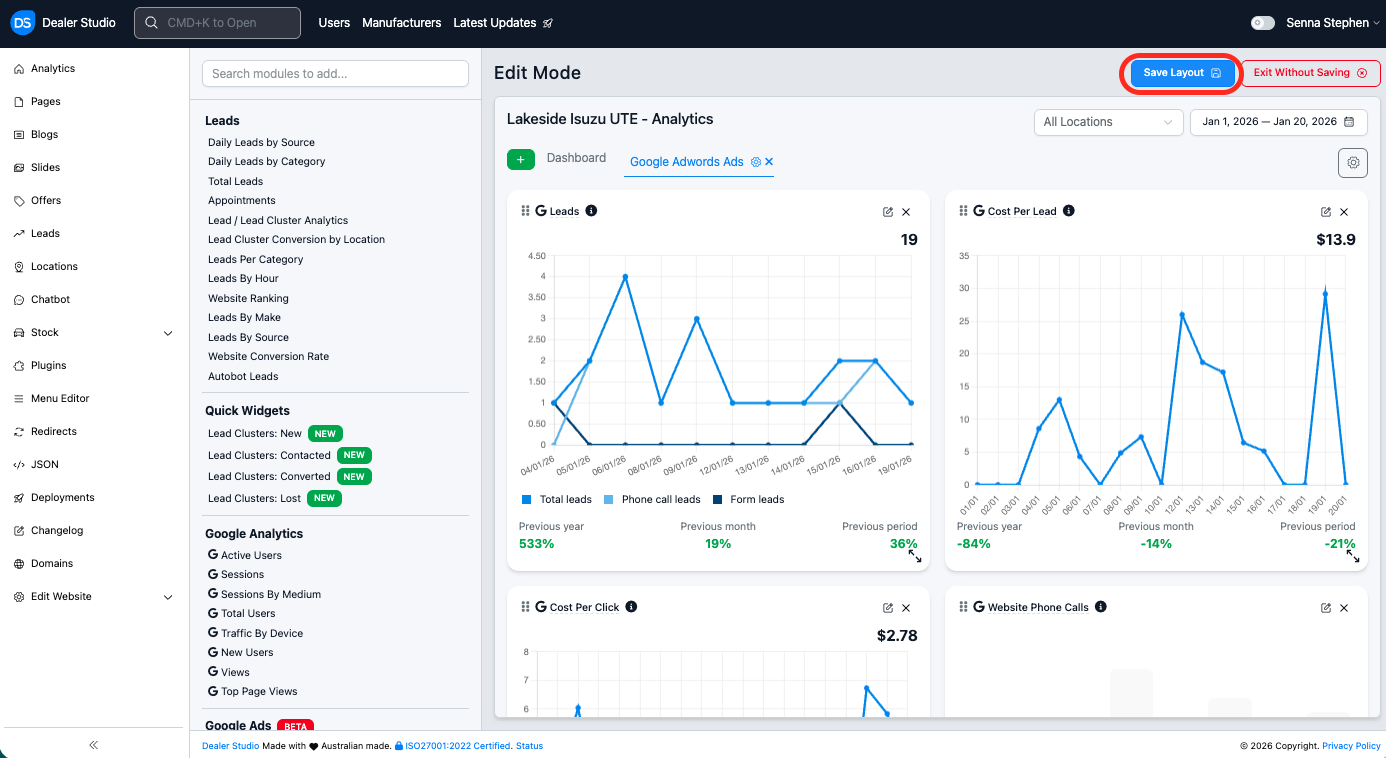
#Step 8: This will then connect your ads to your DS dashboard, you can resize and edit the widgets or add another tab for your Google VLA ads if you have them running. Once you are happy with your dashboard you will need to click Save Layout. And your dashboard will be ready to use! The steps are the same for Facebook.
By following the steps outlined for Google Ads, you can easily connect your Facebook (Meta) Ads account using the same procedure, ensuring your campaigns are properly linked and ready to manage.
Was this article helpful?
That’s Great!
Thank you for your feedback
Sorry! We couldn't be helpful
Thank you for your feedback
Feedback sent
We appreciate your effort and will try to fix the article