This guide explains how to manage Email Reports under Communications settings, including removing users from a report or deleting the report entirely.
Step 1: Navigate to Dealer Level
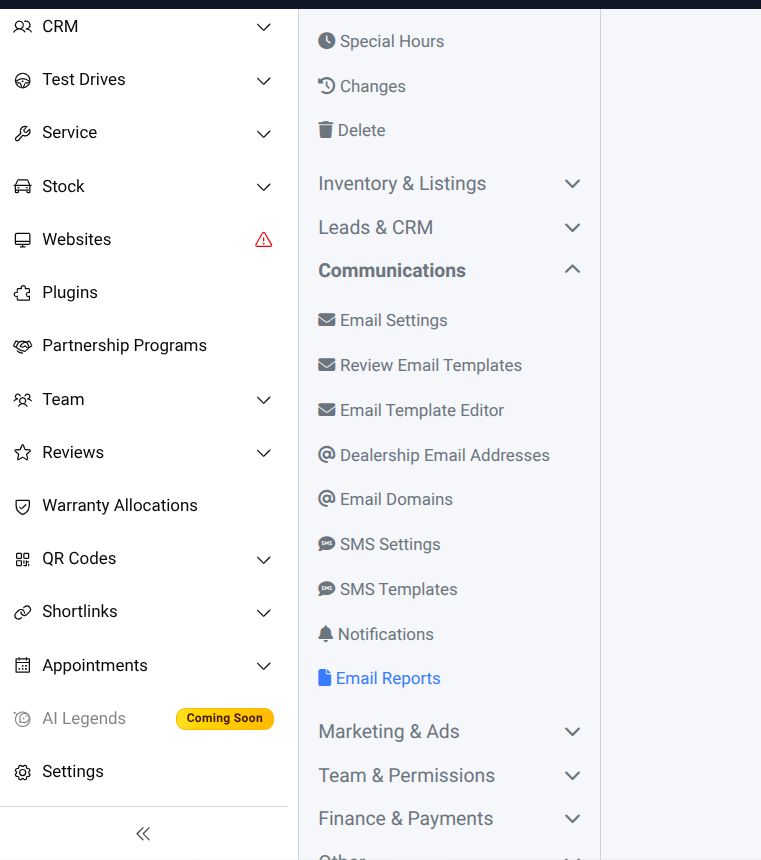
- Go to Settings → Communications → Email Reports
Step 2: Remove User from Email Report
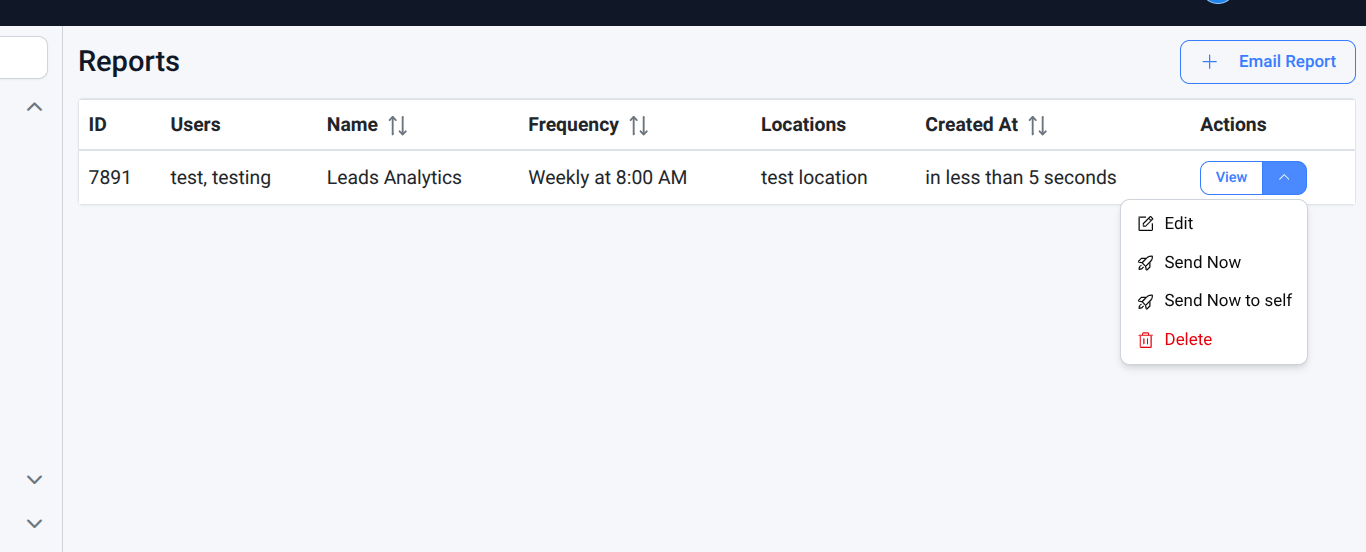
- Find the relevant report and click Edit from the Actions drop-down.
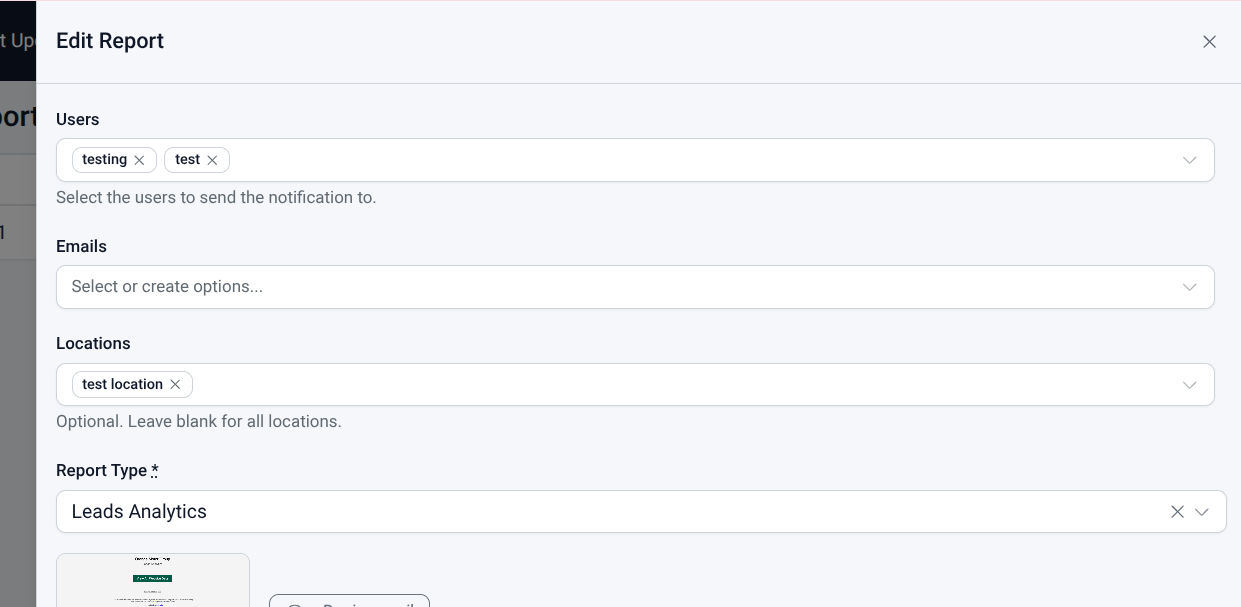
- Remove the user from the report recipients list and click Save.
Delete Report: If you want to remove the entire report, select Delete from the Actions drop-down.Keeping Email Reports up to date ensures only relevant users receive notifications, and helps maintain clean and accurate reporting configurations.
Was this article helpful?
That’s Great!
Thank you for your feedback
Sorry! We couldn't be helpful
Thank you for your feedback
Feedback sent
We appreciate your effort and will try to fix the article