This guide will walk you through the steps to change the order of dealership locations displayed on your website.
The order of your locations can affect how customers view and navigate between different branches on your website. By updating the Position field in the location settings, you can control the order in which locations appear across the site.
Through the Settings dashboard, you can quickly adjust the position of each location and publish updates instantly. No technical knowledge is required, and any changes you make will be reflected wherever your locations appear on the website.
Instructions to Change Location Order
Follow the steps below to update the order of locations on your website:
- Step 1: Access Location Settings
- Step 2: Select the Location to Edit
- Step 3: Update the Position Field
- Step 4: Save Your Changes
Step 1: Access Location Settings
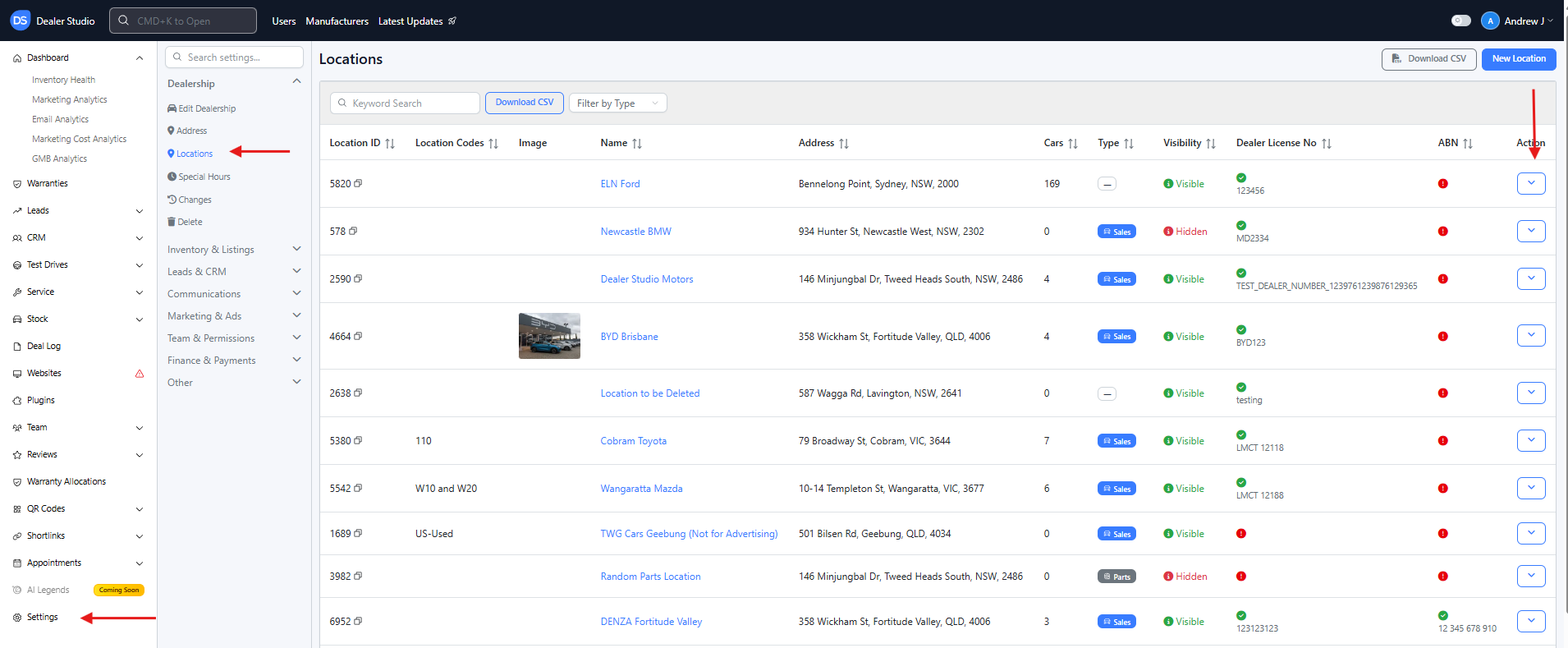
- From the Dealership Dashboard, click Settings from the bottom-left menu.
Step 2: View All Locations
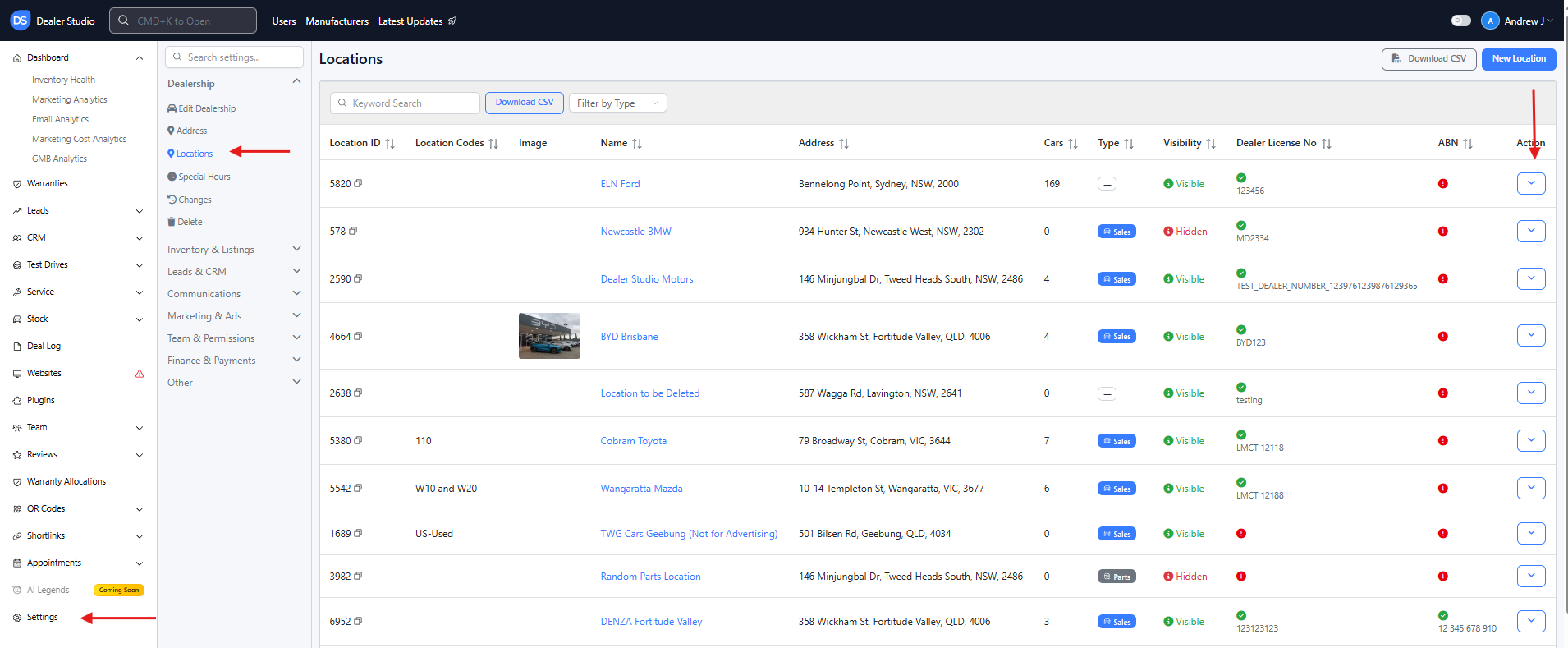
- Inside Settings, select Locations.
- This page will display all locations associated with your dealership.
Step 3: Edit a Specific Location
- Find the location you want to reorder.
- Click the arrow icon on the right side of the location.
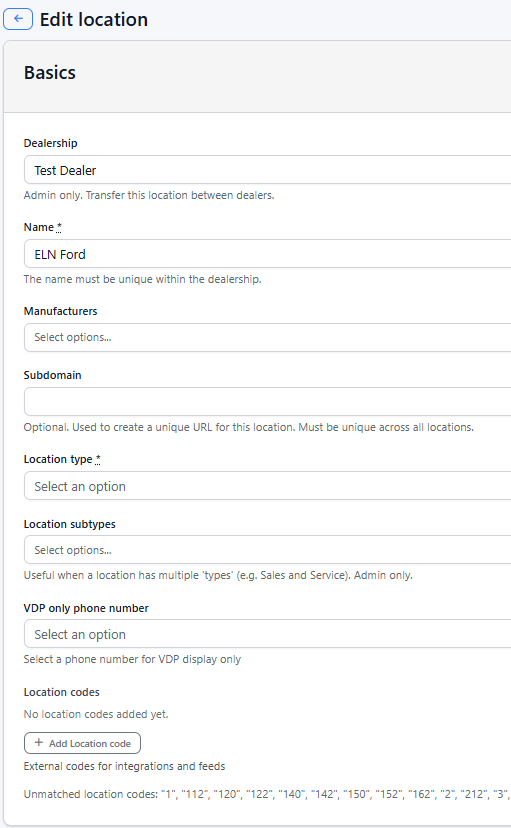
- Select Edit to open the location settings.
Step 4: Update the Position Field
- Locate the Position field in the location settings.
- Enter the desired number to determine the order of the location on your website.
Example:
- Position 1 = First location displayed
- Position 2 = Second location displayed
- Position 3 = Third location displayed
Adjust the number depending on where you want the location to appear.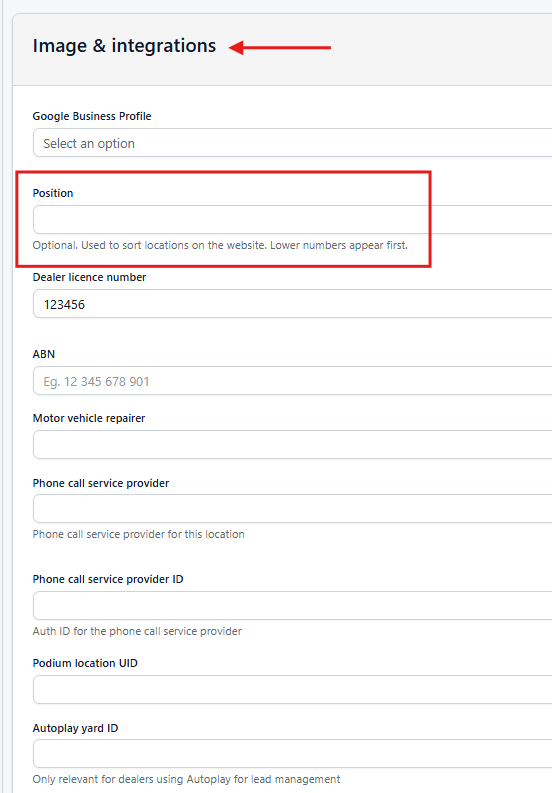
Step 5: Save Your Changes
After updating the position:
- Scroll to the bottom of the page.
- Click Update Location.
Your changes will be saved and the location order on the website will update accordingly.
Important
The Position field controls the display order of locations on your website.
- Lower numbers appear higher on the list
- Higher numbers appear lower on the list
Make sure each location has the correct position value to ensure the order appears as intended.
Was this article helpful?
That’s Great!
Thank you for your feedback
Sorry! We couldn't be helpful
Thank you for your feedback
Feedback sent
We appreciate your effort and will try to fix the article