Follow the steps below to manage your notification preferences in the Dealer Studio mobile app.
Step 1 – Select Your Dealership
Log in to the Dealer Studio Mobile App.
From the Dashboard, select your Dealership.
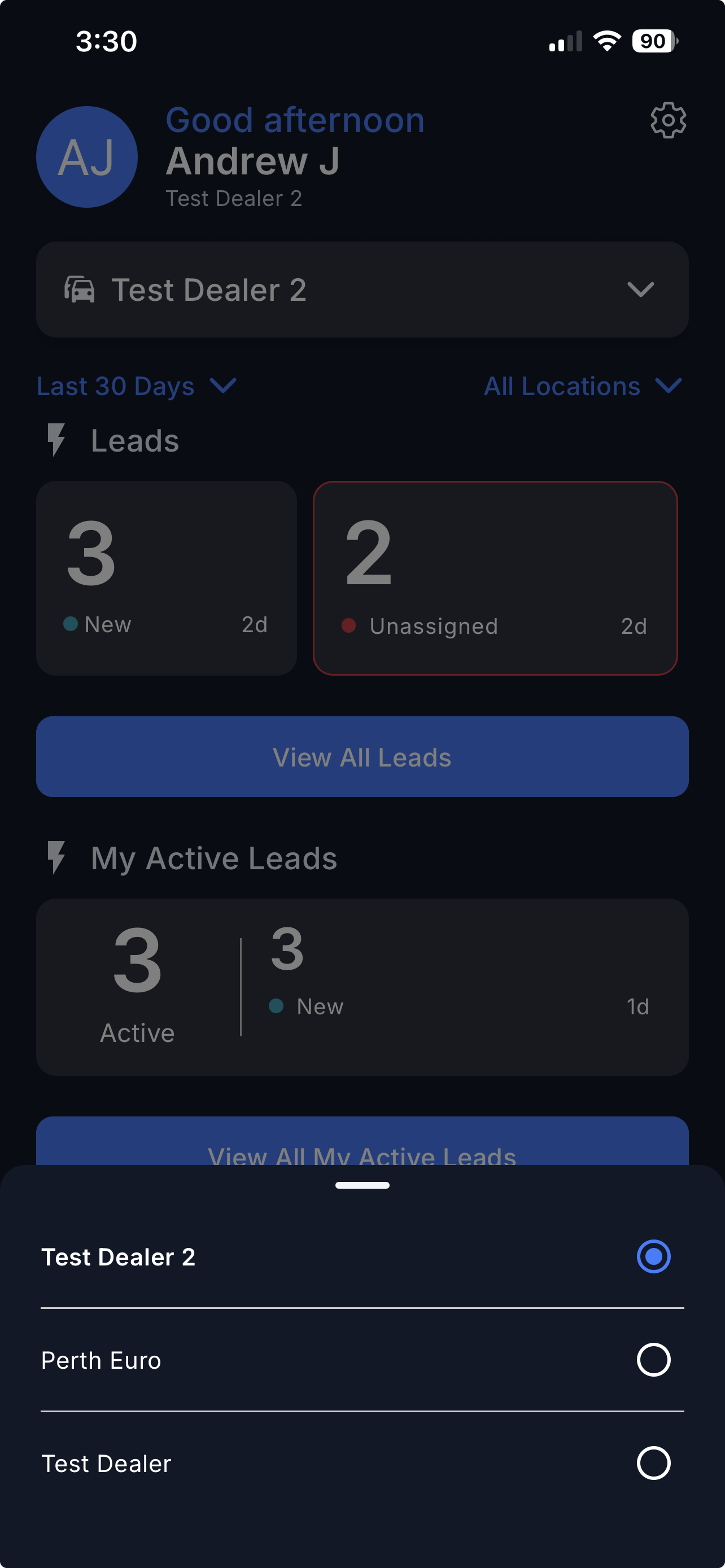
Important:
Notification settings apply only to the currently selected dealership.
Step 2 – Open Notification Settings
Tap the Gear icon (top right corner) to open Settings.
Scroll down to Notification Preferences.
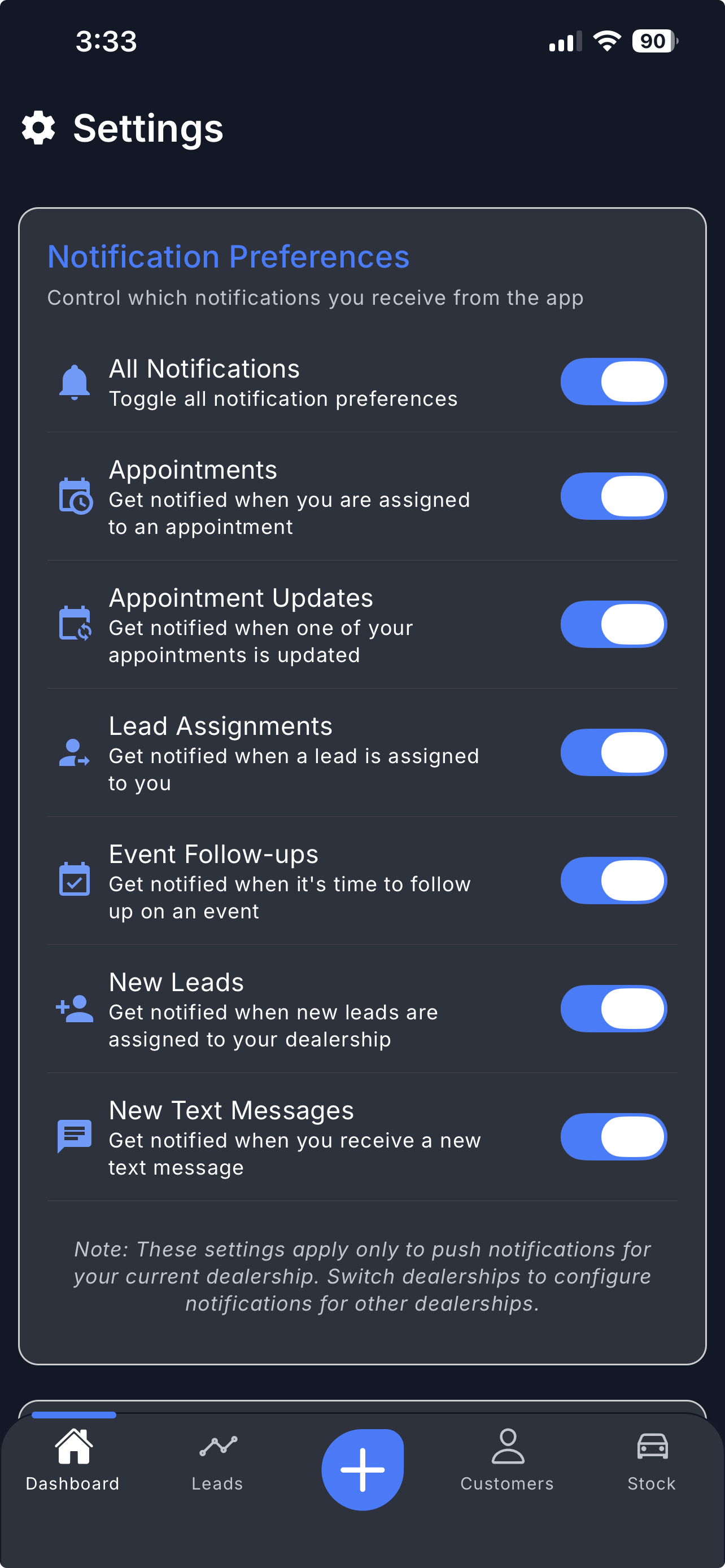
Step 3 – Manage Notification Preferences
Toggle notifications On or Off to control which push notifications you receive from the app.
It will automatically save your settings after toggling.
Important:
These settings apply only to push notifications for your currently selected dealership.
Switch dealerships if you want to configure notifications for another dealership.
Video
Please refer to the attachment below.
Was this article helpful?
That’s Great!
Thank you for your feedback
Sorry! We couldn't be helpful
Thank you for your feedback
Feedback sent
We appreciate your effort and will try to fix the article