Vehicle PDFs (also known as Silent Salesman sheets) are designed for printing and displaying on vehicles in your yard. They allow walk-in customers to quickly view key information such as price and specifications.
Each PDF also includes a QR code that links directly to the online vehicle listing, where customers can view more details and leave a deposit.
Follow the steps below to configure your Vehicle PDF.
Step 1: Access PDF Configuration
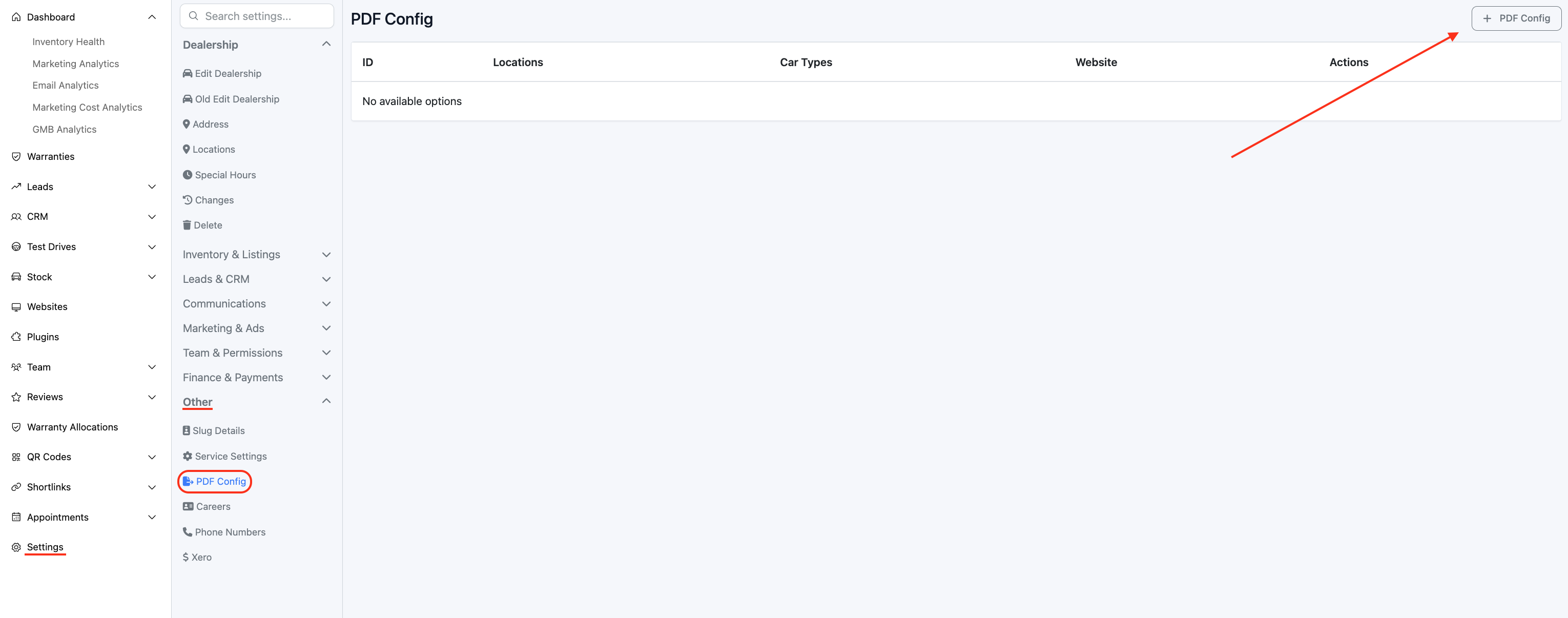
Log in to the dashboard and navigate to: Settings > Other > PDF Config
Click + PDF Config to create a new configuration.
Select the relevant:
Location
Car Type (Used, New, Demo)
Primary Colour (Hex Code)
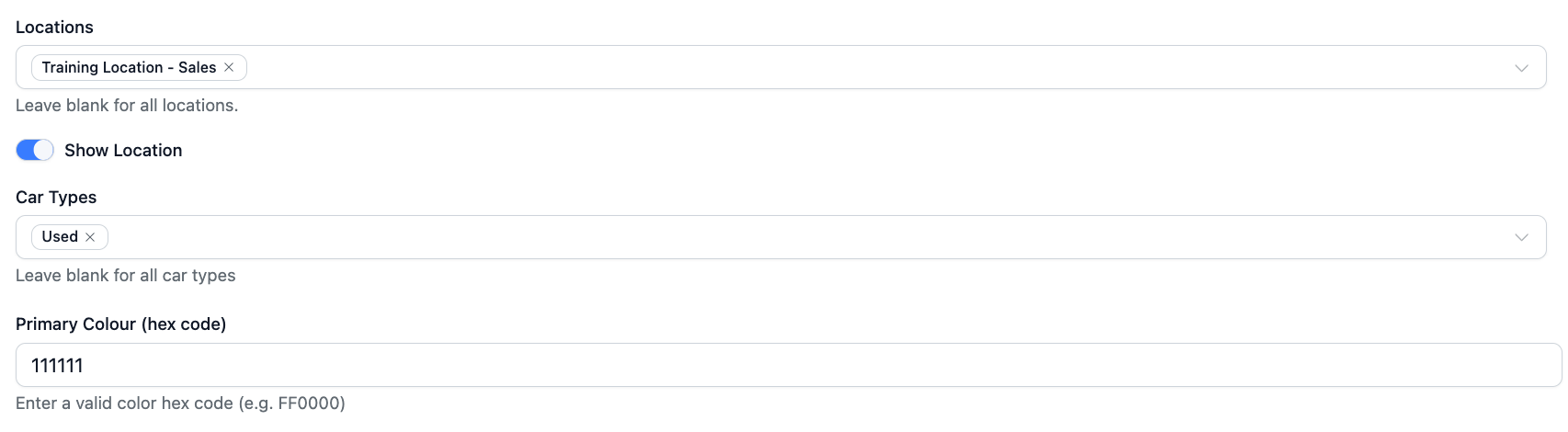
This ensures the correct template applies to the appropriate vehicles.
Step 2: Configure Display Options
You will see several toggle options that control what appears on the PDF.
Show Finance
Toggle this on to display finance rates and repayment information.
Note: Finance rates must be configured in the system for this to display correctly.
Reserve Online Banner
Toggle this on to display a reservation banner that links to the online checkout.
Note: A payment gateway must be set up for this feature to function.
Show Price
Toggle this on or off depending on whether you want pricing displayed on the PDF.
Adjust these settings according to your dealership’s requirements.
Step 3: Format and Upload Branding Elements
You can customise the layout by uploading branded images in the required dimensions below.
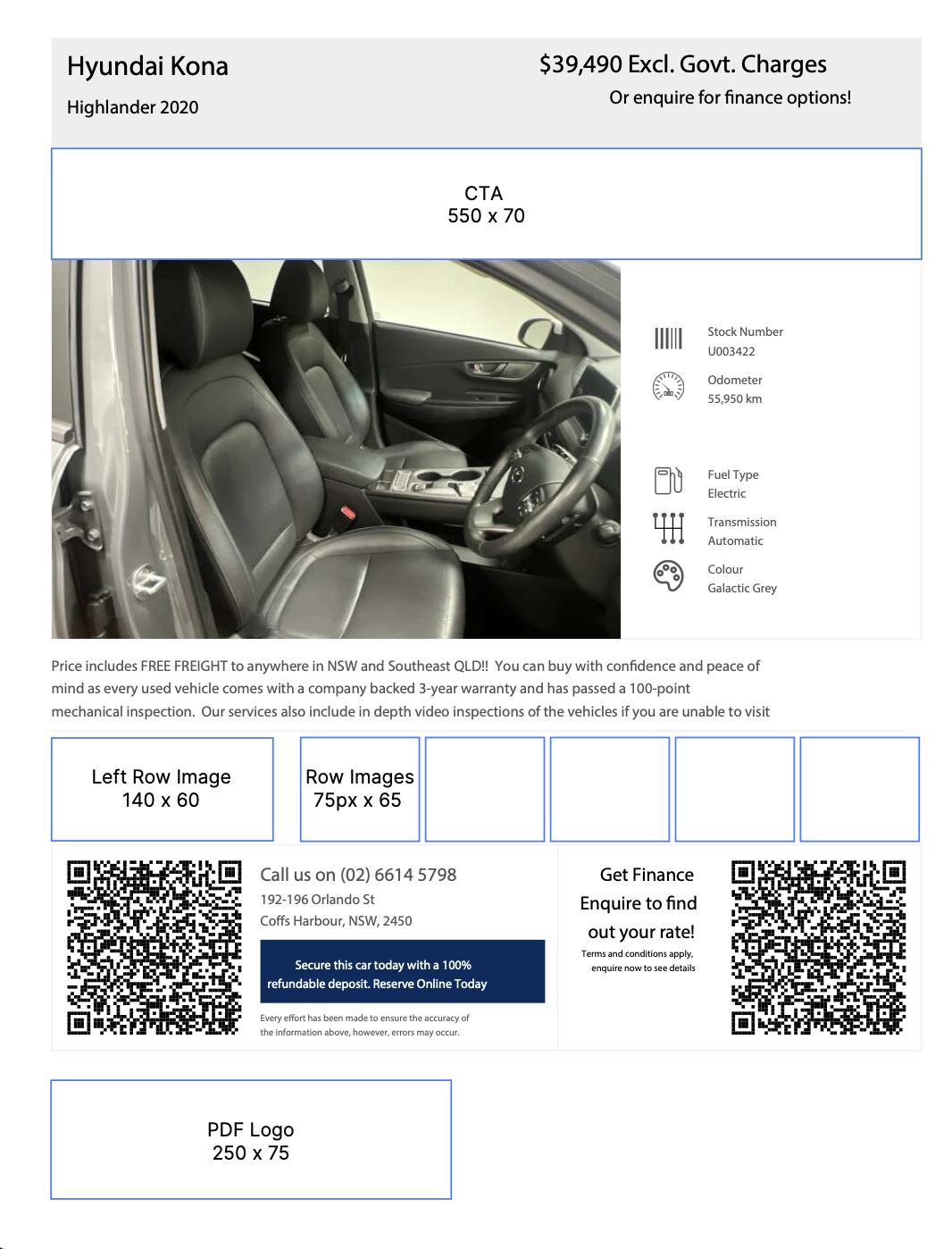
CTA Banner
Appears as the top strip of the PDF.
Required size: 550 x 70 pixels
Left Row Image
Appears below the dealer comment on the left side.
Required size: 140 x 60 pixels
Row Images
Appear below the dealer comment on the right side.
Up to five images can be added.
Required size: 75 x 65 pixels each
PDF Logo
Appears at the bottom of the document (dealership logo only).
Required size: 250 x 75 pixels
Ensure all images match the required dimensions for proper formatting.
Once configured, click Save.
Step 4: Access PDF Analytics
To view analytics for your Vehicle PDFs:
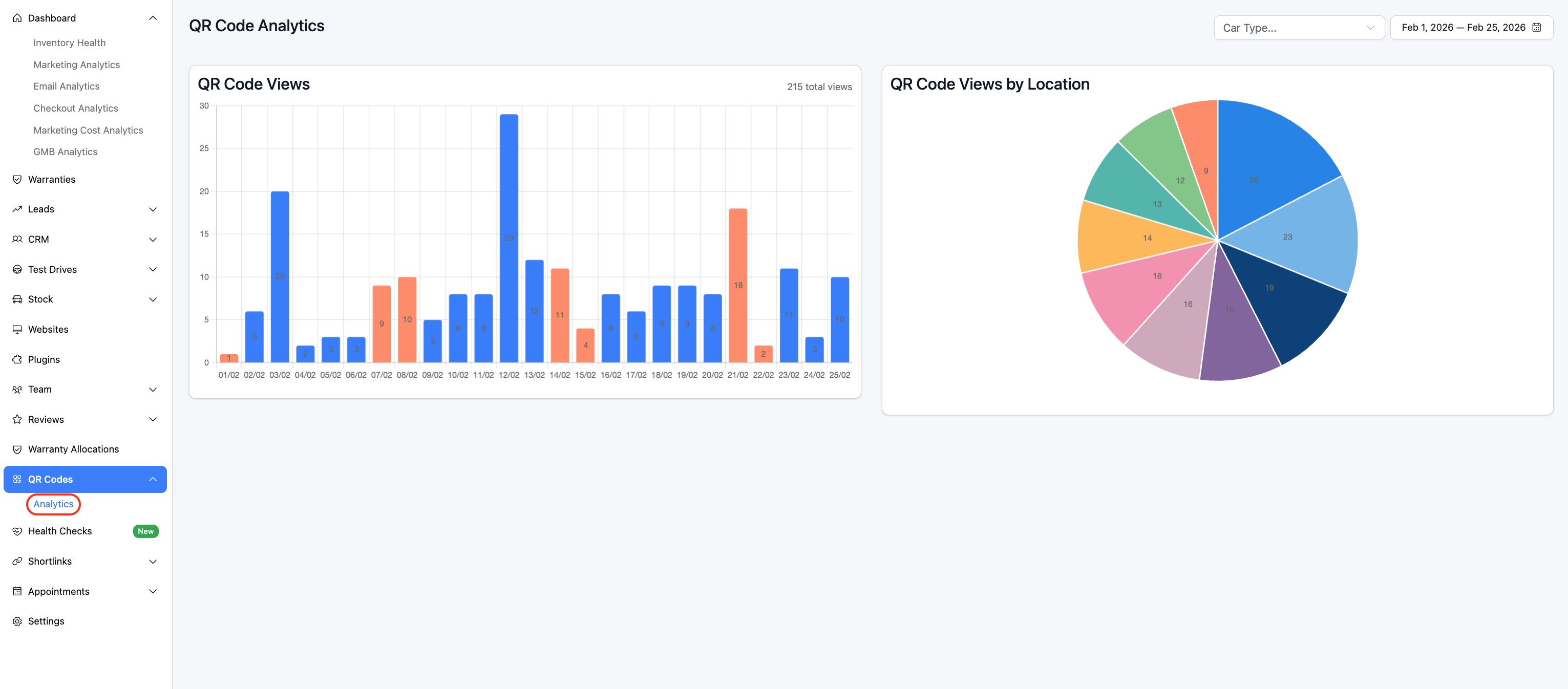
- On the sidebar, expand the QR Codes section and click Analytics.
- Here, you can track engagement and activity related to your QR-enabled Silent Salesman PDFs.
Was this article helpful?
That’s Great!
Thank you for your feedback
Sorry! We couldn't be helpful
Thank you for your feedback
Feedback sent
We appreciate your effort and will try to fix the article