This setting allows you to control which sorting options are available and define the order in which they appear in the drop down, making it easier for users to organise and browse results.
Step 1. Navigate to the Correct Level (Dealer Level → Website Level)
Your CMS has two levels of settings:
Dealer Level
Website Level
First, ensure you’re on Dealer Level.
In the left-hand sidebar, go to Websites.
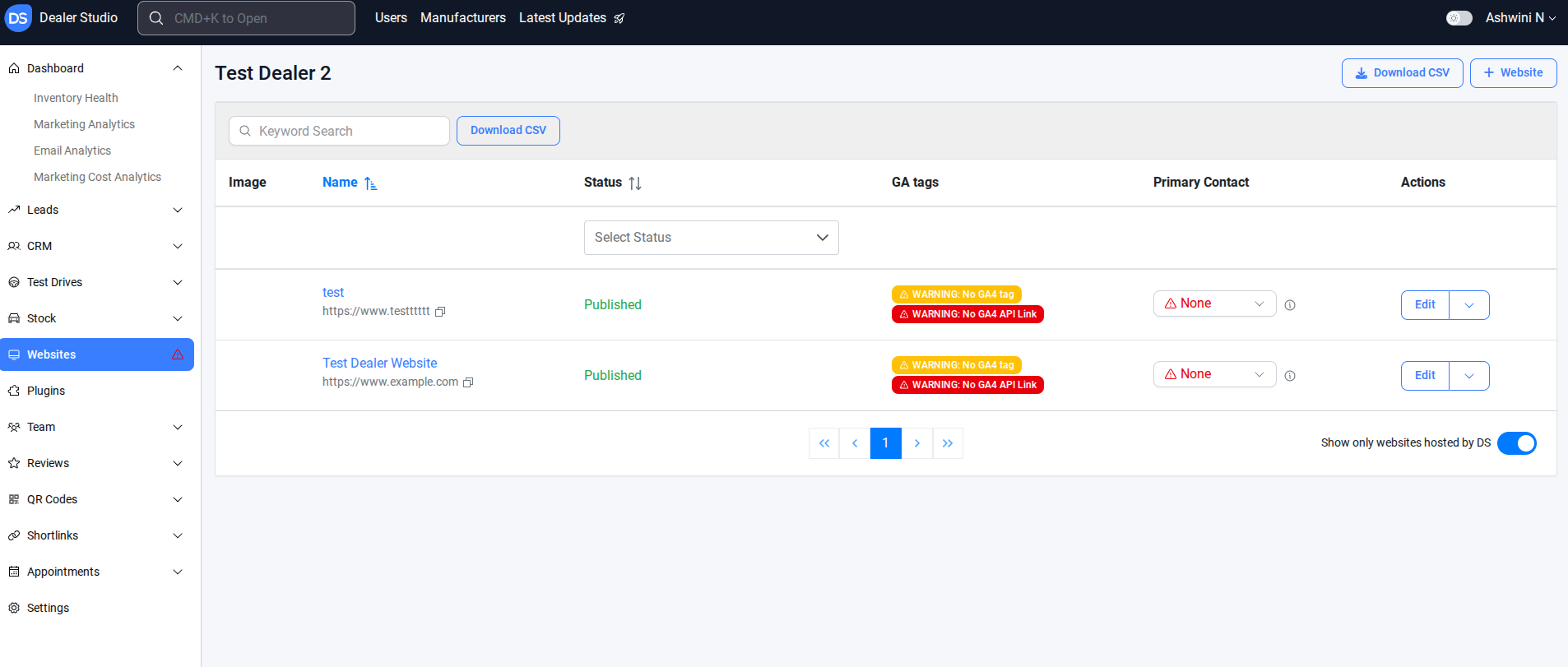
Step 2. Select the correct website
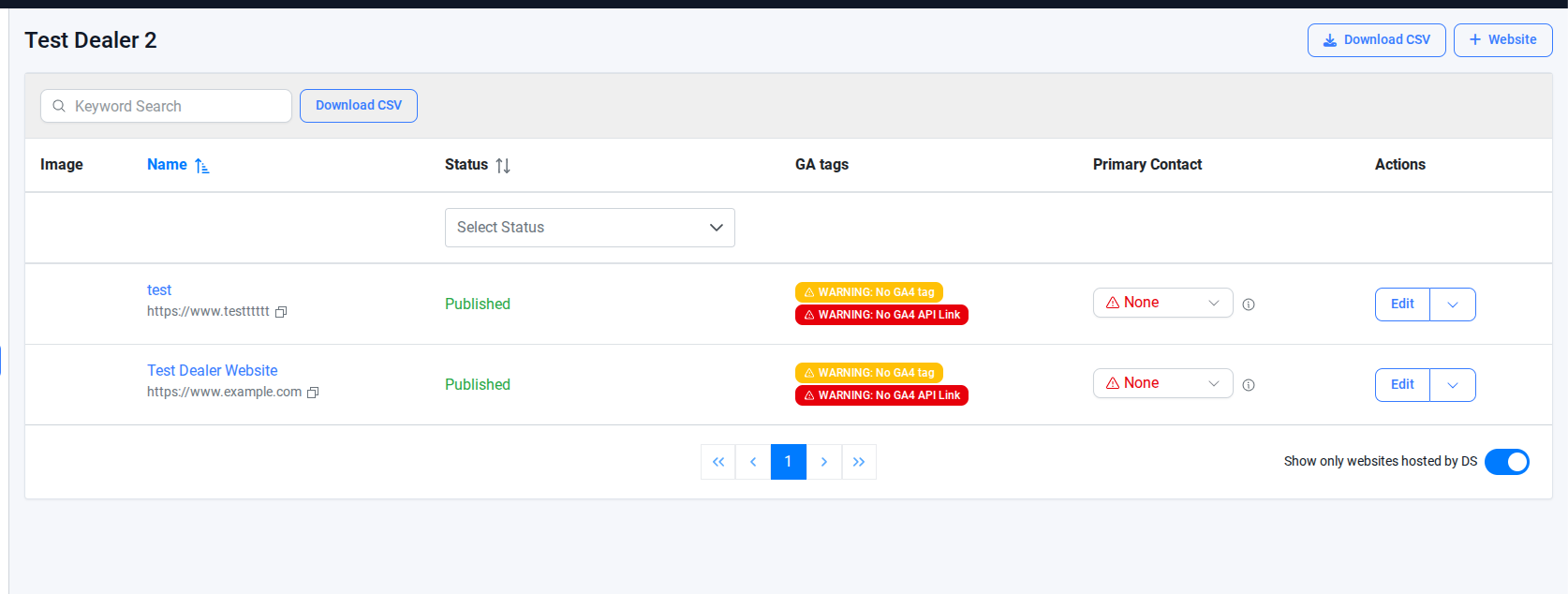
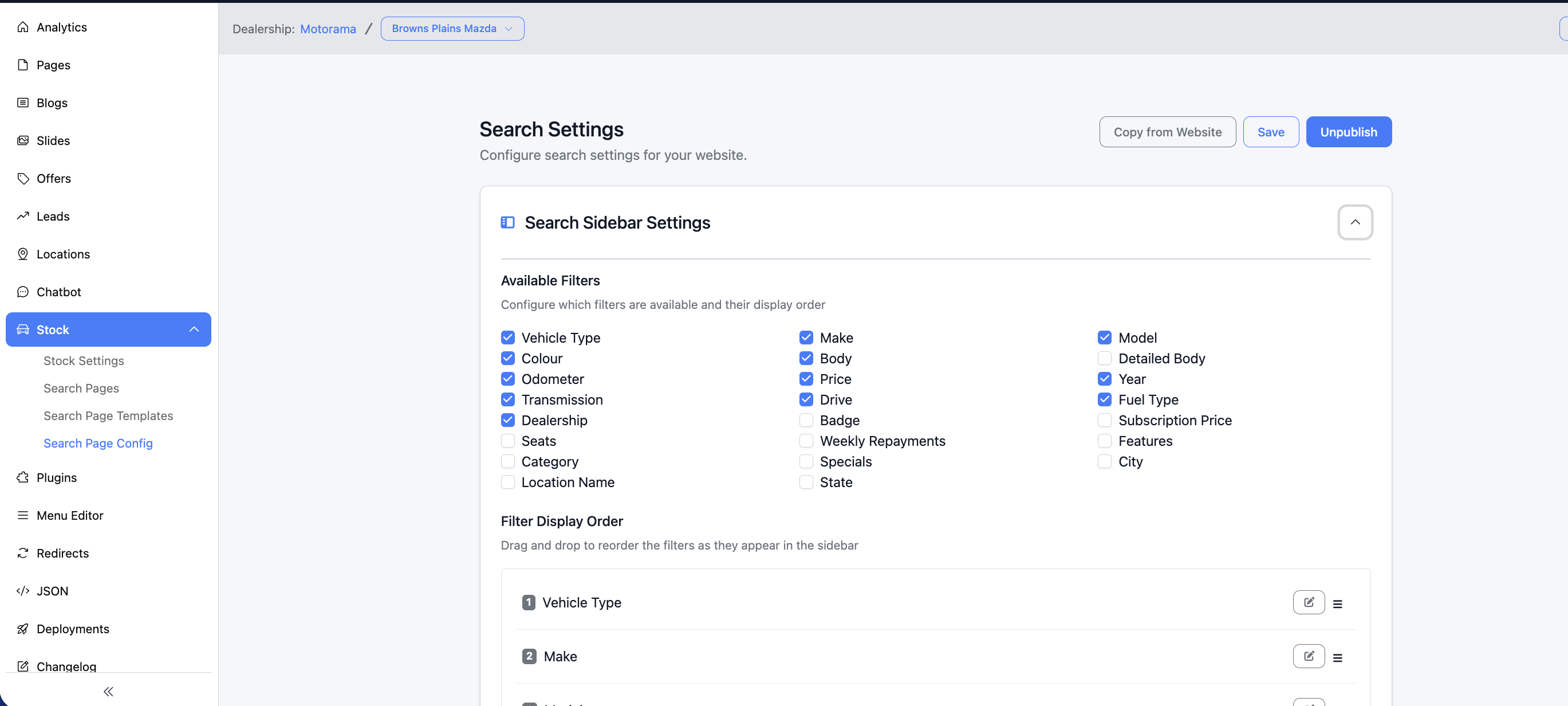
Step 3. Select the Stock → Search Page Config
Step 4. Scroll down the page → Sort Menu Setting
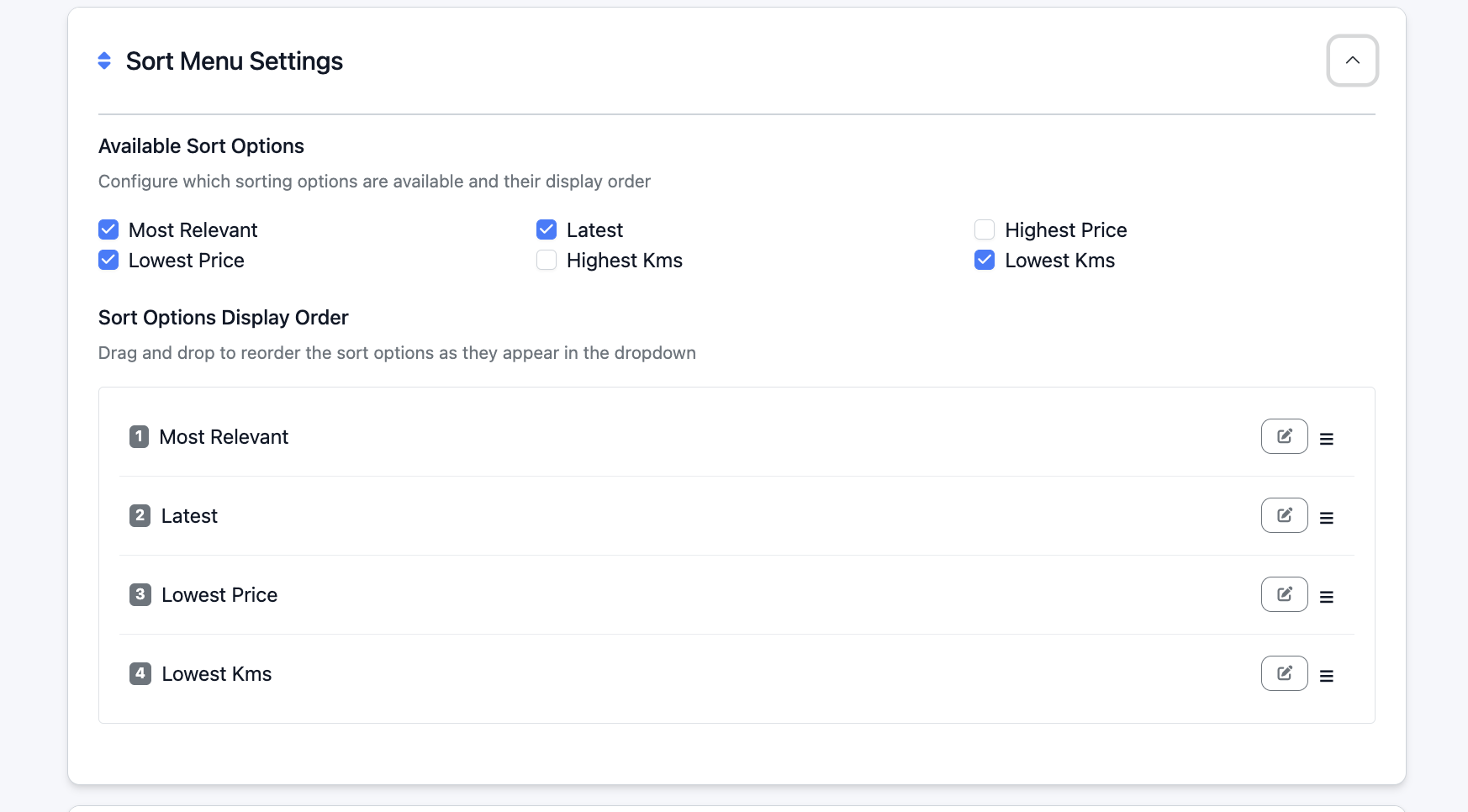
Configure Sorting Options – Select which sorting options should be available.
Display Order – Drag and drop to reorder how the sort options appear in the drop down.
Save the configuration to apply the changes.
Once the sorting options are configured and arranged as required, saving the configuration will apply the changes and make them live on the site.
Was this article helpful?
That’s Great!
Thank you for your feedback
Sorry! We couldn't be helpful
Thank you for your feedback
Feedback sent
We appreciate your effort and will try to fix the article