The banner feature allows you to display a clickable link at the top of your website. You can choose the location, add optional heading text, specify the link text, and set the URL for the landing page.
Step 1. Navigate to the Correct Level (Dealer Level → Website Level)
Your CMS has two levels of settings:
Dealer Level
Website Level
First, ensure you’re on Dealer Level.
In the left-hand sidebar, go to Websites.
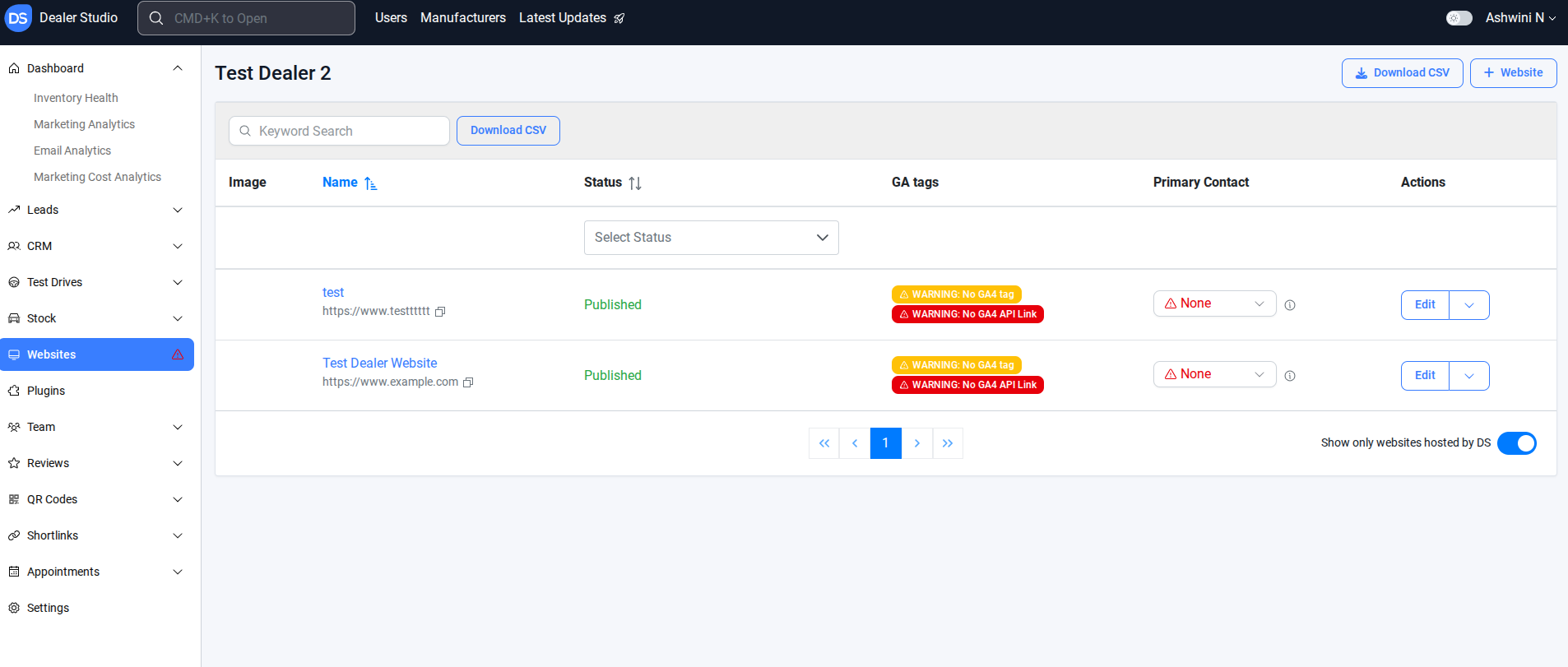
Step 2. Select the correct website
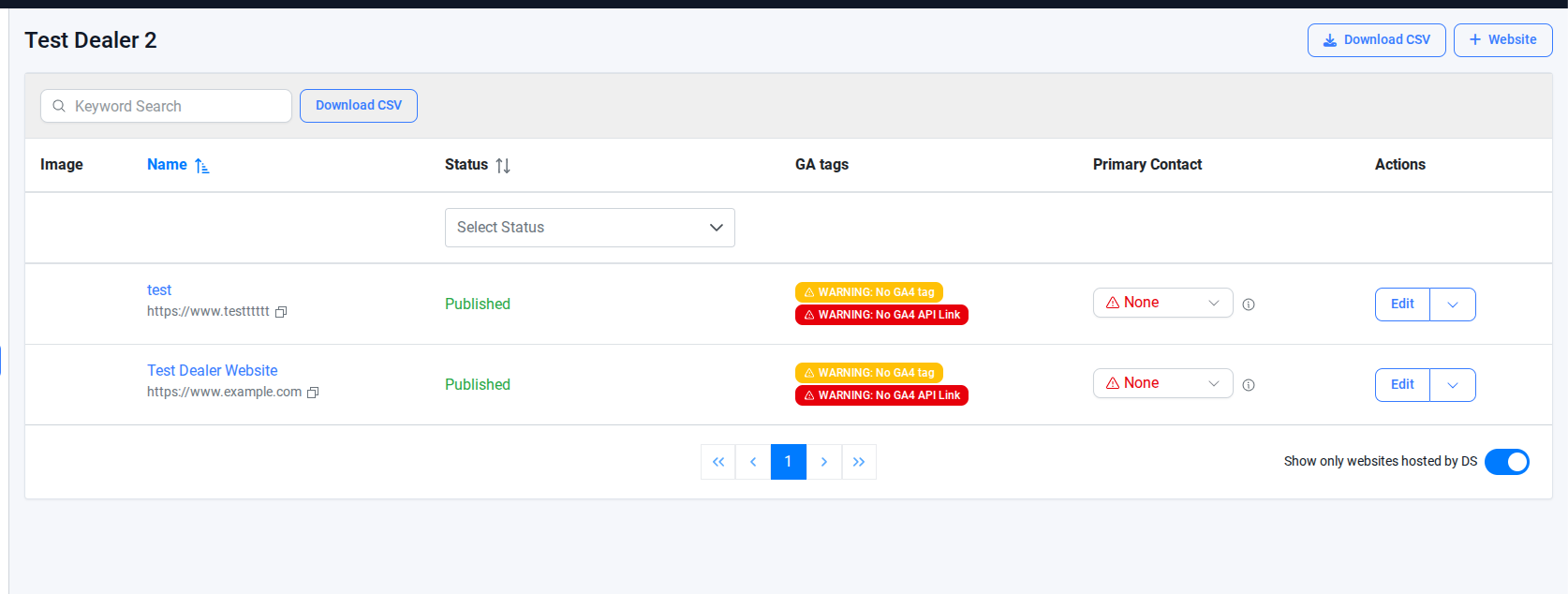
Step 3. Select the Menu Editor
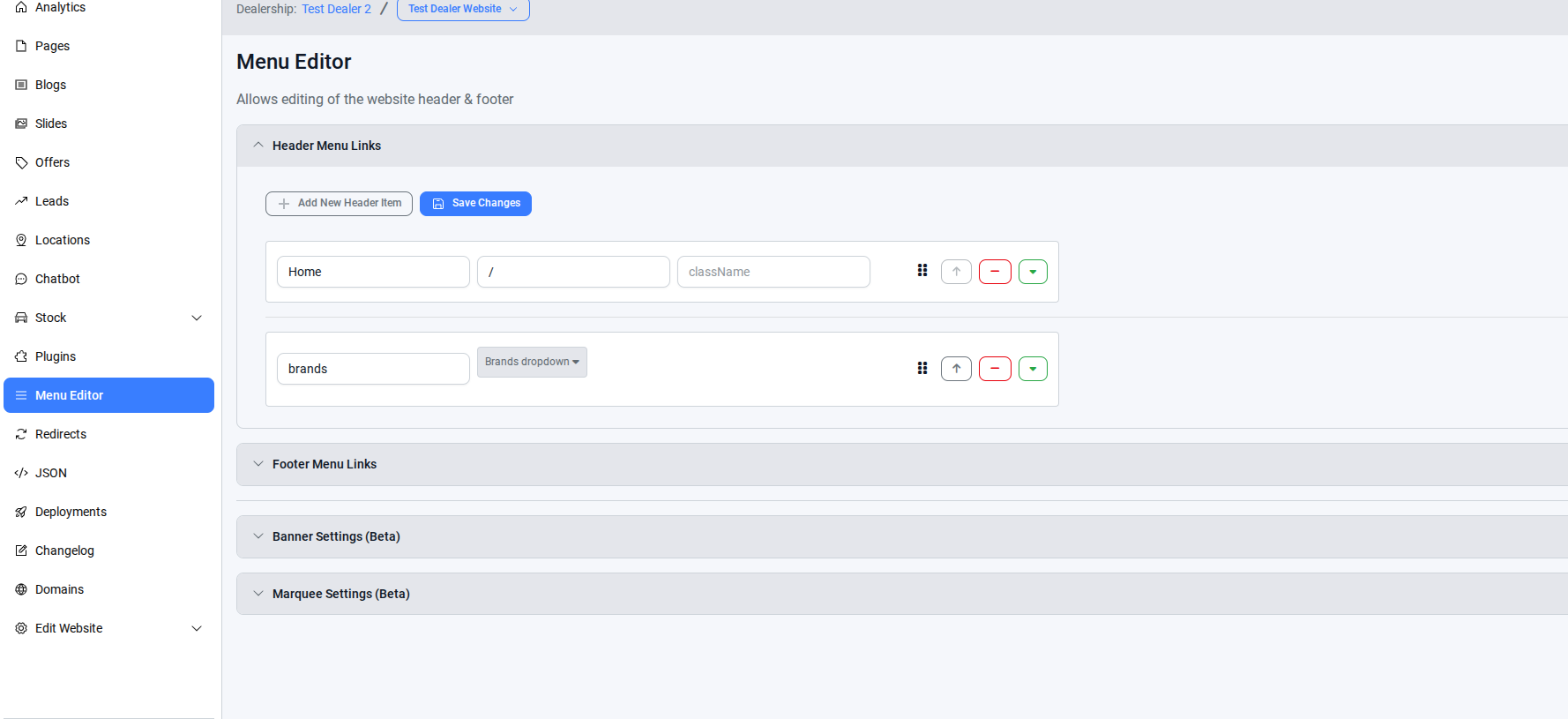
Step 4. In the menu editor, Go to the Banner Settings
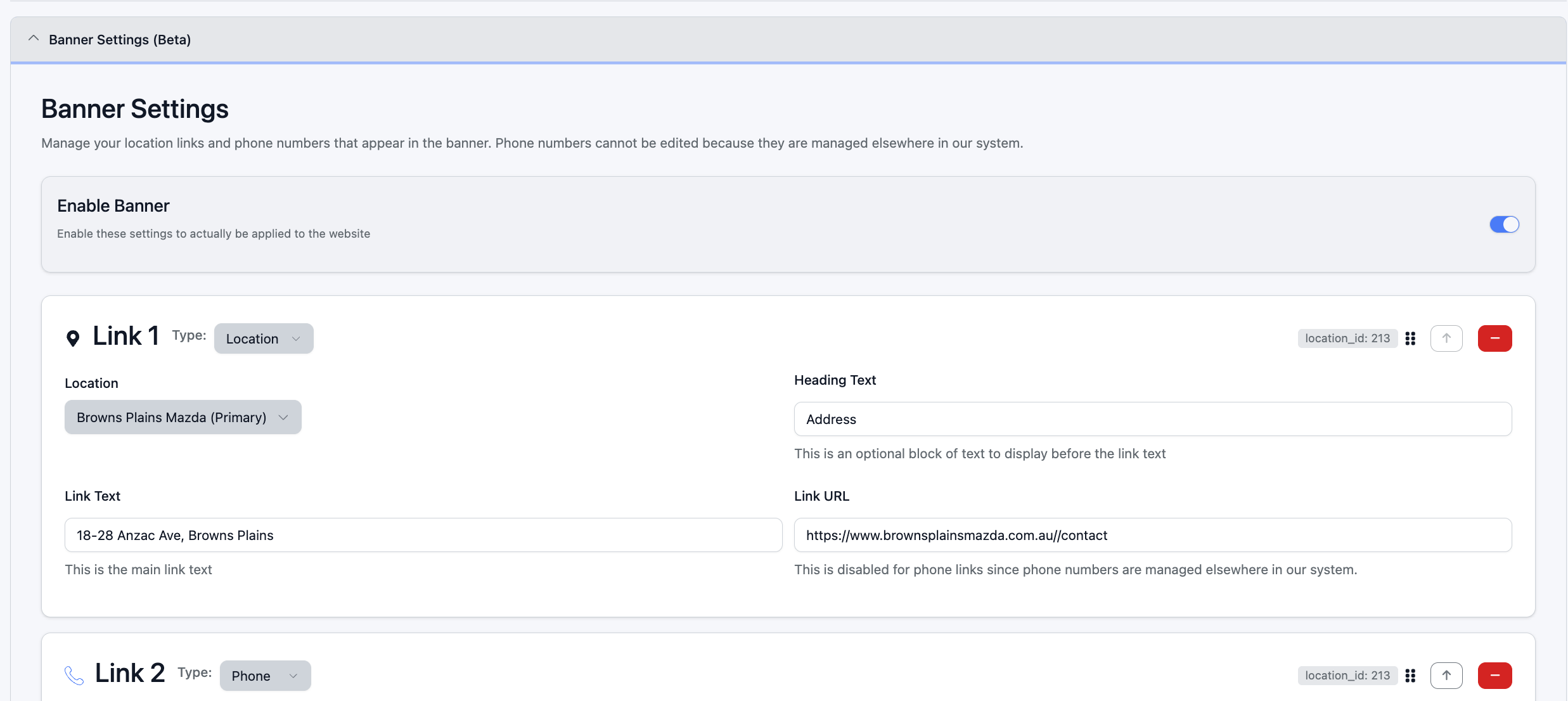
Enable Banner – Turn on the banner feature.
Add Link – Enter the link details for the banner.
Select Location – Choose where on the website the banner will appear.
Heading Text (optional) – Enter any text you want to display before the link text.
Link Text – Enter the text you want to display as the clickable link at the top of the website.
Link URL – Add the URL you want users to be directed to when they click the link.
Save Configuration – Don’t forget to save your changes to make them live.
Step 5. Check the live page to confirm the changes.

Once all the details are entered and the configuration is saved, the banner will appear on the website as intended, providing a clear and clickable call-to-action for visitors.
Was this article helpful?
That’s Great!
Thank you for your feedback
Sorry! We couldn't be helpful
Thank you for your feedback
Feedback sent
We appreciate your effort and will try to fix the article