The Marquee feature allows you to display custom text or links at the top of your website. You can control its appearance (background color, text color, font weight), specify the items to display, link them to pages, and exclude certain pages from showing the Marquee.
Step 1. Navigate to the Correct Level (Dealer Level → Website Level)
Your CMS has two levels of settings:
Dealer Level
Website Level
First, ensure you’re on Dealer Level.
In the left-hand sidebar, go to Websites.
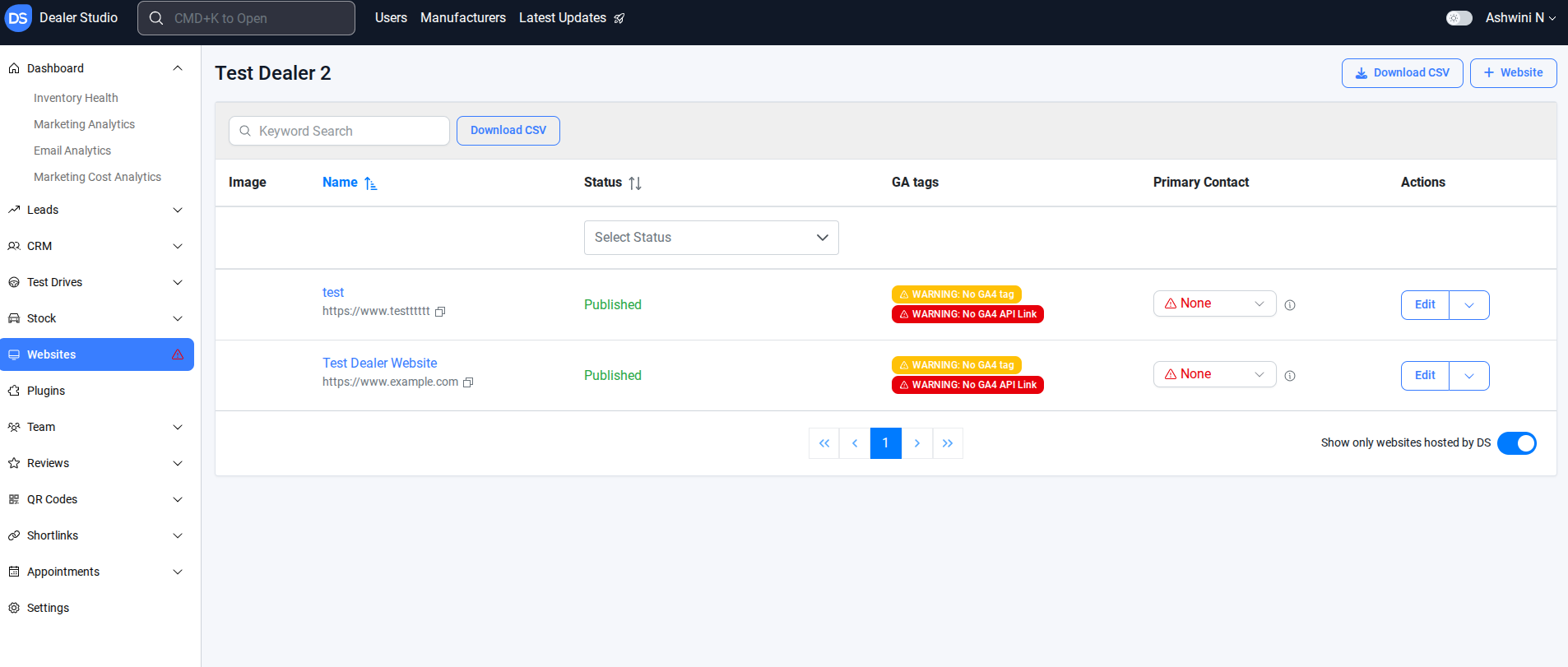
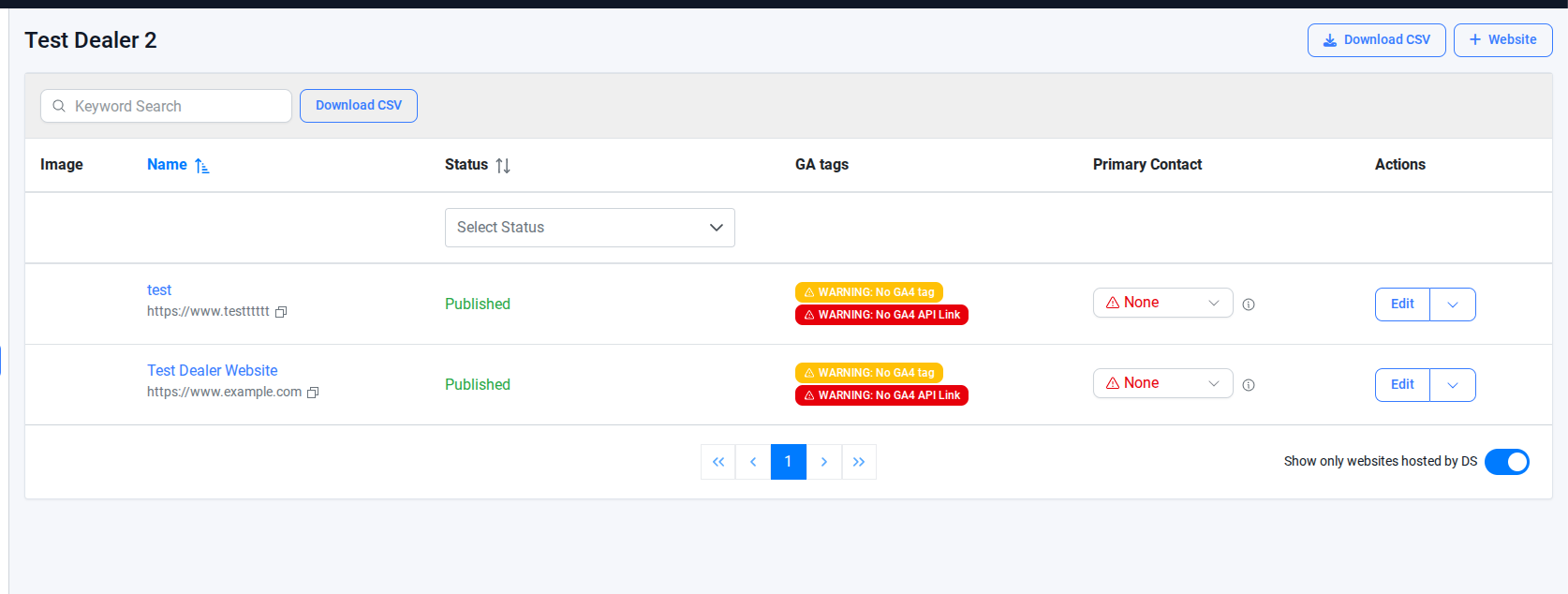
Step 2. Select the correct website
Step 3. Select the Menu Editor
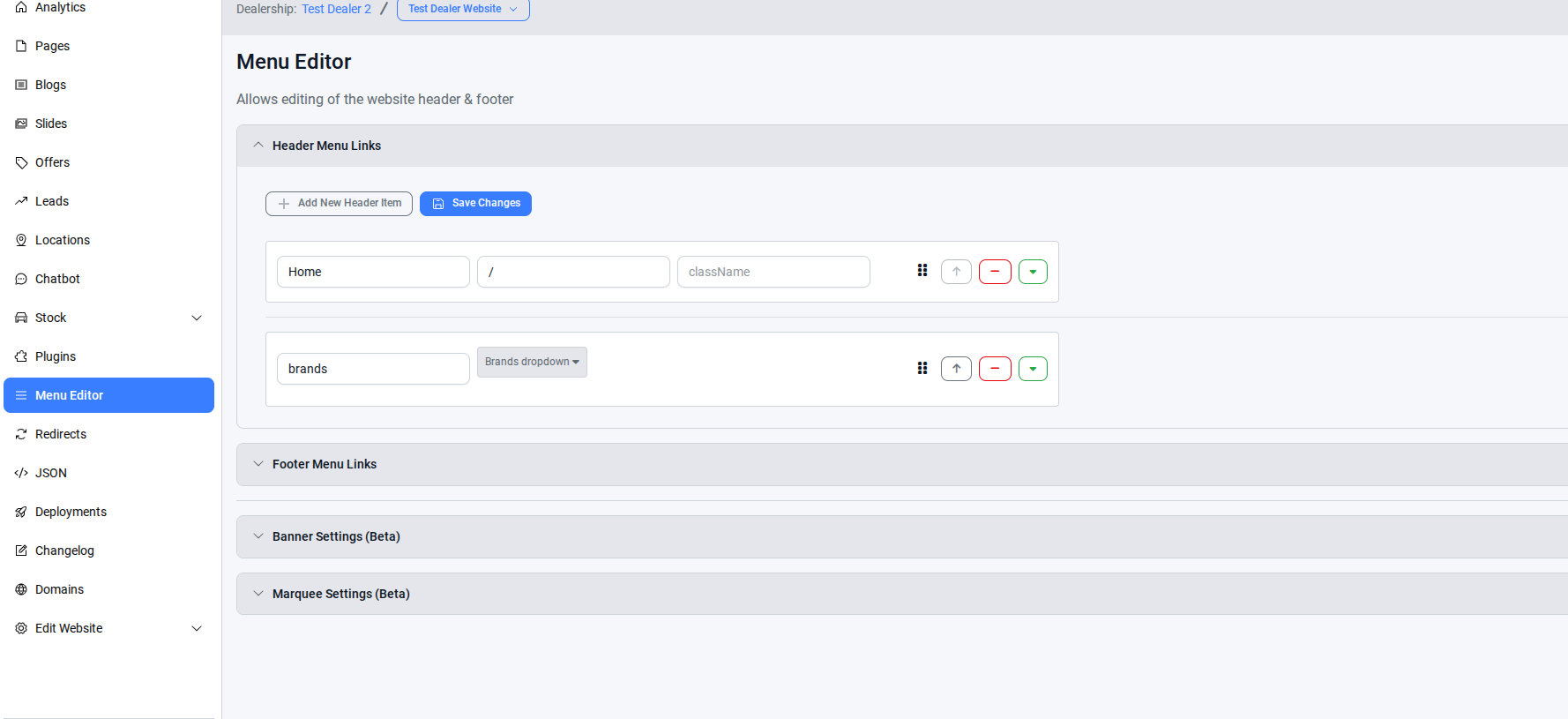
Step 4. In the menu editor, Go to the Marquee Settings
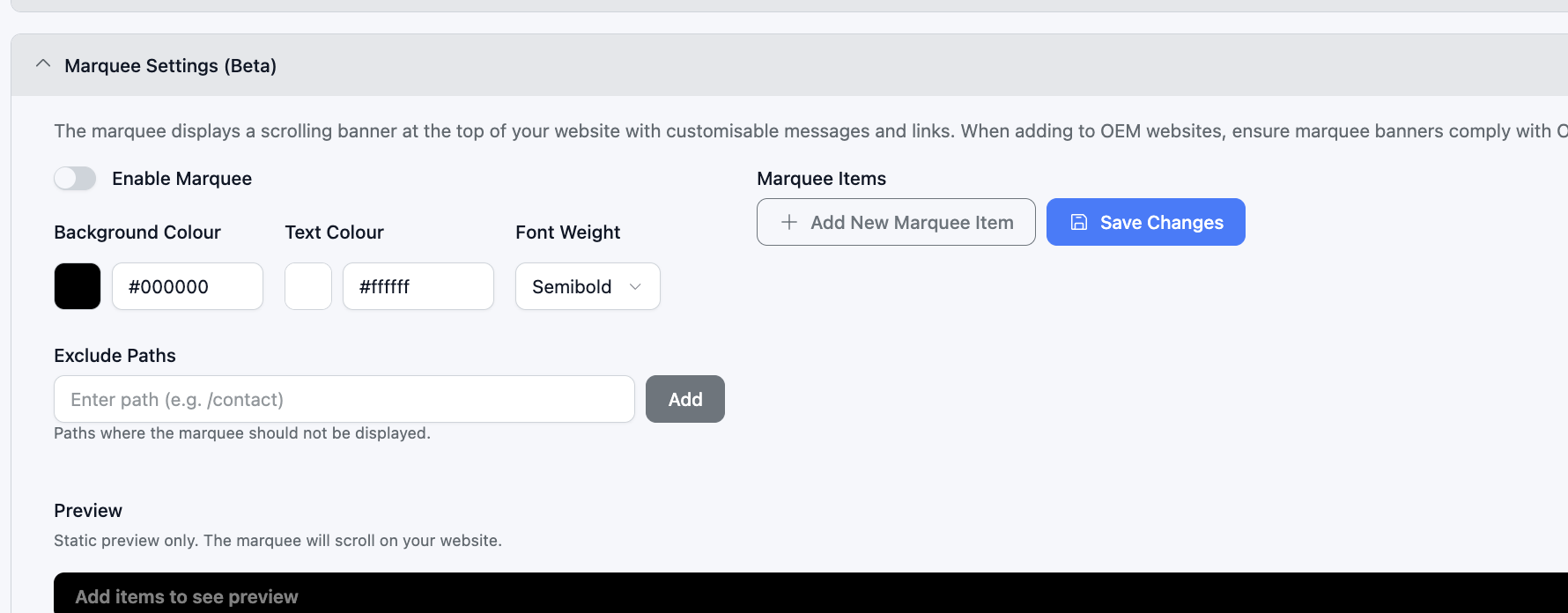
Enable Marquee – Turn on the marquee feature.
Change Appearance – Set the background color, text color, and font weight.
Add Marquee Items – Enter the text you want to display at the top of your website.
You can also add a URL if you want customers to click and be directed to a specific page.
Exclude Paths – Specify pages where you don’t want the marquee to appear.
Save Changes – Don’t forget to save your settings after making updates.
Step 5. Check the live page to confirm the changes.

Once you’ve configured the Marquee and excluded any necessary paths, saving the changes will make it live on your site, providing a dynamic way to highlight information or direct users to specific pages.
Was this article helpful?
That’s Great!
Thank you for your feedback
Sorry! We couldn't be helpful
Thank you for your feedback
Feedback sent
We appreciate your effort and will try to fix the article