This guide walks you through setting up the Podium integration in Dealer Studio. You’ll configure the following components:
Organization UID
Location UID
Notifications (Webhook to Podium)
Stock Feed (Export feed to Podium)
⚠️ Before you begin:
You’ll need the integration email from Podium, which contains your unique Organization UID, Location UID(s), and any location-specific instructions.
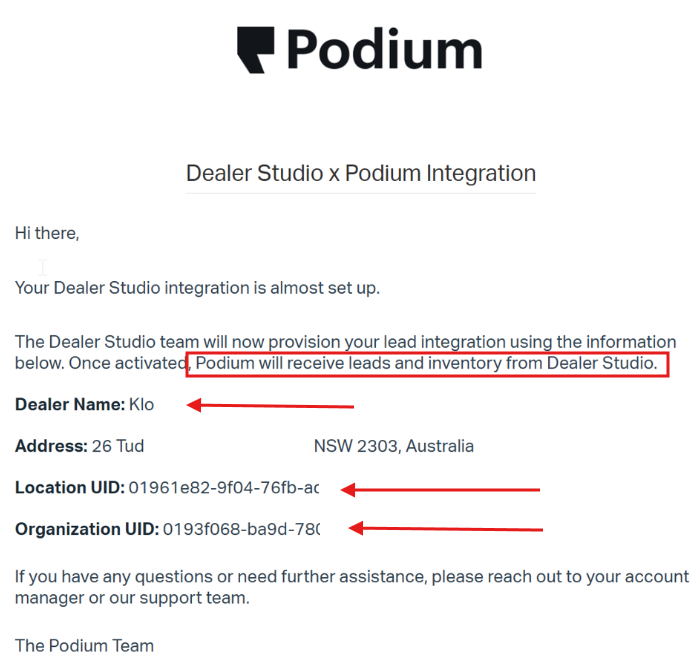
1. Set Up Organization UID (skip this step if not present in email)
The Organization UID links your dealership in Dealer Studio to Podium at an organisation level.
Steps
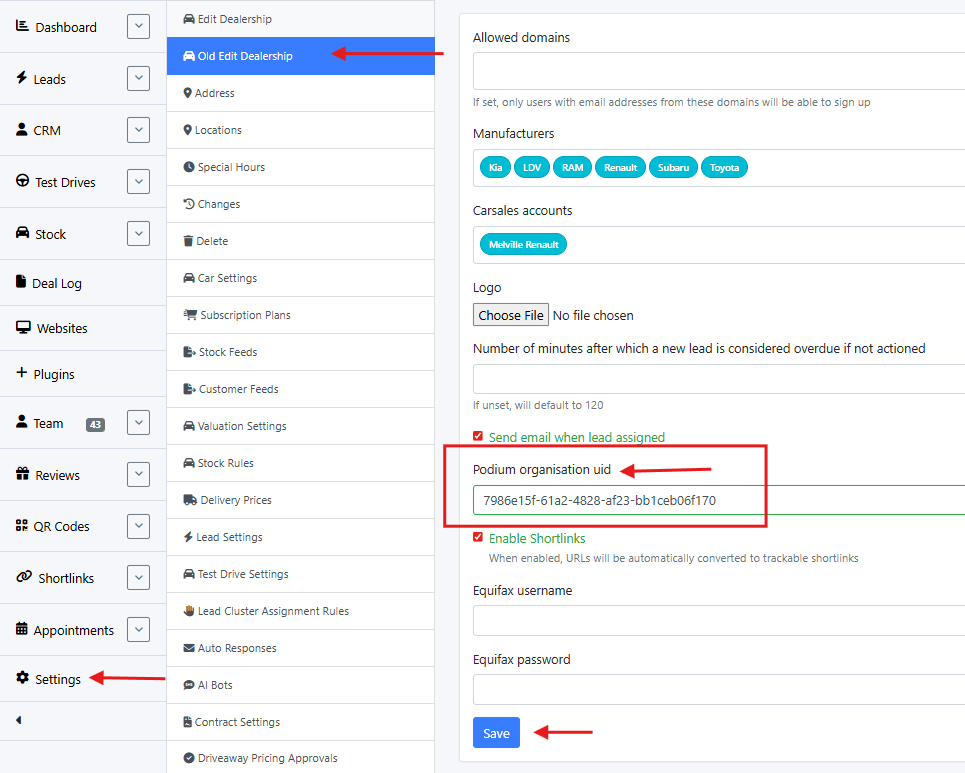
Login to Dealer Studio, navigate to:
Settings > Old Edit DealershipLocate the Podium Organisation UID field.
Copy the Organization UID from the Podium integration email
(for example:0193f068-ba9d-780a-a517-25b775cb1271).Paste the UID into the field.
Click Save.
2. Set Up Location UID (skip this step if not present in email)
Each dealership location must be linked to Podium using its own Location UID.
Steps
In Dealer Studio, go to:
Settings > Locations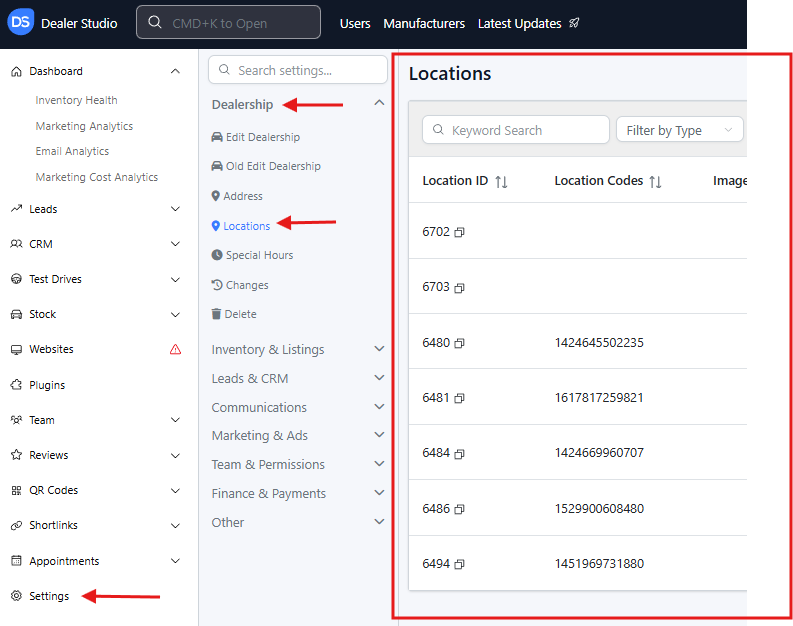
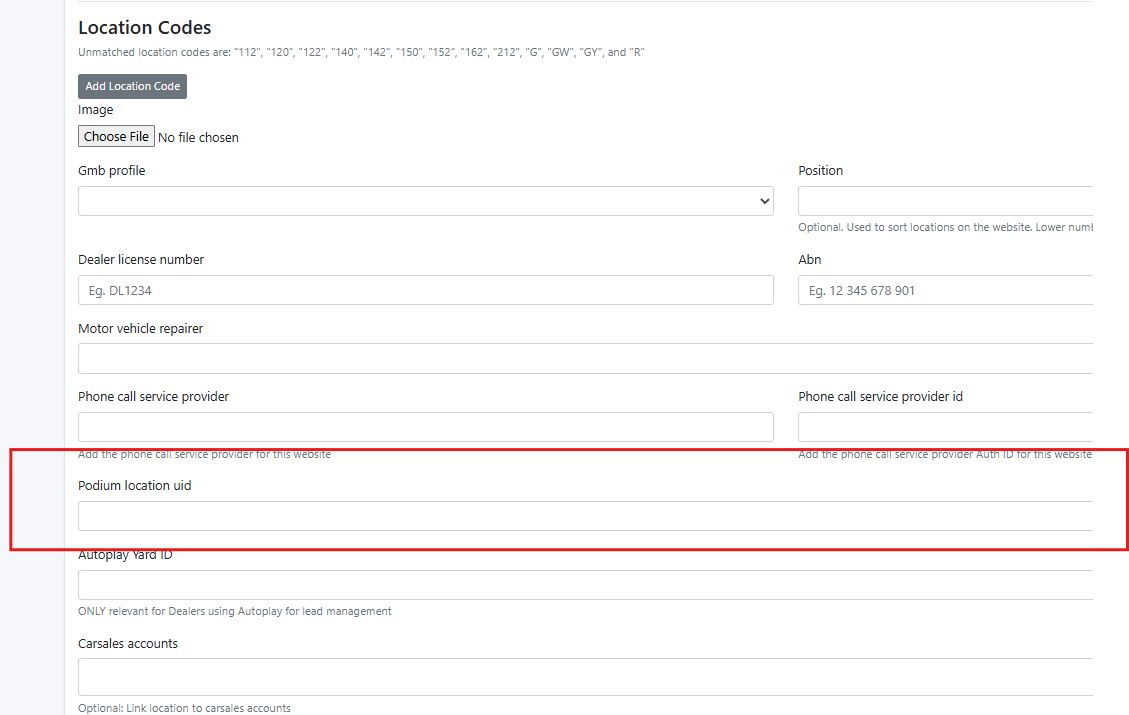
Find and edit the location that matches the dealership name listed in the Podium email.
Paste the Location UID into the Podium Location UID field.
Click Save.
⚠️ Repeat these steps for each location if multiple Location UIDs were provided.
3. Set Up Notifications (Webhook to Podium)
This step allows Dealer Studio to send lead notifications to Podium automatically.
Steps
Go to:
Settings > Notifications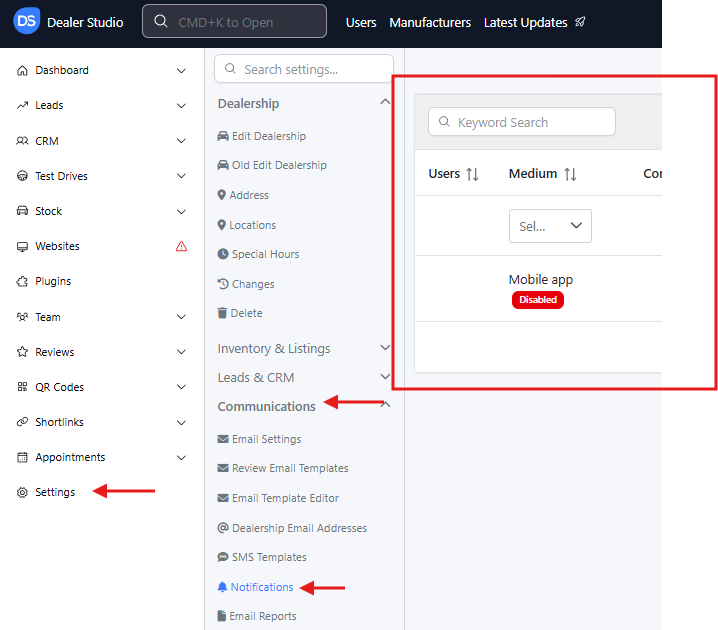
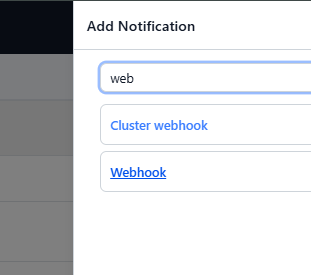
Click Add Notification and select Webhook.
Fill in the fields as follows:
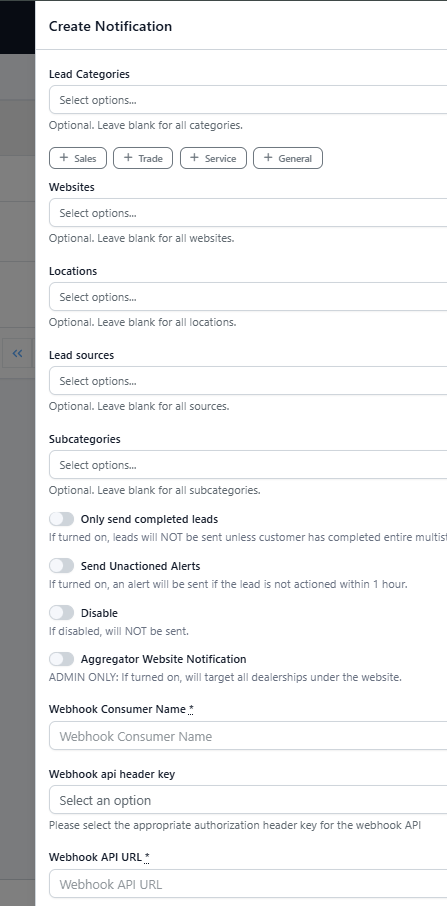
Lead Category: leave "blank" for All Categories
Webhook Consumer Name: Podium
Webhook API Header Key:
AuthorisationWebhook API Token:
Webhook API URL:
Update Lead Endpoint URL: Leave blank
Leave all checkboxes unchecked.
Click Save.
4. Set Up Stock Feed (Export Feed to Podium)
This step enables Dealer Studio to send your vehicle stock data to Podium.
Steps
Go to:
Settings > Stock Feeds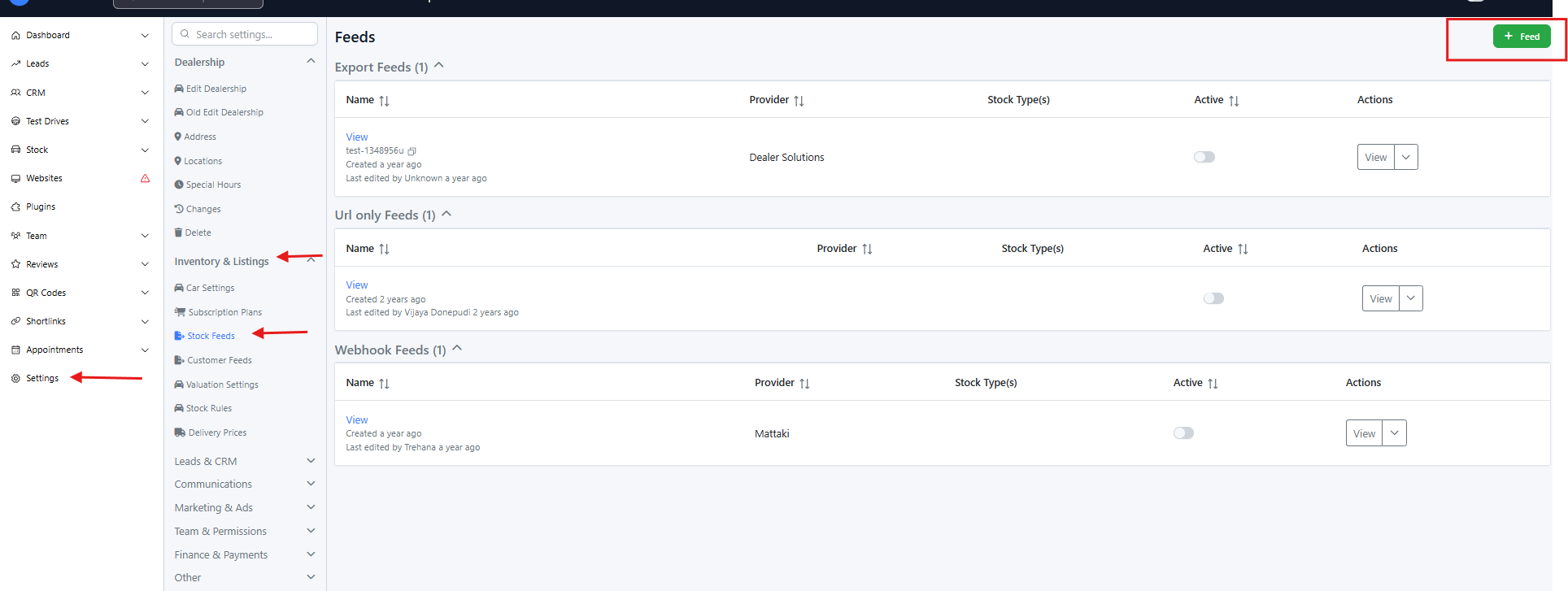
Click the + Feed button in the top-right corner and select Webhook Feed.
Choose Podium as the feed type.
Fill in the following details:
Name: Podium
Locations: Add the locations specified in the Podium email (if provided)
Tick the following options:
Send Redbook Code
Active
Click Save.
Completion Checklist
Once completed, you should have:
✅ Organization UID saved
✅ Location UID(s) assigned
✅ Webhook notifications sending leads to Podium
✅ Active stock feed exporting to Podium
If Podium does not confirm receipt of data, double-check all UIDs and webhook details against the integration email.
That's it! You have successfully set up Podium Integration with Dealer Studio. Feel free to share this guide across the teams.
Was this article helpful?
That’s Great!
Thank you for your feedback
Sorry! We couldn't be helpful
Thank you for your feedback
Feedback sent
We appreciate your effort and will try to fix the article