Learn how to schedule an OEM-level email report. Reports are emailed automatically to selected users on a set schedule (e.g. weekly), and cover areas such as leads, website performance, Google Business Profiles and dealership activity across the network.
1. How to Navigate to The Reports Menu
Step 1: Please Login to Dealer Studio.
You will be prompted for your Username and Password
You will be prompted for your 2-Factor Authentication Method, or SSO verification
Step 2: Once Signed in Please Select the Applicable OEM
e.g. Mitsubishi NZ
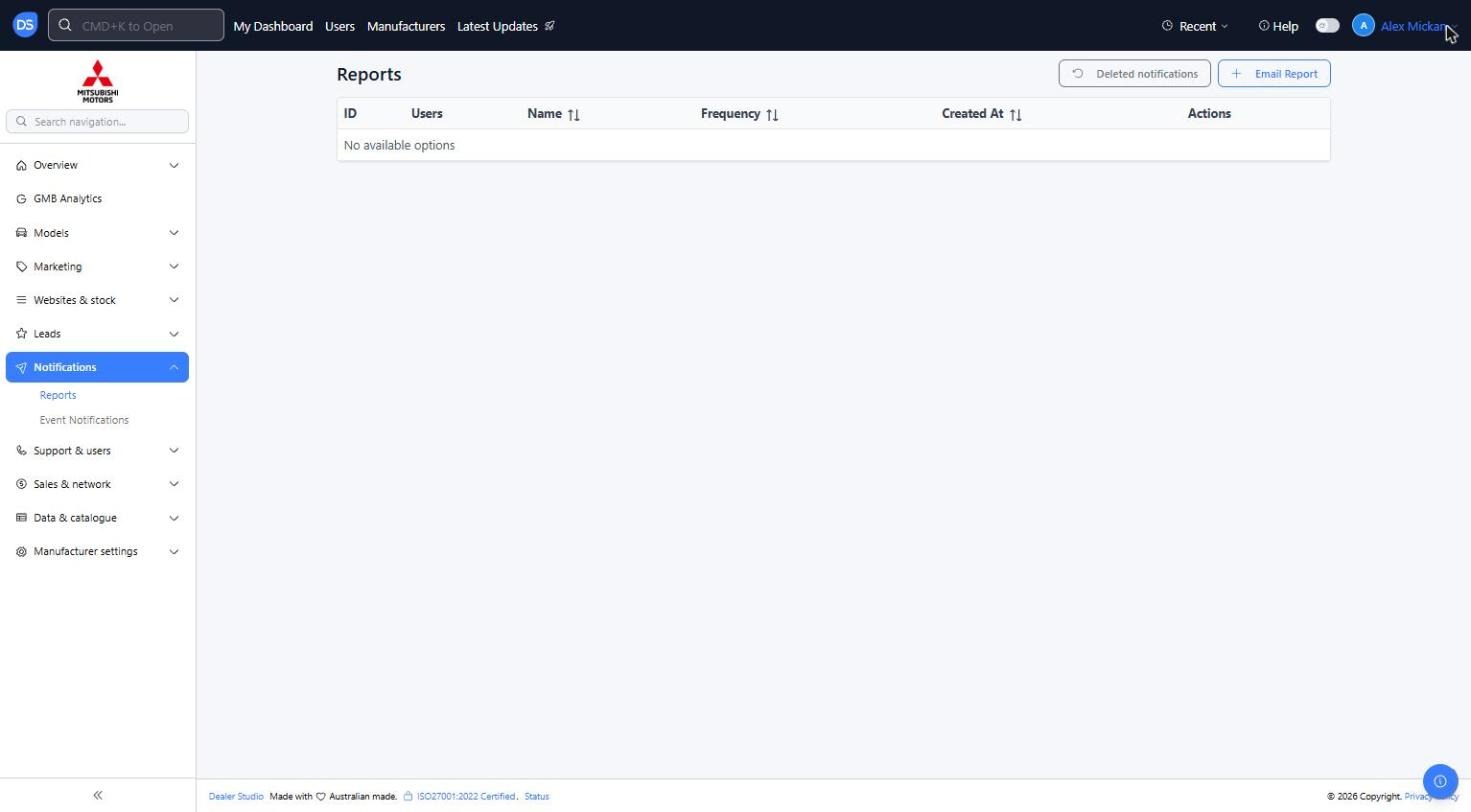
Step 3: Click 'Notifications' on the left, then 'Reports'
You will see any reports already scheduled, with the Users, Name, Frequency and date created
'Deleted notifications' at the top right shows reports that have been removed
2. How to Set up A New Report
Step 1: Click '+ Email Report'
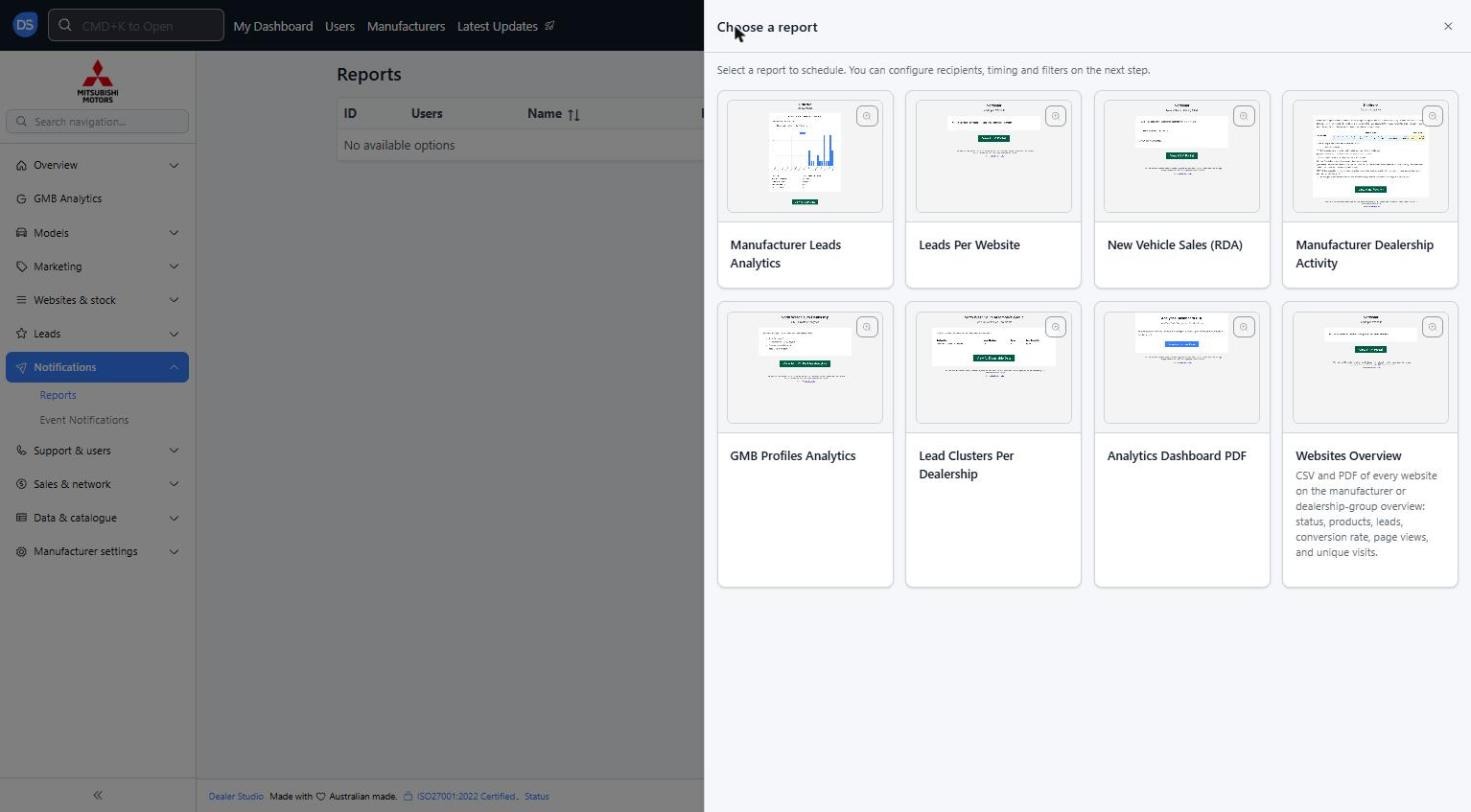
The 'Choose a report' panel will open. Select the report you want to schedule:
Manufacturer Leads Analytics
Leads Per Website
New Vehicle Sales (RDA)
Manufacturer Dealership Activity
GMB Profiles Analytics
Lead Clusters Per Dealership
Analytics Dashboard PDF
Websites Overview (CSV and PDF of every website: status, products, leads, conversion rate, page views and unique visits)
Click the magnifying glass on a report to preview it
Step 2: Fill in the report settings
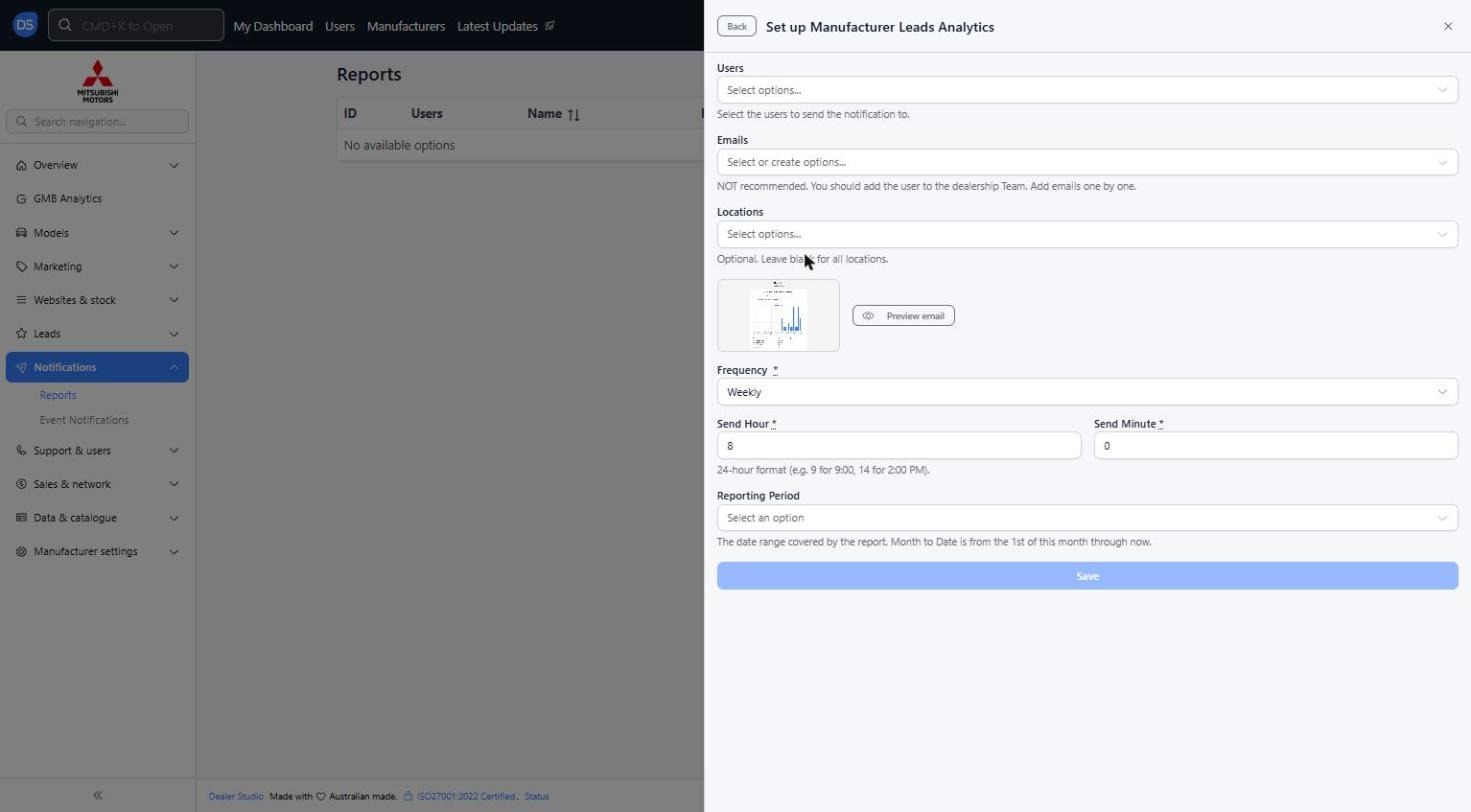
You will see the below options;
Users: Select the users to send the report to
Emails: Add email addresses one by one. This is NOT recommended. Where possible, add the person as a user on the dealership Team instead
Locations: Optional. Leave blank to include all locations
Preview email: Click to see what the email will look like
Frequency (Required): Daily, Daily (Weekdays Only), Weekly or Monthly
Send Hour and Send Minute (Required): The time the report is sent, in 24-hour format (e.g. 9 for 9:00, 14 for 2:00 PM)
Reporting Period: The date range the report covers: Daily, Weekly, Monthly or Month to Date (from the 1st of this month through now)
Step 3: Once you have entered all required information, Please click 'Save'
The report will now show in the Reports list and will be sent on the schedule you set
Use 'Back' at the top of the panel to choose a different report
Reminder: Recipients should be added under 'Users' wherever possible. Only use the 'Emails' field for people who can't be added to the dealership Team.
Was this article helpful?
That’s Great!
Thank you for your feedback
Sorry! We couldn't be helpful
Thank you for your feedback
Feedback sent
We appreciate your effort and will try to fix the article