Learn how to edit the OEM-level (manufacturer) navigation, including the Header and Footer menu links. Items can be locked as mandatory to make sure they appear on all OEM dealer websites, or marked as recommended.
1. How to Navigate to The Navigation Editor
Step 1: Please Login to Dealer Studio.
You will be prompted for your Username and Password
You will be prompted for your 2-Factor Authentication Method, or SSO verification
Step 2: Once Signed in Please Select the Applicable OEM
e.g. Mitsubishi NZ
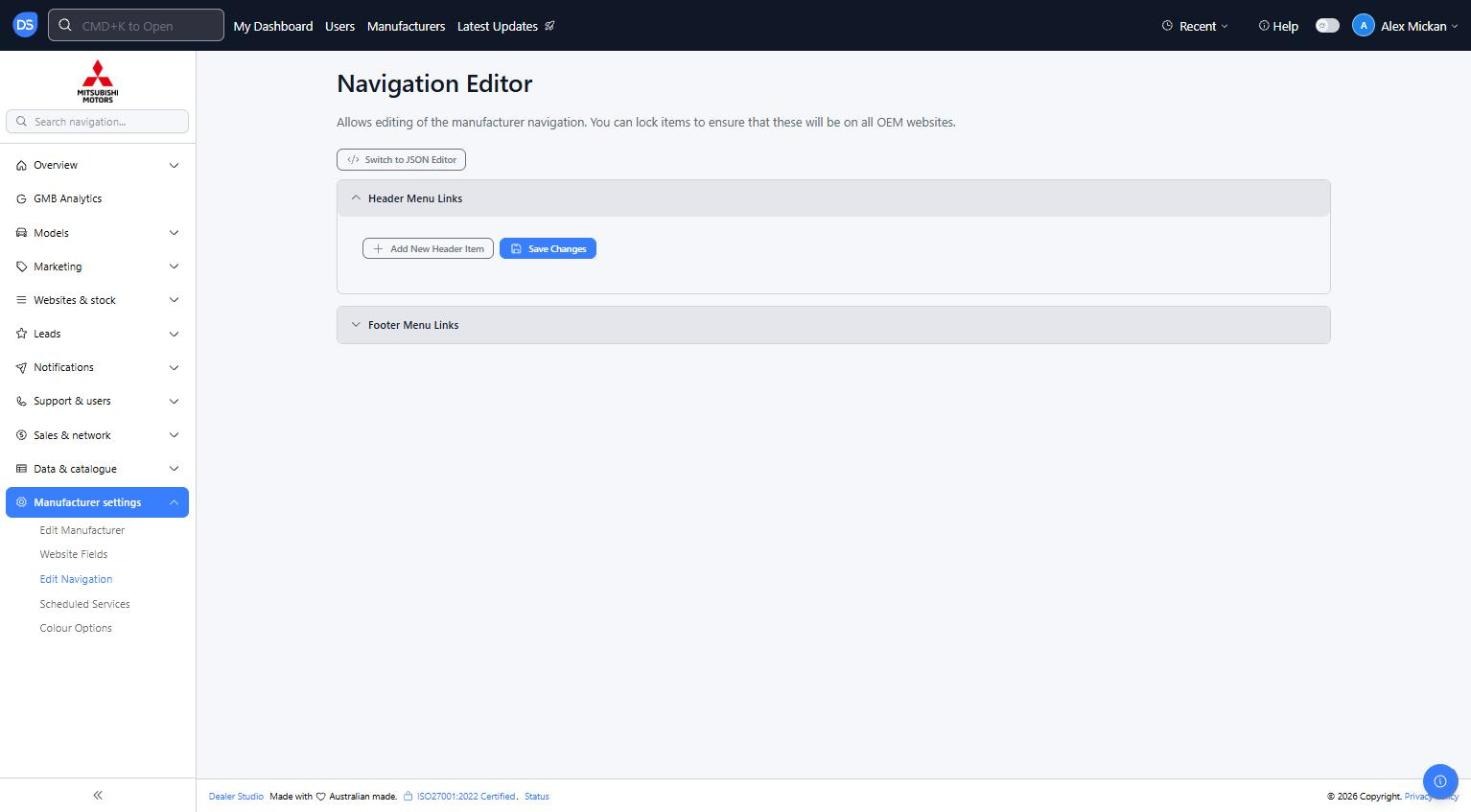
Step 3: Click 'Manufacturer settings' on the left, then 'Edit Navigation'
You will see the Navigation Editor, with separate sections for 'Header Menu Links' and 'Footer Menu Links'. Click a section heading to expand or collapse it
2. How to Add A Navigation Item
Step 1: Click '+ Add New Header Item' (or '+ Add New Footer Item' in the Footer section)
A new row will appear with the below fields;
Name: The text shown in the menu, e.g. 'New Vehicles'
URL: The page the link goes to, e.g. /new-vehicles
className: Optional. Only needed if a custom style should be applied to the item
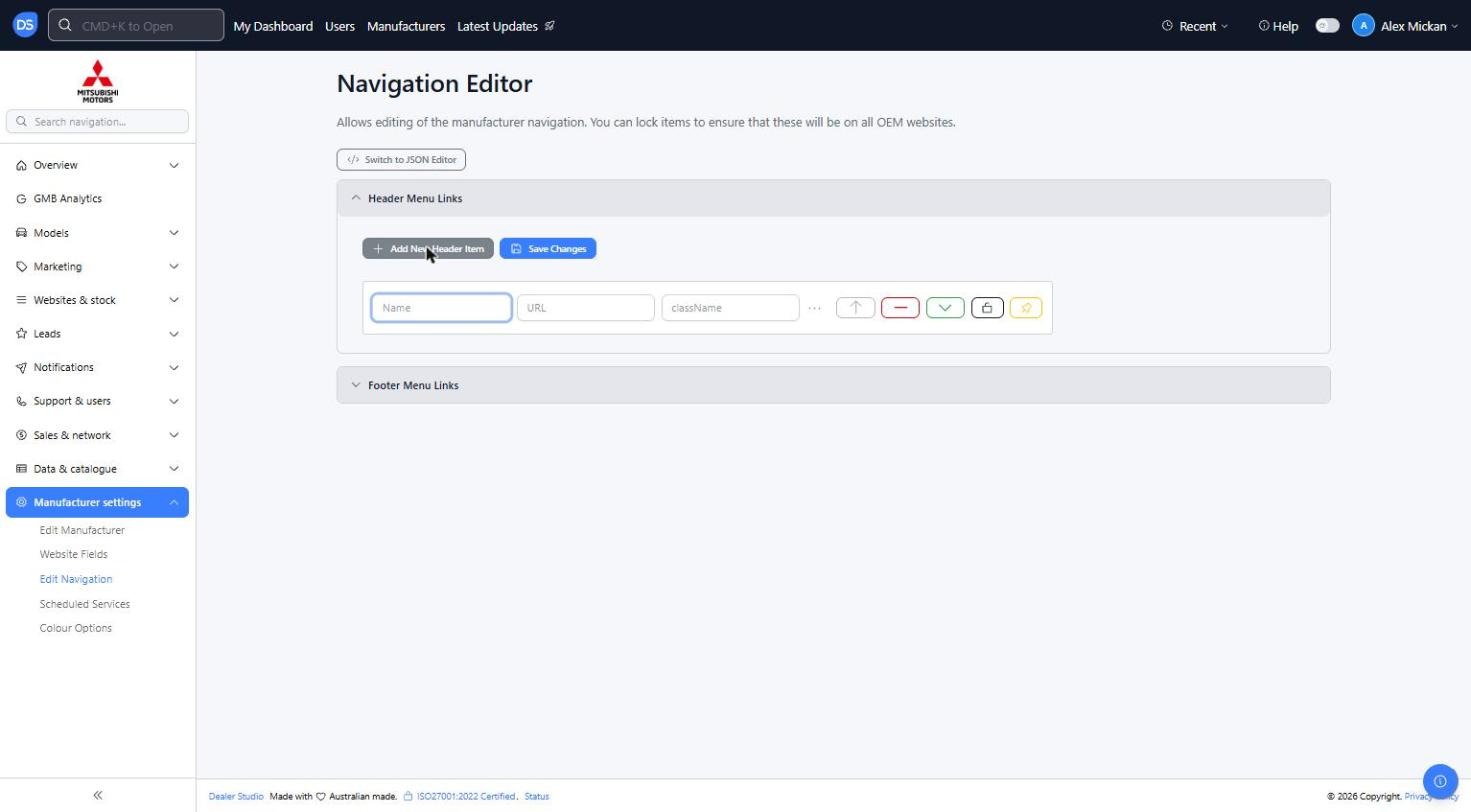
Step 2: Use the buttons on the right of the item as needed
Up arrow: Move the item up in the menu
Red minus: Remove this item
Green arrow: Convert to dropdown (turns the item into a drop-down menu with sub-items)
Lock: Click to make mandatory, so the item will be on all OEM websites
Pin (yellow): Click to mark as recommended
3. How to Create A Drop-Down Menu
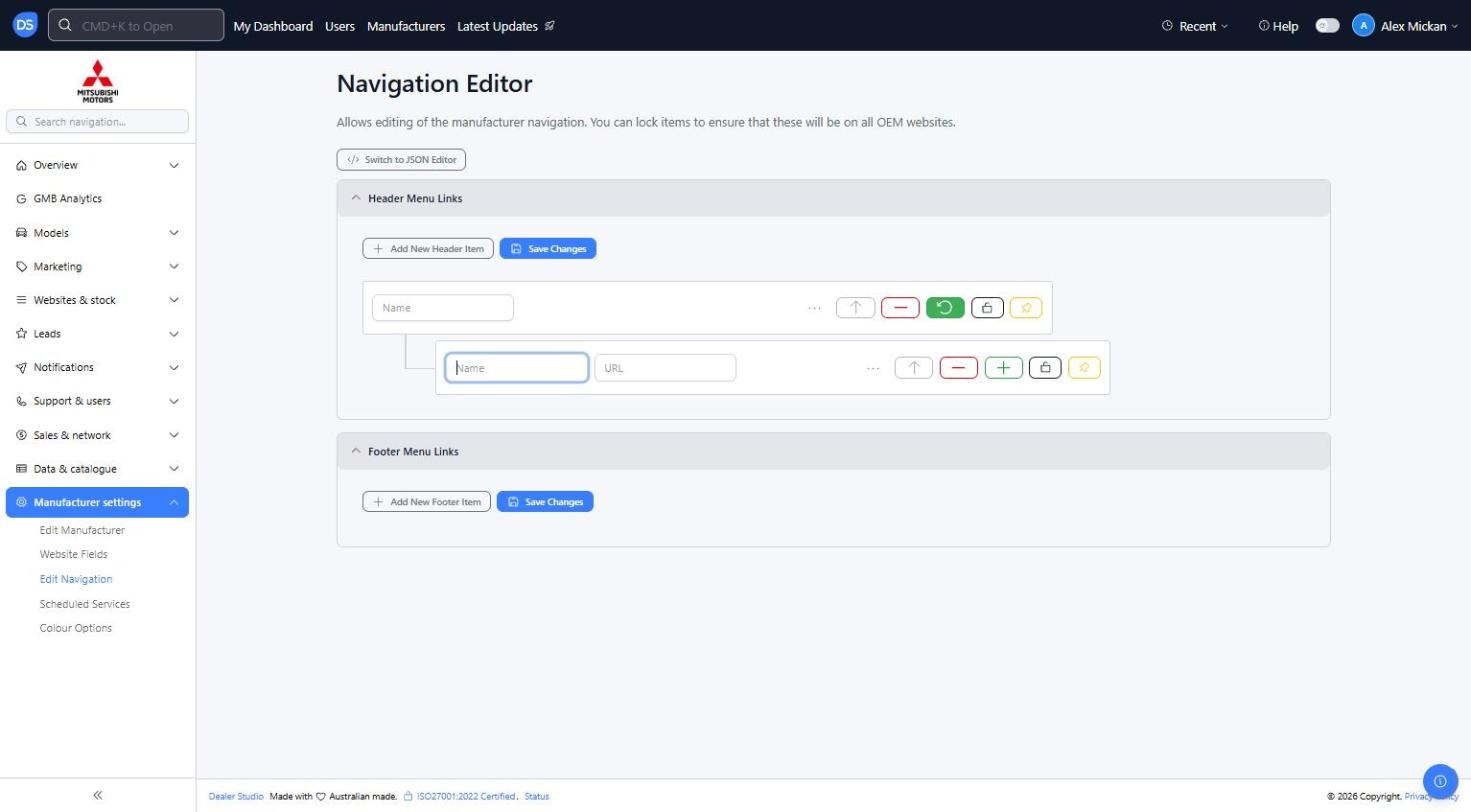
Step 1: Click 'Convert to dropdown' (green arrow) on the item
The top-level item now only needs a Name
A sub-item row will appear underneath, with its own Name and URL
Click the green '+' on a sub-item to add another sub-item
4. How to Save Your Changes
Step 1: Click 'Save Changes'
Each section has its own 'Save Changes' button. Make sure you click the one in the section you edited (Header or Footer)
Advanced users can also click 'Switch to JSON Editor' to edit the navigation as code
Reminder: Changes are not saved until you click 'Save Changes'. If you leave the page before saving, your changes will be lost.
Was this article helpful?
That’s Great!
Thank you for your feedback
Sorry! We couldn't be helpful
Thank you for your feedback
Feedback sent
We appreciate your effort and will try to fix the article