Learn how to create OEM-level News Articles and Blog Posts. Posts created at the OEM level are automatically included on all of the relevant dealership websites, unless you choose to exclude specific websites.
1. How to Navigate to The Blogs Menu
Step 1: Please Login to Dealer Studio.
You will be prompted for your Username and Password
You will be prompted for your 2-Factor Authentication Method, or SSO verification
Step 2: Once Signed in Please Select the Applicable OEM
e.g. Mitsubishi NZ
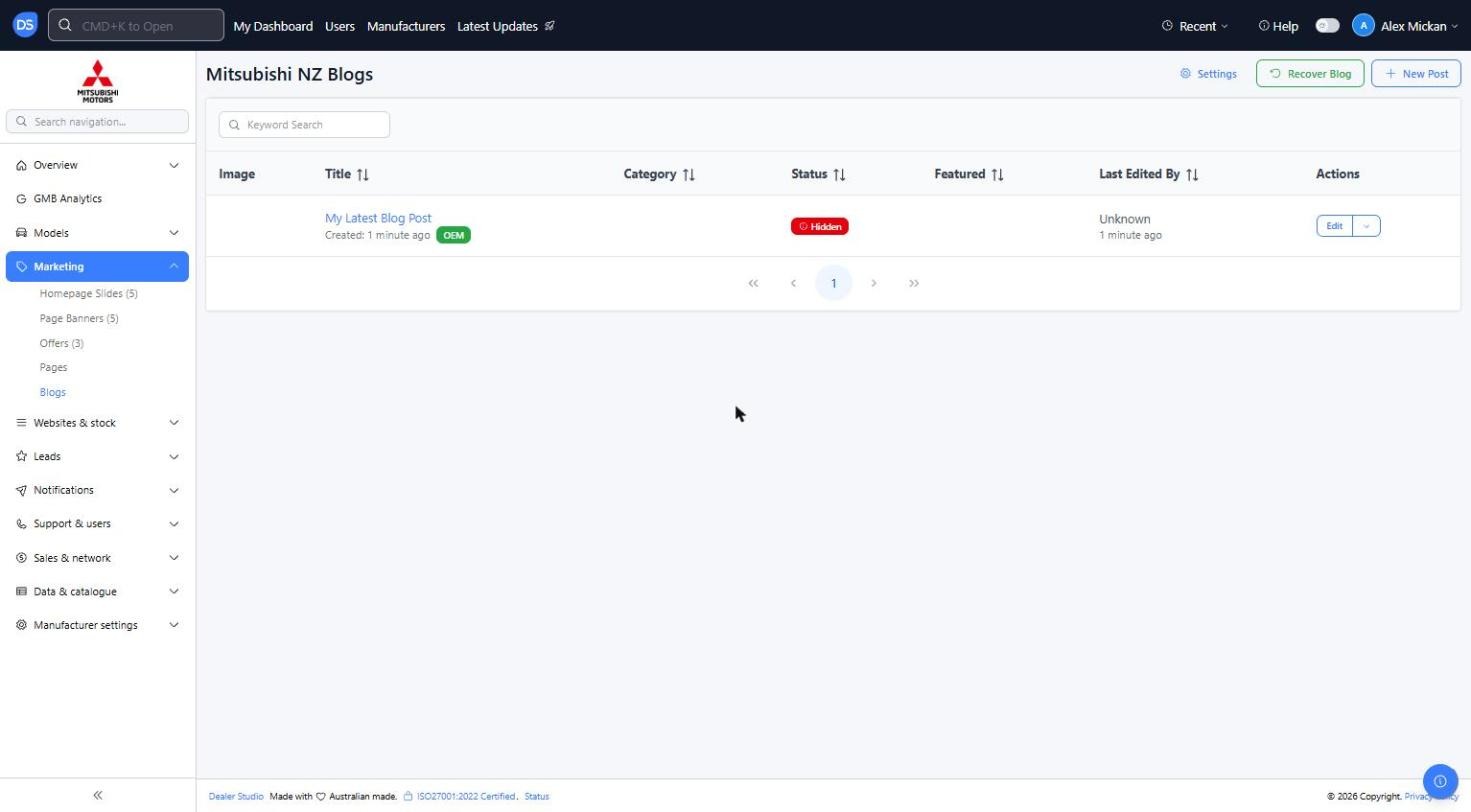
Step 3: Click 'Marketing' on the left, then 'Blogs'
You will see a list of current blog posts, with their Category, Status, whether they are Featured and who last edited them
Use the 'Keyword Search' to find a specific post
2. How to Add in A New Blog Post
Step 1: Once you have Navigated to the Blogs tab, as above
Please click '+ New Post'
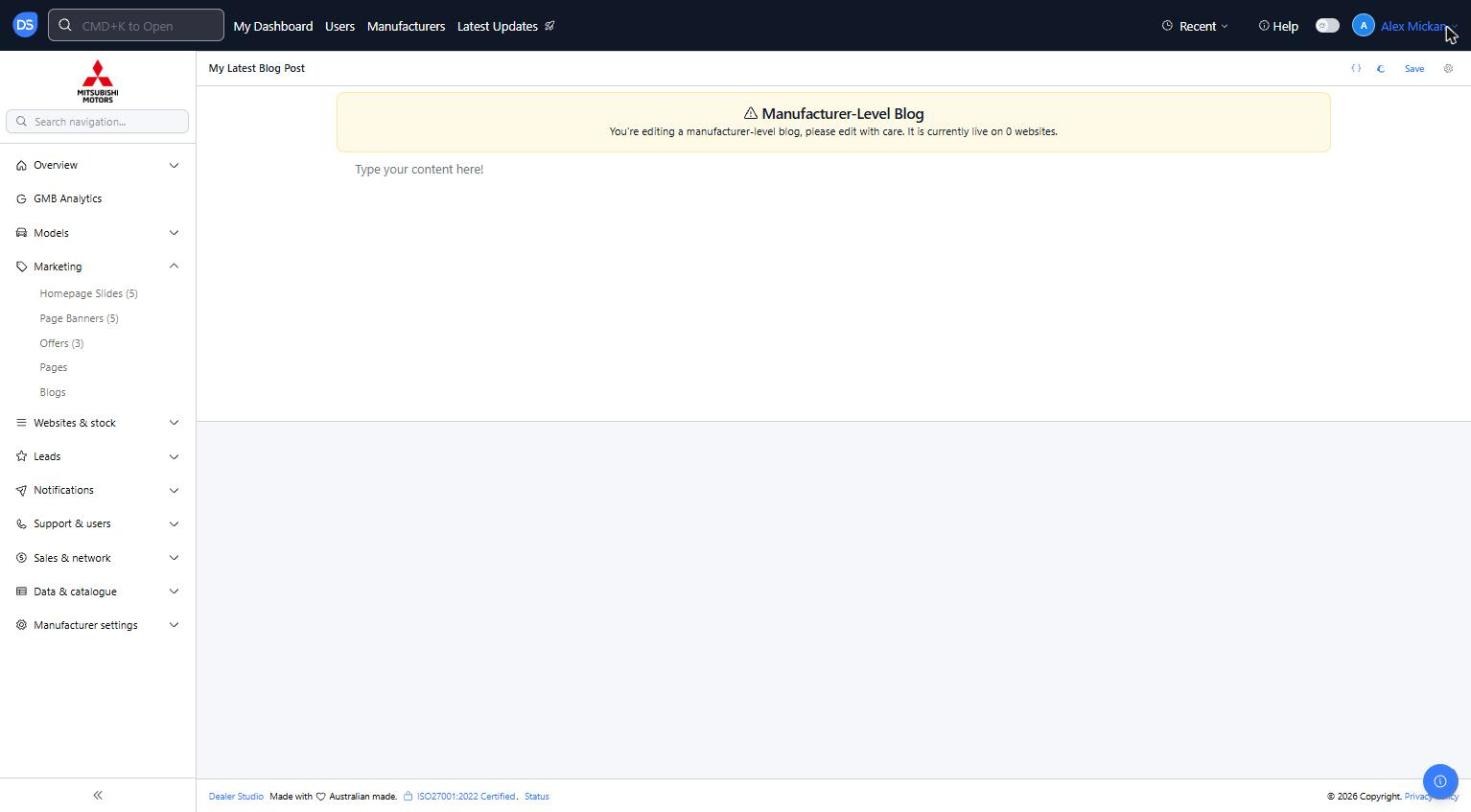
This opens the blog editor straight away, with a placeholder title of 'My Latest Blog Post'
Step 2: Add your content
You will see a yellow 'Manufacturer-Level Blog' notice at the top, letting you know how many websites the post is currently live on. Please edit with care
Click 'Type your content here!' to start writing, or use the AI Helper to add content. Changes are saved as a draft automatically
Step 3: Fill in the Blog Settings (cog icon at the top right)
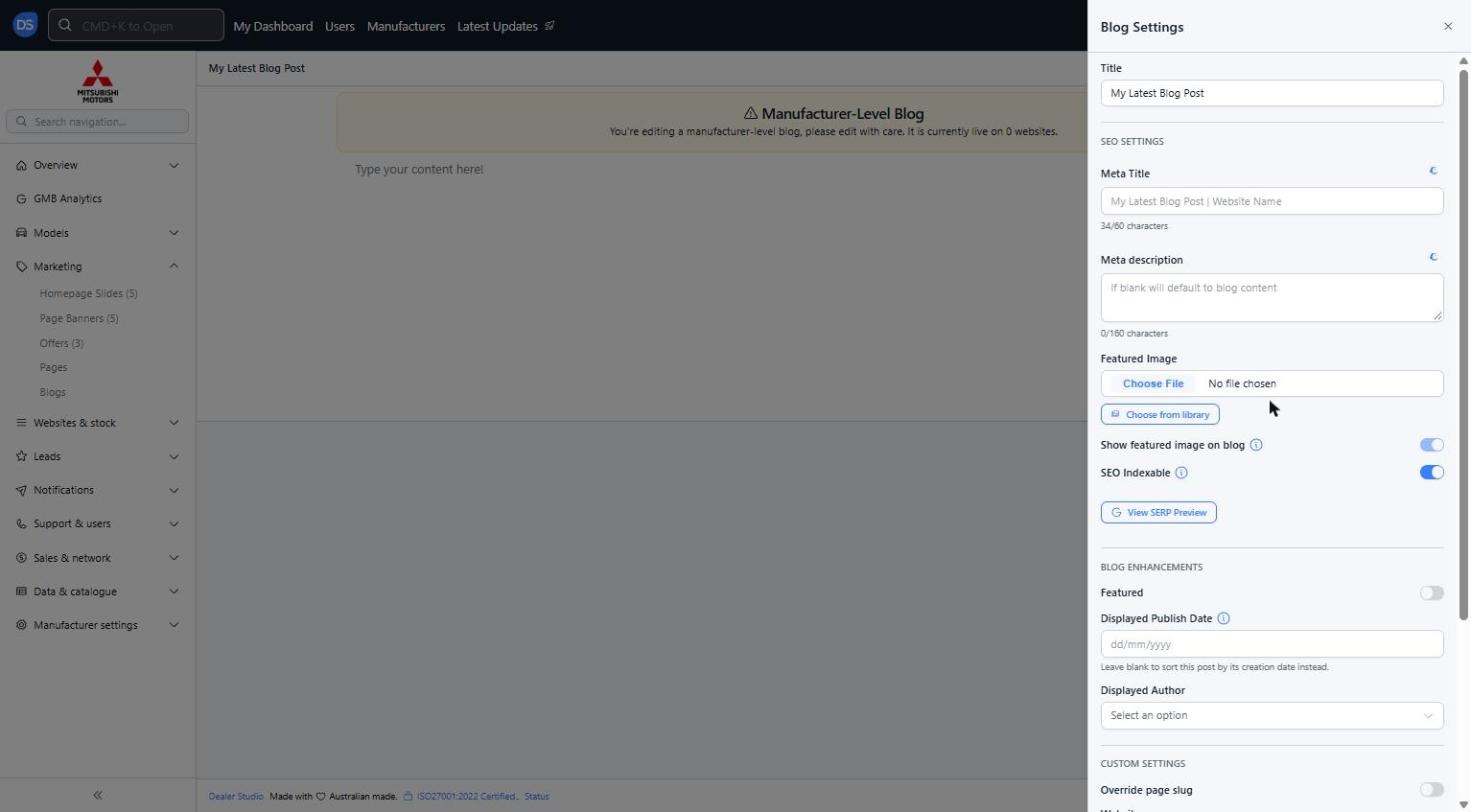
Title: Replace 'My Latest Blog Post' with your article title
Meta Title and Meta description: SEO details shown in Google search results. Keep the Meta Title under 60 characters and the Meta description under 160 characters. If the Meta description is left blank it will default to the blog content
Featured Image: Upload an image ('Choose File') or select one from the library ('Choose from library')
Show featured image on blog: Toggle on to show the featured image at the top of the post
SEO Indexable: Leave on so Google can index the post
View SERP Preview: Preview how the post will look in Google search results
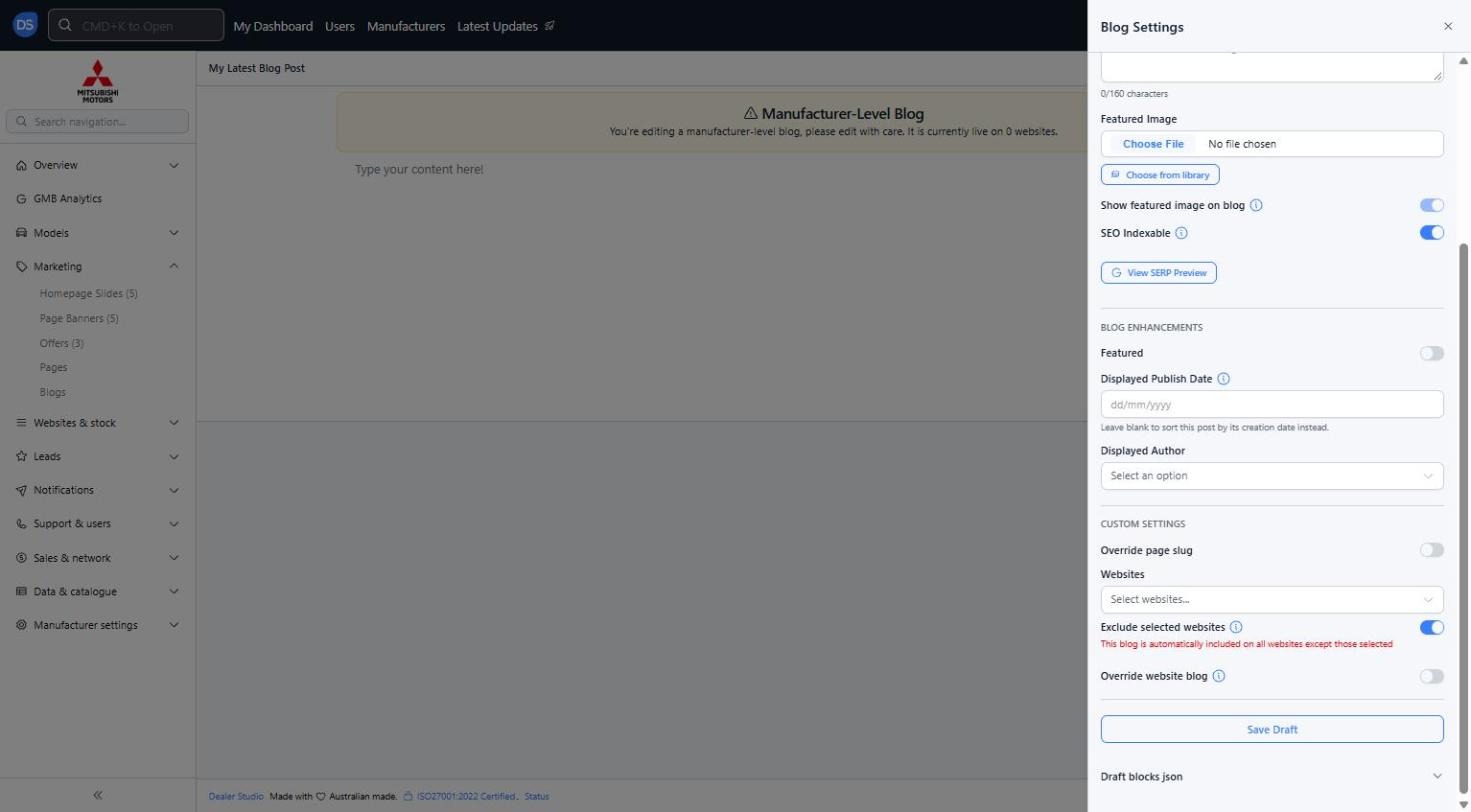
Featured: Toggle on to feature this post
Displayed Publish Date: Leave blank to sort the post by its creation date instead
Displayed Author: Optional author shown on the post
Override page slug: Toggle on to set a custom URL for the post
Websites / Exclude selected websites: The blog is automatically included on all websites, except those you select here
Override website blog: Toggle on if this post should replace an existing blog post on the dealer websites
Step 4: Save the post
Click 'Save Draft' in Blog Settings, or 'Save' at the top right, to save your changes
New posts start as 'Hidden'. Once you are happy with the post, go back to the Blogs list, click the drop-down arrow next to 'Edit' and select 'Show' to make it visible on the dealer websites
3. How to Manage An Existing Post
Step 1: Find the post on the Blogs list
Click 'Edit' to open the blog editor
Click the drop-down arrow next to 'Edit' for more options: 'Show' / 'Hide' (make the post visible or hidden on the websites), 'Audit Trail' (see who has made changes and when) and 'Destroy' (permanently delete the post)
Use 'Recover Blog' at the top of the list if a post has been removed by mistake
Reminder: Mitsubishi NZ news articles can also be created as Pages with the Category set to 'News'. Please see the article 'How to Add in New OEM-Level Pages' for those steps.
Was this article helpful?
That’s Great!
Thank you for your feedback
Sorry! We couldn't be helpful
Thank you for your feedback
Feedback sent
We appreciate your effort and will try to fix the article