Learn how to read and customise the OEM-level Analytics Dashboard. The dashboard gives the manufacturer an overview of leads, sales contracts and test drives across the dealer network, and can be filtered, exported, shared and customised.
1. How to Navigate to The Analytics Dashboard
Step 1: Please Login to Dealer Studio.
You will be prompted for your Username and Password
You will be prompted for your 2-Factor Authentication Method, or SSO verification
Step 2: Once Signed in Please Select the Applicable OEM
e.g. Mitsubishi NZ
Step 3: Click 'Overview' on the left, then 'Analytics'
This is the default page when you select an OEM
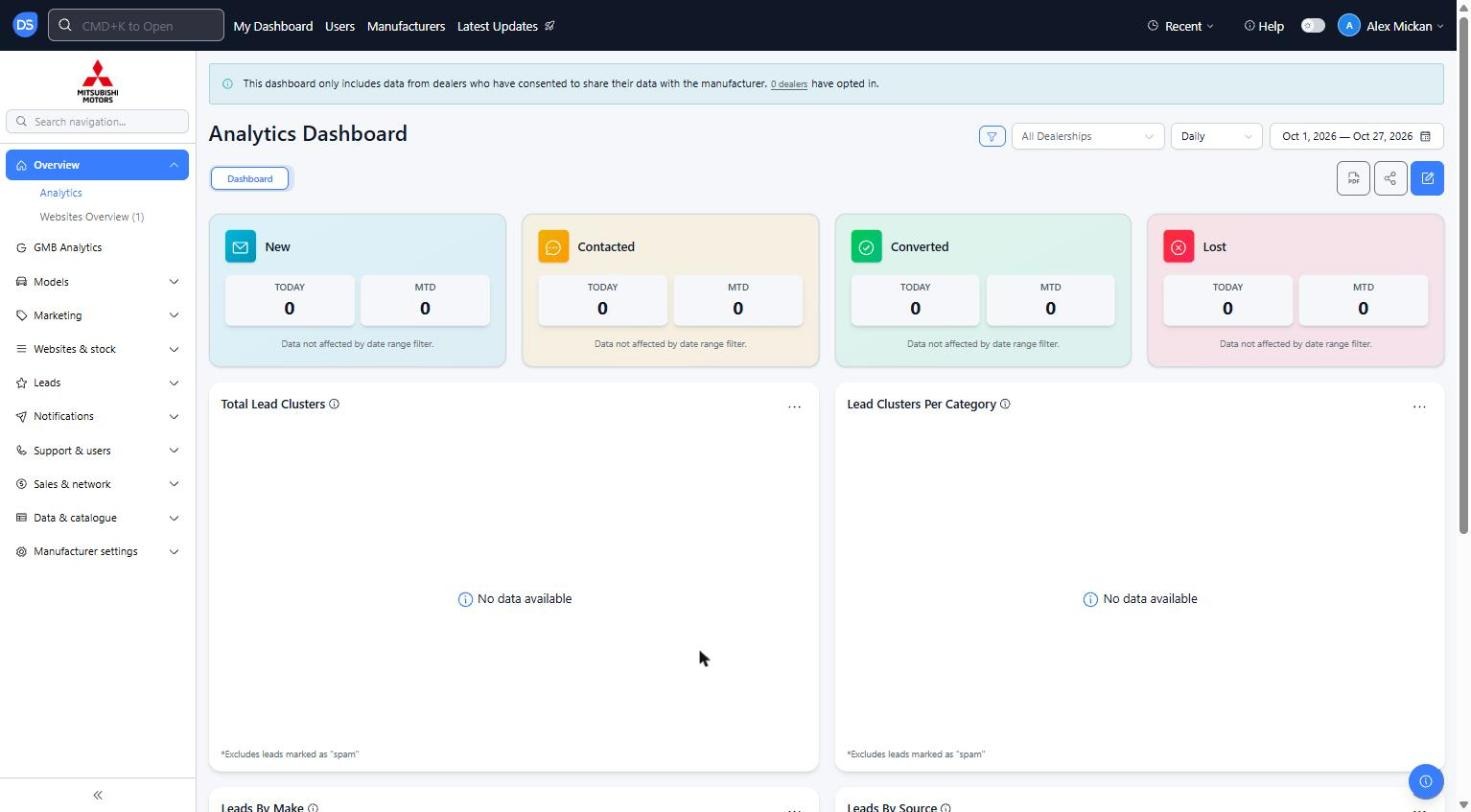
The blue banner at the top shows how many dealers have opted in. The dashboard only includes data from dealers who have consented to share their data with the manufacturer
2. How to Read the Dashboard
Step 1: Lead status summary
The four coloured boxes at the top show lead clusters by status: New, Contacted, Converted and Lost
Each box shows 'TODAY' and 'MTD' (month to date) figures. These are not affected by the date range filter
Step 2: Charts and tables
Total Lead Clusters: Total number of lead clusters over the selected date range
Lead Clusters Per Category: Lead clusters split by enquiry type
Leads By Make and Leads By Source: Where leads are coming from
Charts marked '*Excludes leads marked as spam' don't count spam leads
Hover over the (i) icon next to a chart title for more information
Step 3: Filter the data
Dealership filter ('All Dealerships'): View data for one or more specific dealerships
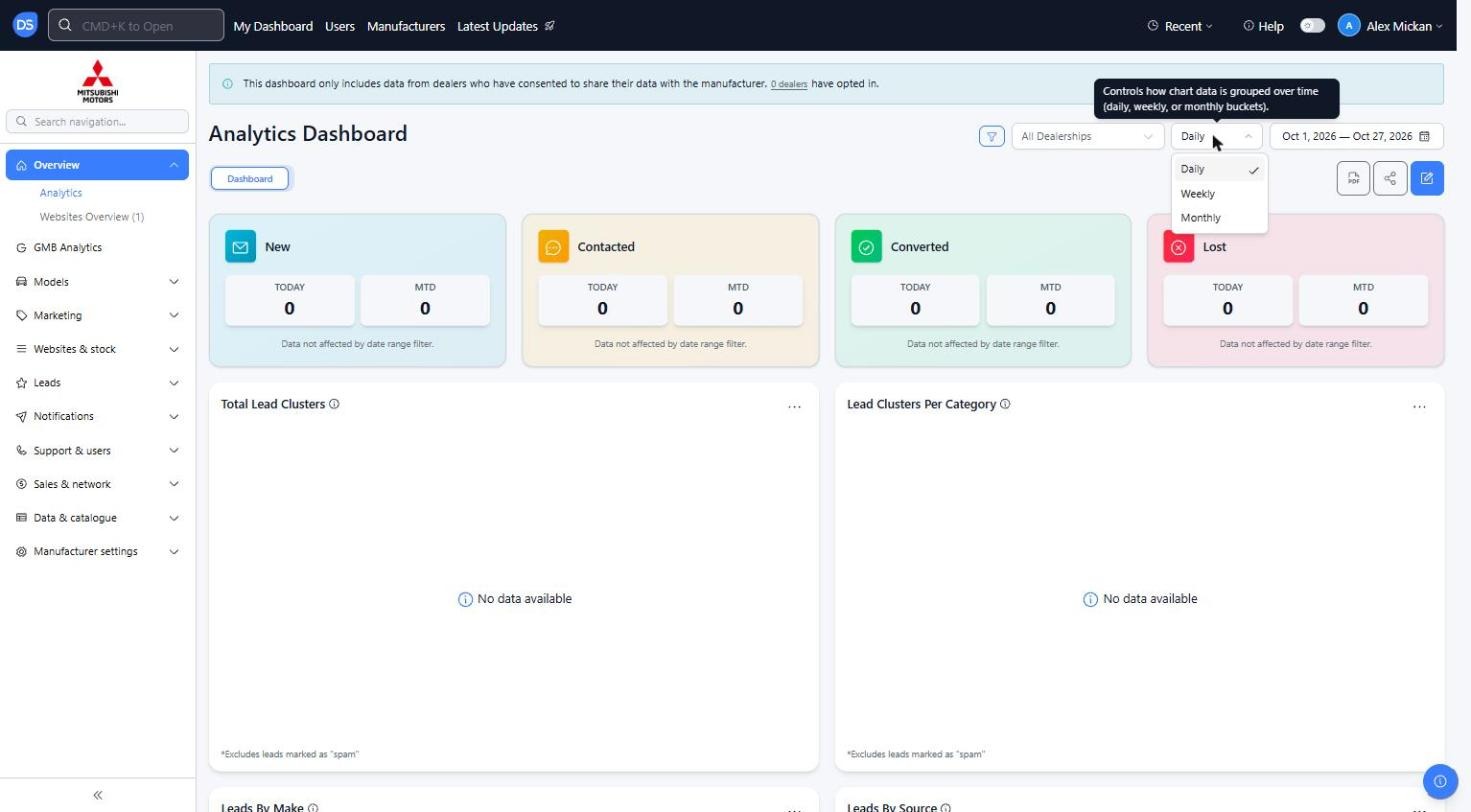
Interval ('Daily'): Change how the data is grouped on the charts
Date range (e.g. 'Oct 1, 2026 — Oct 27, 2026'): Change the reporting period
Step 4: Export or share the dashboard
PDF export: Click the PDF icon at the top right to export the dashboard as a PDF
Share analytics: Click the share icon to share the dashboard
3. How to Customise the Dashboard
Step 1: Click the edit (pencil) icon at the top right
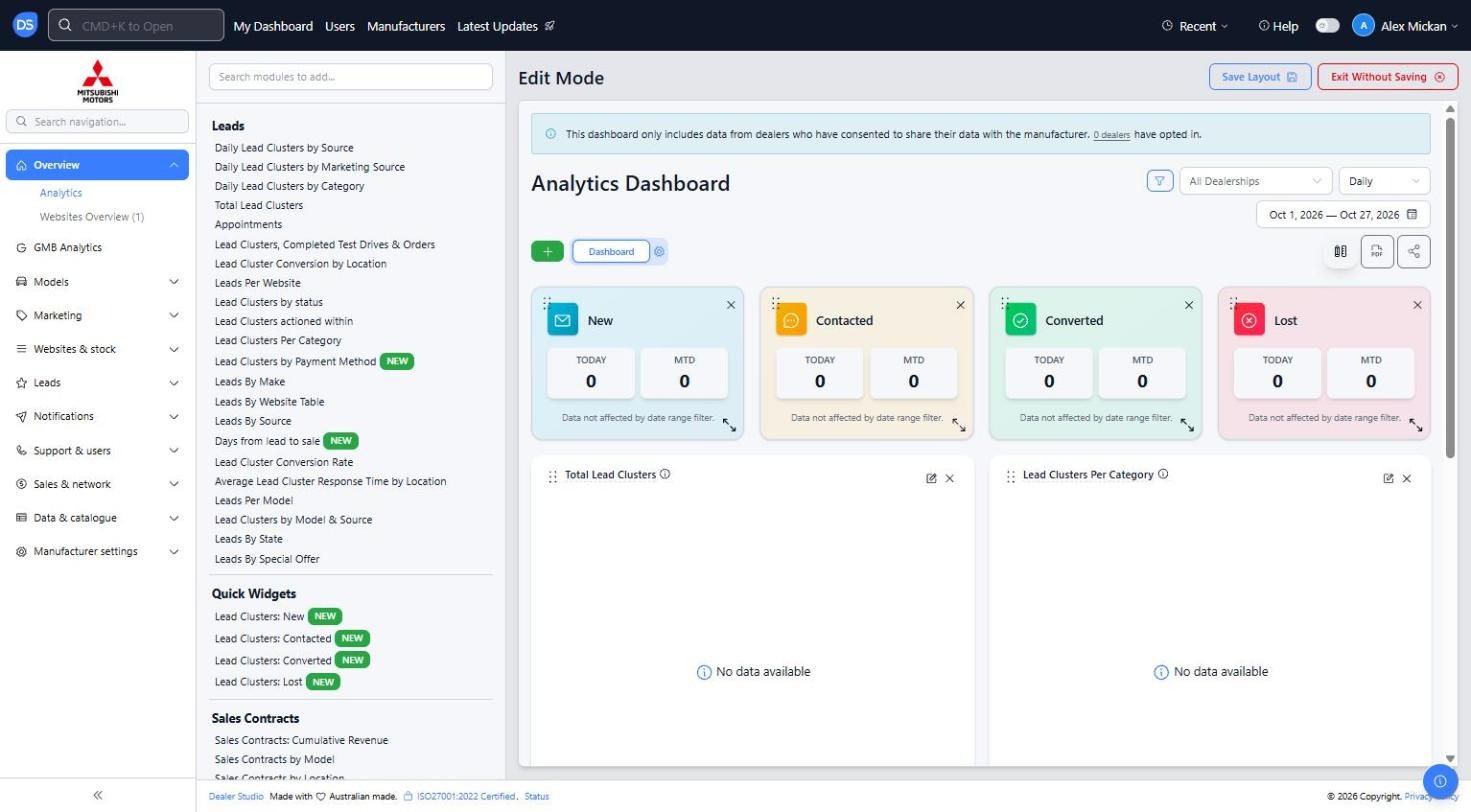
This opens 'Edit Mode'
Step 2: Add, remove or resize modules
Use the list on the left to add modules. Search with 'Search modules to add...', or browse the groups: Leads, Quick Widgets, Sales Contracts and Test Drives
Click the 'x' on a module to remove it, or drag the corner to resize it
Click the green '+' next to the 'Dashboard' tab to add another dashboard tab
Step 3: Save or cancel your changes
Click 'Save Layout' to keep your changes
Click 'Exit Without Saving' to discard them
Reminder: If the dashboard is showing 0 or 'No data available', check the banner at the top. Data only shows for dealers who have opted in to share their data with the manufacturer.
Was this article helpful?
That’s Great!
Thank you for your feedback
Sorry! We couldn't be helpful
Thank you for your feedback
Feedback sent
We appreciate your effort and will try to fix the article