Learn how to upload OEM bulletins and policy documents for dealers. Bulletins are stored privately and shared with dealers through the OEM dealer portal, giving the network one place to access the latest updates, policies and auditing documents.
1. How to Navigate to The Bulletins Menu
Step 1: Please Login to Dealer Studio.
You will be prompted for your Username and Password
You will be prompted for your 2-Factor Authentication Method, or SSO verification
Step 2: Once Signed in Please Select the Applicable OEM
e.g. Mitsubishi NZ
Step 3: Click 'Sales & network' on the left, then 'Bulletins'
You will see any bulletins that have already been uploaded. The number next to 'Bulletins' in the menu shows how many there are
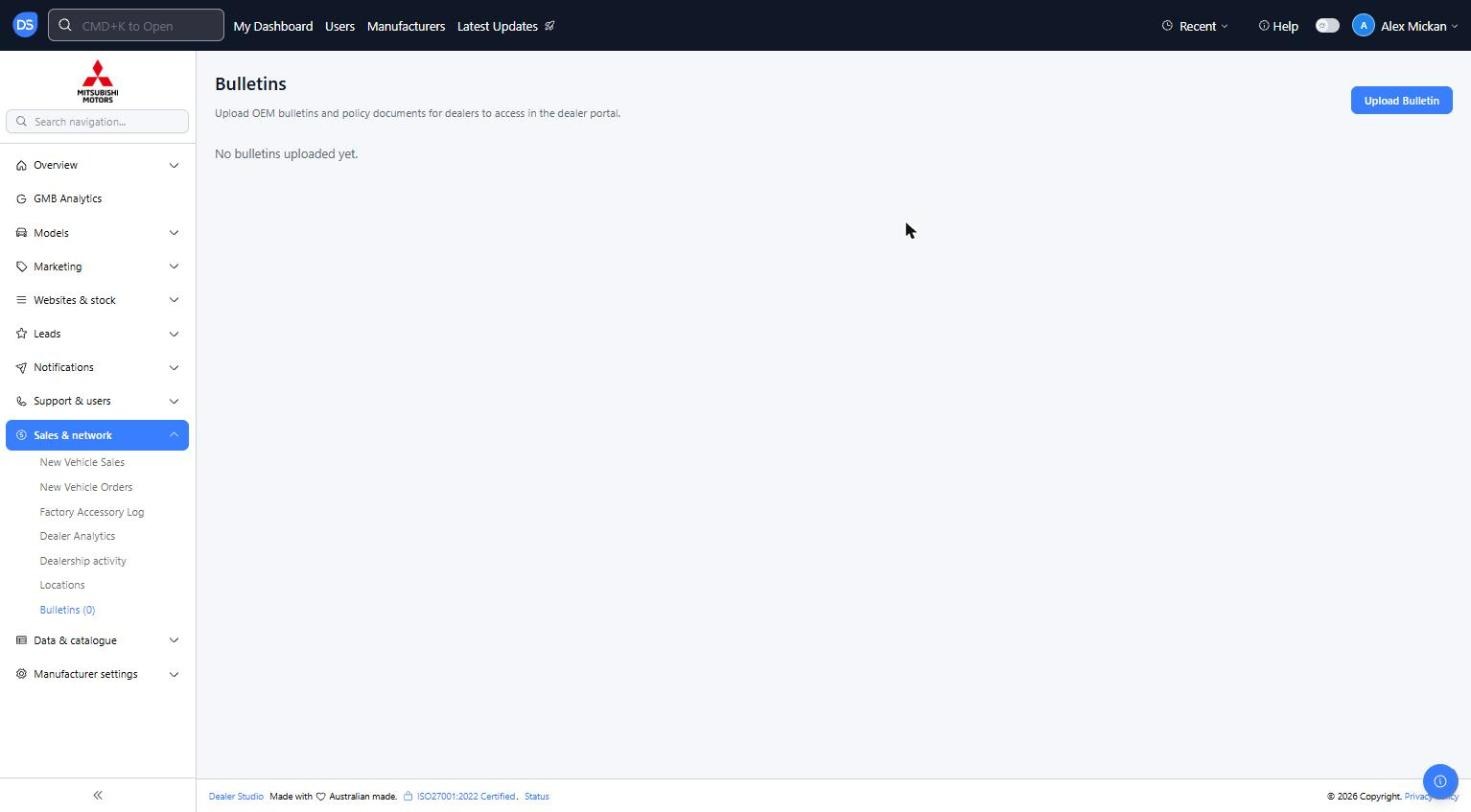
2. How to Upload A New Bulletin
Step 1: Click 'Upload Bulletin' at the top right
Step 2: Fill in the Upload Bulletin form
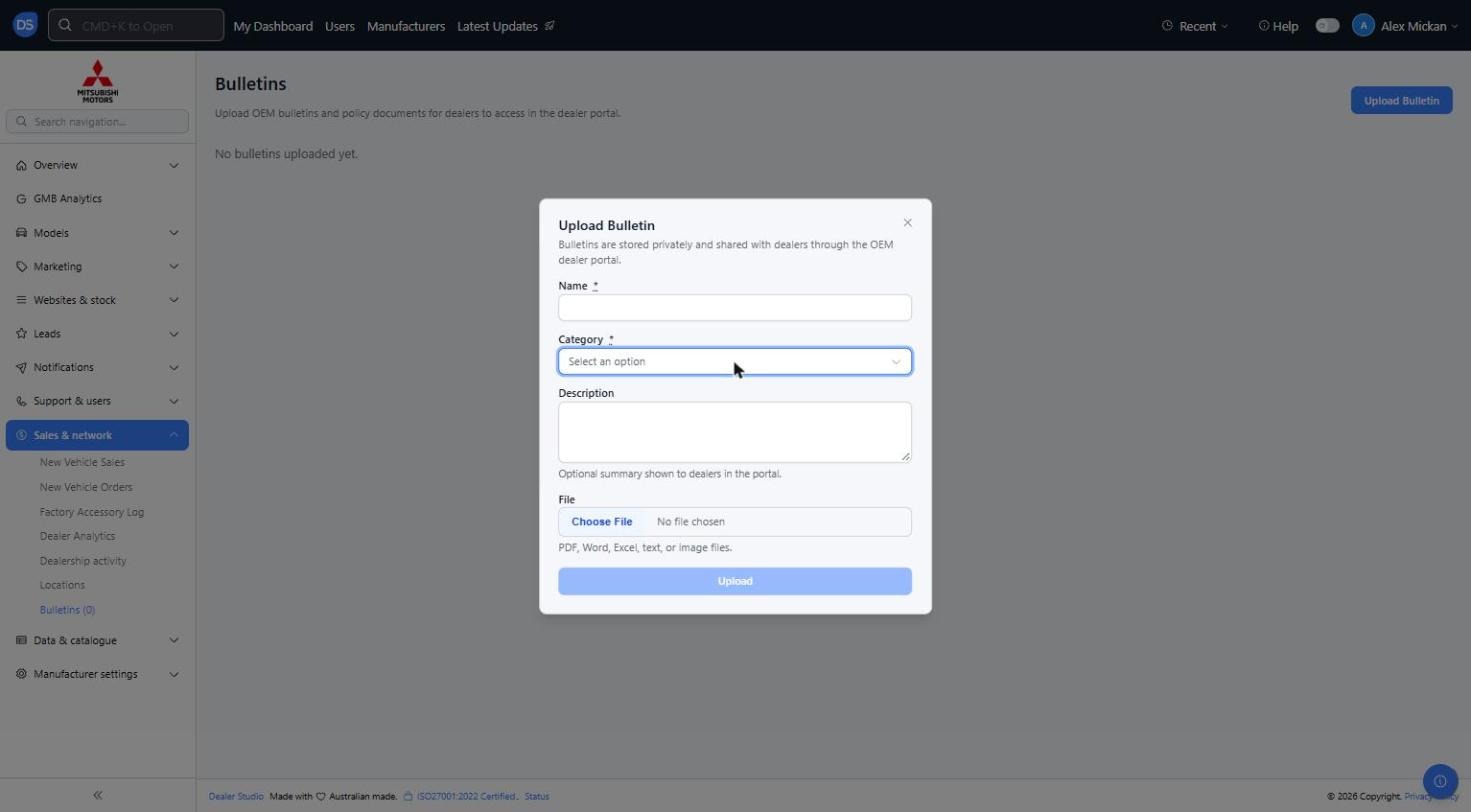
You will see the below options;
Name (Required): The bulletin title dealers will see
Category (Required): Sales, Aftersales, Customer Experience, Network Development, Finance, Training, Product, Warranty/Roadside Assistance, Marketing or Senior Leadership
Description: Optional summary shown to dealers in the portal
File: Click 'Choose File' to attach the bulletin. PDF, Word, Excel, text or image files are accepted
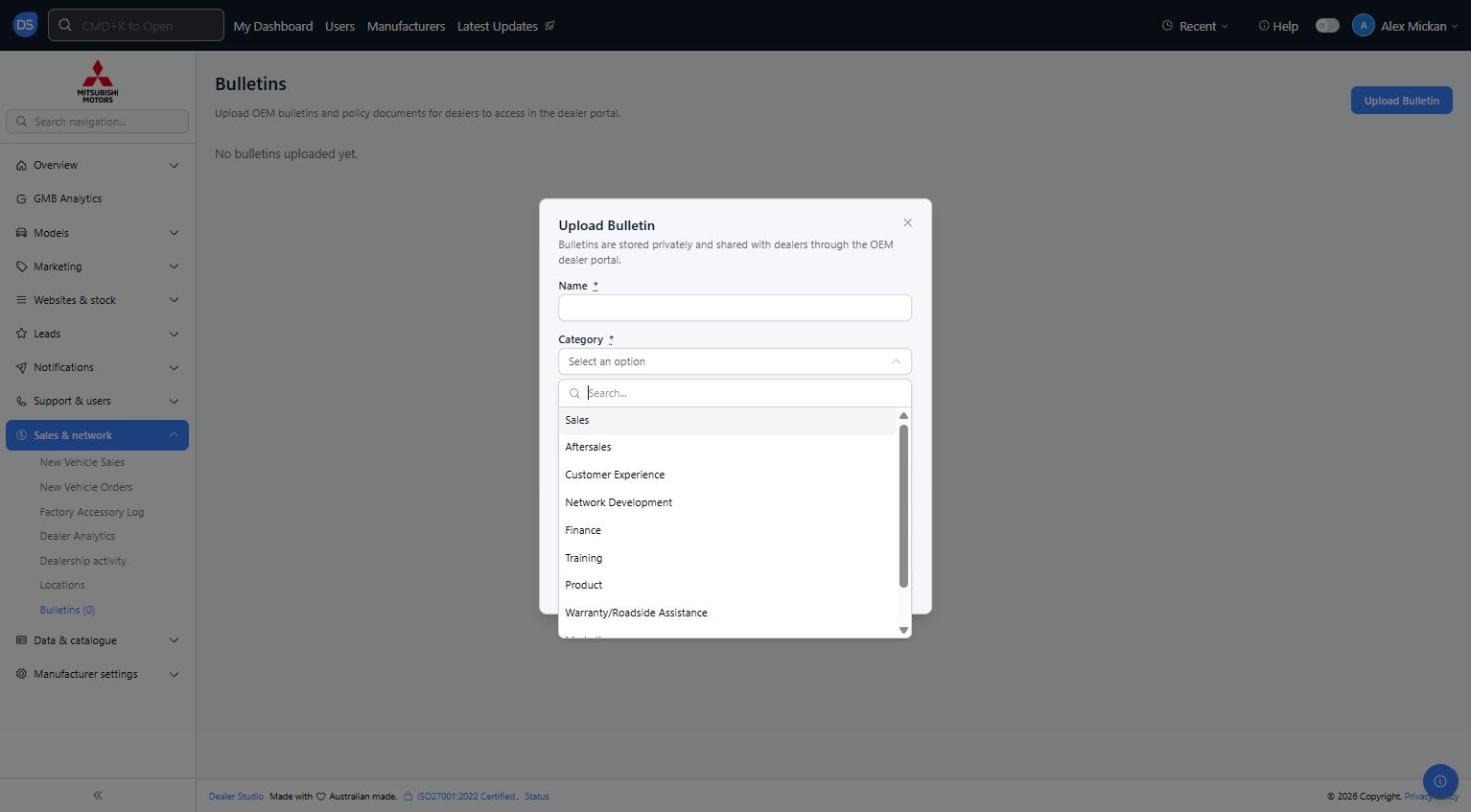
Step 3: Once you have entered all required information, Please click 'Upload'
The bulletin will now show on the Bulletins page and be available to dealers in the dealer portal
Reminder: Choose the correct Category so dealers can easily find the bulletin in the portal. For auditing items, make sure the file is the latest approved version before uploading.
Was this article helpful?
That’s Great!
Thank you for your feedback
Sorry! We couldn't be helpful
Thank you for your feedback
Feedback sent
We appreciate your effort and will try to fix the article