Learn how to use the Google Reviews Dashboard (GMB Analytics) at the OEM level. The dashboard gives an overview of Google Business Profile reviews and ratings across all dealerships in the network, so you can see which dealers need to respond to reviews or improve their rating.
1. How to Navigate to The Google Reviews Dashboard
Step 1: Please Login to Dealer Studio.
You will be prompted for your Username and Password
You will be prompted for your 2-Factor Authentication Method, or SSO verification
Step 2: Once Signed in Please Select the Applicable OEM
e.g. Mitsubishi NZ
Step 3: Click 'GMB Analytics' on the left
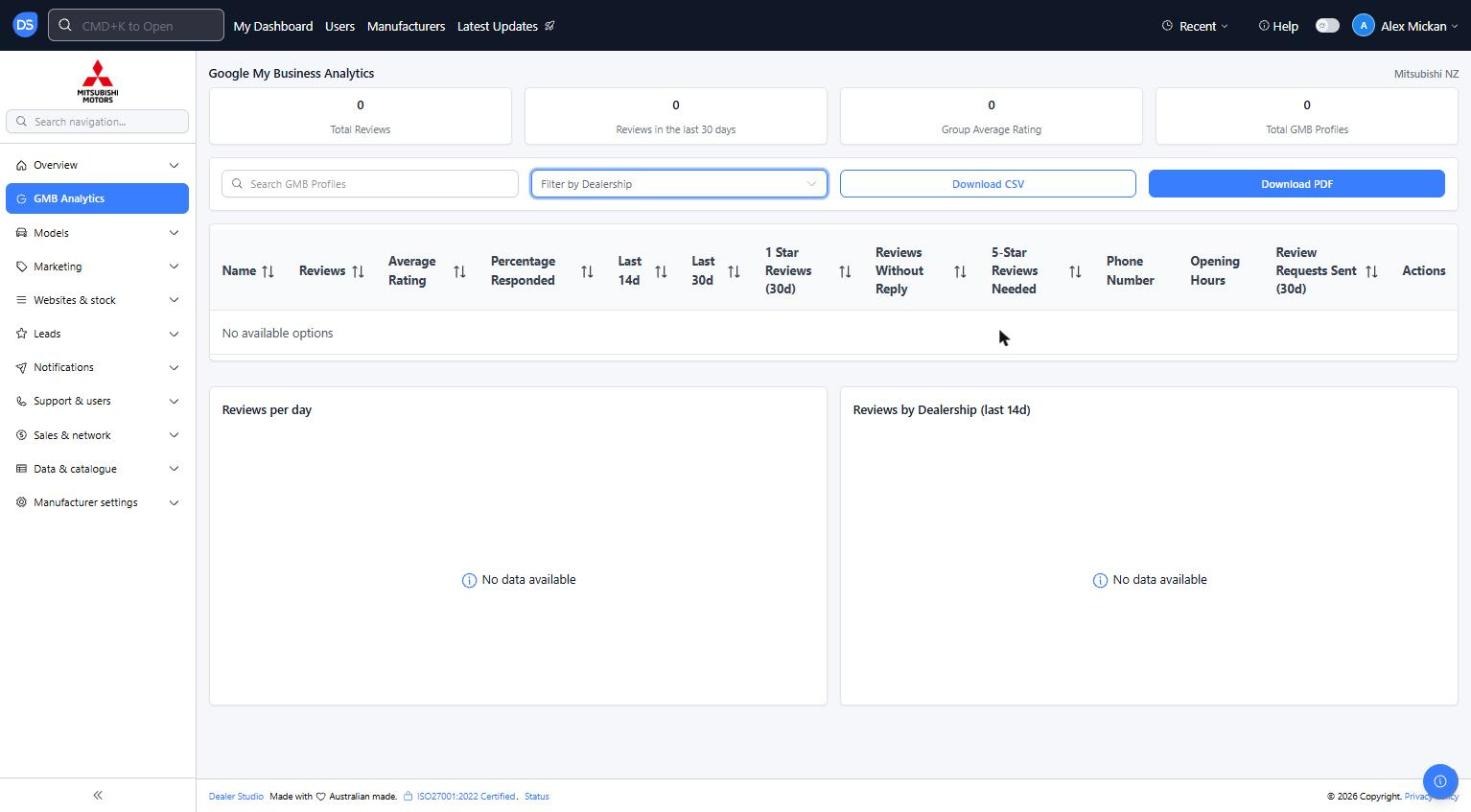
This opens the 'Google My Business Analytics' dashboard
2. How to Read the Dashboard
Step 1: Summary figures
Total Reviews: Total number of Google reviews across all profiles
Reviews in the last 30 days: New reviews received in the last 30 days
Group Average Rating: Average star rating across all dealerships
Total GMB Profiles: Number of Google Business Profiles connected
Step 2: Dealership table
Name, Reviews and Average Rating for each dealership's Google profile
Percentage Responded: How many reviews the dealer has replied to
Last 14d and Last 30d: Reviews received in those periods
1 Star Reviews (30d): Number of 1-star reviews in the last 30 days
Reviews Without Reply: Reviews the dealer still needs to respond to
5 Star Reviews Needed: How many 5-star reviews the dealer needs to lift its rating
Phone Number and Opening Hours: As listed on the Google profile
Review Requests Sent (30d): Review requests sent to customers in the last 30 days
Click a column heading with arrows to sort the table
Step 3: Charts
Reviews per day: Trend of new reviews over time
Reviews by Dealership (last 14d): Compare recent review volume between dealers
3. How to Filter and Export
Step 1: Search or filter
Use 'Search GMB Profiles' to find a specific profile
Use 'Filter by Dealership' to view one or more dealerships
Step 2: Download the data
Click 'Download CSV' to export the table to a spreadsheet
Click 'Download PDF' to export the dashboard as a PDF
Reminder: If the dashboard shows 0 or 'No data available', no Google Business Profiles have been connected yet. Dealers' Google Business Profiles must be connected before data will show here.
Was this article helpful?
That’s Great!
Thank you for your feedback
Sorry! We couldn't be helpful
Thank you for your feedback
Feedback sent
We appreciate your effort and will try to fix the article