Dealer Studio can automatically generate and post responses to your Google reviews, saving your team time while keeping your online reputation active and engaged. You can also view, edit, and manage responses to individual reviews directly from your dashboard.
Prerequisite: To use Google review features, your Google My Business (GMB) account must be linked to your Dealer Studio dashboard. See How to Link Your Google My Business (GMB) for setup instructions.
Auto-Responding to Reviews
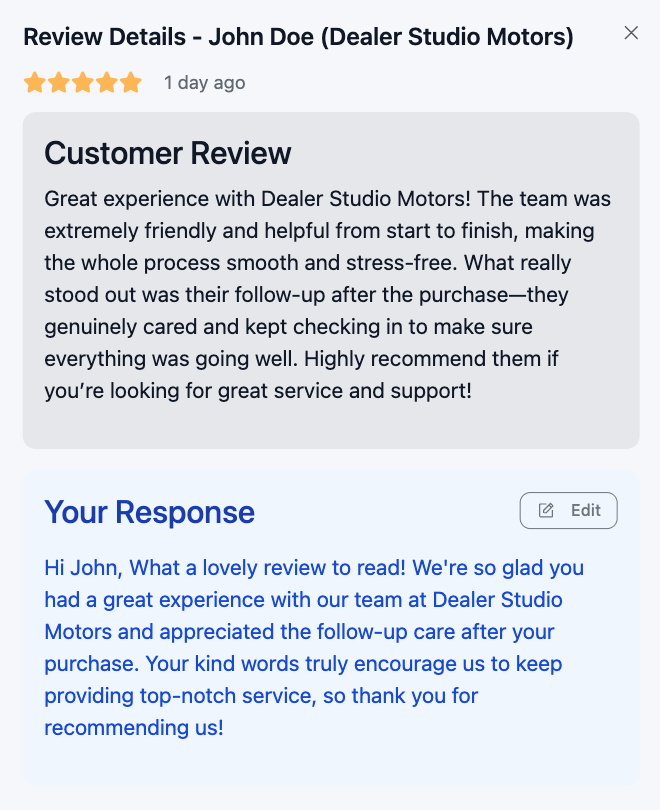
Once the Auto-Respond tool has been switched on, it will automatically generate a response to new Google reviews on your behalf. When a response is auto-generated:
- It will appear under "Your Response" in the Review Details panel.
- The response is crafted to match the tone and content of the review.
- You can edit the response posted using the Edit button in the Review Details panel.
Viewing Your Google Reviews
- Navigate to the Reviews section from the main menu. (Select GMB Profiles under Reviews)
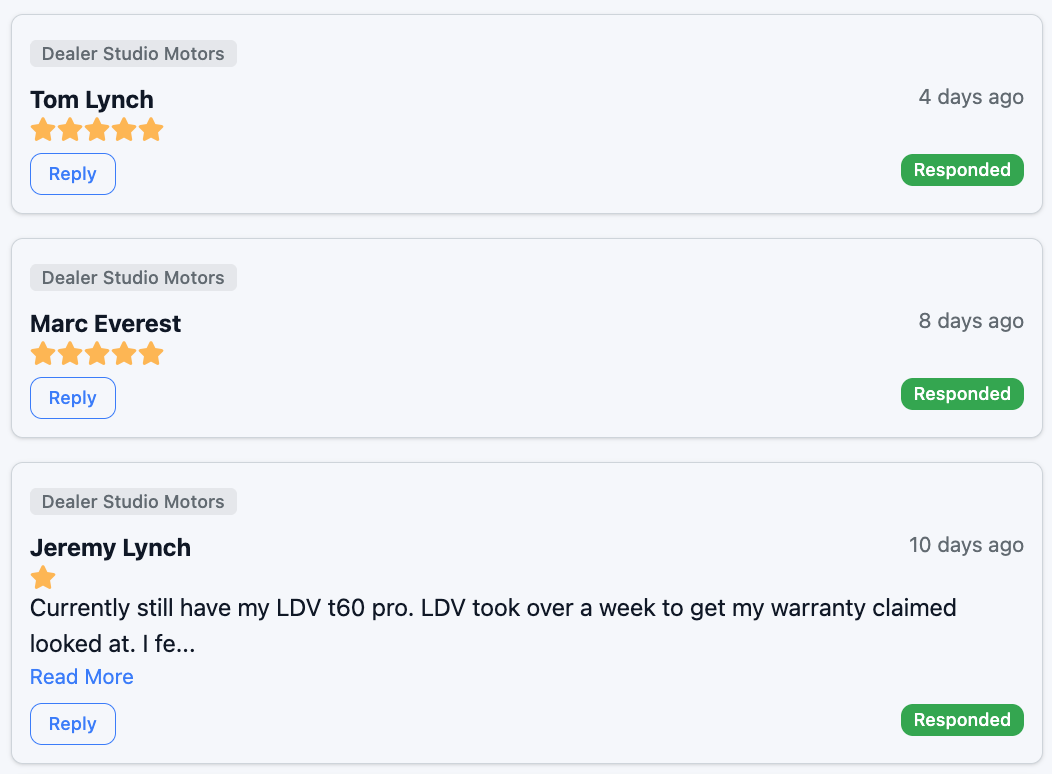
- Your Google reviews will be listed, showing the reviewer's name, star rating, review content, date, and response status.
- Reviews that have already been responded to will show a "Responded" badge.
- Click Reply on any review to open the details panel, where you can read the full review and see any response that has been posted.
Was this article helpful?
That’s Great!
Thank you for your feedback
Sorry! We couldn't be helpful
Thank you for your feedback
Feedback sent
We appreciate your effort and will try to fix the article