Google Search Console tells Google your website exists and helps it find every page. Setup takes about 5 minutes and you only do it once.
Before you start, you'll need:
- A Google account (Gmail works)
- Access to your website's Plugins page in Dealer Studio
- Your website address, for example www.dealerstudio.com.au
Open Google Search Console and sign in to begin.
Step 1: Add your website
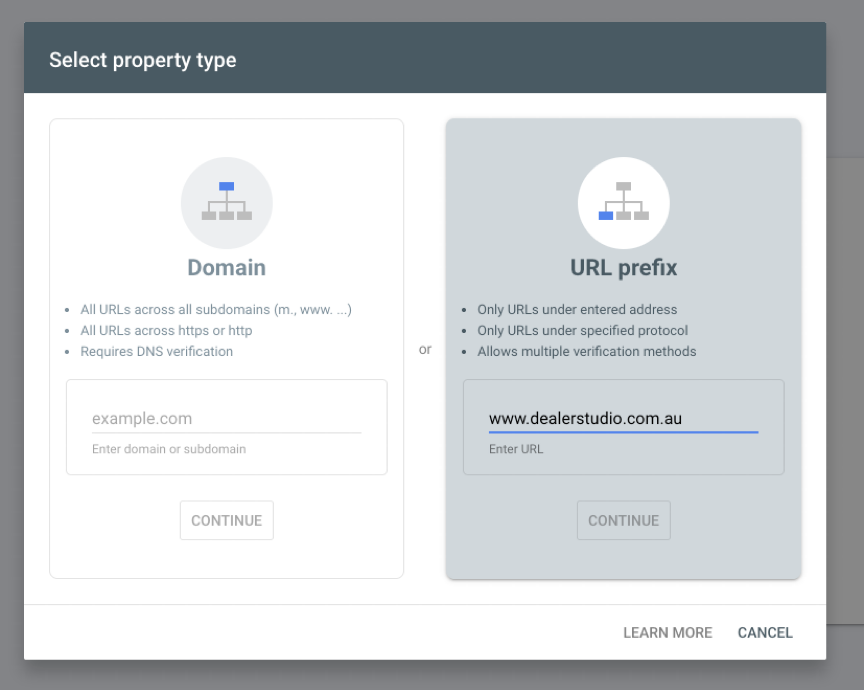
Click Add property. A box appears asking you to choose a property type.
- Use the URL prefix box on the right.
- Type your website address, for example www.dealerstudio.com.au.
- Click Continue.
Step 2: Choose "HTML tag"
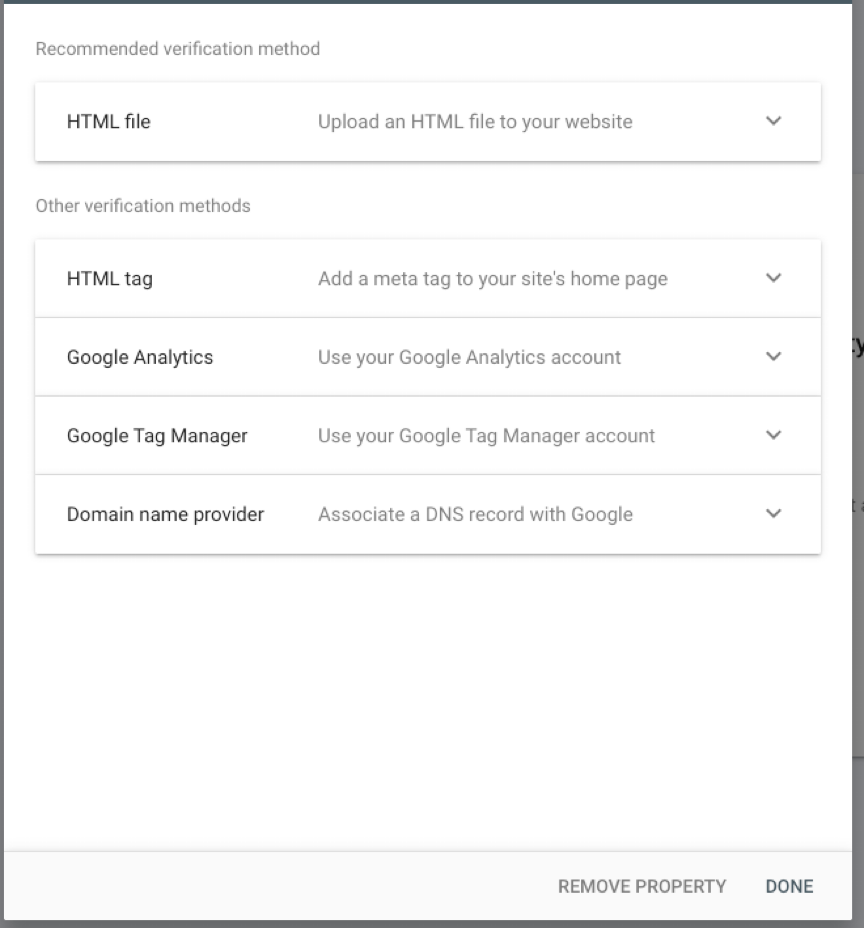
Google now asks you to prove you own the website. You'll see a list of options.
Ignore the recommended "HTML file" option. Click HTML tag under "Other verification methods" to open it.
Step 3: Copy your code
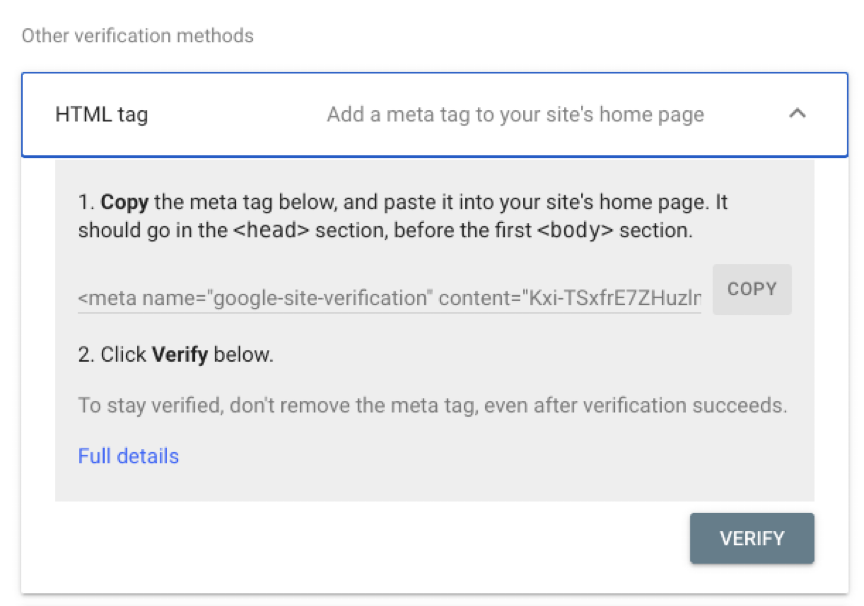
Google shows a line of code starting with <meta name="google-site-verification" content="...
You only need the jumble of letters and numbers inside the quotes after content=. For example:
Kxi-TSxfrE7ZHuzlm0_6w5-VTfvkYgZg6E35coRkcwM
Click Copy, then paste it somewhere handy (like a note) so you can trim it down to just that code. Leave this Google window open — you'll come back to click Verify.
Step 4: Paste the code into Dealer Studio
- In a new browser tab, log in to Dealer Studio and open your website.
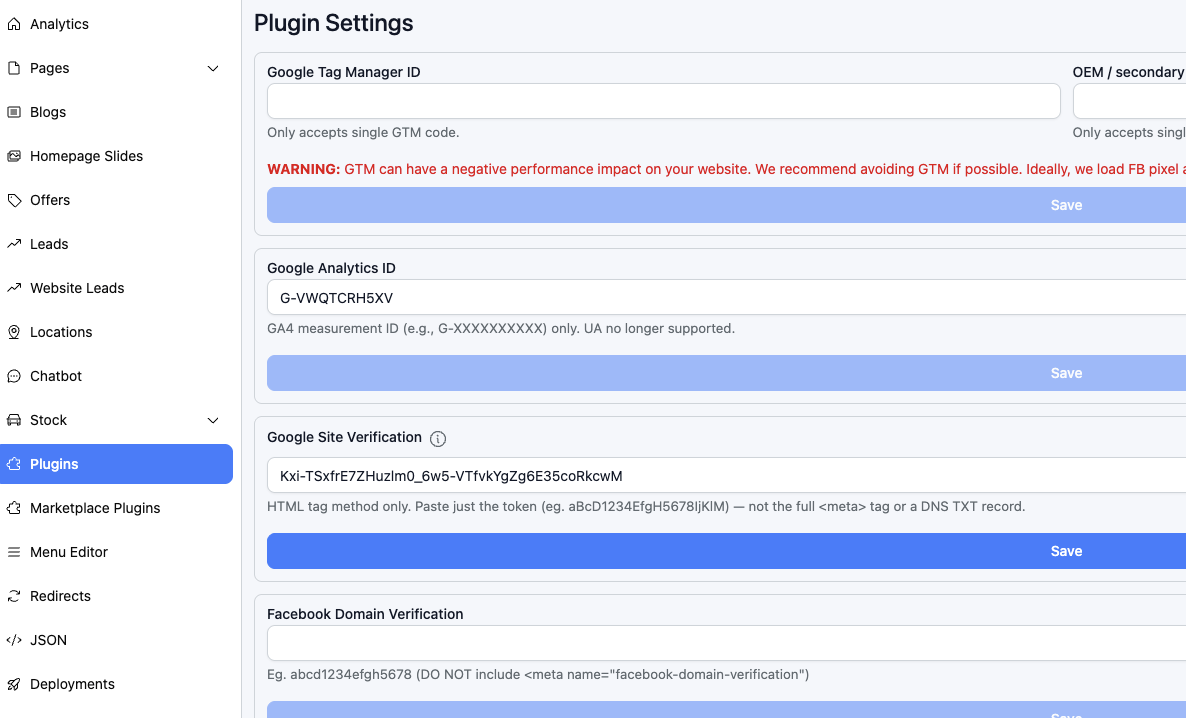
- Click Plugins in the left menu.
- Find the Google Site Verification box.
- Paste just the code — not the full <meta ...> line.
- Click the blue Save button directly under that box.
Give it a minute or two for the change to go live on your website.
Step 5: Click Verify
Go back to the Google Search Console tab and click Verify. You should see a green Ownership verified message.
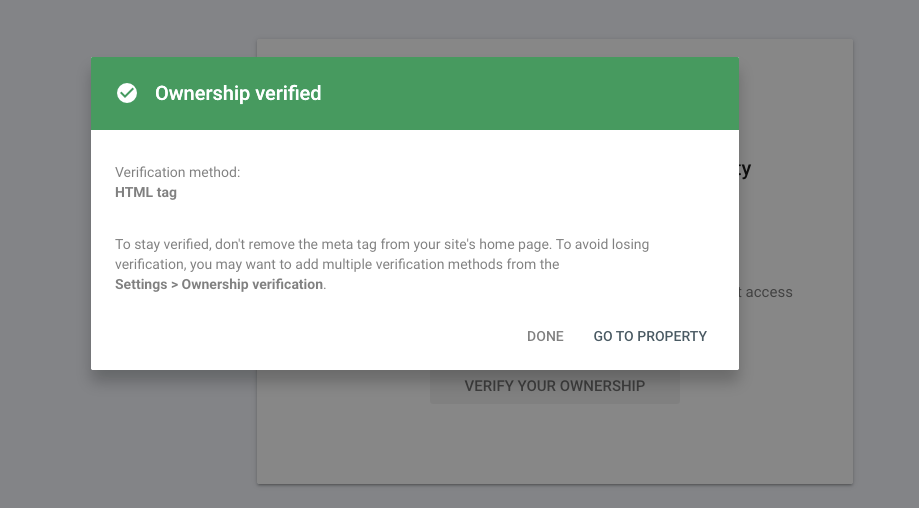
Click Go to property to continue.
Didn't work? Wait a few minutes and click Verify again. Check you pasted only the code (no quotes or <meta text) and that you clicked Save in Dealer Studio. Never delete the code afterwards, or Google will lose your verification.
Step 6: Submit your sitemap
A sitemap is a list of every page on your website, so Google can find them all. Dealer Studio creates it for you automatically.
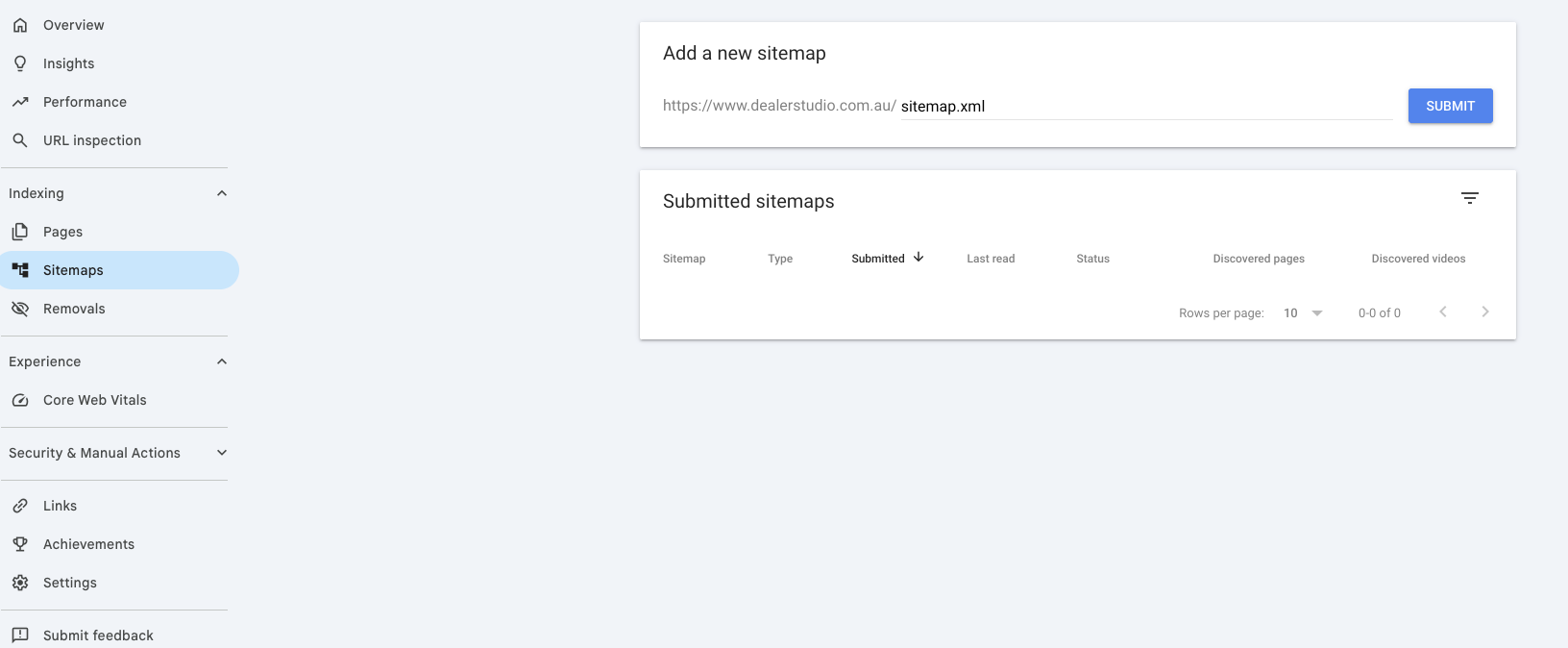
- In the left menu, under Indexing, click Sitemaps.
- In the "Add a new sitemap" box, type sitemap.xml.
- Click Submit.
Step 7: Check it says "Success"
Your sitemap now appears under Submitted sitemaps. When the Status shows Success in green, you're done. Google will start showing your pages in search results over the next few days.
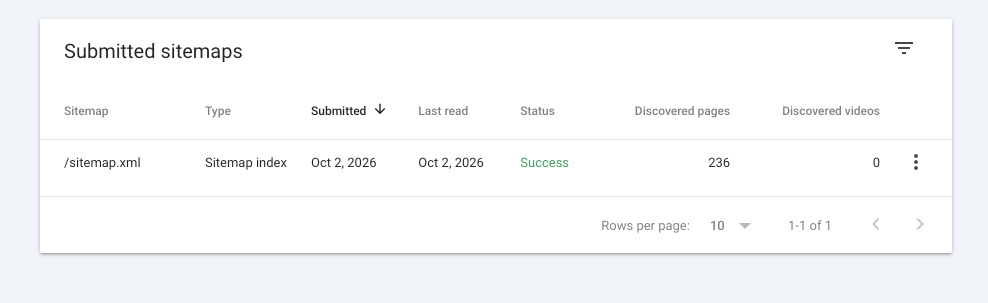
If it says "Couldn't fetch" at first, that's normal — check again in a day or two.
Was this article helpful?
That’s Great!
Thank you for your feedback
Sorry! We couldn't be helpful
Thank you for your feedback
Feedback sent
We appreciate your effort and will try to fix the article