Overview
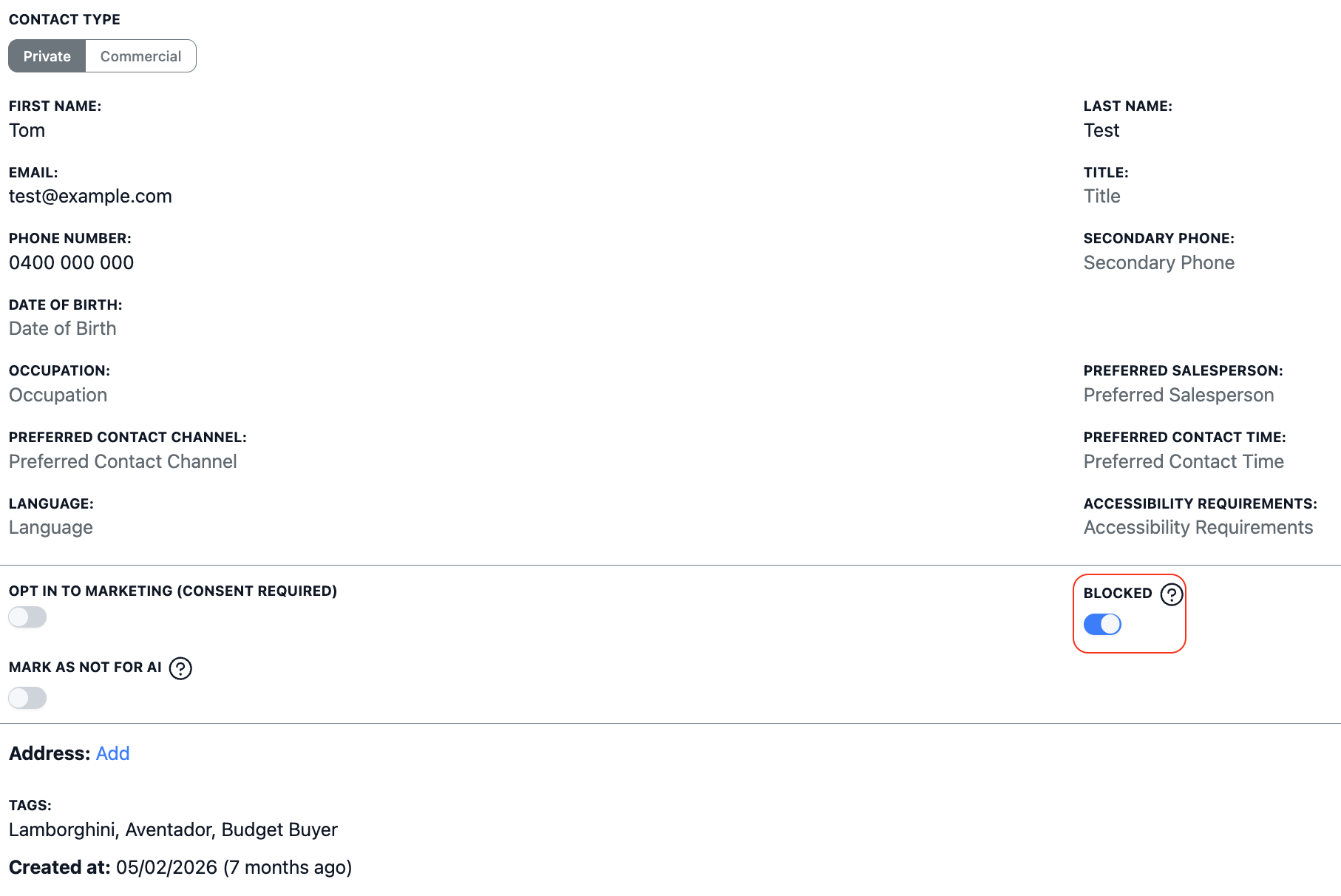
If a contact is submitting spam enquiries or malicious leads, you can block them in Dealer Studio. Blocking a contact prevents them from submitting new leads by blocking their credentials, including their phone number and email address.
How to Block a Contact
- Go to CRM and search for the contact you want to block.
- Open the contact record.
- Scroll down to find the Blocked toggle.
- Enable the Blocked toggle.
- Click Save.
Once blocked, any lead submissions using that contact's email address or phone number will be prevented.
Notes
- Blocking a contact does not delete their record or existing leads. It only prevents new lead submissions.
- To unblock a contact, simply toggle the Blocked setting off and save.
Was this article helpful?
That’s Great!
Thank you for your feedback
Sorry! We couldn't be helpful
Thank you for your feedback
Feedback sent
We appreciate your effort and will try to fix the article