Save commonly used lead filters as presets and share them with colleagues using a link.
Saved filters are available in the Lead List (Classic View) and Kanban Board. The same functionality is also available in Stock Search.
Note: Saved filters are stored in your browser on the device you are using. They are not synced to your account or automatically shared with the dealership. To share a saved filter with someone else, use the Share Link option.
Where to Find Saved Filters
On the Lead List or Kanban Board, look near Active Filters for the following controls:
| Control | Description |
|---|---|
| Saved Filters dropdown | Load a filter preset you have previously saved |
| Floppy disk icon | Save your current filters as a new preset |
| Pencil icon | Edit, rename, update, or delete the selected preset |
| Link icon | Share the selected preset using a link |
Note: The pencil and link icons only appear after you select a saved preset.
Save Filter in Lead List:
Save Filter in Kanban Board:
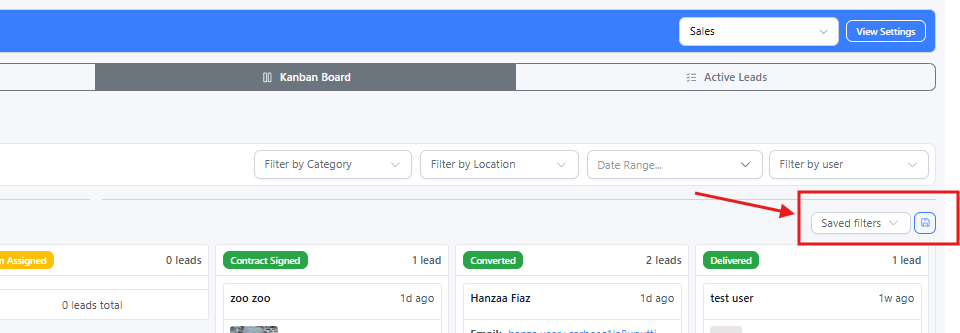
NOTE: The Lead List and Kanban Board have separate saved filter lists.
- For example, a preset saved on the Lead List will not appear in the Kanban Board, and vice versa.
Save a Filter Preset
Set the filters you want to use, such as Status, Users, Locations, Date Range, Search Text, etc.
Click the floppy disk icon (Save your current filters).
In the Save Filters window, enter a Preset Name.
For example:
My overdue leadsOr:
Sydney new car enquiries
Click Save.

The new preset will be selected in the Saved Filters dropdown and saved in your browser.
Load a Saved Filter
Open the Saved Filters dropdown.
Select the preset you want to use.
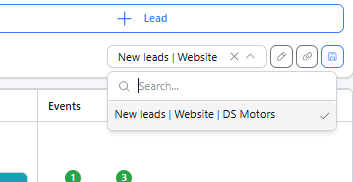
- Your filters will be applied immediately.
- To stop using the preset, clear the selection from the dropdown. Your current filters will remain until you manually change or clear them.
- If you haven't saved any presets yet, the dropdown will display No saved filters yet.
Edit, Update, or Delete a Preset
Select the preset from the Saved Filters dropdown.
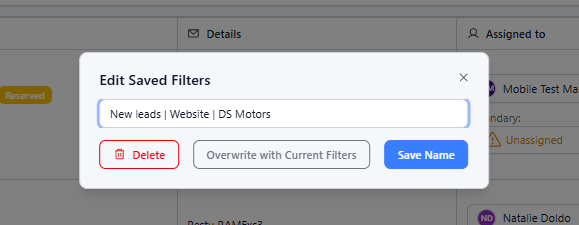
Click the pencil icon (Edit your current filters).
Choose the action you want to perform:
| Action | What to do | Result |
|---|---|---|
| Rename | Enter a new name and click Save Name | Updates the preset name |
| Update filters | Adjust the filters on the page, then click Overwrite with Current Filters | Replaces the saved filters with the filters currently on screen |
| Delete | Click Delete | Removes the preset from your browser |
Share a Saved Filter
You can share a saved filter with colleagues using a shareable link.
Select the preset from the Saved Filters dropdown.
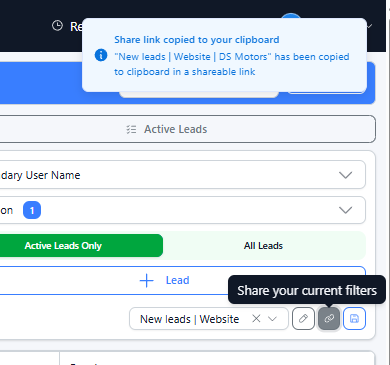
Click the link icon (Share your current filters).
A confirmation message will appear saying Share link copied to your clipboard.
Paste the link into Slack, email, or chat and send it to your colleague.
What Happens When Someone Opens the Link?
When a colleague opens the shared link:
They must be signed in and open the link on the same type of page it was created from.
Lead List link → Lead List
Kanban link → Kanban Board
The shared filters are automatically applied.
The preset is added to their Saved Filters on their browser.
If they already have a preset with the same name, it will be updated.
They will see a Saved filter applied confirmation.
Important: Sharing a filter does not give someone access to additional leads. Their existing dealership permissions still apply.
Tips for Sharing Filters
Only share filters with colleagues who already have access to the relevant dealership's leads.
Use a clear and descriptive preset name so recipients can easily identify it.
If the link doesn't work, ask the sender to copy the link again using the Share button.
If the link is invalid or incomplete, you may see:
Shared filter link is invalid
Could not apply shared filter
Clear Filters Without Deleting Saved Presets
You can clear your current filters without deleting your saved presets.
Classic Lead List: Click Clear All Filters
Kanban Board: Click Clear filters
This only resets the filters currently applied to the page. Your saved presets will remain available.
Manage Filters on the Classic Lead List only controls which filter options are displayed. It does not save, edit, or share filter values.
Good to Know
Saved presets are stored only in your browser on the device you are using.
Clearing your browser's site data, using another browser, or switching to another computer means your saved presets will not be available.
You can restore a preset by opening a share link again.
Stock Search has its own saved filters, separate from Lead List and Kanban saved filters.
Need Help?
If you need assistance with saved filters, contact support@dealerstudio.com.au.
Was this article helpful?
That’s Great!
Thank you for your feedback
Sorry! We couldn't be helpful
Thank you for your feedback
Feedback sent
We appreciate your effort and will try to fix the article