The process involves updating the dealer license information for a specific location on the website. This includes navigating to the Edit mode, going to the Dealer License section, pasting the dealer license number, and updating the location details at the bottom of the page. These steps ensure that each dealership location displays the correct, legally required license information.
Step 1. Navigate to the Correct Level (Dealer Level → Website Level)
Your CMS has two levels of settings:
Dealer Level
Website Level
First, ensure you’re on Dealer Level.
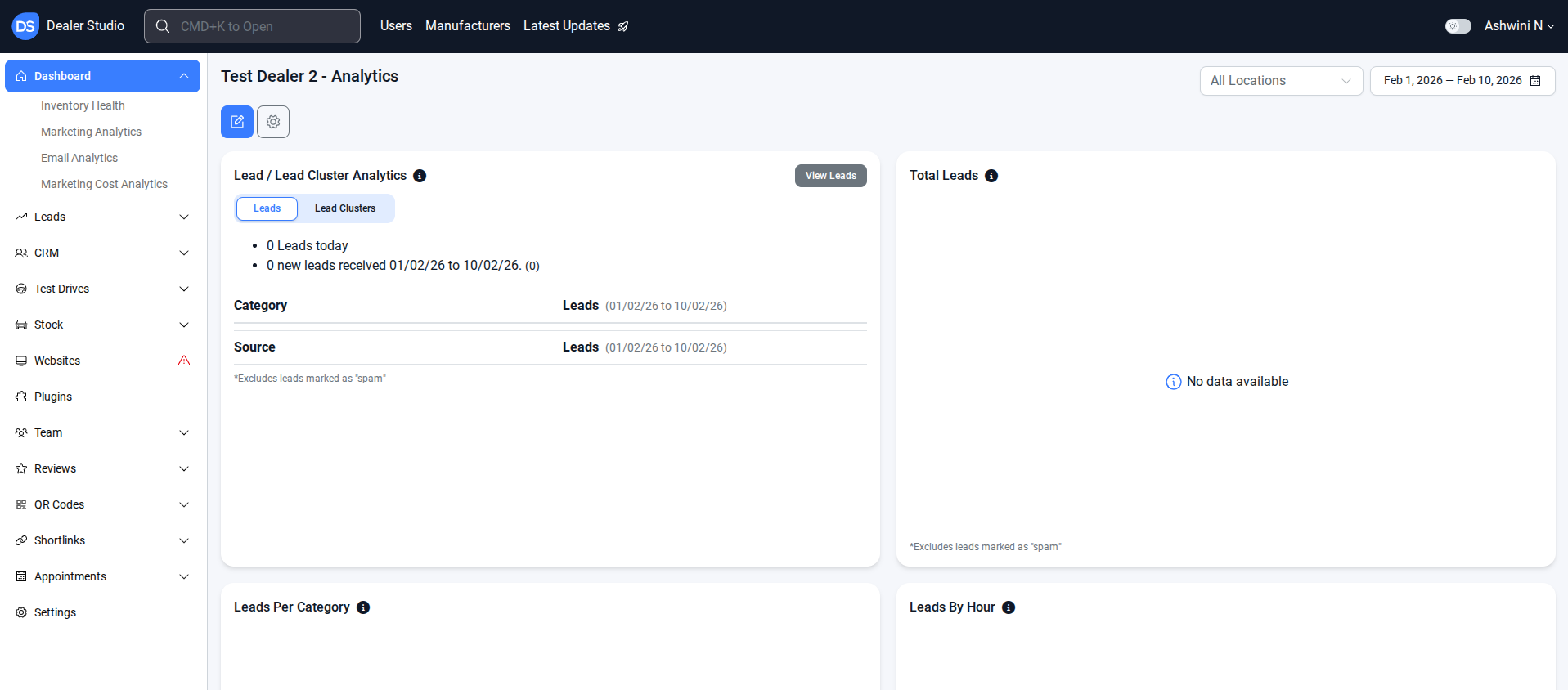
Step 2. Select Settings → Go to the Locations
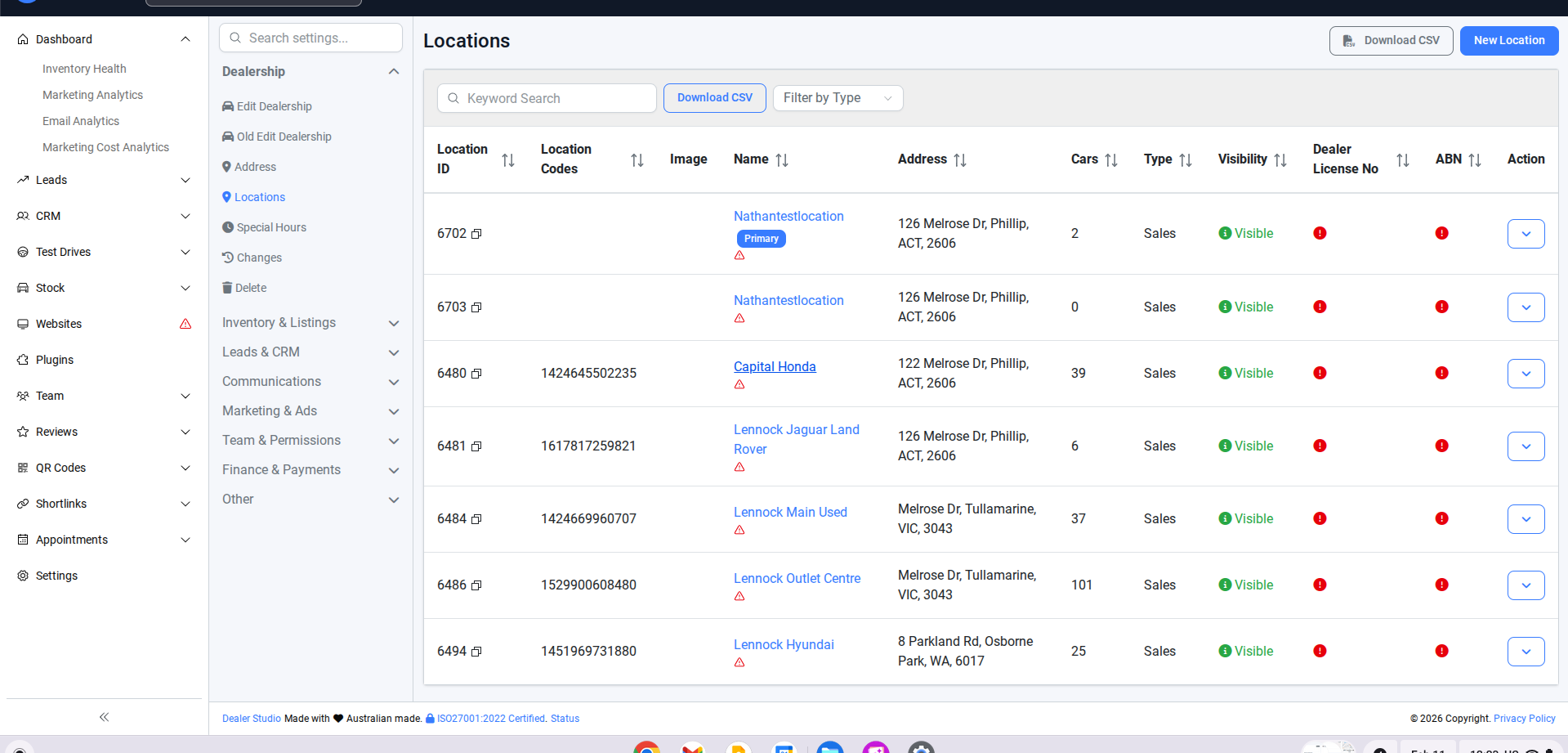
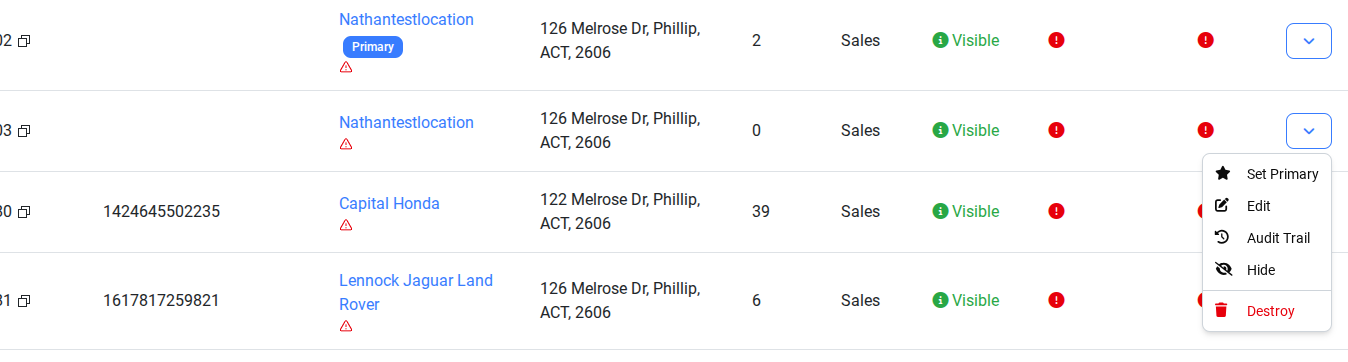
Step 3. Edit the location you want to change
Step 4. In Edit, go to the Dealer License section.
Paste the Dealer License Number in the Field
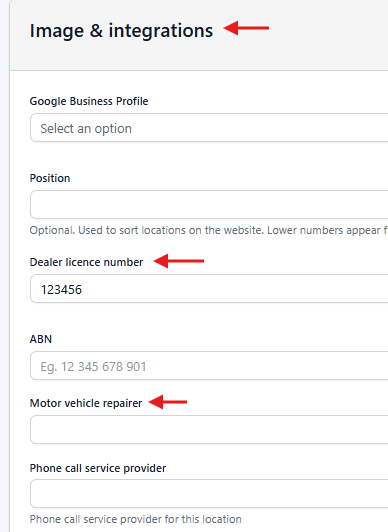
Update the location at the bottom of the page
Verify on the live website that the dealer license and location are correctly displayed.

Following these steps will ensure that dealer license information is accurate and up to date across all website locations. This maintains compliance, provides transparency for customers, and ensures consistency across the site.
Was this article helpful?
That’s Great!
Thank you for your feedback
Sorry! We couldn't be helpful
Thank you for your feedback
Feedback sent
We appreciate your effort and will try to fix the article