This article explains how to set up special operating hours for a location to account for public holidays or one-off exceptions. It covers when and why to use special hours, how to add or edit them, and how they override regular trading hours for specific dates. The guide also includes best practices for clearly labelling holidays, avoiding conflicts with normal schedules, and ensuring changes are reflected correctly for customers and internal teams.
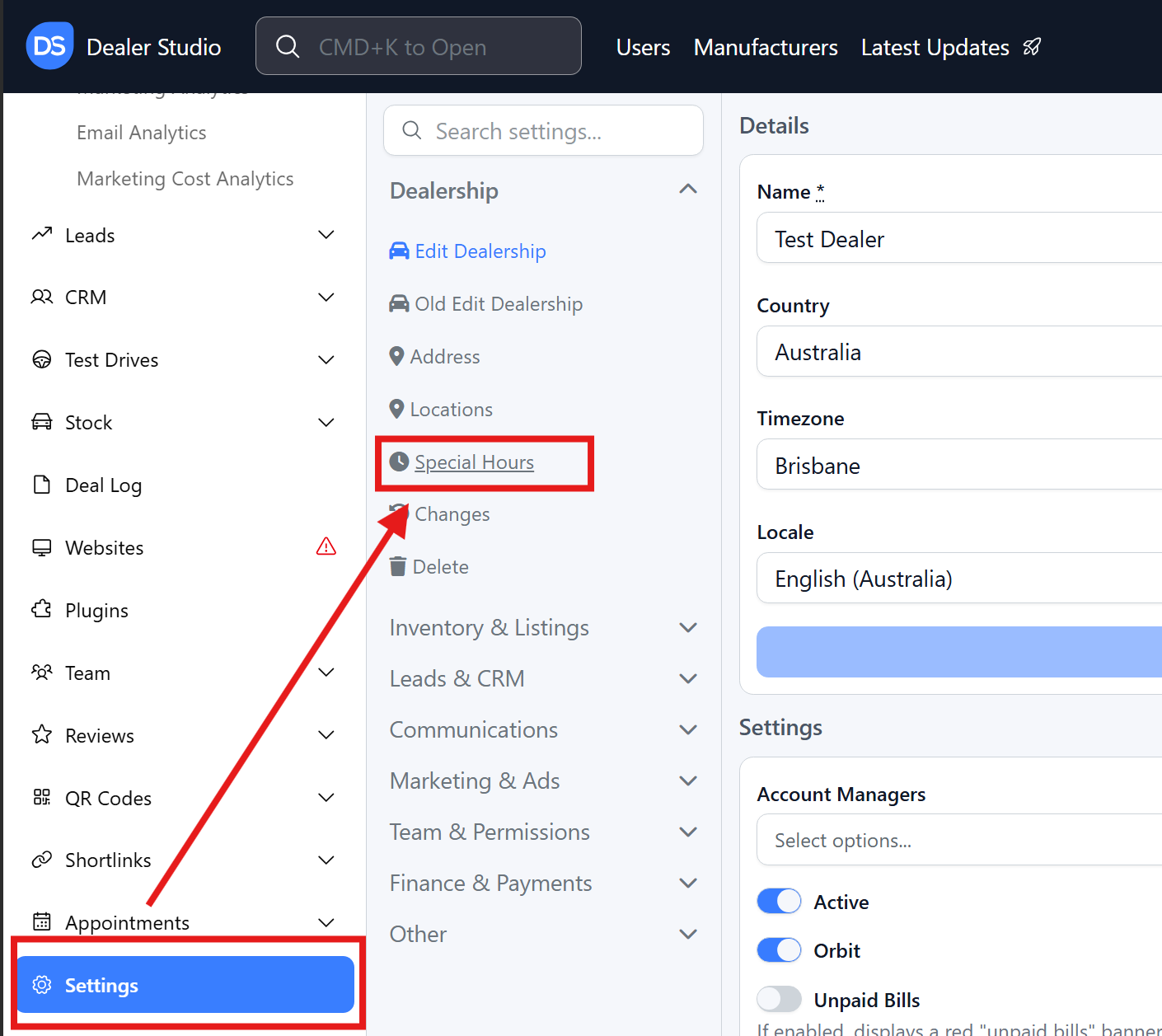
Step 1: Go to Dealer-Level Settings
- Navigate to the Dealer Level in your CMS Dashboard.
- On the left-hand sidebar, click Settings.
- In the Settings section, locate the following option > Special Hours
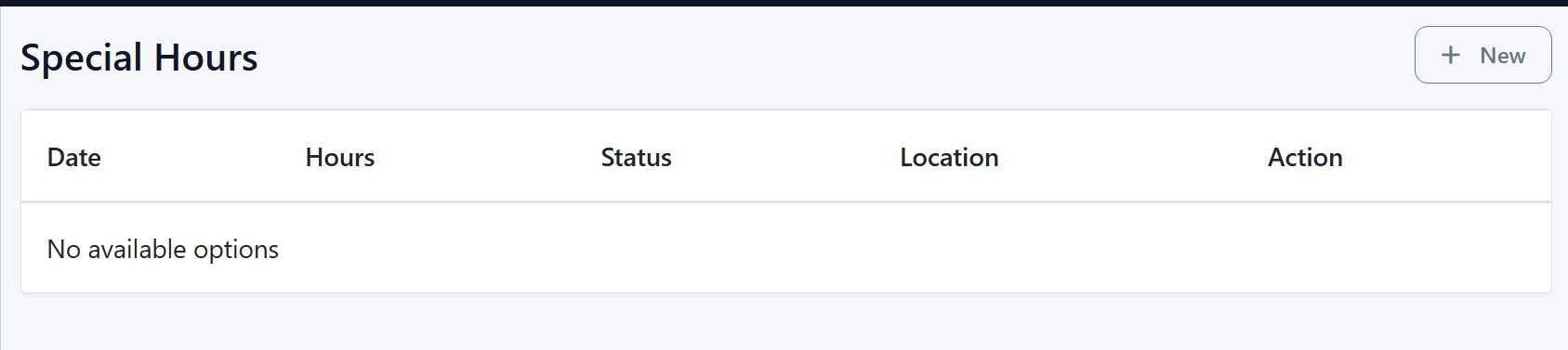
Step 2: '+ New ' New Special hours
Step 3: Outline the Special Hours;
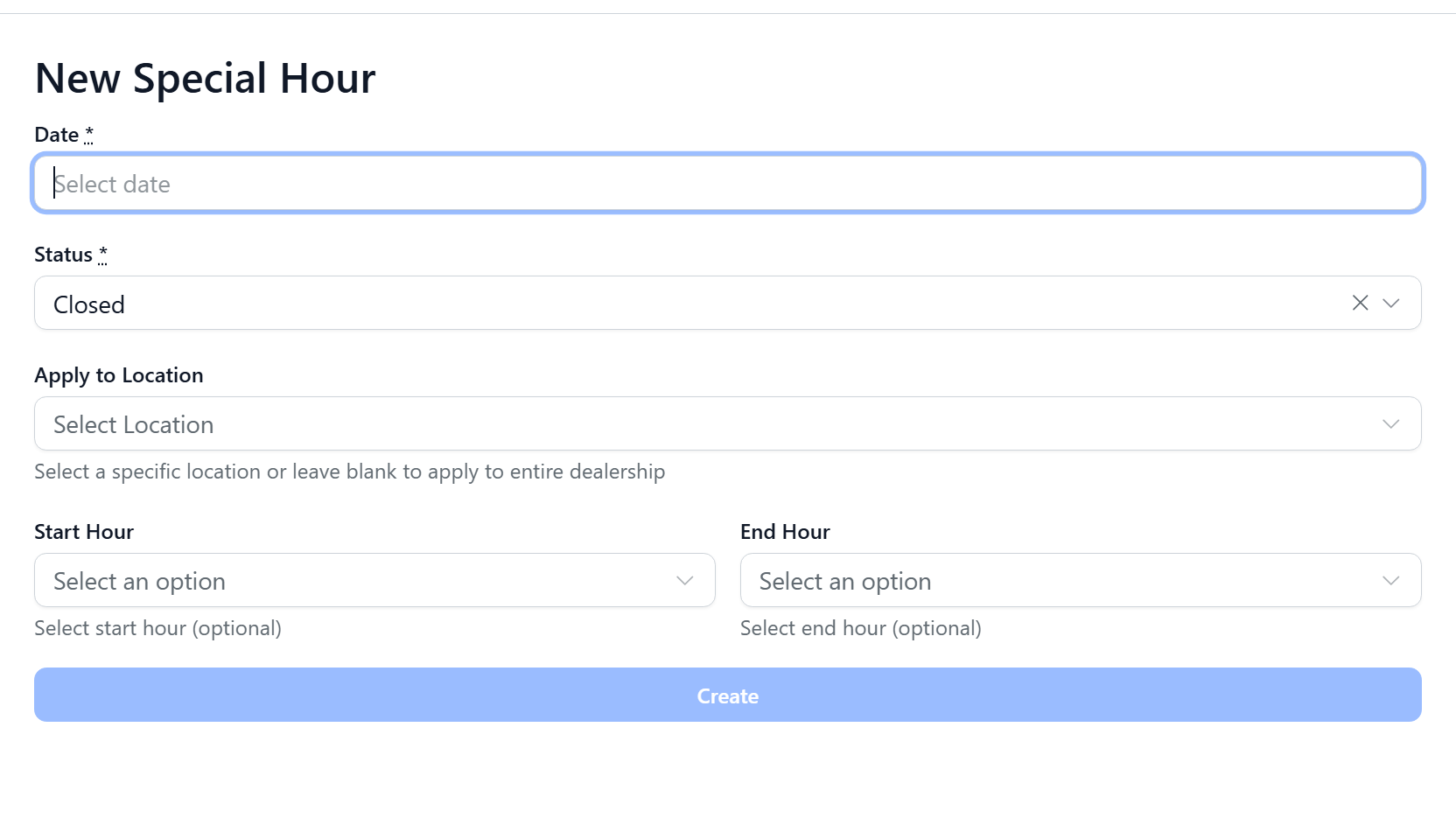
- You can select the date of the special hours
- If you do not wish to be closed- you have the opportunity of three options:
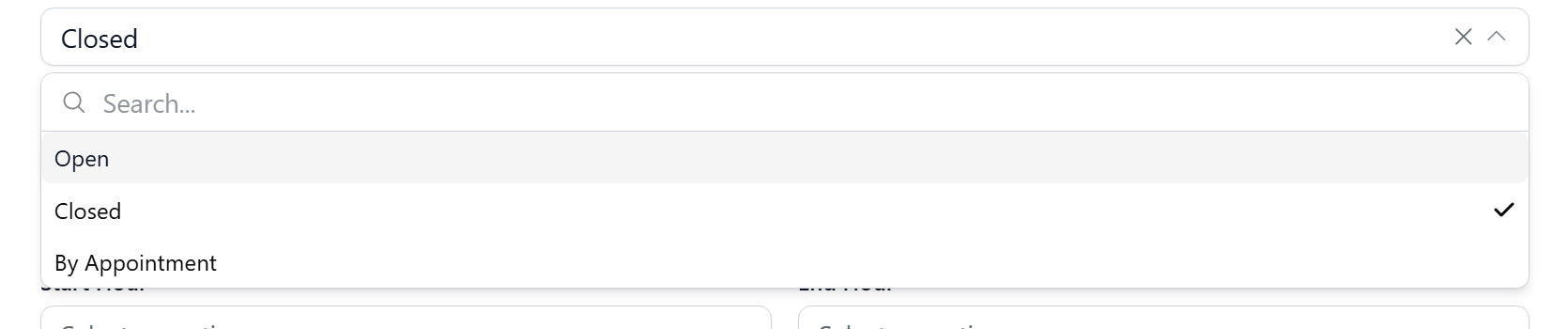
- Select the location and set the start and end hours.
- Please click create
Was this article helpful?
That’s Great!
Thank you for your feedback
Sorry! We couldn't be helpful
Thank you for your feedback
Feedback sent
We appreciate your effort and will try to fix the article