What Is the Facebook Conversions API Token and Why Is It Needed?
The Facebook Conversions API (CAPI) allows your website to send conversion events (such as leads or form submissions) directly from the server to Meta instead of relying only on browser-based tracking via the Facebook Pixel.
This is important because:
Browser tracking can be blocked by ad blockers, cookie consent settings, and privacy updates (e.g. iOS).
The Conversions API improves event accuracy, attribution, and campaign optimisation.
Meta recommends using the Facebook Pixel and Conversions API together for best performance.
The Conversions API access token is a secure key that authorizes Dealer Studio to send server-side events to your Meta dataset.
Step 1: Access Plugins in Dealer Studio
Log in to the Dealer Studio dashboard.
From the left-hand sidebar, navigate to Websites.
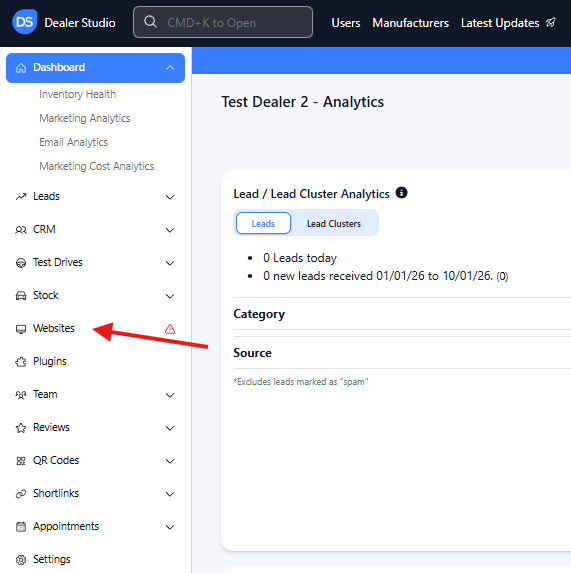
Select the website you want to connect to Facebook.
Open the Plugins section.
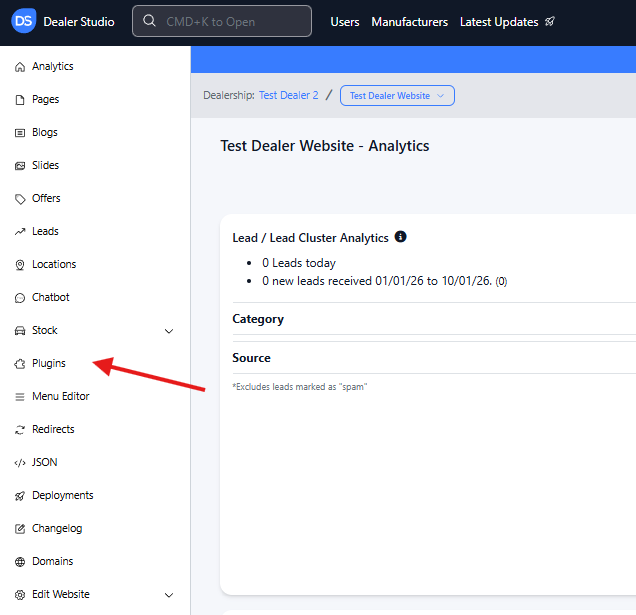
This is where you will add both the Facebook Pixel ID (Dataset ID) and the Conversions API token.
Step 2: Access Meta Business Settings
Log in to Meta Business Manager.
Go to Business Settings.
Navigate to Data Sources → Datasets (formerly Pixels).
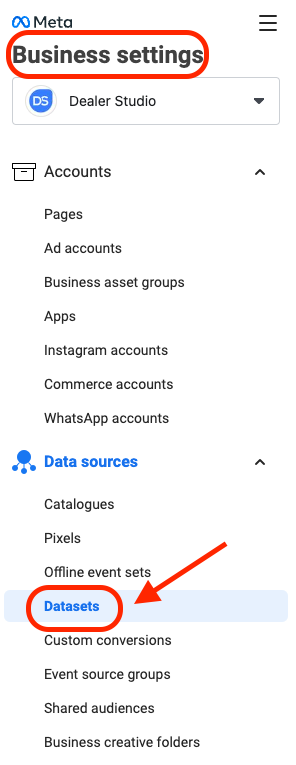
? If you already have an existing Facebook Pixel/Dataset you want to use, do not create a new one. Skip to Step 4.
Step 3: Create a New Dataset (If Required)
Create a new Dataset.
Complete the standard setup:
Assign people with appropriate access.
Connect relevant ad accounts.
Once created, click Open in Events Manager (top-right corner).
Step 4: Copy the Dataset ID (Pixel ID)
In Events Manager, open the Settings tab for the dataset.
Locate the Dataset ID (also referred to as the Facebook Pixel ID).
Copy the Dataset ID.
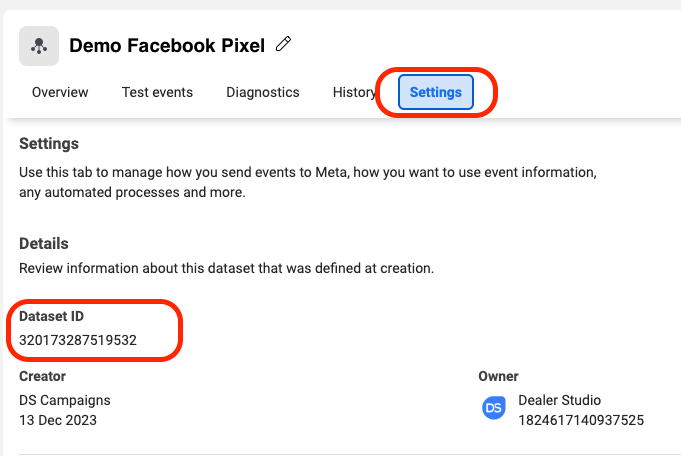
Step 5: Add the Facebook Pixel ID in Dealer Studio
Return to Dealer Studio → Websites → Plugins.
Paste the Dataset ID into the Facebook Pixel ID field.
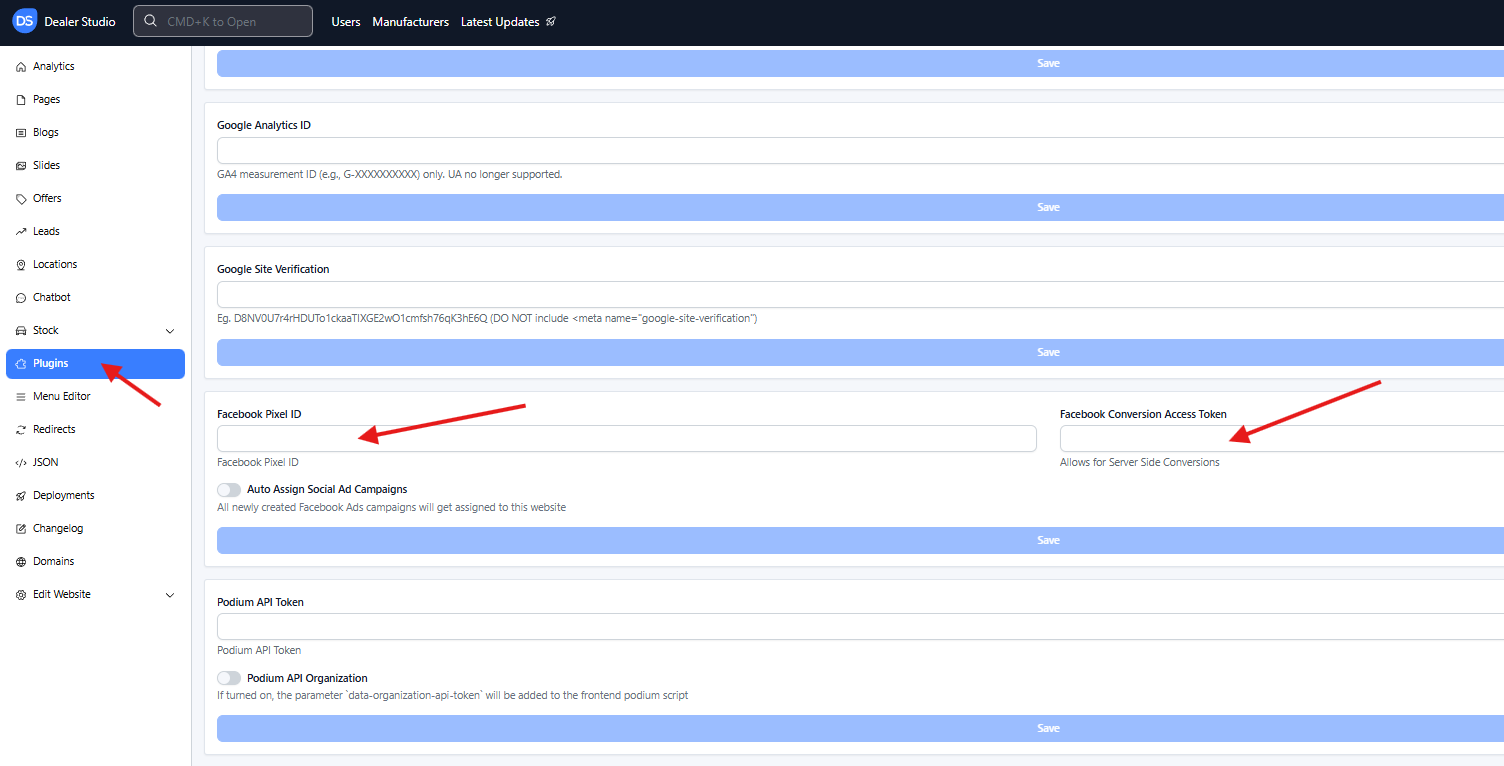
Click 'Save'
Step 6: Generate a Conversions API Access Token
Go back to Meta Events Manager.
Open the same dataset.
Navigate to Settings → Conversions API.
Click Generate access token.
Copy the generated token.
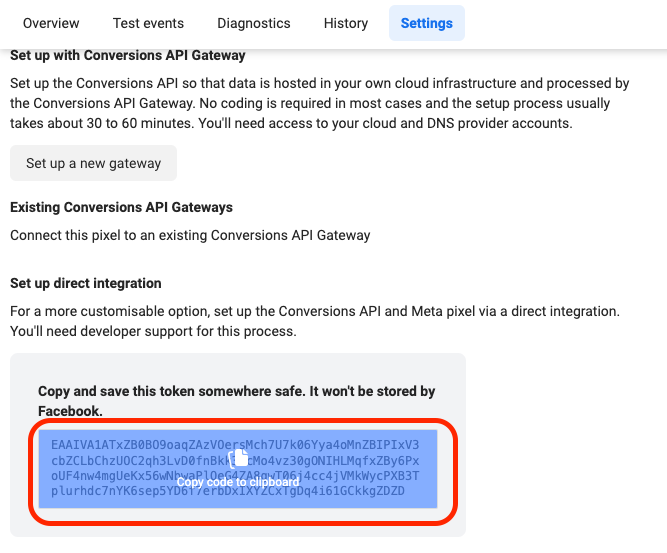
⚠️ Keep this token secure. Anyone with access to it can send events to your dataset.
Step 7: Add the Access Token in Dealer Studio
Return to Dealer Studio → Plugins.
Paste the token into the Facebook Conversions API Access Token field.
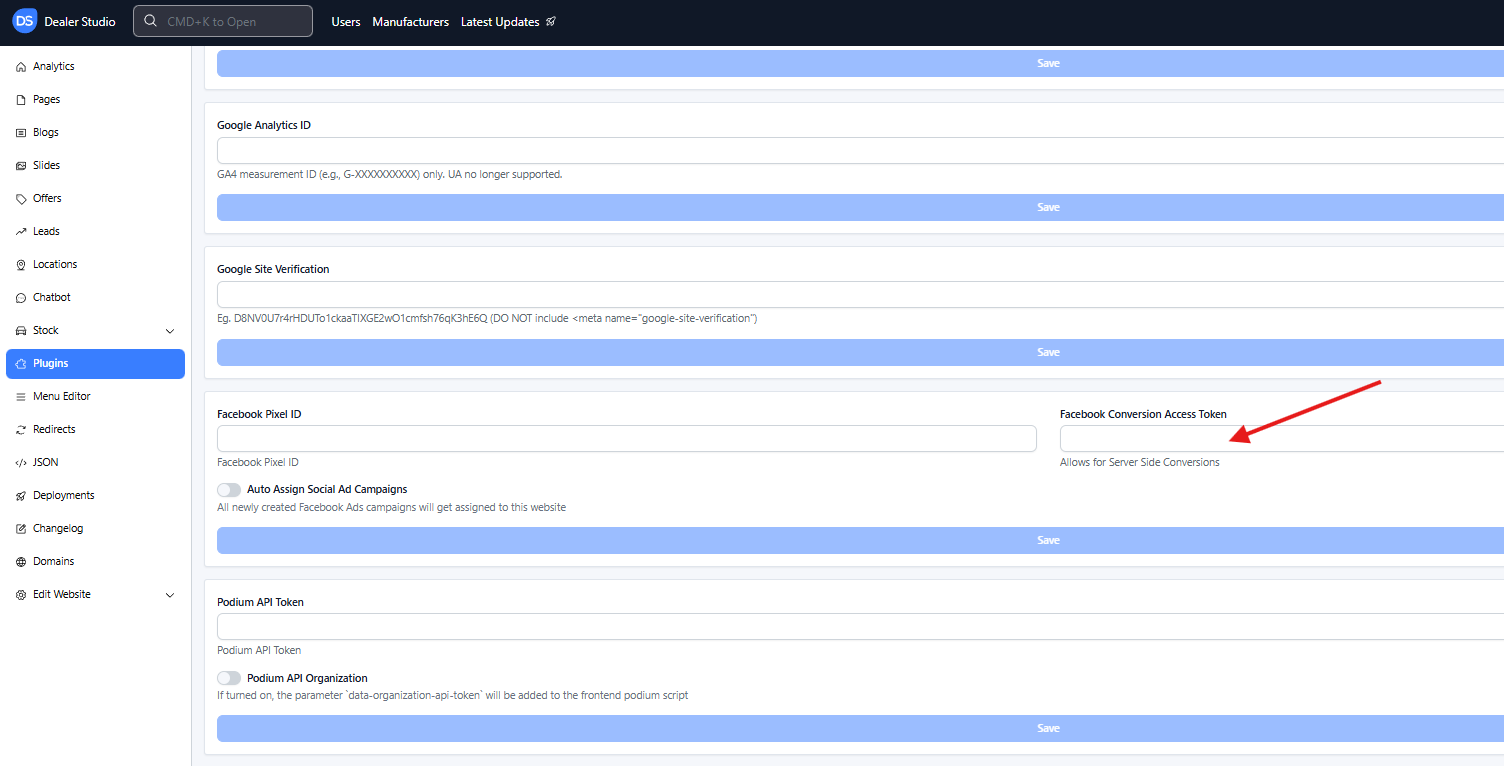
Click 'Save'
Step 8: Save and Rebuild the Website
Ensure both fields are populated:
Facebook Pixel ID
Facebook Conversions API Access Token
Click 'Save' again to make sure both fields are saved properly.
The website will rebuild automatically.
⏳ This process may take 15–20 minutes to complete.
Confirmation and Best Practices
Once completed:
Dealer Studio will send conversion events via both browser (Pixel) and server (CAPI).
Events should begin appearing in Meta Events Manager shortly after rebuild.
Recommended Campaign Setup
For best results:
Create your Meta ads as a Lead campaign.
Select the same Dataset (Pixel) you connected.
Optimise for the Lead conversion event.
? Well done!
You have successfully enabled Facebook Conversions API for your Dealer Studio website.
Was this article helpful?
That’s Great!
Thank you for your feedback
Sorry! We couldn't be helpful
Thank you for your feedback
Feedback sent
We appreciate your effort and will try to fix the article