Learn how to add, edit and manage Offers at the OEM level. Offers created at the OEM level (e.g. new vehicle, service or finance offers) display on the Offers pages of all of the relevant dealership websites.
1. How to Navigate to The Offers Menu
Step 1: Please Login to Dealer Studio.
You will be prompted for your Username and Password
You will be prompted for your 2-Factor Authentication Method, or SSO verification
Step 2: Once Signed in Please Select the Applicable OEM
e.g. Mitsubishi NZ
Step 3: Click 'Marketing' on the left, then 'Offers'
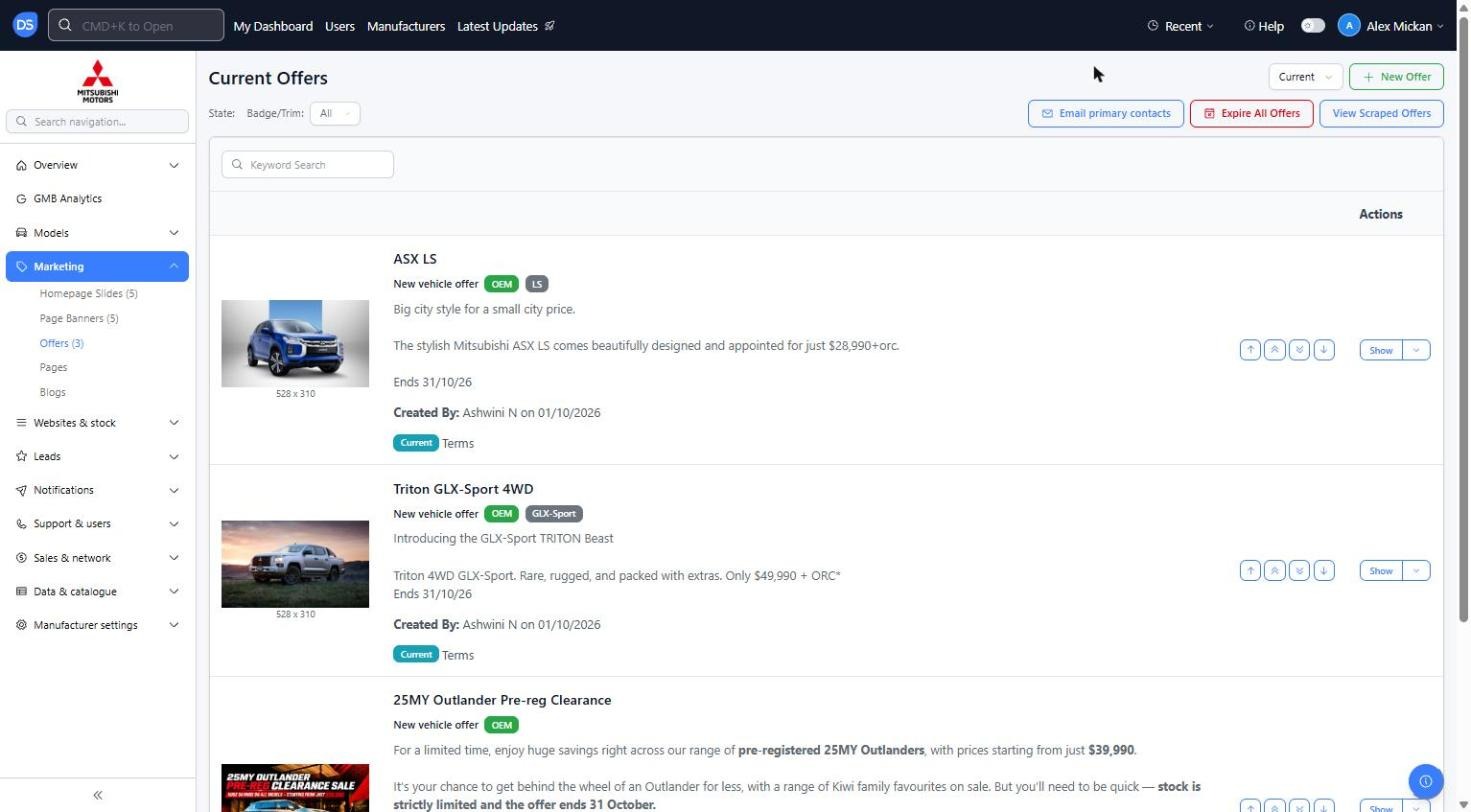
Using Mitsubishi NZ as an example, you can see the current offers, including the image, category, badge/trim, expiry date and who created it
The 'Current' drop-down at the top right lets you switch between current and expired offers
Filter by State or Badge/Trim, or use the 'Keyword Search' to find a specific offer
The buttons at the top right also include 'Email primary contacts', 'Expire All Offers' and 'View Scraped Offers'. Please take care with 'Expire All Offers', as it expires every current offer
2. How to Add in A New Offer
Step 1: Once you have Navigated to the Offers tab, as above
Please click '+ New Offer'
Step 2: Fill in the New Offer form
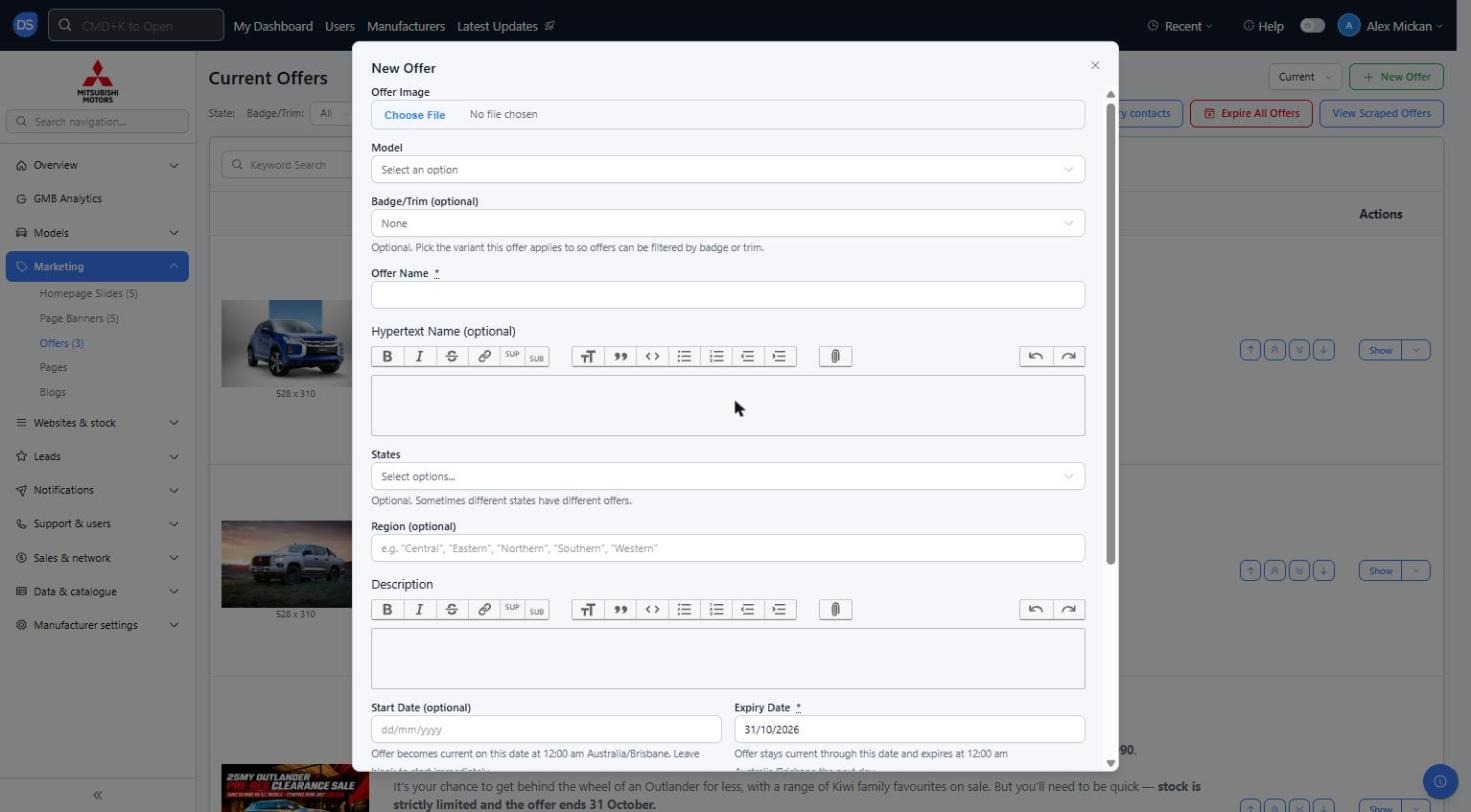
You will see the below options;
Offer Image: The offer image. Existing offers use 528 x 310, so we recommend uploading images at this size
Model: The model the offer applies to
Badge/Trim (optional): Pick the variant this offer applies to, so offers can be filtered by badge or trim
Offer Name (Required): The offer heading, e.g. 'ASX LS'
Hypertext Name (optional): A formatted version of the offer name, e.g. with bold or a line break
States: Optional. Use this if different regions have different offers
Region (optional): e.g. 'Central', 'Eastern', 'Northern', 'Southern', 'Western'
Description: The main offer text
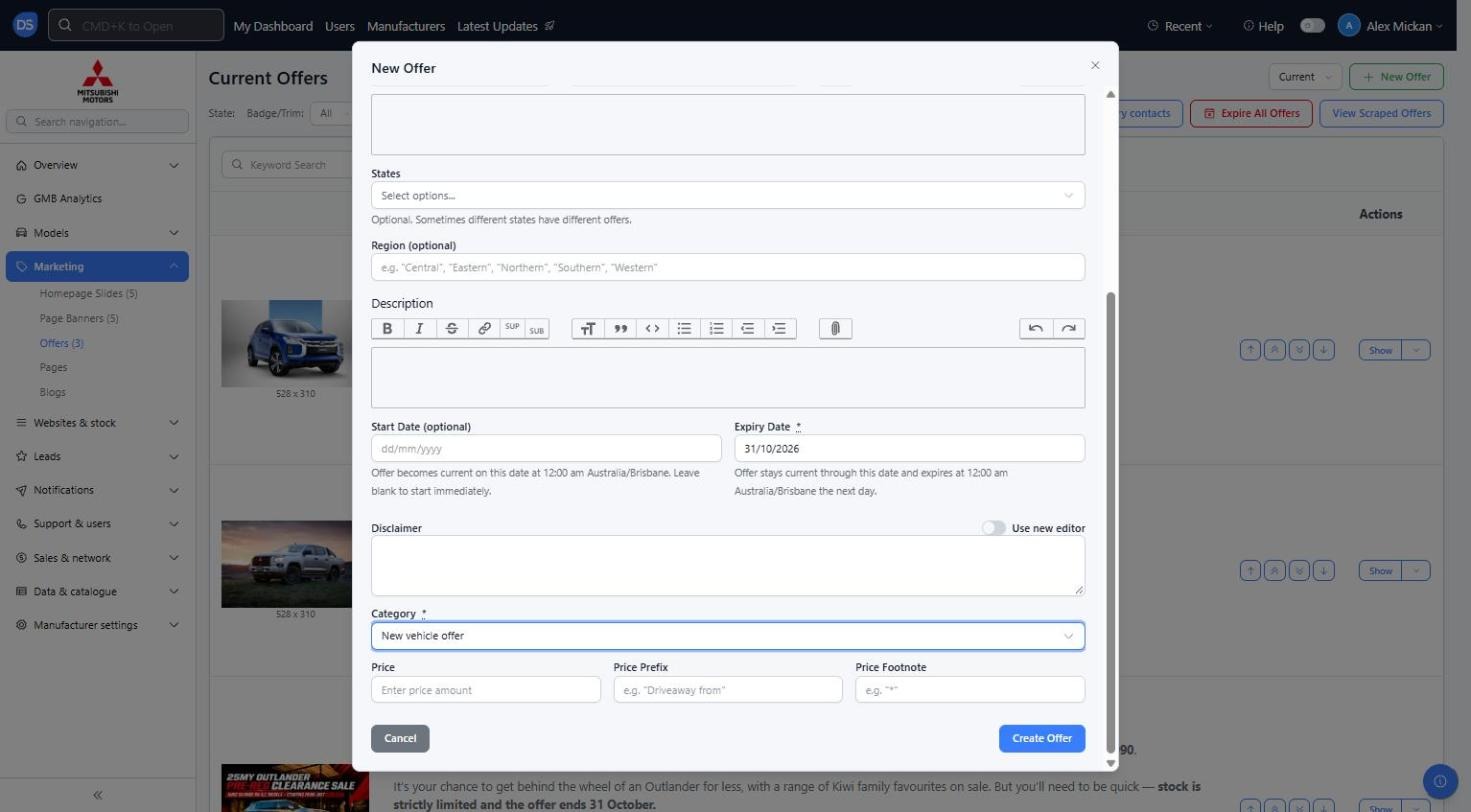
Start Date (optional): The offer becomes current on this date at 12:00 am. Leave blank to start immediately
Expiry Date (Required): The offer stays current through this date and expires at 12:00 am the next day
Disclaimer: The offer terms and conditions
Category (Required): New vehicle offer, Used vehicle offer, Service offer, Parts offer or Finance offer
Price: The offer price
Price Prefix: Text shown before the price, e.g. 'Driveaway from'
Price Footnote: Text shown after the price, e.g. '*'
Step 3: Once you have entered all required information for the offer, Please click 'Create Offer'
The offer will now show in the Current Offers list
3. How to Edit, Re-order or Manage An Existing Offer
Step 1: Find the offer you want to change on the Offers list
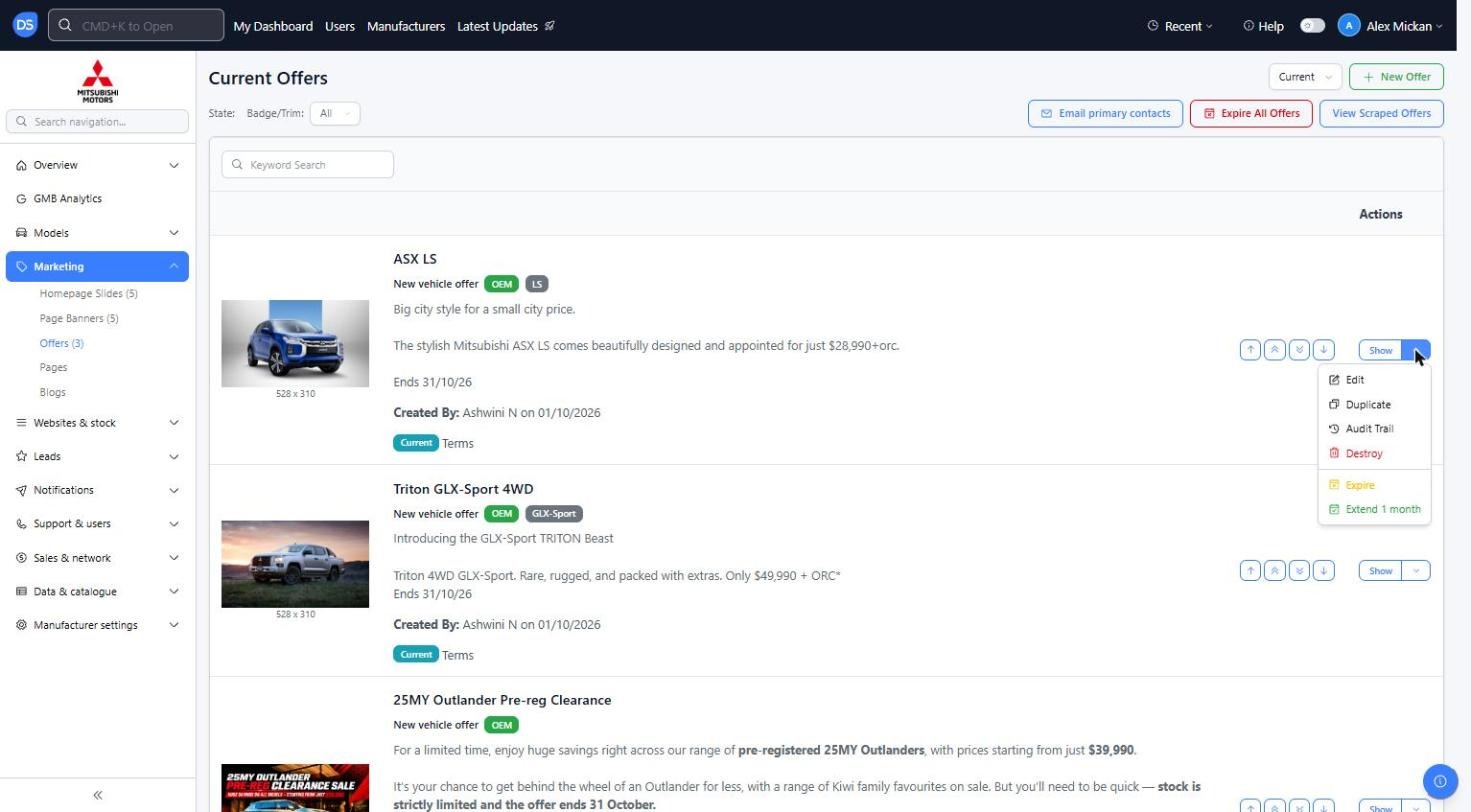
Click 'Show' to view the offer
Use the arrow buttons to change the order of the offers
Click the drop-down arrow next to 'Show' for more options: 'Edit', 'Duplicate', 'Audit Trail' (see who has made changes and when), 'Destroy' (permanently delete the offer), 'Expire' (stop the offer straight away) and 'Extend 1 month'
Reminder: Start and expiry times are based on Australia/Brisbane time, so please allow for the time difference in New Zealand when setting dates.
Was this article helpful?
That’s Great!
Thank you for your feedback
Sorry! We couldn't be helpful
Thank you for your feedback
Feedback sent
We appreciate your effort and will try to fix the article