We've recently made a few changes to the dashboard's Email Reports section. You can now sync Custom Reports created in the Leads section and configure them to be sent automatically to your chosen recipients.
Here's a quick overview of how it works:
1. Create a custom report
In the Lead Reports section, you can generate a custom report by selecting from the available filters and options.
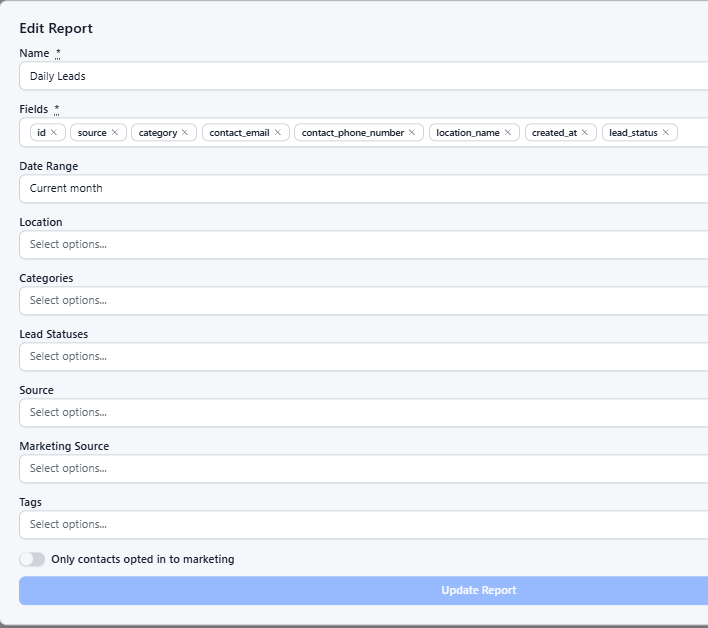
Once you've selected your preferred criteria, generate the report.
Info: To navigate directly to the Lead Reports section, use the following URL and replace [dealership-name] with your dealership's name:
https://dashboard.dealerstudio.com.au/dealerships/[dealership-name]/lead_clusters/reports
For example, if your dealership name is dealerstudio-motor-group, the URL would be:
https://dashboard.dealerstudio.com.au/dealerships/dealerstudio-motor-group/lead_clusters/reports
2. Sync the Report with Email Reports
Once the Lead Report has been created, you can sync it with the Email Reports section.
To navigate to Email Reports, please search in dealership settings:
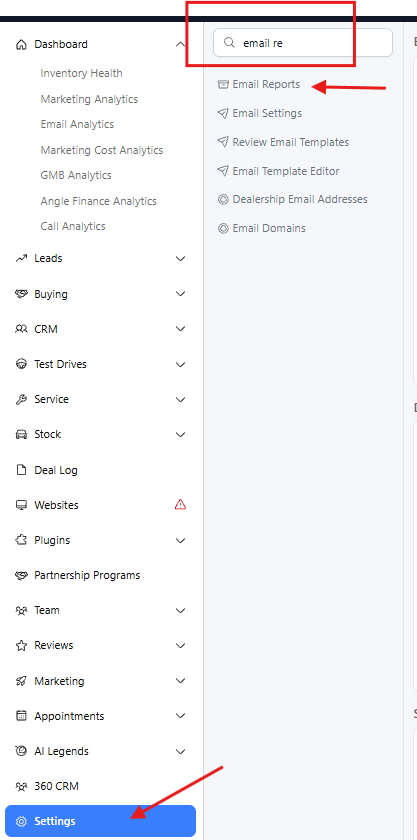
From there, you can configure the report's email settings, including when the report should be sent and who should receive it.
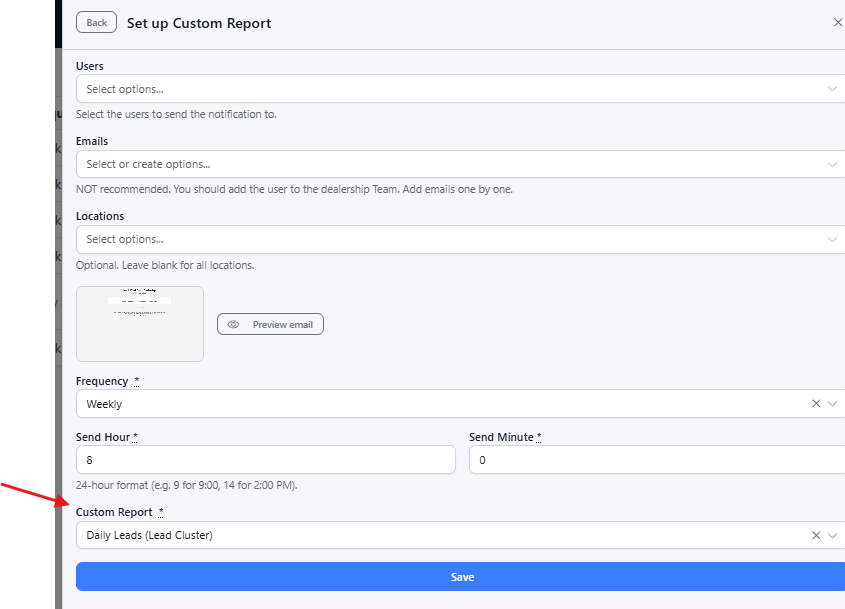
This allows you to automatically send the relevant lead information to your chosen recipients on a scheduled basis, without needing to manually generate and send the report each time.
I hope this helps! Please contact support@dealerstudio.com.au if you have any questions or would like a hand setting up a specific report.
Was this article helpful?
That’s Great!
Thank you for your feedback
Sorry! We couldn't be helpful
Thank you for your feedback
Feedback sent
We appreciate your effort and will try to fix the article